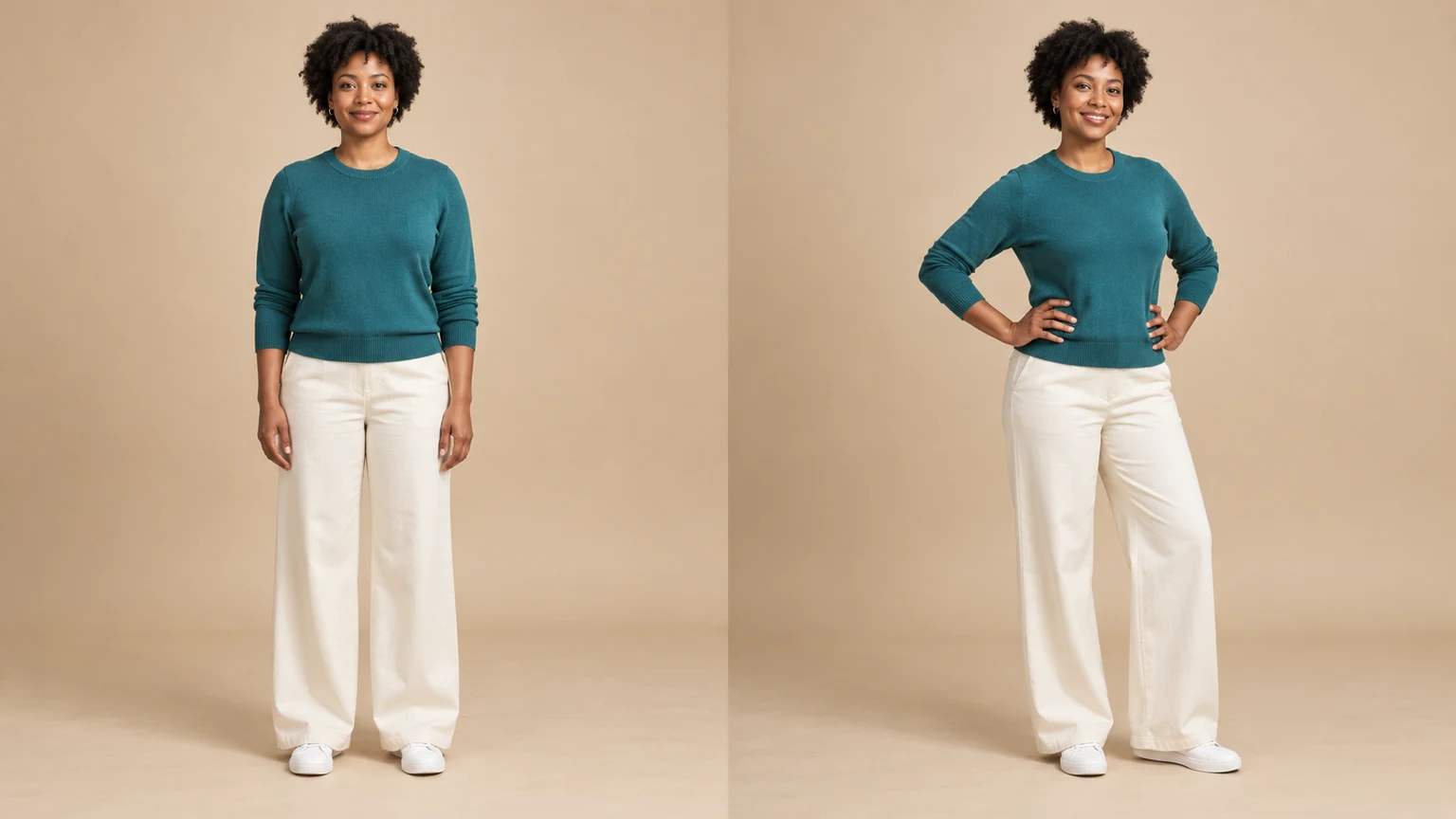
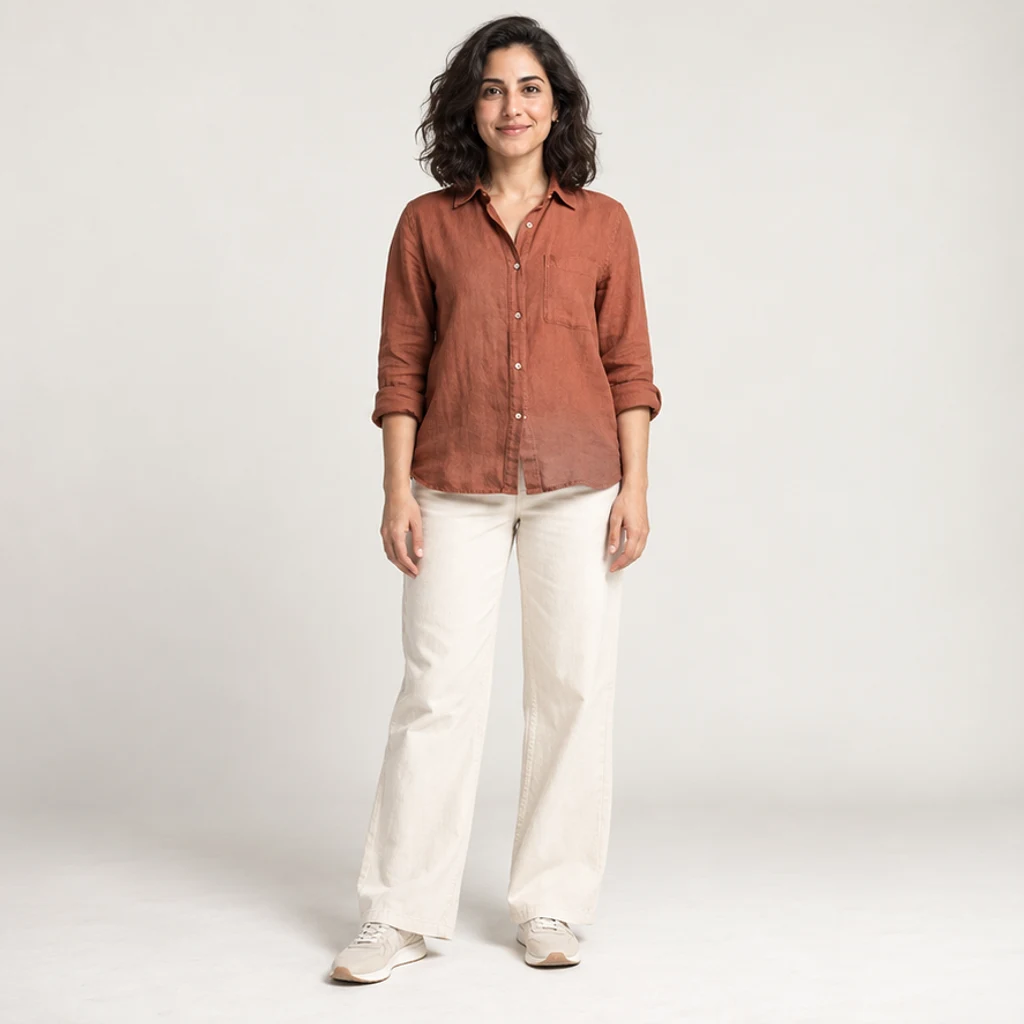
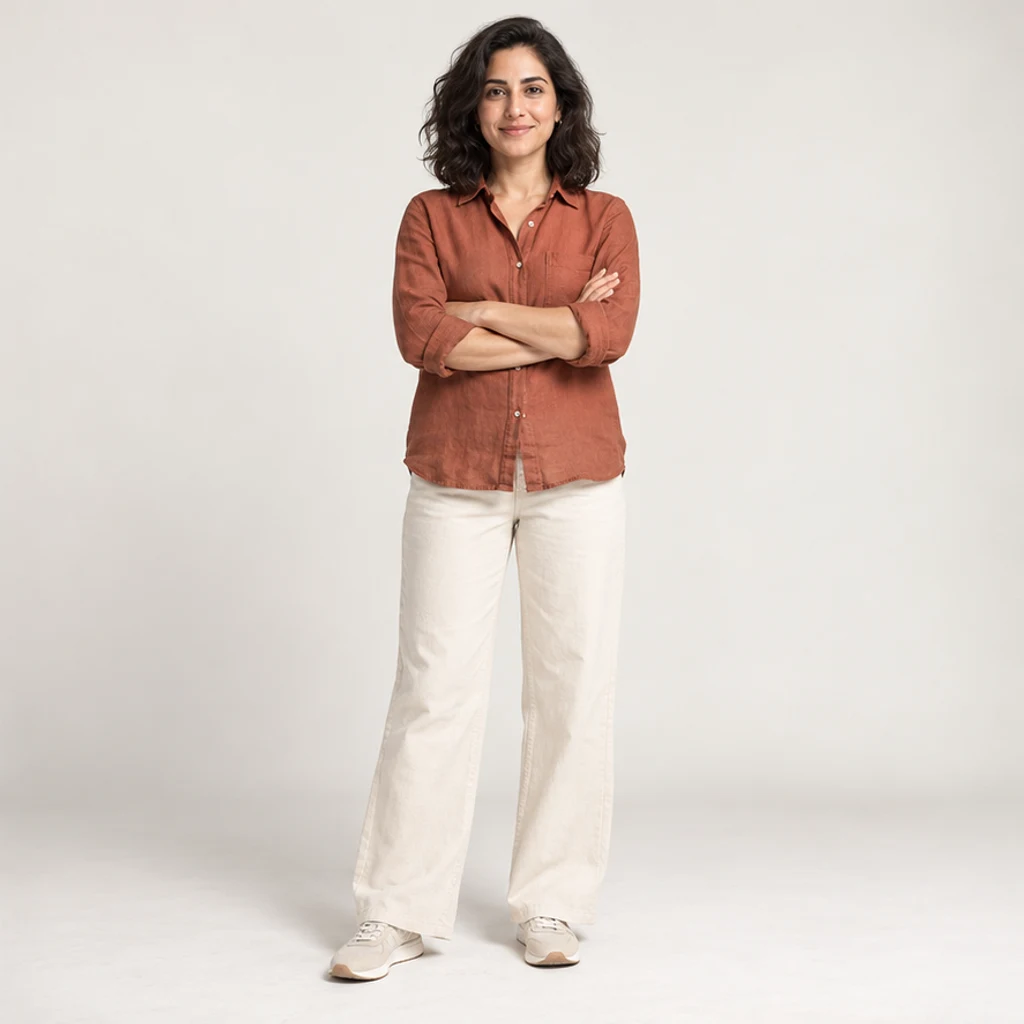
Portrait: arms crossed
Try these settingsA standing portrait changes to arms crossed. Check the shoulders, wrists and shirt folds.
An AI pose generator edits the body position of a person or illustrated character in an existing image. Use a pose template for a familiar action, or a separate reference image for the movement you want. The result is a new static image that needs review.
LumiYingUpdated
Change a person or character’s pose from a photo. Choose 8 pose templates or upload a pose reference, then generate and review the result.
Upload a sharp image with one person or character. Include the full body where possible, especially hands, feet and the clothing you want to keep. JPEG, PNG and WebP are supported up to 30 MB.
Select one of the 8 pose cards or upload a pose reference. The image shown in Pose is used as the pose reference together with your person image. Use extra notes to clarify the action.
Check the credits displayed in the workspace and click Generate. Selecting a card or trying example settings does not generate or spend credits. Each submission creates one static image.
Compare the face, outfit, hands, feet and balance with the original. If the action is unclear, use a simpler pose or clearer reference. Keep the original and download an acceptable result; do not treat a generated image as an unedited photograph.
Uploading a reference replaces the active template. To use a template instead, click a pose card below the preview.
These AI-created illustrations show pose ideas, not verified outputs of this tool. Try an original image and its settings; your generated result may differ.
A standing portrait changes to arms crossed. Check the shoulders, wrists and shirt folds.
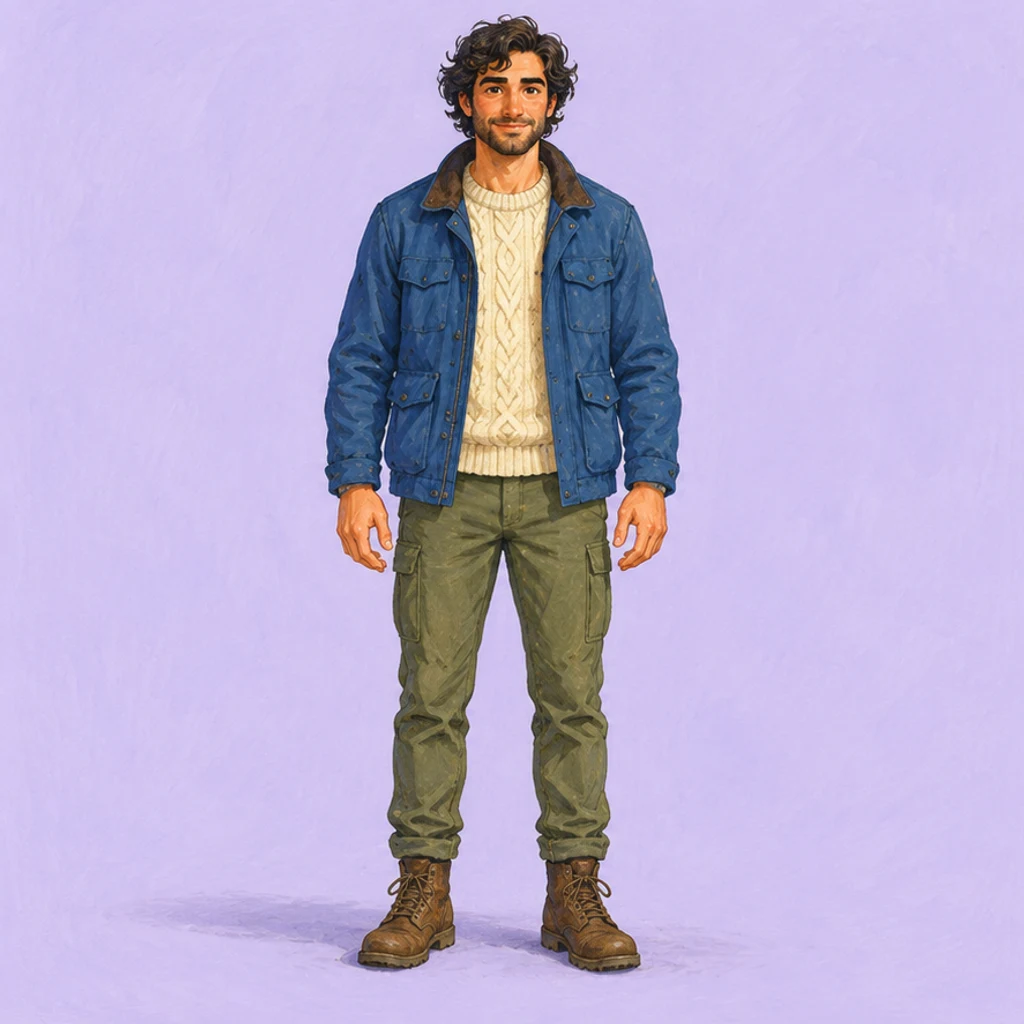
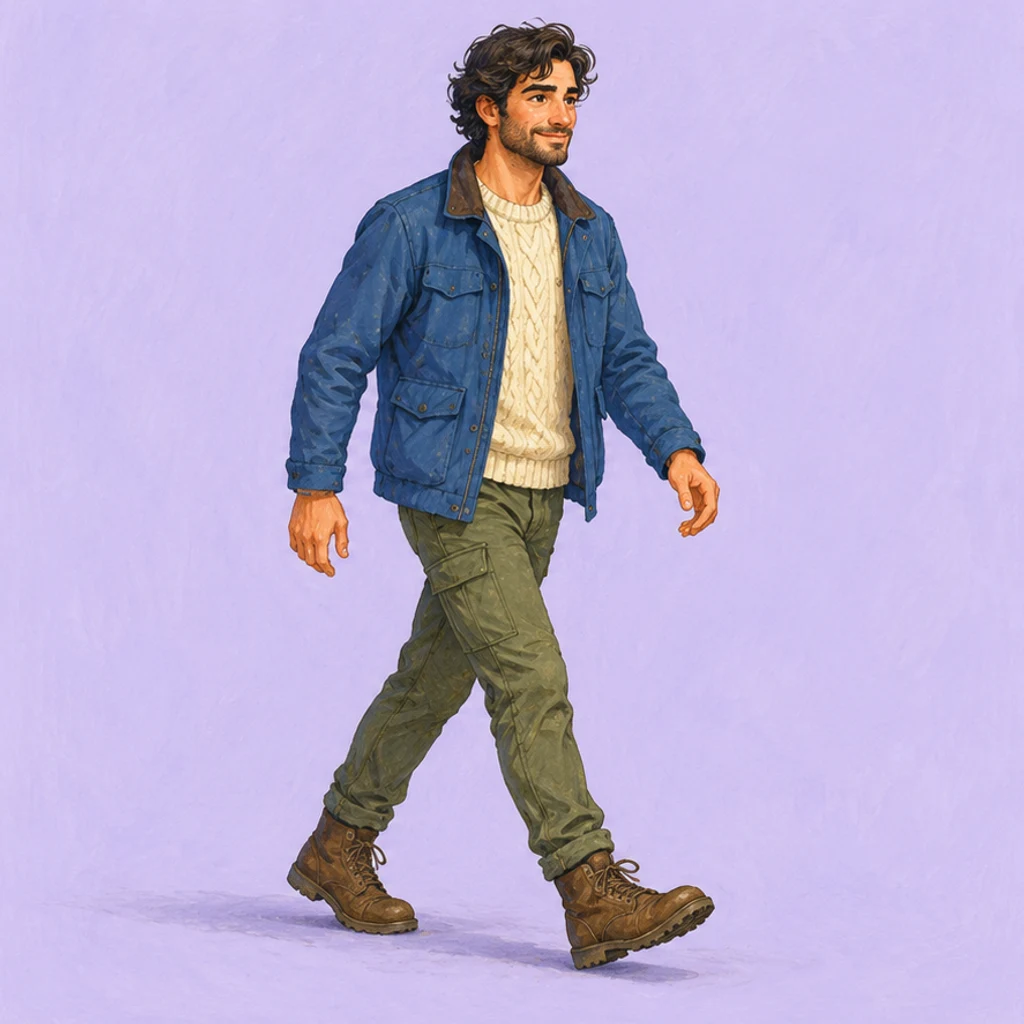
A drawn character changes from standing to walking. Check the leading foot, arm swing and outfit shapes.
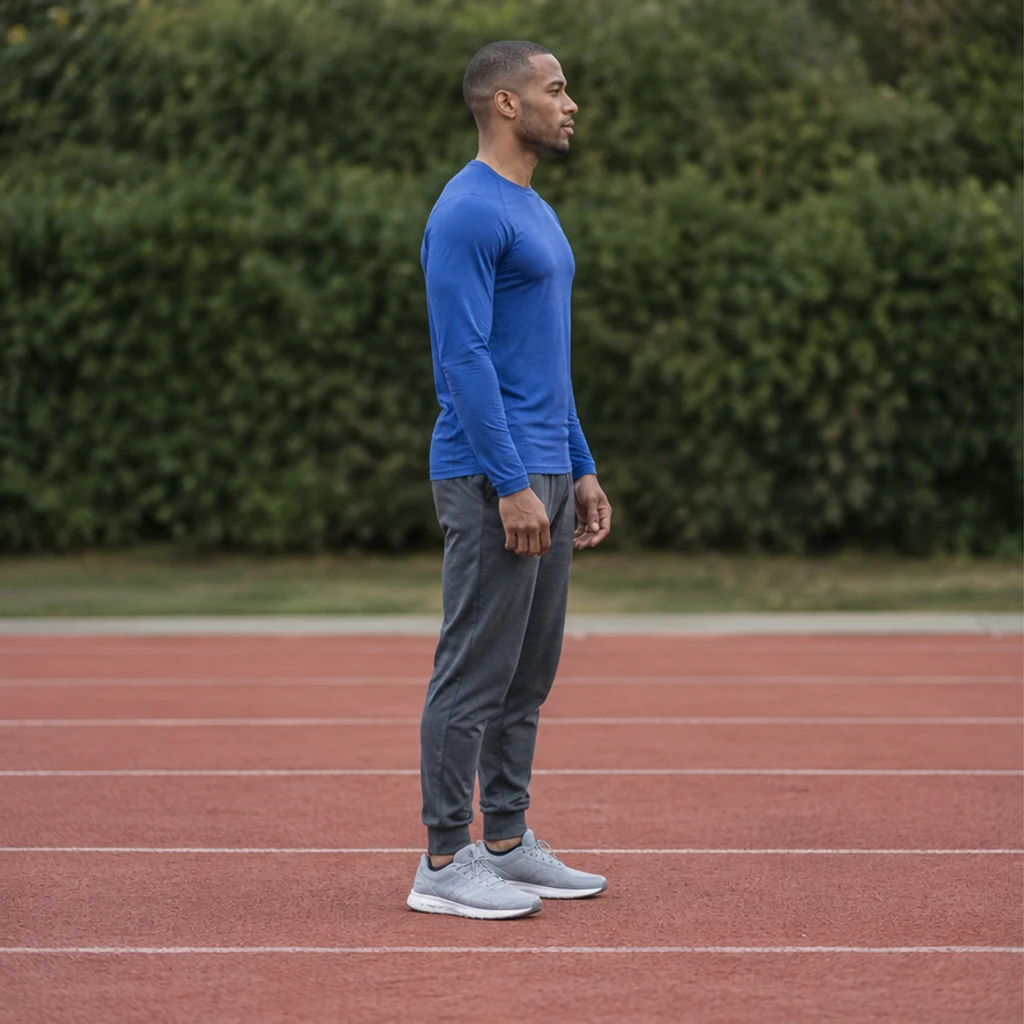
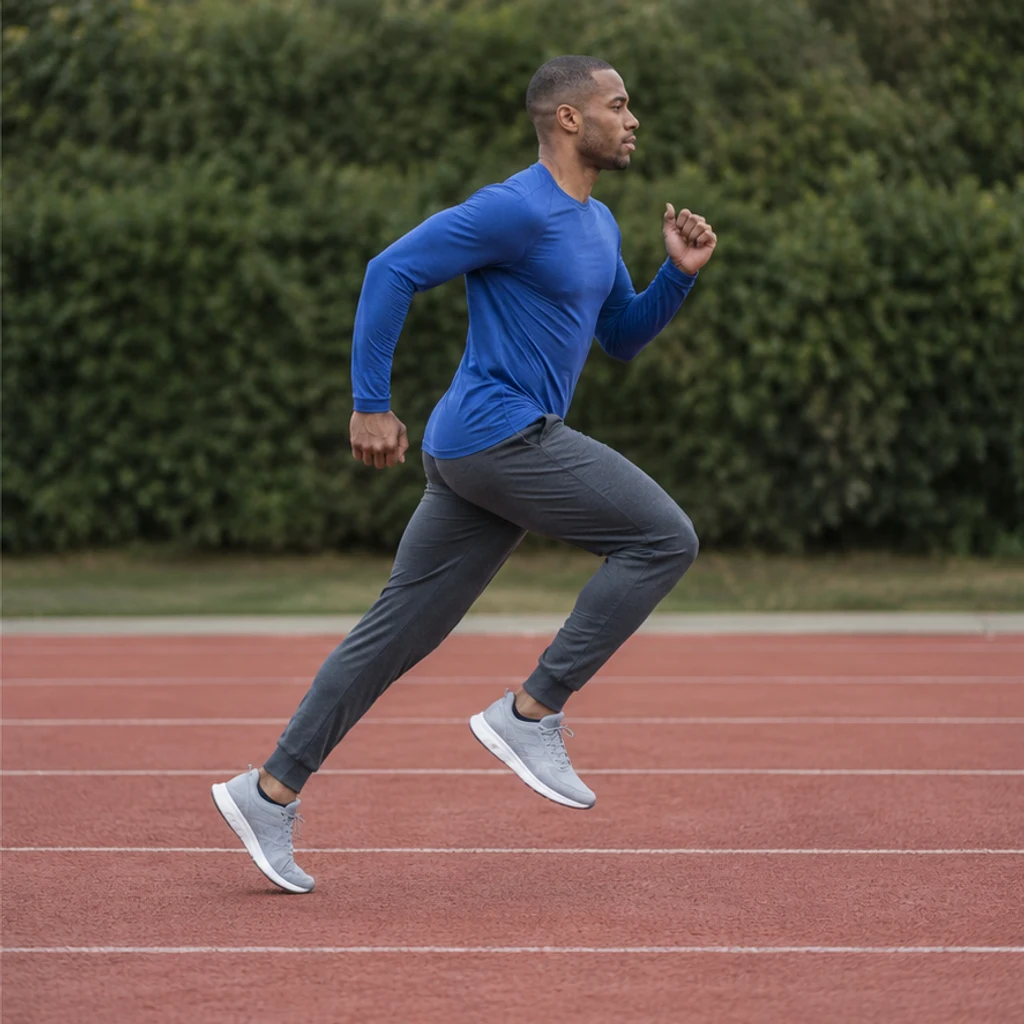
A standing athlete changes to a running stride. Check opposite arm and leg movement, knees and ground contact.

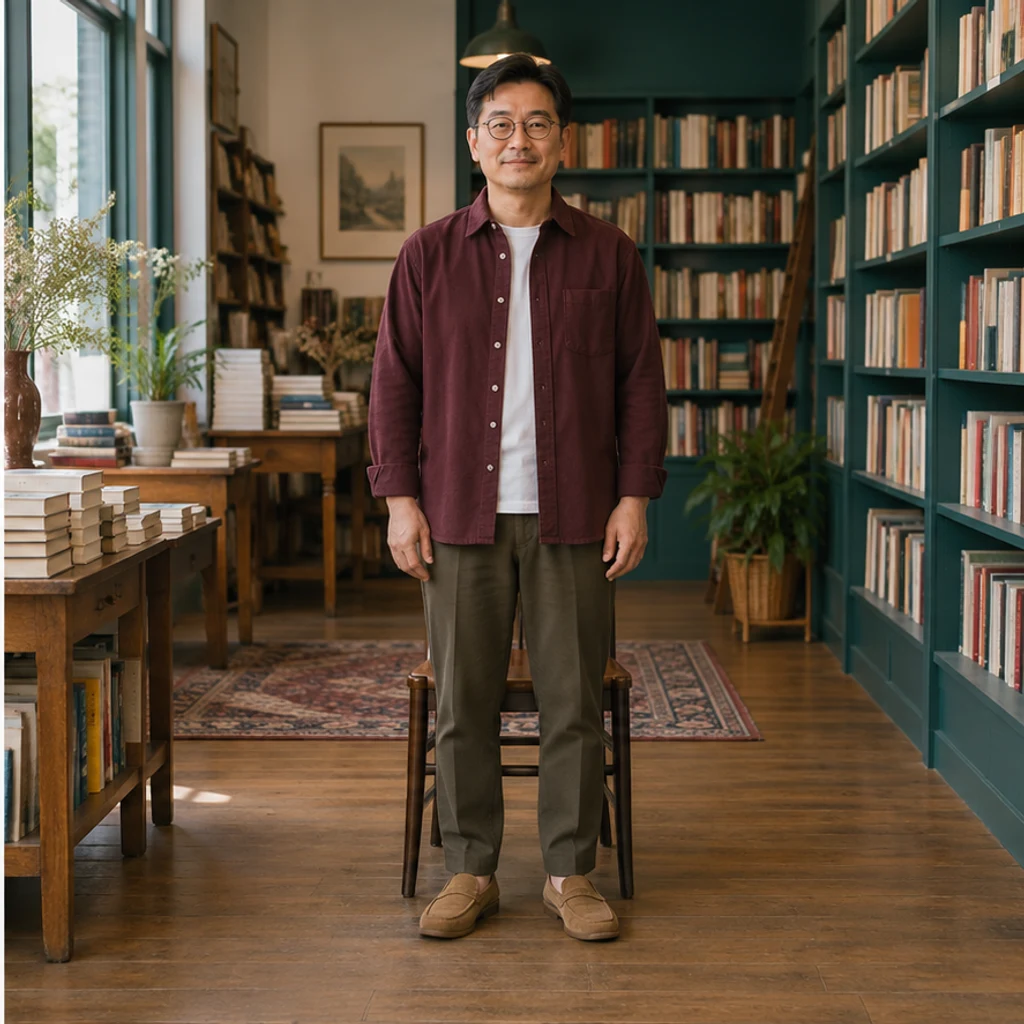
A seated bookseller stands in front of the same chair. Check that his glasses, overshirt, shelves and floor perspective remain recognizable.


A potter sits on the stool already in her studio. Review apron folds, hands on thighs, the seat contact and both feet on the floor.
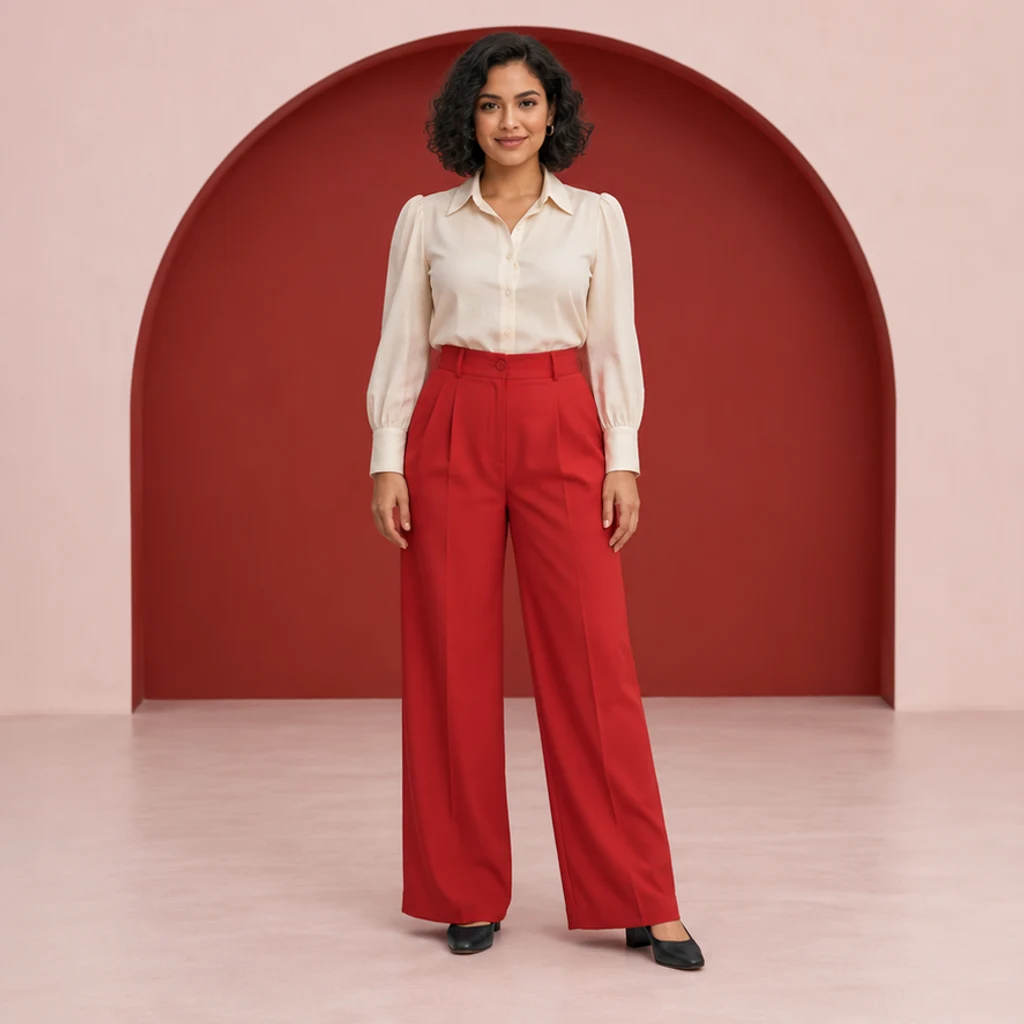
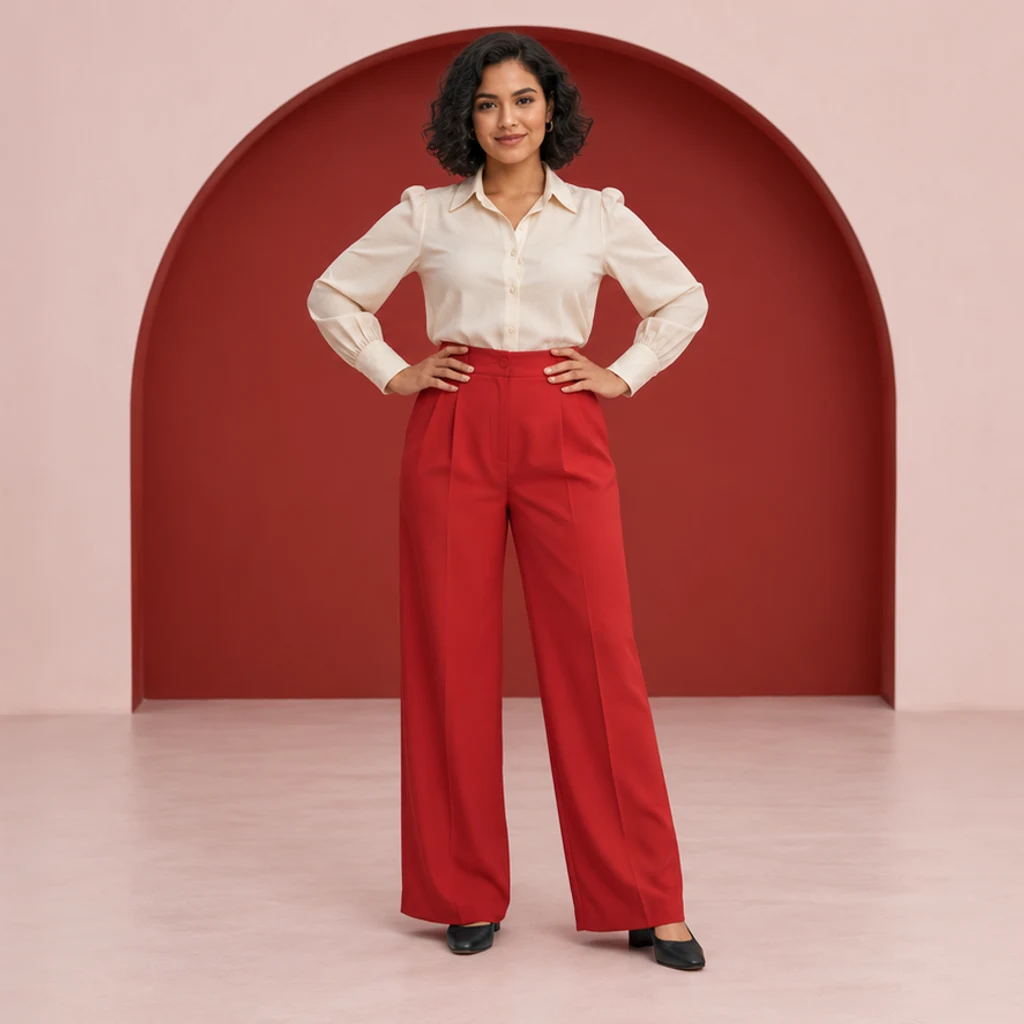
A model in red trousers moves both hands to her hips. Check elbow symmetry, blouse seams and the waistband against the original.
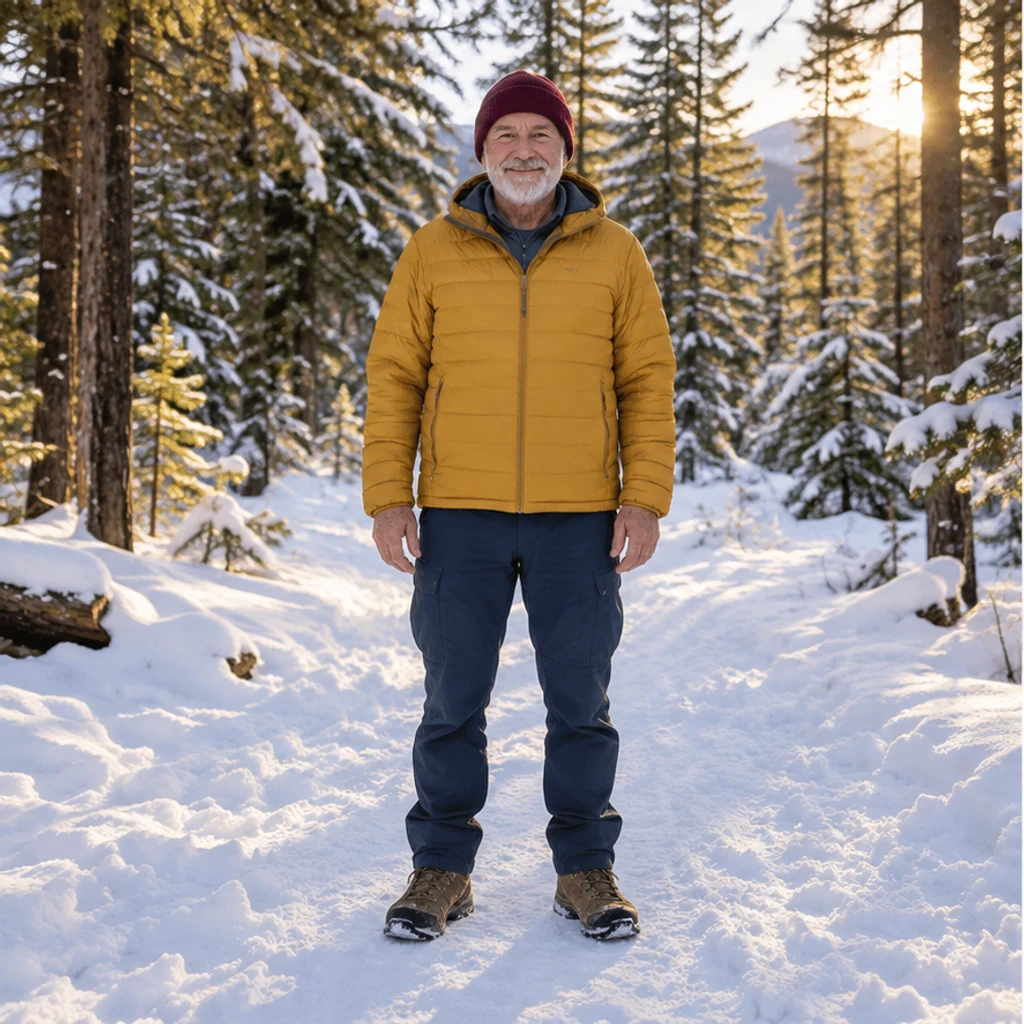
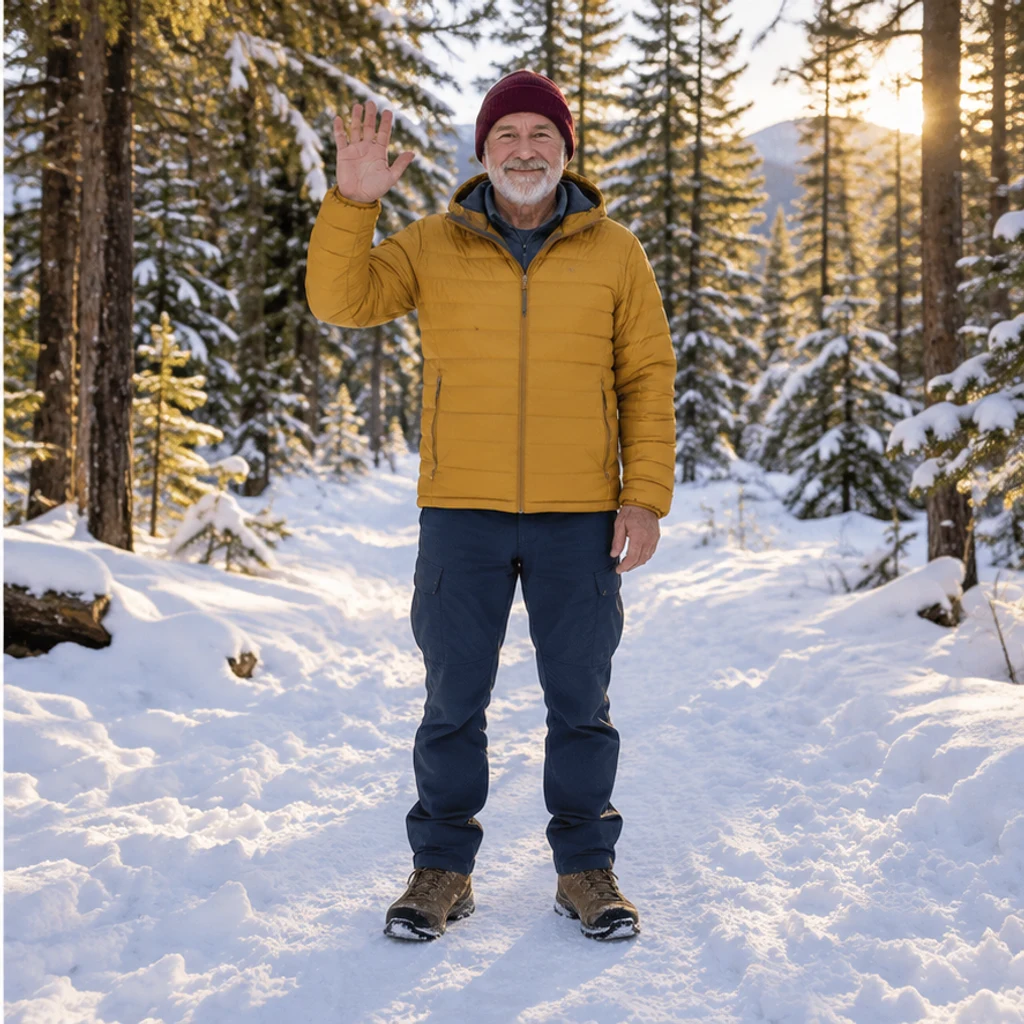
A traveler on a snowy trail raises one hand to greet the camera. Review the fingers, jacket sleeve and unchanged forest setting.
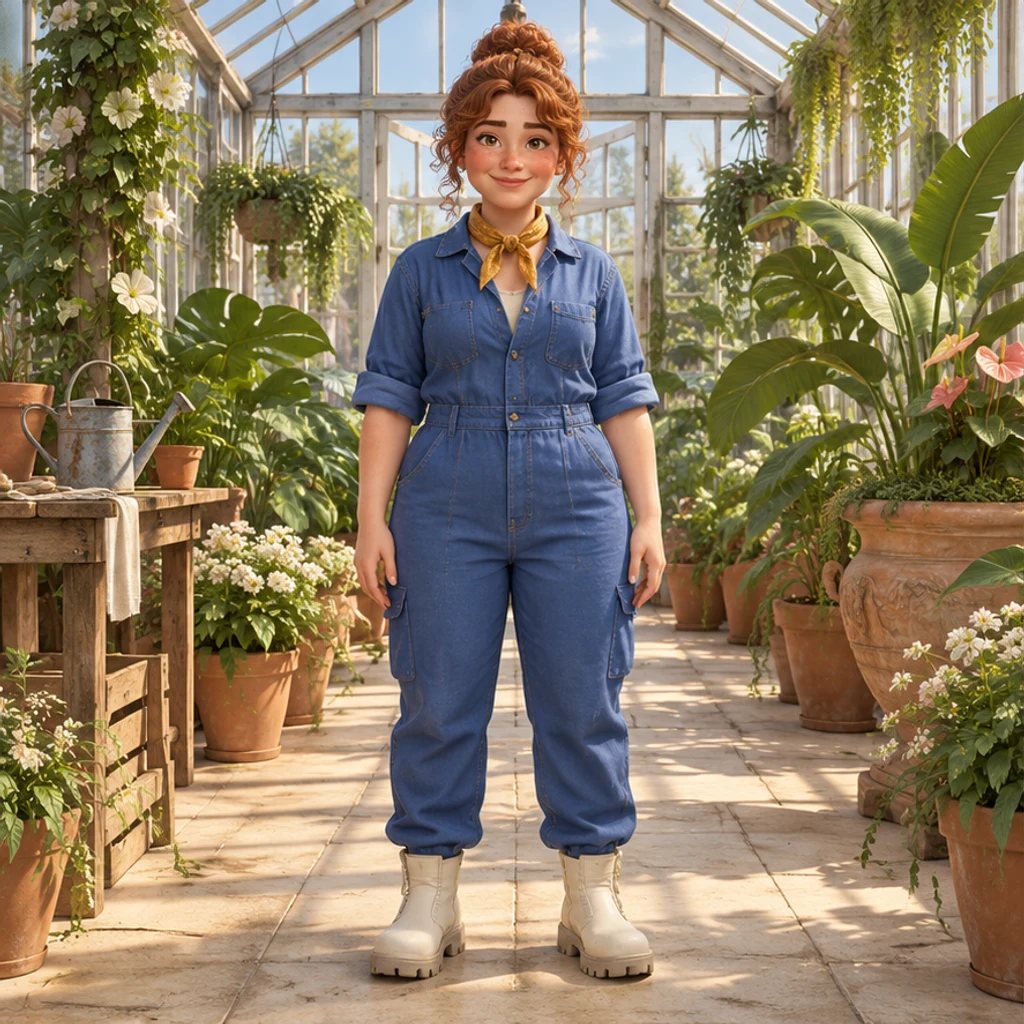
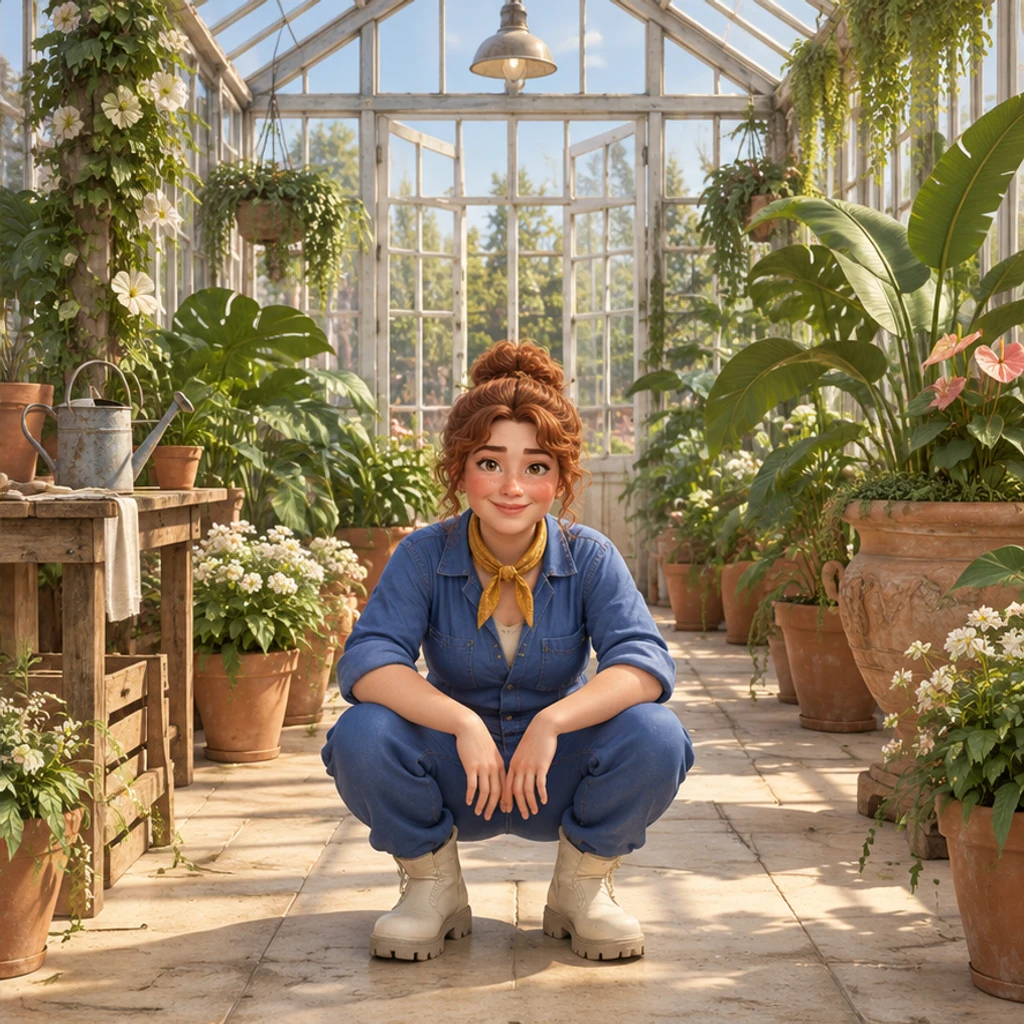
A stylized gardener lowers into a crouch in a greenhouse. Check foot contact, knee bends and the character’s 3D materials and proportions.
The edit is instructed to preserve the subject, but details can change. Compare the original and new image at full size.
Yes. Upload one subject image and choose a pose card or add a pose reference. The tool generates a new static image rather than moving a rig or editing the original file in place.
Use a sharp image with one subject, clear limbs and enough space around the body. Full-body sources are easier to judge; cropped areas must be invented by the model.
Your person image supplies the subject, clothing and scene. The selected template or uploaded reference supplies the target pose. Check that the output still resembles your subject.
The editing instruction asks to preserve them, but this is not guaranteed. Pose changes can alter faces, folds and accessories. Compare each result before using it.
Review the credits shown in the workspace and the current pricing plans. Choosing templates or loading example settings costs nothing; generation uses the displayed credits.
It creates a static image. Use the image-to-video action for a separate video task; this tool does not export a skeleton, rig or editable 3D model.
Change a person or character’s pose from a photo. Choose 8 pose templates or upload a pose reference, then generate and review the result.
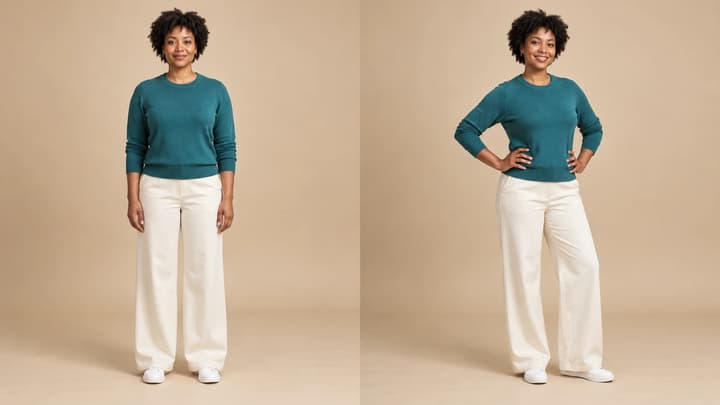
Change a person or character’s pose from a photo. Choose 8 pose templates or upload a pose reference, then generate and review the result.
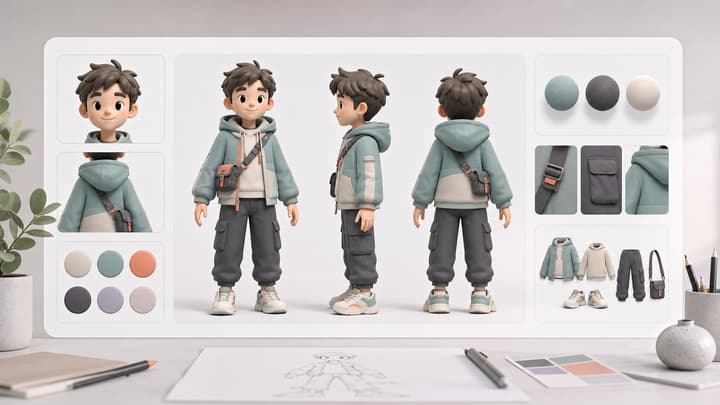
Create AI character reference sheets from a prompt or uploaded reference image. This AI character reference sheet generator turns your brief into consistent front, side, back, portrait, outfit, prop, and detail views inside one image generation.
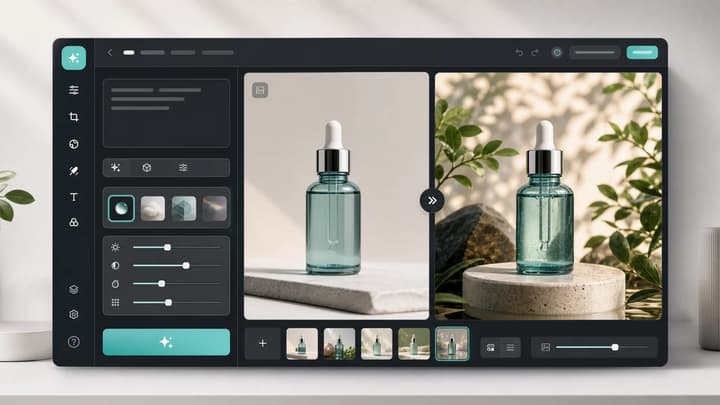
Upload an image, describe the edit, and create polished visuals for products, social posts, posters, or keyframes.
Review credits and plans before generating.
Compare the face, outfit, hands, feet and balance with the original. If the action is unclear, use a simpler pose or clearer reference. Keep the original and download an acceptable result; do not treat a generated image as an unedited photograph.