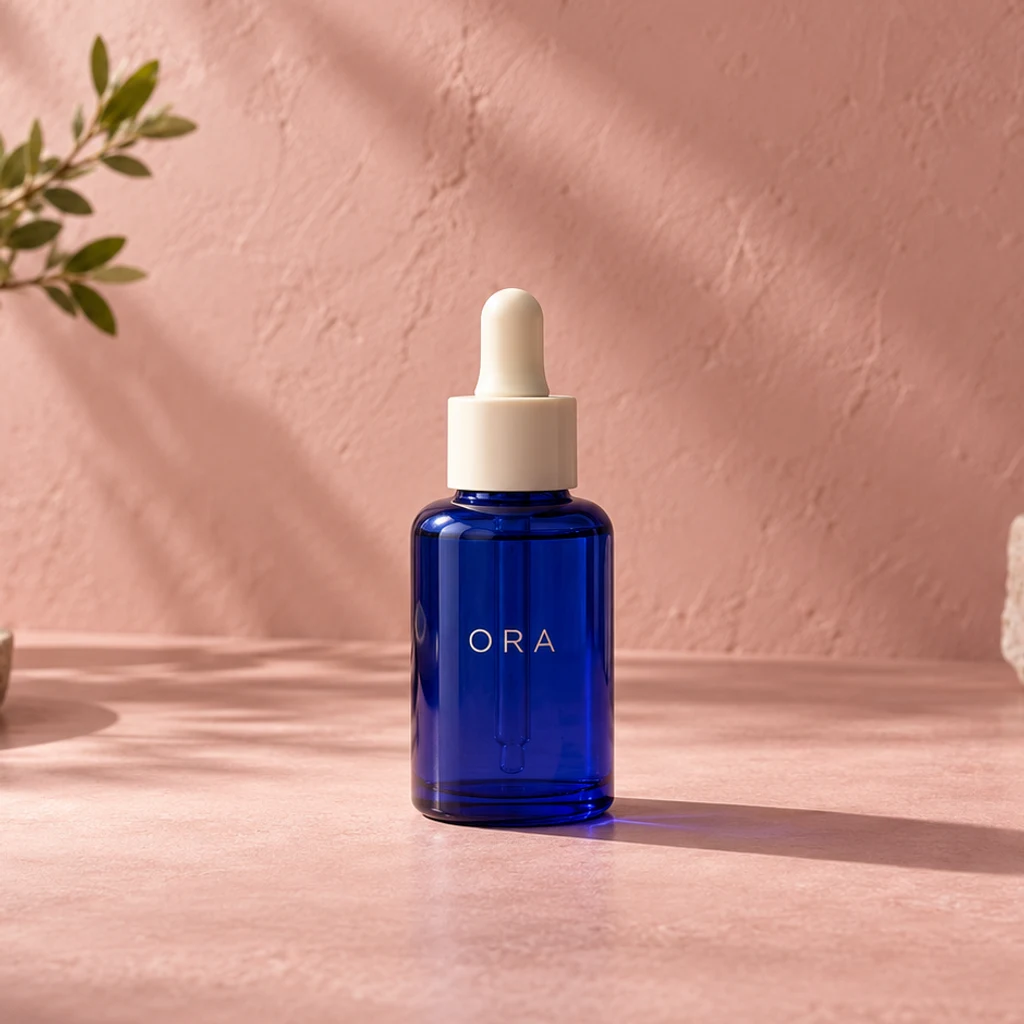
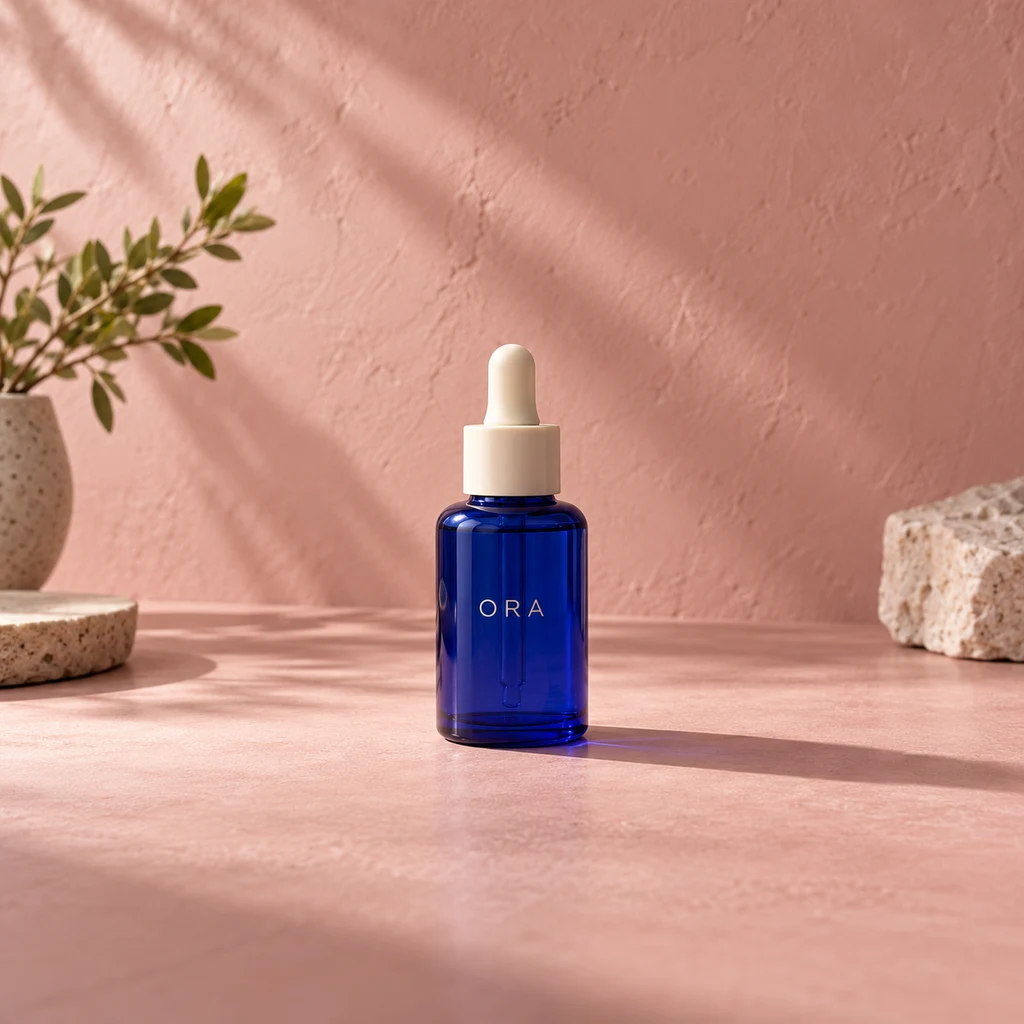
Serum bottle on pink plaster
Load this exampleMore studio surface around a complete bottle, with room for a later layout.
Extend a photo on an editable canvas. Choose the ratio and resolution, move, resize or rotate the original, then generate the surrounding scene.
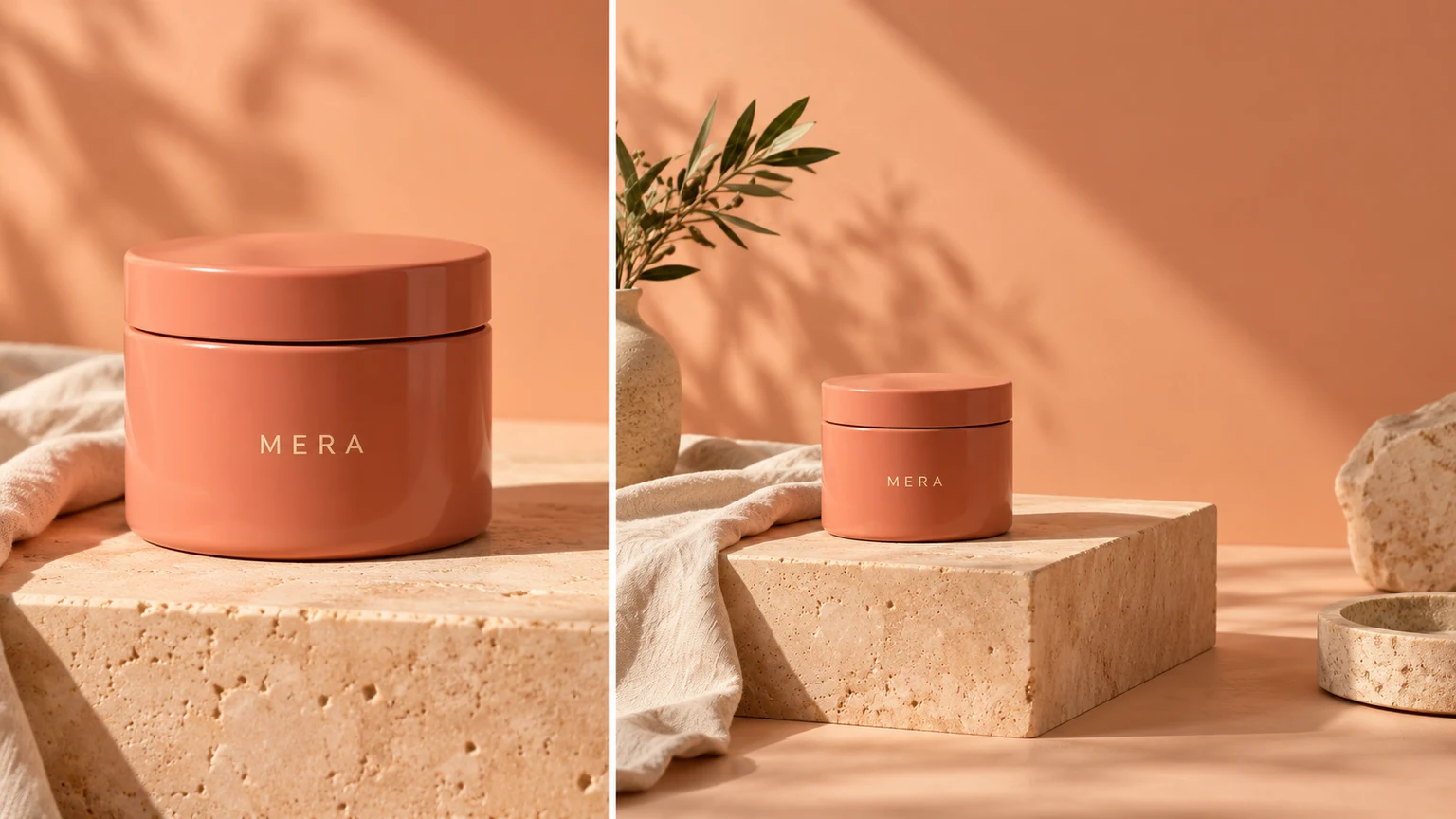
Extend a simple studio background to make room for a later headline. Ask for empty space rather than generating text into the image.
Add surroundings above and below a portrait for a vertical layout. Check the face, hair, clothing and any newly imagined body details.
Continue the sky, water and terrain around a focal point. Added scenery is a plausible invention, not a recovered view.
Explore a looser crop around a bag or accessory. Inspect handles, seams, shadows and product proportions before using the result.
Explore wider compositions with these AI-generated illustrations. Choose an example to load its source photo, ratio and instructions; loading does not start a generation.
More studio surface around a complete bottle, with room for a later layout.
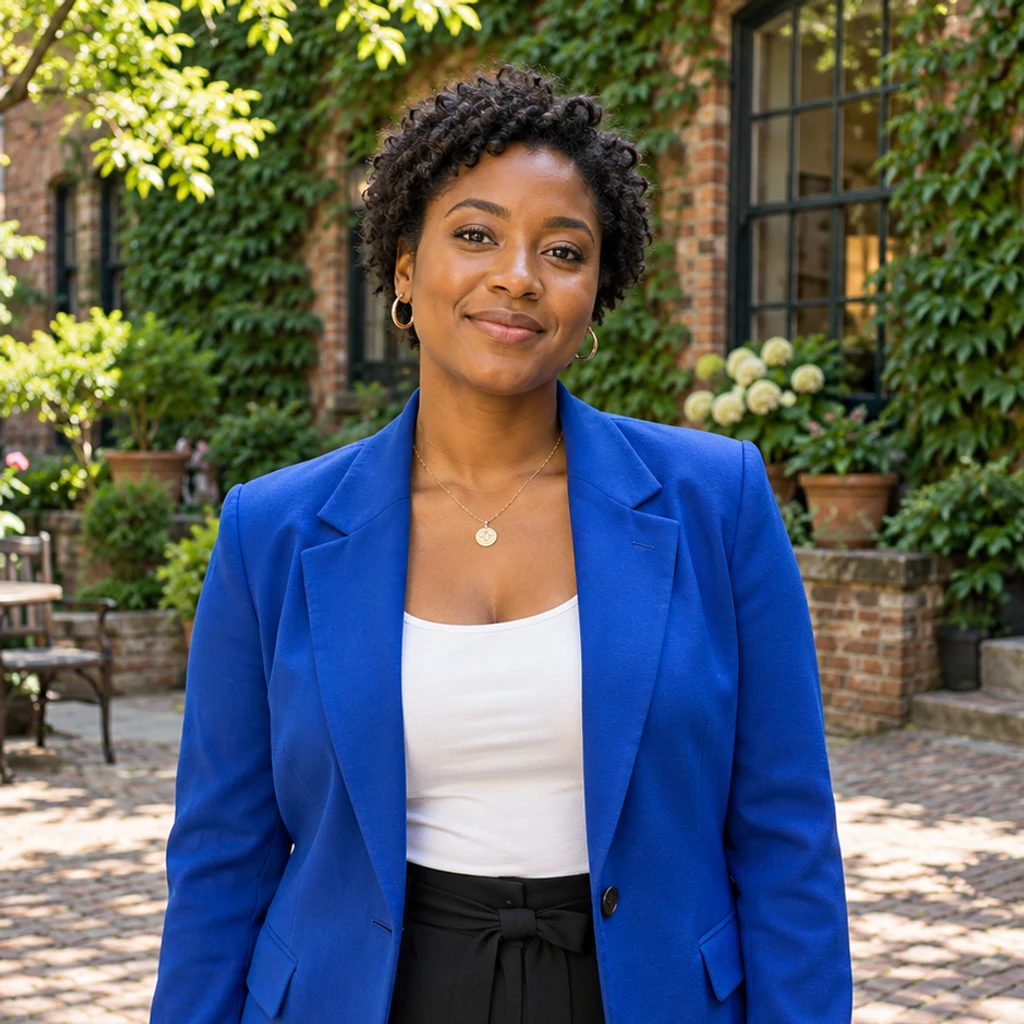
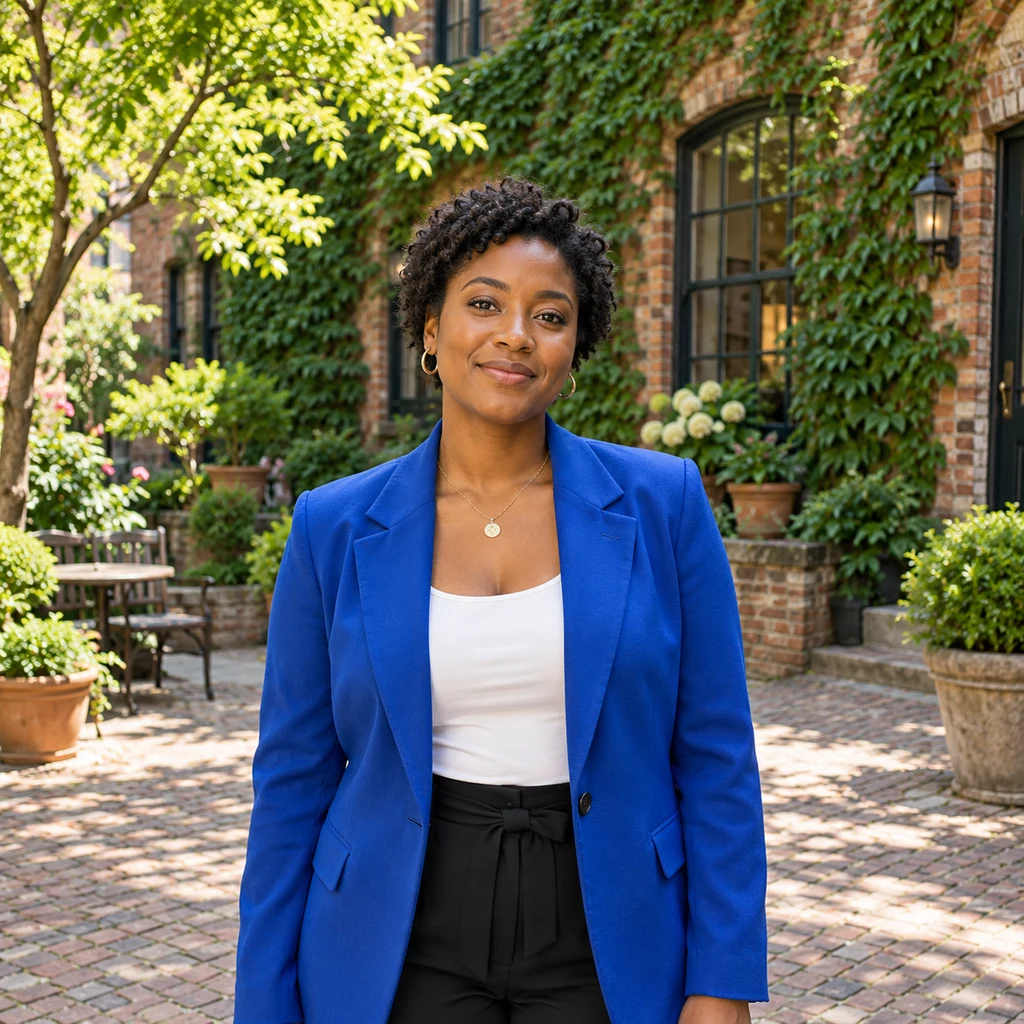
More courtyard context around the same person and blue jacket.
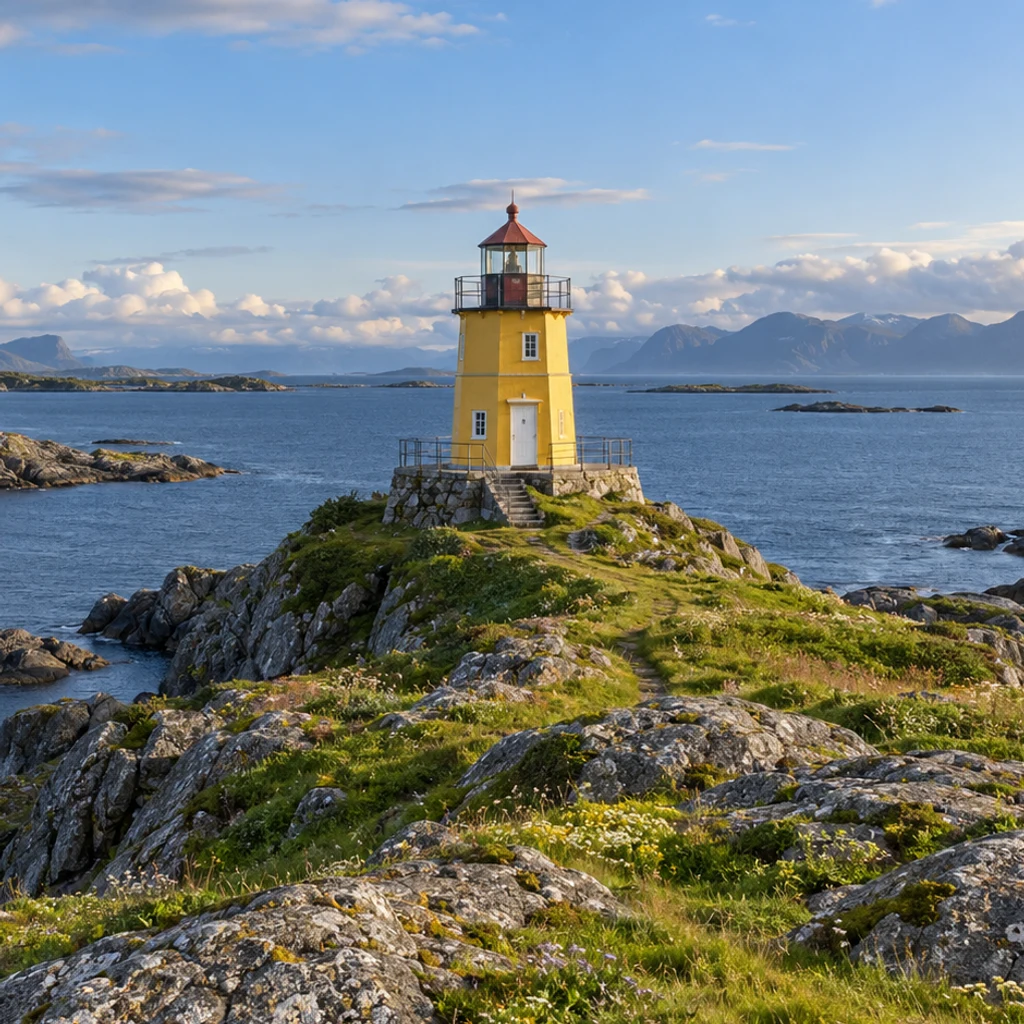
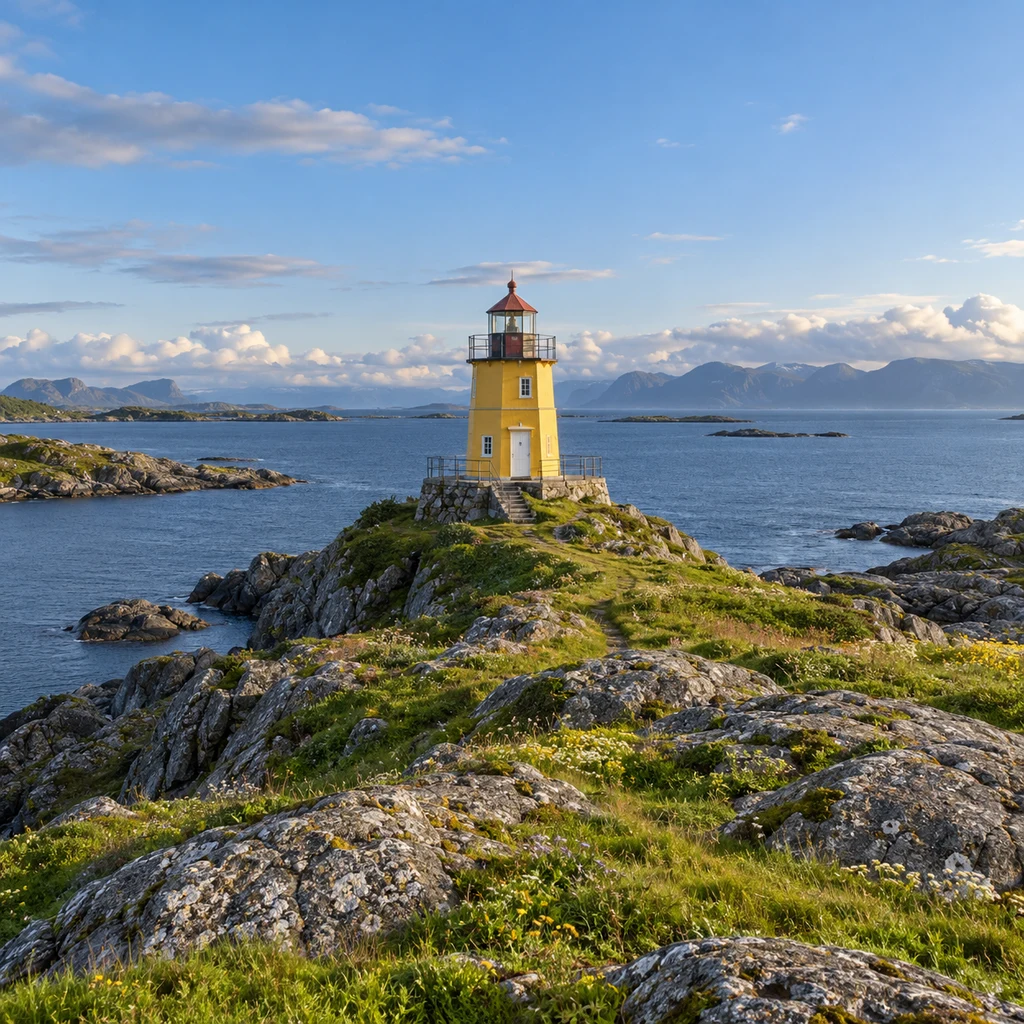
More coastline and sky around a small focal point.
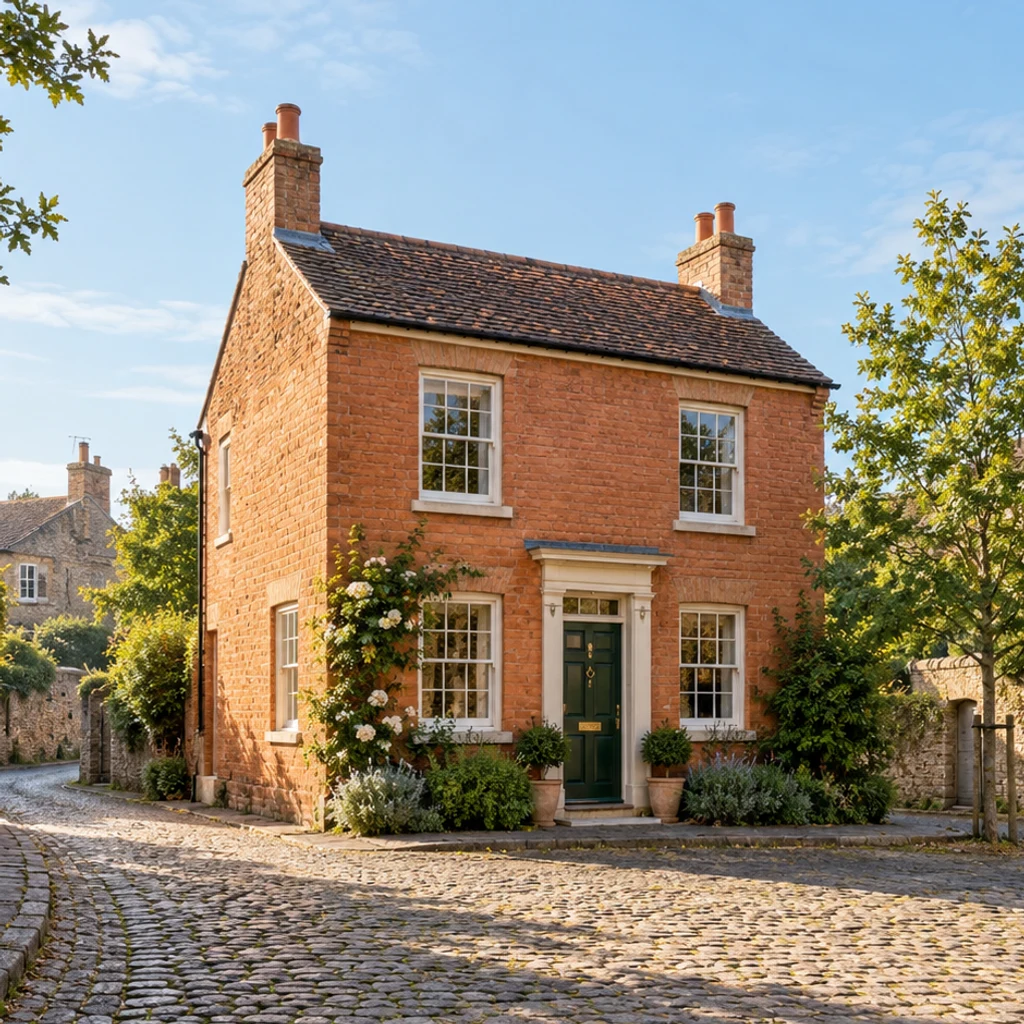
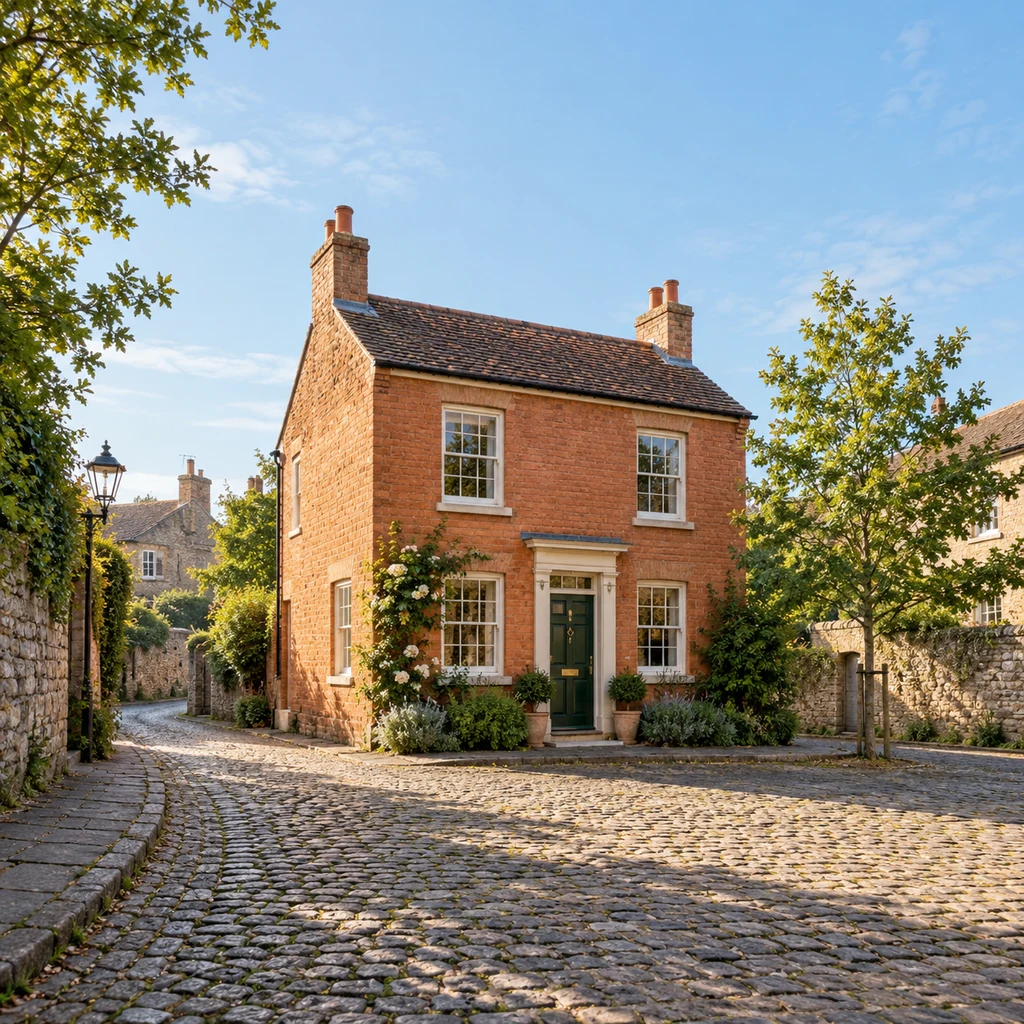
A looser view of a terracotta house, tree and street.
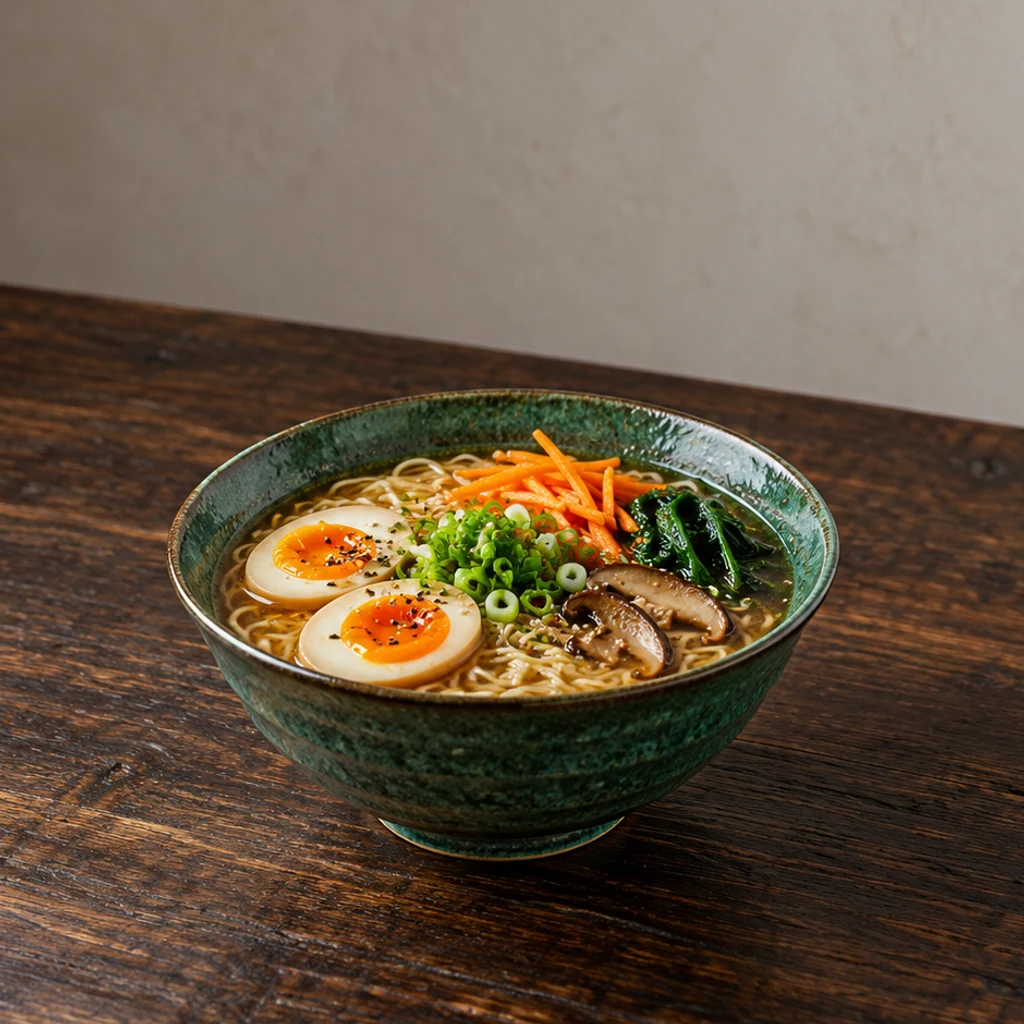
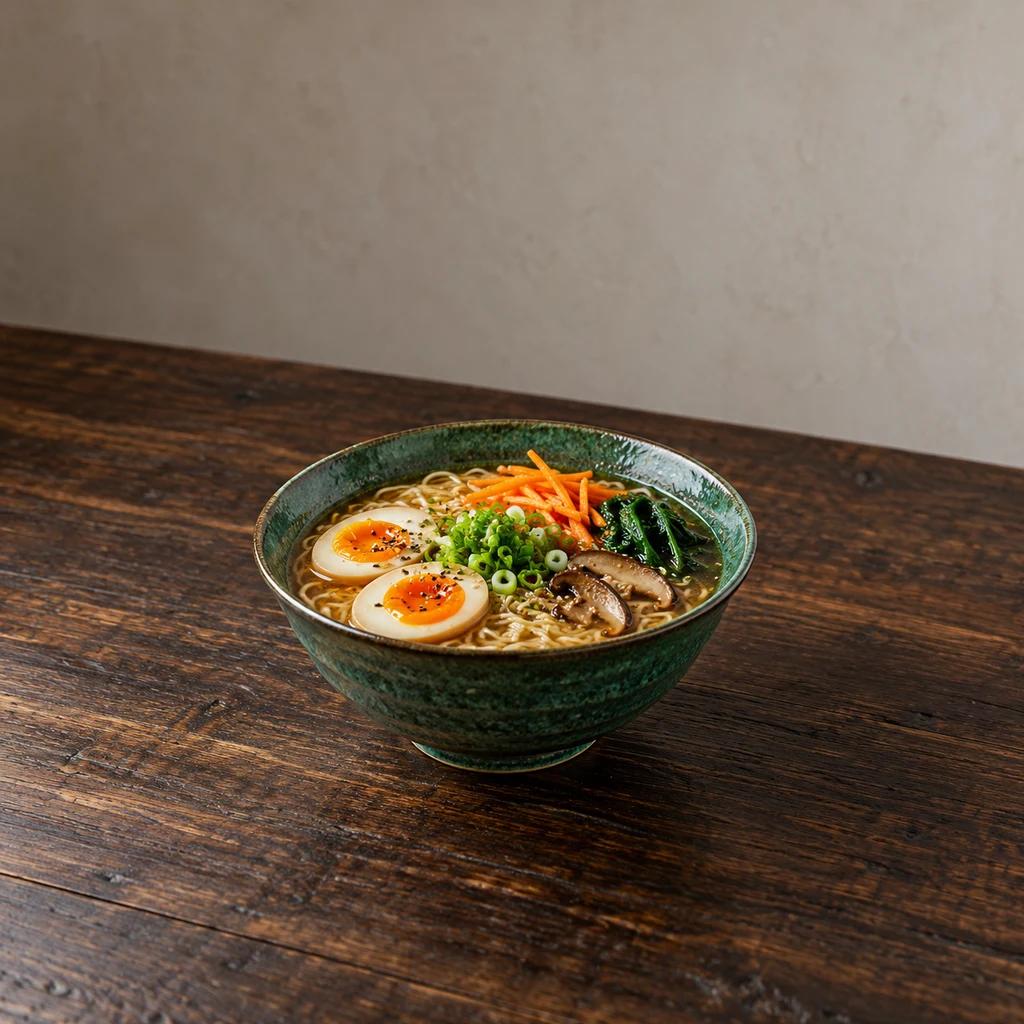
More tabletop around one bowl without adding side dishes.
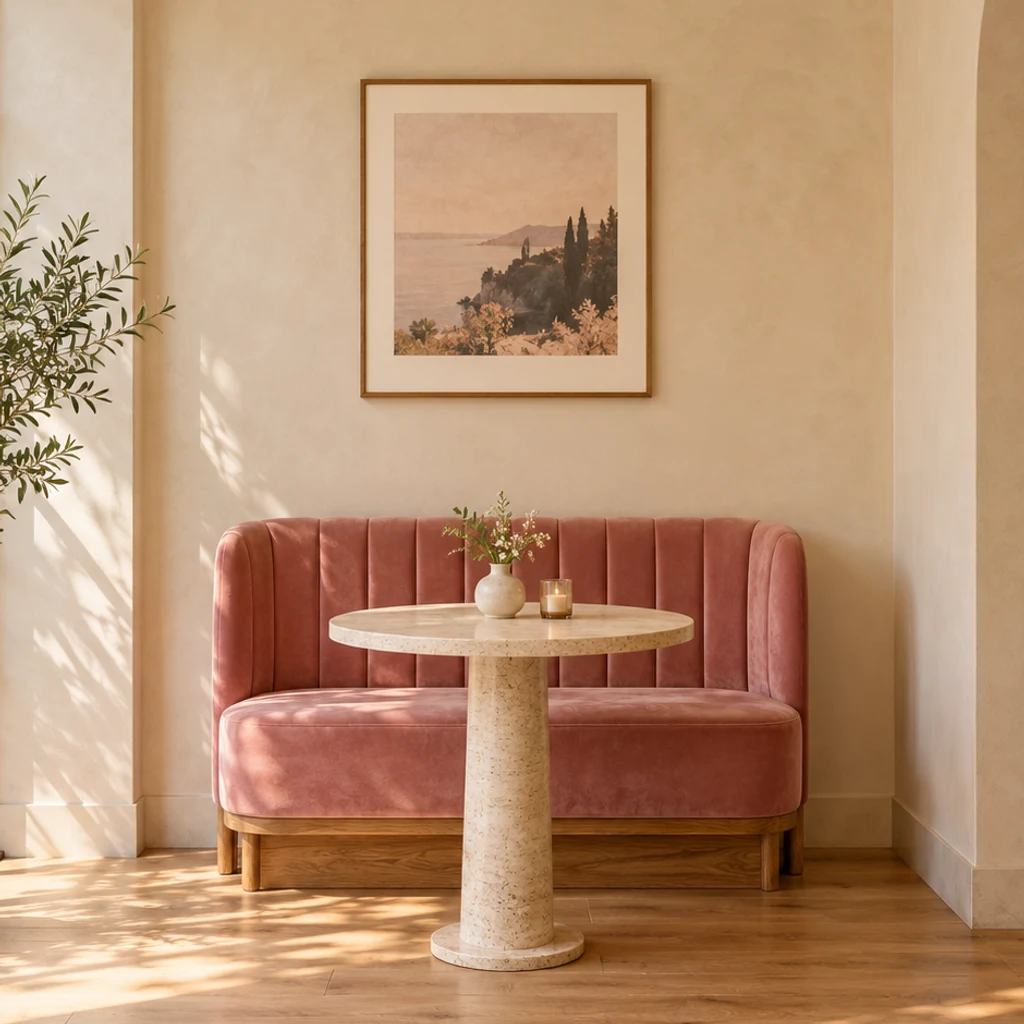
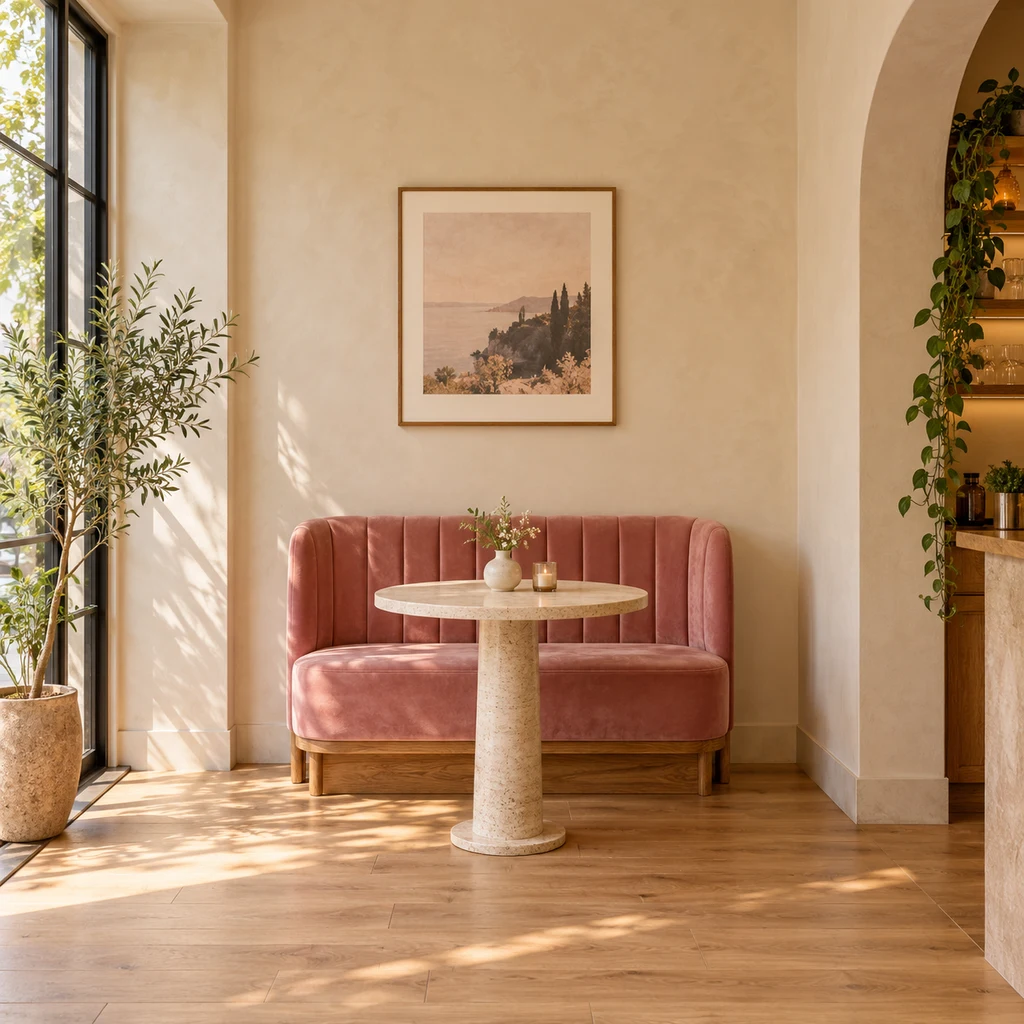
More wall and floor around a pink bench and round table.
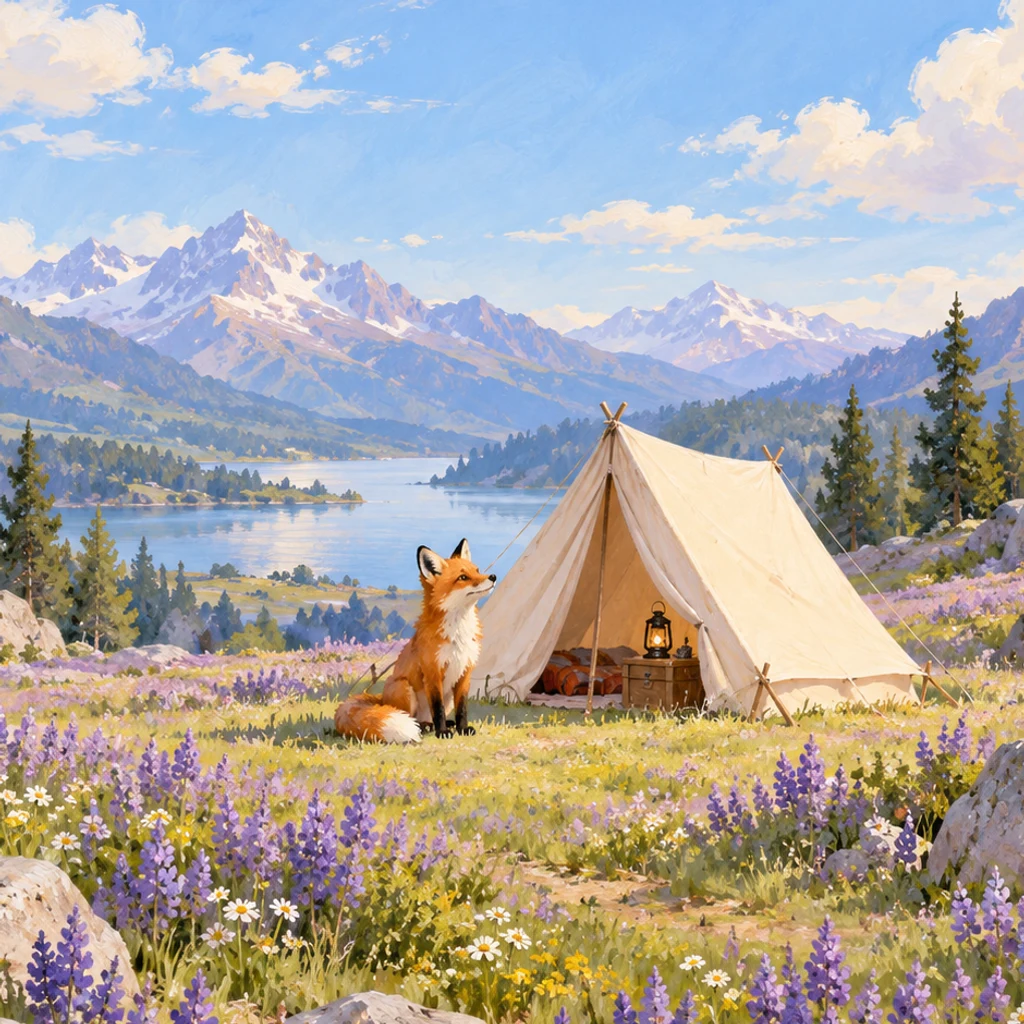
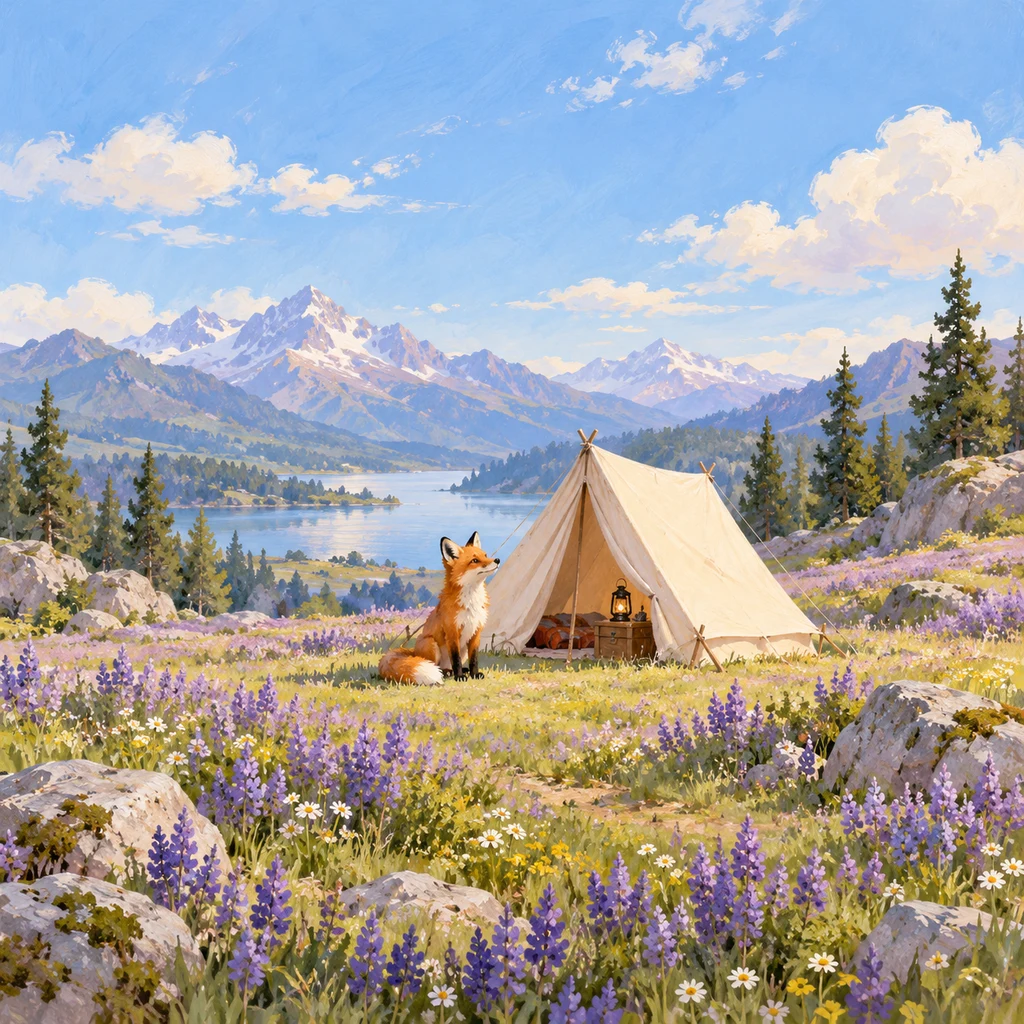
Continue an illustrated landscape in its existing visual style.
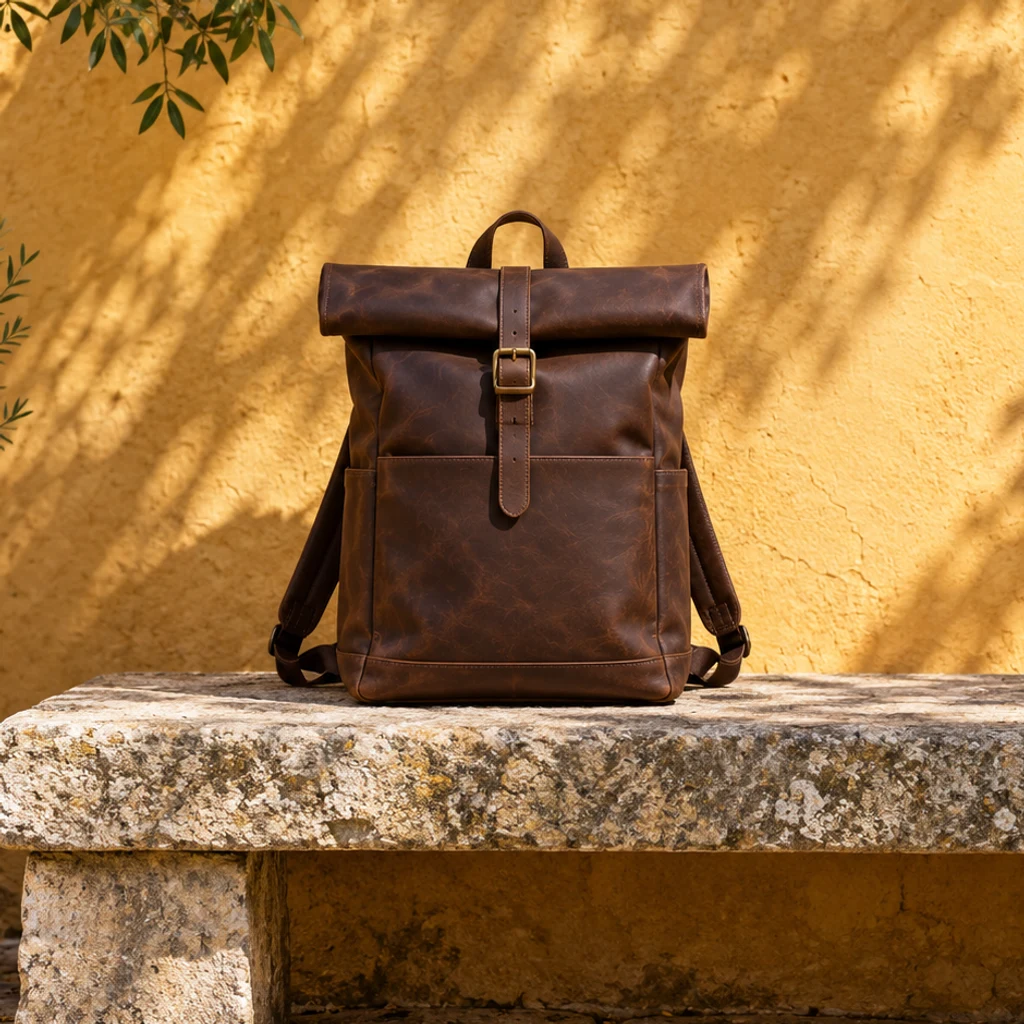
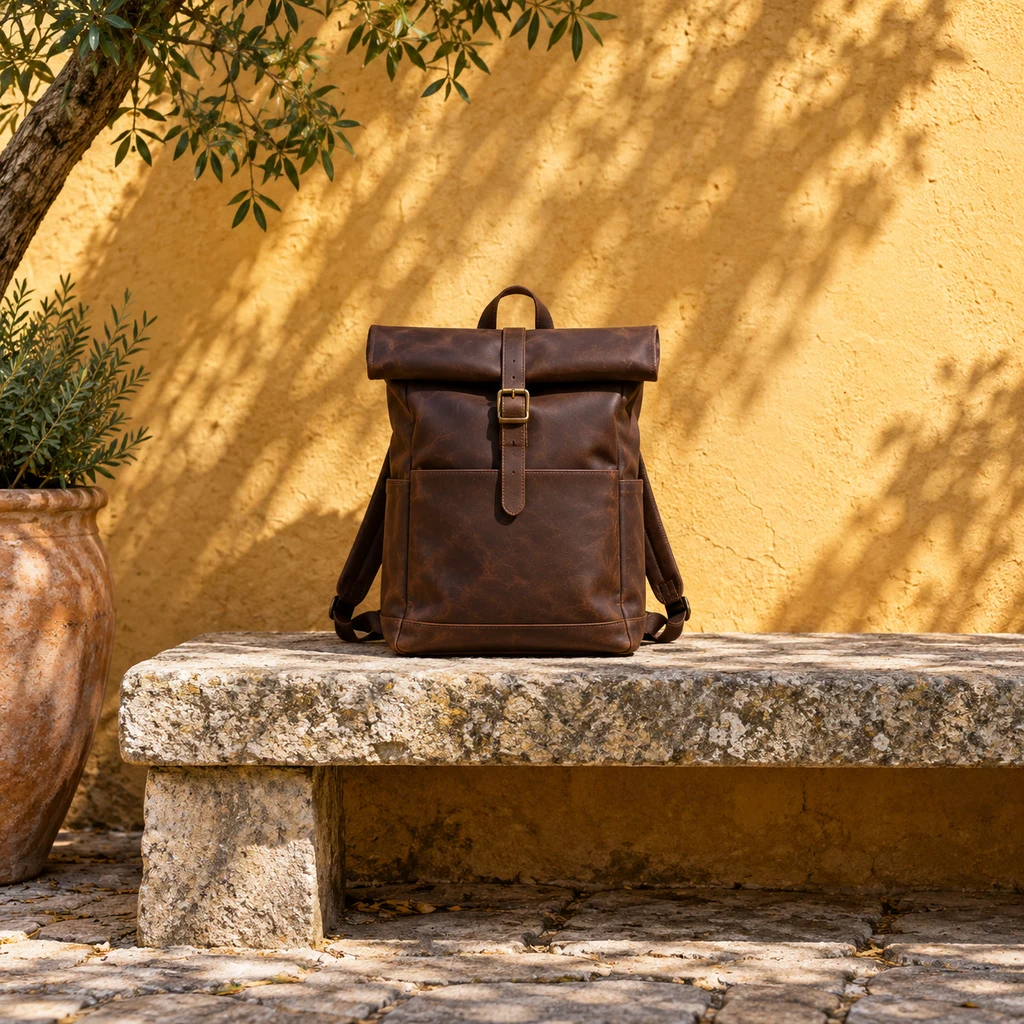
Quiet wall and bench space for a product layout.
Choose a clear photo with a complete subject and readable edges. The original supplies the subject, setting and light; there is no second reference image.
Choose the output ratio and resolution. The photo starts centered with space around it. Drag, resize proportionally or rotate it, and use the checkered area to plan the extension. Optional instructions describe the new surroundings.
Generate one expanded image, compare it with the source, and inspect faces, lettering, object shapes and boundary transitions. The original area can also be redrawn.
An image model can redraw details inside the original scene. A coherent-looking extension does not guarantee an unchanged face, logo or building.
Compare faces, packaging, seams, readable labels and object counts against the original.
Look for duplicated lines, repeated objects, broken shadows or a sudden texture change.
Check whether the requested side has usable empty background.
New sky, rooms, land and architecture are imagined by AI.
Extending generates new surroundings beyond an image's borders. Upscaling increases pixel dimensions or detail. This tool focuses on composition and output ratio, not recovering missing detail.
No. The image model may redraw parts of the source. Compare the whole result, especially faces, logos, labels and architecture. Use a deterministic editor when exact original pixels are essential.
Move the photo toward the opposite edge so the checkered area is on the side you want to extend. The composed canvas is sent to the model, although generated details can still vary.
Keep the ratio and reduce the photo size inside the canvas to add space around it. The initial placement leaves a margin; use Reset to restore the initial size, rotation and centered position.
No. Added surroundings are invented. Do not treat new rooms, land, building details or hidden product parts as factual information.
Generation uses credits based on the selected output resolution. Check the Generate button for the current cost. Loading an example and arranging the canvas use no credits.
For a substantially different product setting, use AI Lifestyle Product Photography. Image extension asks the model to continue the existing scene rather than replace it.
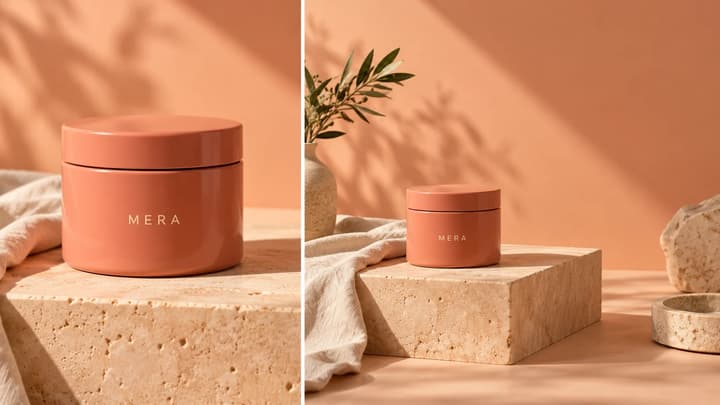
Choose an output ratio, request useful space and inspect an AI-expanded photo for changed subjects, invented details and broken background transitions.
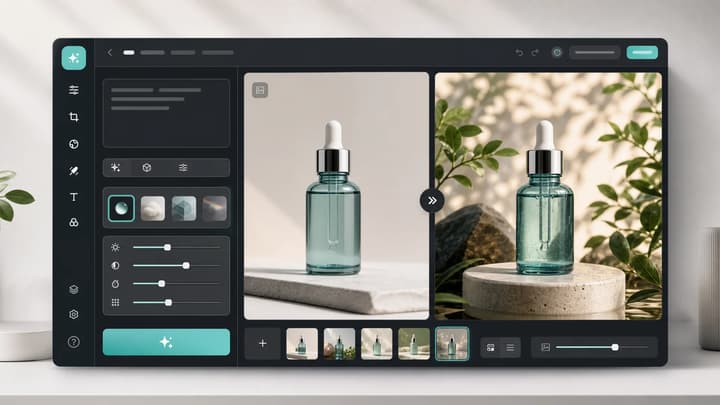
Upload an image, describe the edit, and create polished visuals for products, social posts, posters, or keyframes.
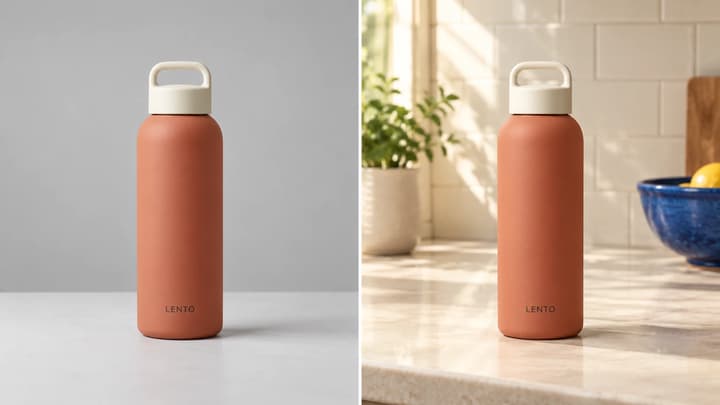
Turn a product photo into a realistic lifestyle scene. Choose a scene reference or describe a setting, then compare the product details before using the result.
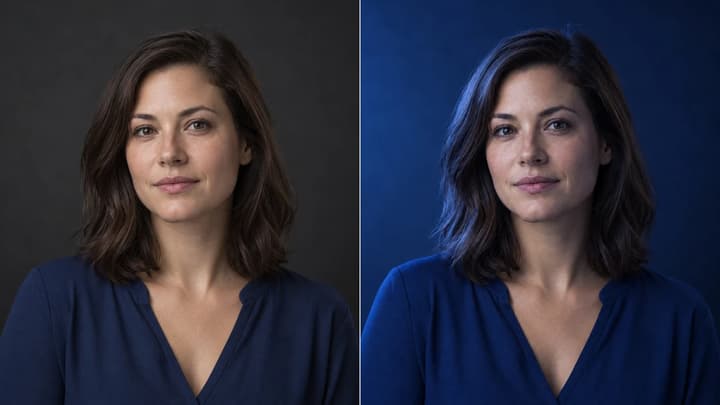
Change the direction and mood of light in a photo while keeping the subject, composition, text, and product details under review.
Review credits and plans before generating.
Extend a photo on an editable canvas. Choose the ratio and resolution, move, resize or rotate the original, then generate the surrounding scene.