How to Extend a Video with AI

To extend a video with AI, upload a continuous shot, describe what follows its ending, choose a supported duration, and review the generated continuation. Here is how to prepare the clip and direct the next beat.

LumiYingUpdated

Choose a Method

Do you need new footage or more screen time?

Several techniques make a clip longer, but only continuation generates a new action after the source.

AI video extension
New footage follows the source
An unfinished action or camera move.
Looping
The same footage repeats
An intentional repeating background.
Slow motion
Existing movement plays more slowly
A slower pace without a new action.
Video-to-video editing
Existing footage is reinterpreted
Changing the look of the shot you already have.
Before You Start

Prepare the clip and settings

These are the current default requirements in LumiYing. Recheck the uploader when selecting another model.

Source file
MP4 or MOV; up to 200MB
Export one continuous shot from your editor.
Source duration
2–30 seconds
End on the action you want continued; total reference video duration is also limited to 30 seconds.
Generation request
4–30 seconds; 720p
Start with a short request and review before making a longer sequence.
Framing and credits
Framing follows the source; credits are required
Check the displayed estimate before generating. Some models bill both the source clip and requested output duration.
Prompt Strategy

Read the last moment before writing the prompt

The ending supplies the starting point for the new footage. A prompt works best when its instructions agree with that moment.

Name the next visible action

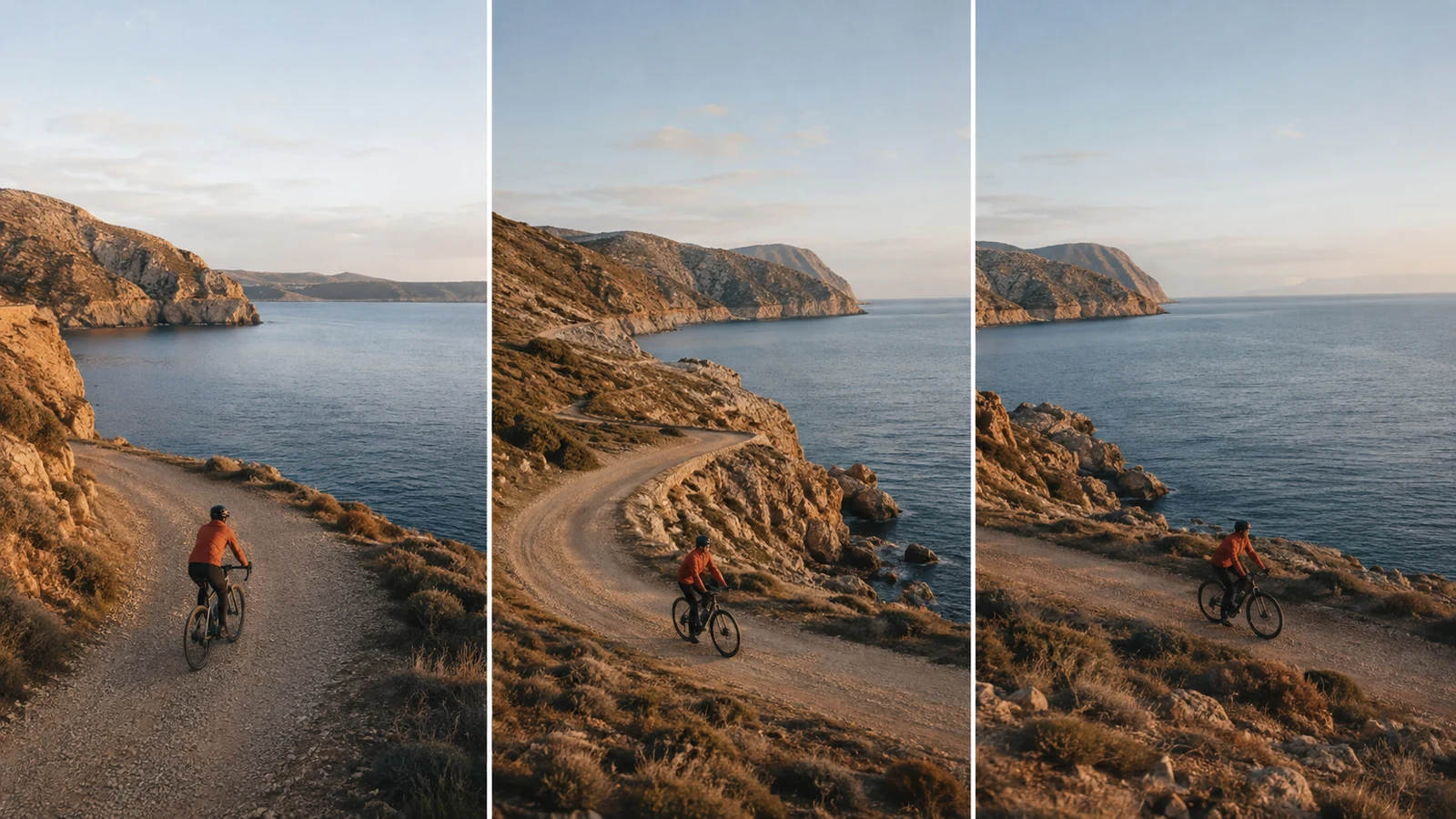
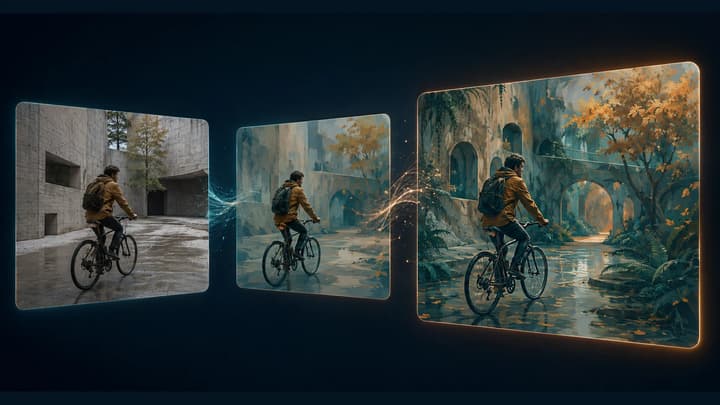
Replace “make it longer” with an action: the cyclist follows the bend, the camera continues pulling back, or the product completes a small turn.

Separate subject and camera

A subject moving right does not mean the camera should pan right. State both when they matter, and keep their directions consistent with the source.

Keep only the details that matter

Mention the outfit, product silhouette or lighting that must remain recognizable. Leave unrelated style changes for a separate generation.

Step by Step

Extend your video in four steps

Keep the source and prompt together so you can compare revisions.

Step 01

Prepare the ending

Upload one continuous source clip in AI Video Extender. Check the selected model’s file, duration and size requirements before generating.

Step 02

Write a continuation instruction

Describe what happens after the uploaded clip ends. Name the next action, camera direction and details to retain, then choose the model and available duration.

Step 03

Choose a short first request

Choose a supported model and duration, then review the displayed credit estimate. The current default produces 720p; available input and output limits depend on the model.

Step 04

Inspect, download and assemble

Review the returned video against the source ending. Check motion, subject details and sound, then download an accepted result and assemble your final edit as needed.

Worked Example

Worked example: continue an espresso shot

The coffee example below uses a 4-second stock source and a 5-second continuation request. Compare the actual source and generated result before adapting the prompt.

Source ending
The same cup remains under the two espresso spouts
Keep the cup rim and handle visible at the source ending.
Next beat
Continue the pour, then ask the stream to taper
Check the returned flow; a requested ending is not a guaranteed result.
Camera and continuity
Keep the close framing, dark cup and soft light
Inspect the join, cup shape and machine details before assembling the clips.

Video extension examples

Compare a 4-second source with a separate generated continuation. Load a clip and its settings to try your own next action.

Continue breaking waves

Keep the overhead coastal view moving as the next wave reaches the same shore.

Try this clip
Source clip
Generated continuation

Check shoreline angle, wave motion and camera drift at the join.

Generation prompt

Continue the overhead coastal shot from its final moment. The next wave rolls onto the same shore and its foam recedes naturally. Maintain the same camera height and slow drift, shoreline direction, wet sand, water color and daylight. No cut, zoom, new objects or text.
FAQ

Questions about extending videos with AI

Can I extend a video that was generated by AI?

You can upload an exported clip if it meets the input requirements. Its source model does not remove the need to check duration, format, visible detail and the generated continuation.

What should the continuation prompt include?

Name the source, the action after its ending, the camera direction and the important details to retain. Avoid retelling the whole original scene as though it should begin again.

Can I extend the result again?

You can reuse a compatible exported clip as a new input. Prepare it within the upload limits and review each stage; details can drift over several generations.

Will the original audio be preserved?

Do not assume the output retains the source soundtrack unchanged. Listen to the result and keep your original audio in the editing project if exact dialogue or music timing matters.

When should I use a loop instead?

Use a loop when repeating motion is the intended effect. Use AI extension when you want new action or a camera move to continue beyond the source ending.

Does the download include my original clip?

These examples return a separate continuation of about 5 seconds; the 4-second source is not automatically included. Keep your original and join the clips in your editor for a complete sequence. Check the returned footage when changing models.

Try the next beat of your own clip

Prepare one continuous shot and a short instruction describing what happens next.