Text to Video AI Generator
Turn a written prompt into an AI video. Describe one scene, choose a video model, aspect ratio, resolution, and duration, then carry your prompt into LumiYing to generate and refine the clip.
What Is Text-to-Video AI?
Turn a prompt into a scene
Describe the subject, action, camera movement, environment, lighting, and mood. The model uses those instructions to create motion from words.
Choose a model for the shot
Compare available text-to-video models by the motion, duration, resolution, and sound behavior your shot needs instead of treating one model as best for every task.
Set the frame and timing
Match aspect ratio, resolution, and duration to a horizontal film shot, square product post, or vertical social clip before generating.
Refine one decision at a time
Review motion, subject consistency, camera behavior, and artifacts, then adjust one prompt detail or setting for the next generation.
Text to Video AI Showcase
Browse real AI-generated videos from LumiYing, then turn your own prompt into a product reveal, vertical social clip, cinematic B-roll shot, or visual concept.
How to Create a Video From Text
Define one shot
Choose a single visual goal such as a product reveal, vertical social moment, cinematic landscape, or character action. One shot is easier to control than a complete multi-scene story.
Write the prompt and settings
Specify subject, action, camera, environment, lighting, and style. Then choose the model, aspect ratio, resolution, and duration that fit the final placement.
Generate, review, and refine
Create the clip, check motion stability, subject shape, camera direction, and artifacts, then change one prompt detail or setting before generating again.
Why Use LumiYing for Text-to-Video?
LumiYing keeps prompt writing, model selection, output settings, real examples, and the next revision connected in one creator-focused workflow.
Start with text alone
Describe the subject, action, camera, and visual style you want. No reference image is required to begin creating the shot.
Choose a model for your shot
Compare the available video models and choose according to the motion, duration, resolution, and audio support your scene needs.
Control the output format
Set the aspect ratio, resolution, and clip length for a product ad, social post, storyboard, or cinematic sequence.
Continue without starting over
Your prompt and selected settings carry into the full generator, so you can generate and refine the video without rebuilding your setup.
Text to Video AI FAQ
What is text-to-video AI?
Text-to-video AI turns a written prompt into a moving video. Describe the subject, action, camera movement, setting, and visual style to guide how the clip looks and feels.
Do I need an image to create a video from text?
No. You can start with a text prompt alone. If you need to preserve a specific product, character, composition, or opening frame, use Image to Video instead.
How do I write a good text-to-video prompt?
Focus on one shot. Describe the subject, action, camera movement, setting, lighting, and visual style, then add the aspect ratio or duration when it matters to the final use.
Which text-to-video model should I choose?
Choose based on the result you need. Compare how the available models handle motion and which clip lengths, resolutions, aspect ratios, and audio options they support, then test the closest match.
Is the text-to-video generator free?
Writing a prompt is free, but generating a video requires a LumiYing account and credits. Credit use varies by model and plan.
How long does text-to-video generation take?
Generation time varies with the model, clip length, resolution, selected settings, and current demand.
Can I use a generated video commercially?
Commercial use depends on your current plan and selected model. Check the latest usage terms before using a video in advertising, client work, or other paid content.
Can text-to-video models generate audio?
Some models can generate audio, while others produce video without sound. After selecting a model, check whether an audio option is available.
Related Text-to-Video Tools and Resources
How to Turn Text Into Video With AI
Use a prompt formula, four-step workflow, and worked examples before generating.
AI Video Generator
Choose between text, image, and other supported AI video workflows.
Image to Video AI Generator
Animate an existing image when the first frame must stay recognizable.
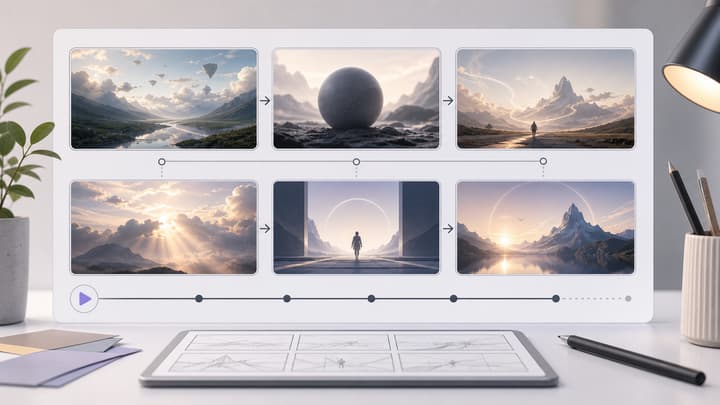
AI Storyboard Generator
Plan multiple shots before turning individual prompts into video clips.
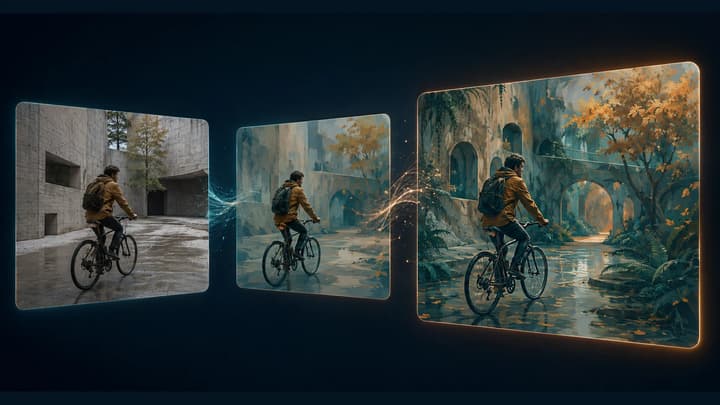
Video to Video AI Generator
Video to Video AI transforms an existing clip using your instructions. Upload a source video, describe the visual changes, and use its action and framing as the starting point for your next version.
How to Use Video to Video AI
Learn how to restyle a video with AI: prepare source clips, write preserve-and-change prompts, review motion, and troubleshoot flicker or visual drift.

AI Video with Audio
Create video from text or an image with ambience, dialogue, and sound effects.
Create your next video from text
Start with one clear scene, choose settings for the final format, and carry the prompt into the full generator.