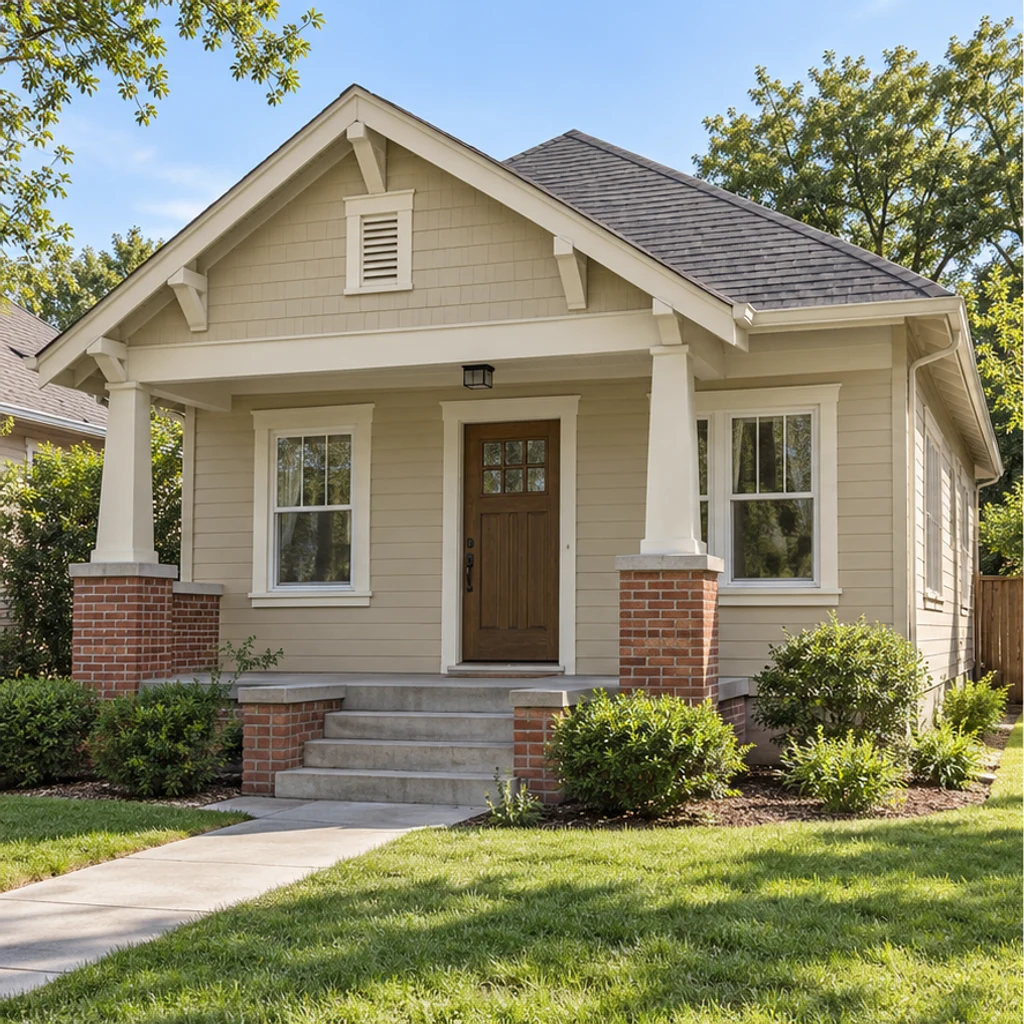
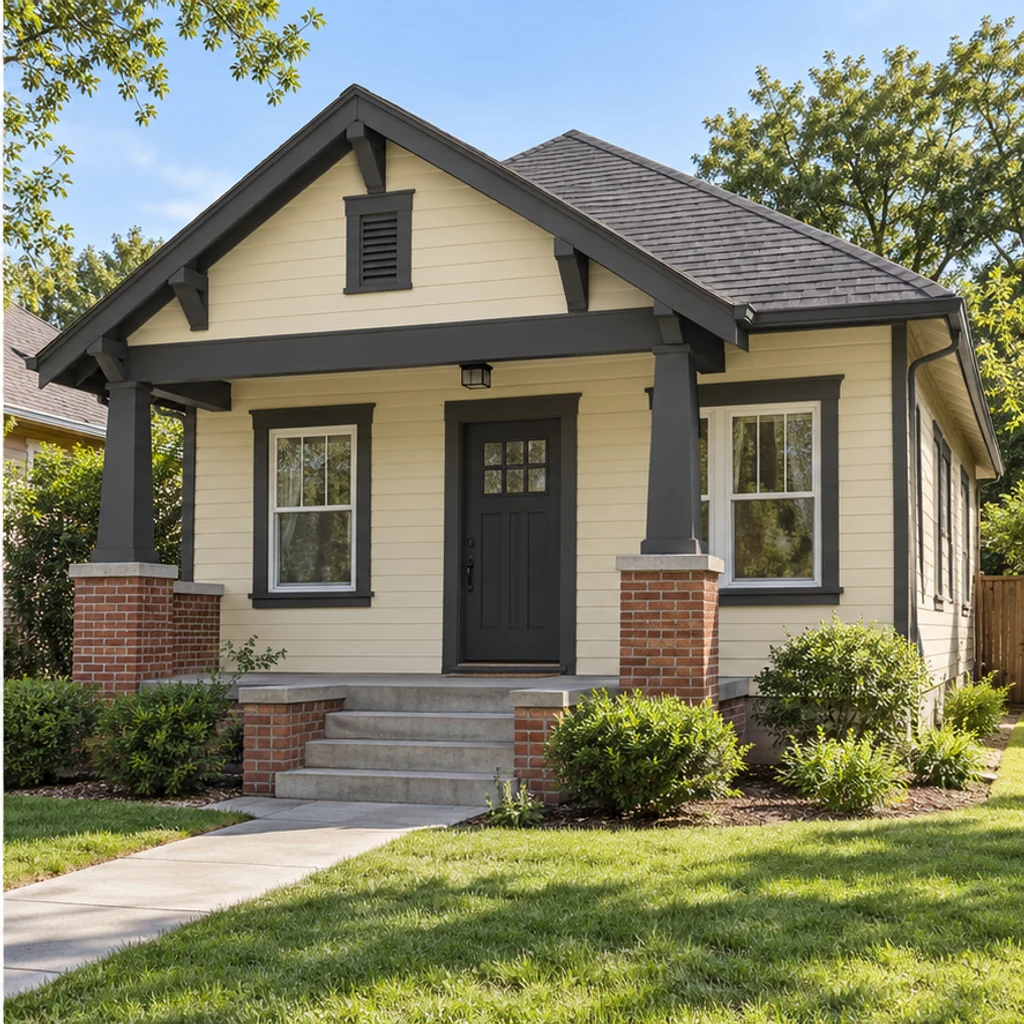
Ivory and charcoal Craftsman
Load this exampleWarm ivory siding and charcoal trim frame the same brick porch.
Preview exterior paint colors on your own house photo. Try a palette or describe siding, trim and door colors, then compare the result before choosing real paint samples.
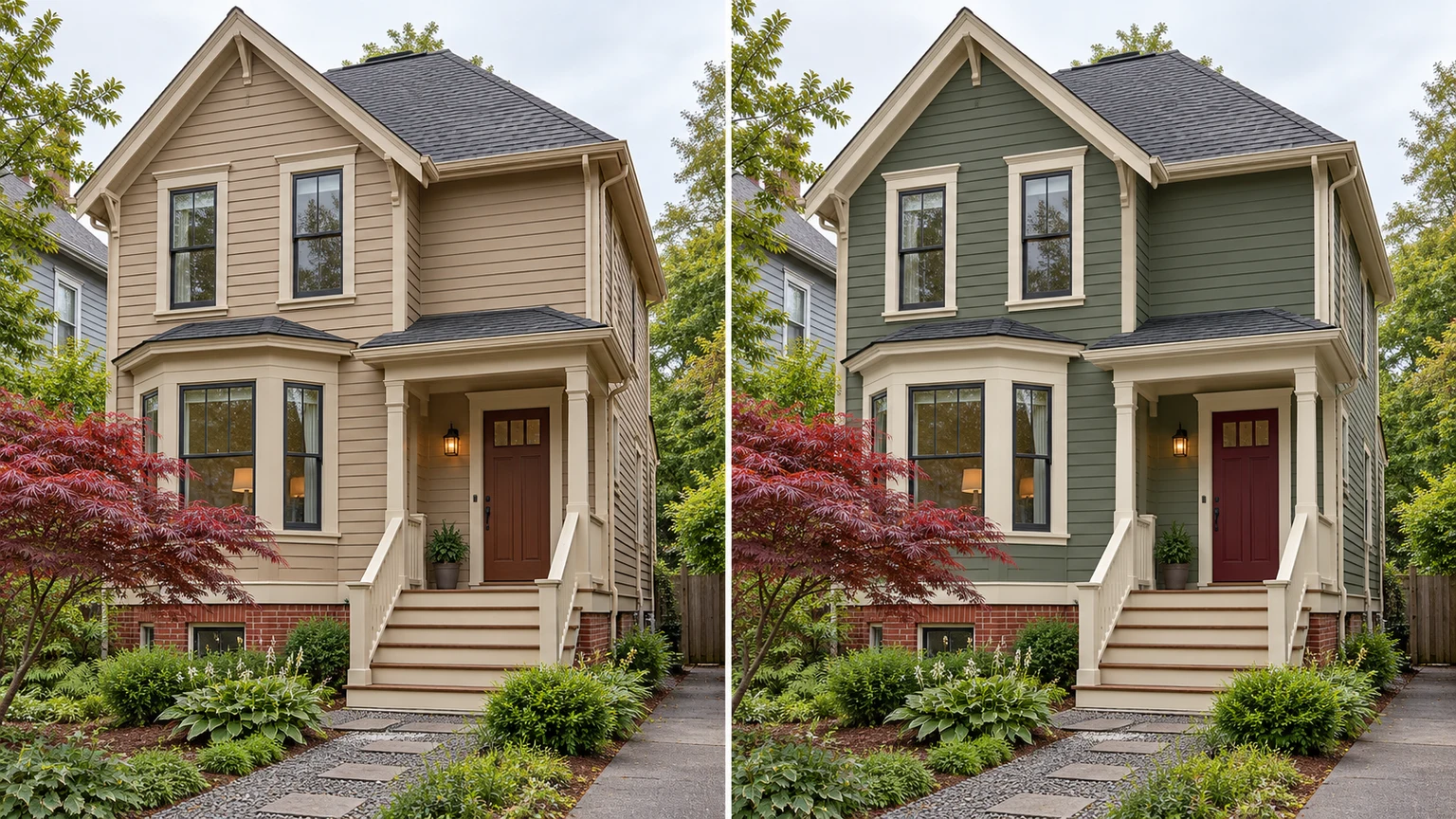
Explore a visibly different color on existing painted siding or stucco, with its surface texture and daylight still part of the comparison.
Ask for only a teal front door and keep the brick, trim and surrounding facade. A focused request takes priority over an entire palette.
Use the existing roof, natural masonry and timber as fixed color references. The preview changes paint rather than replacing those materials.
Compare light or dark painted trim and porch posts against the same siding. Check window shapes, rooflines and railings after generation.
Explore exterior color ideas with these AI-generated illustrations. Choose an example to load its photo and palette settings.
Warm ivory siding and charcoal trim frame the same brick porch.
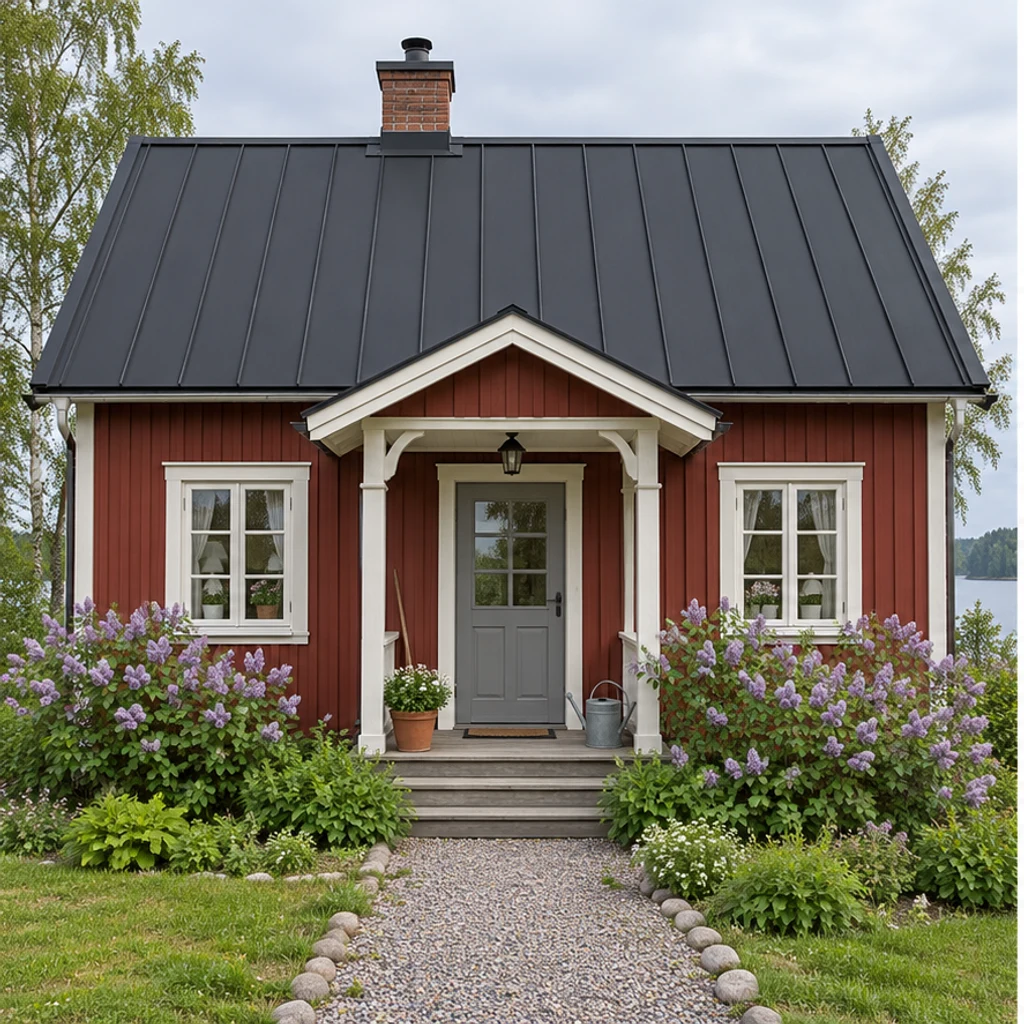
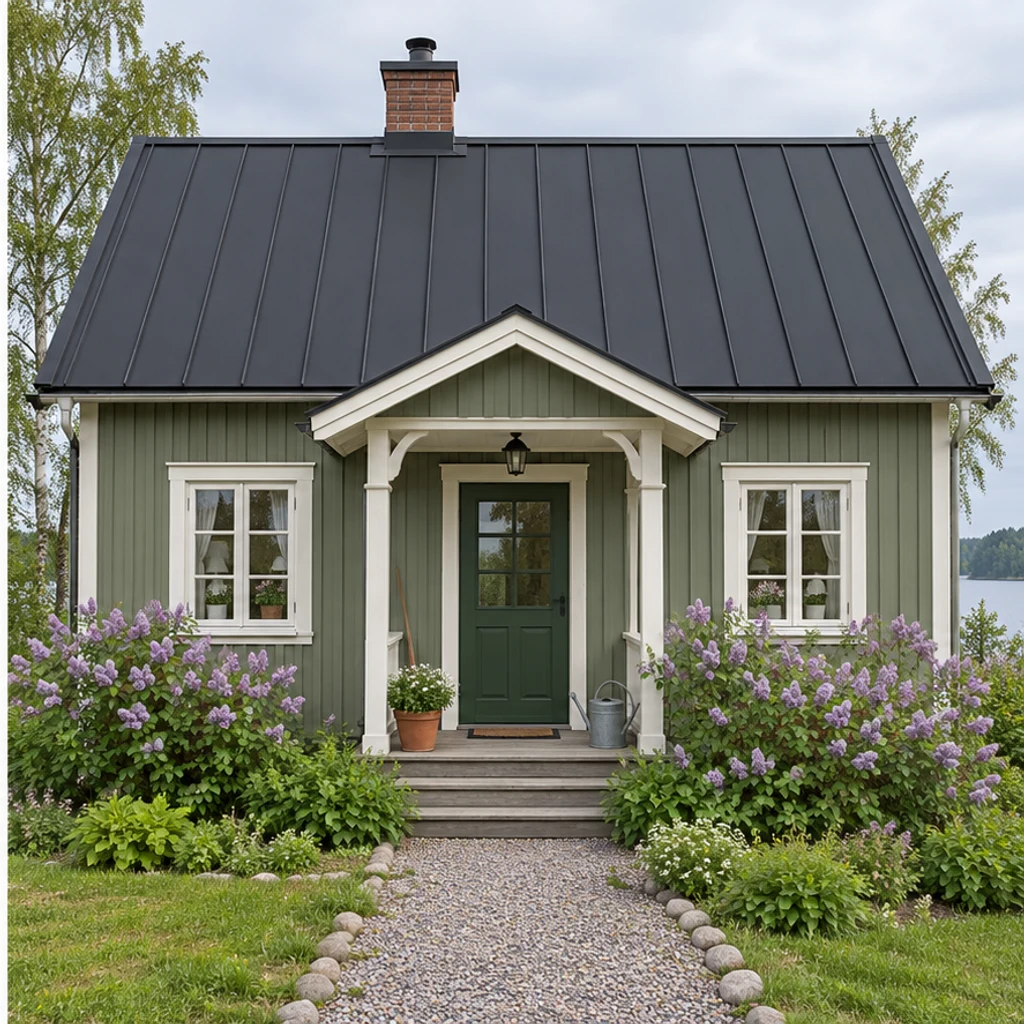
Muted sage and cream soften a red timber cottage without changing its metal roof.
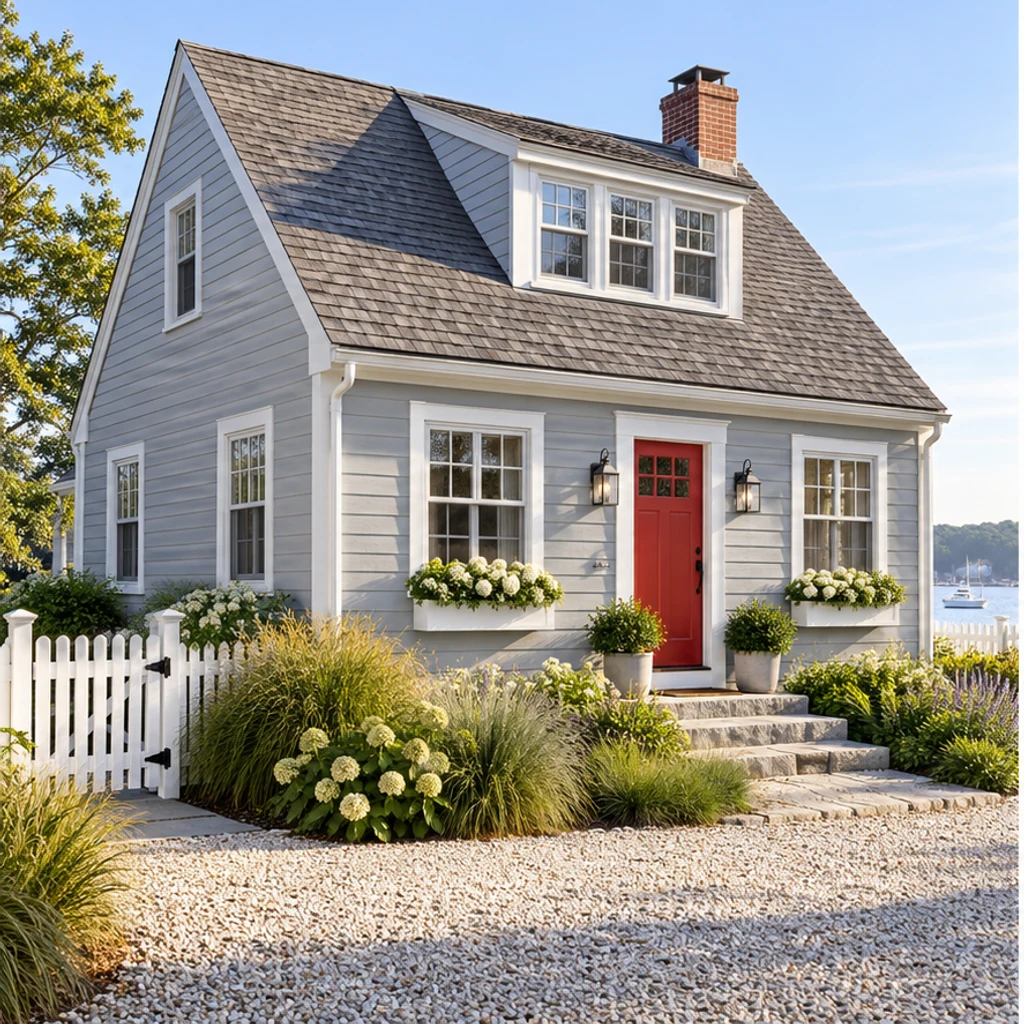
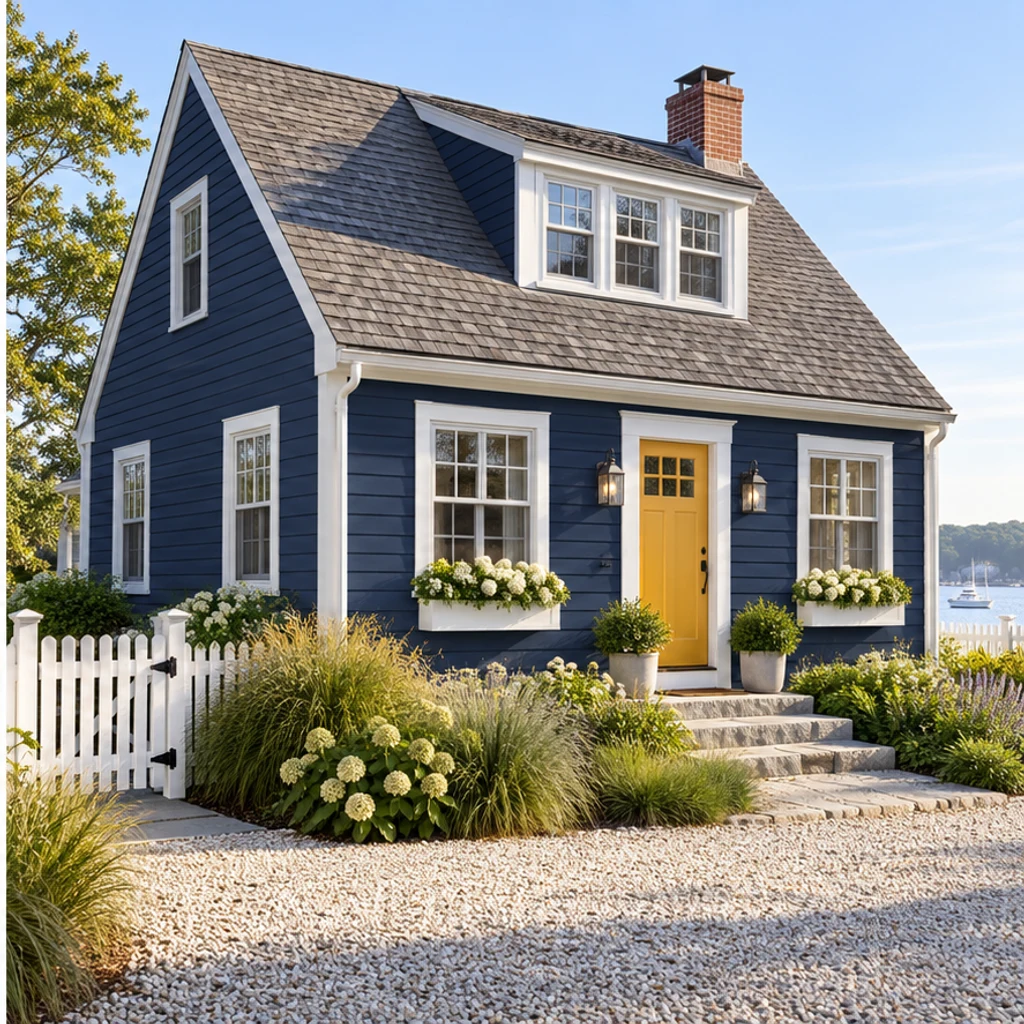
Navy siding, white trim and a mustard door contrast with the original shingle roof.
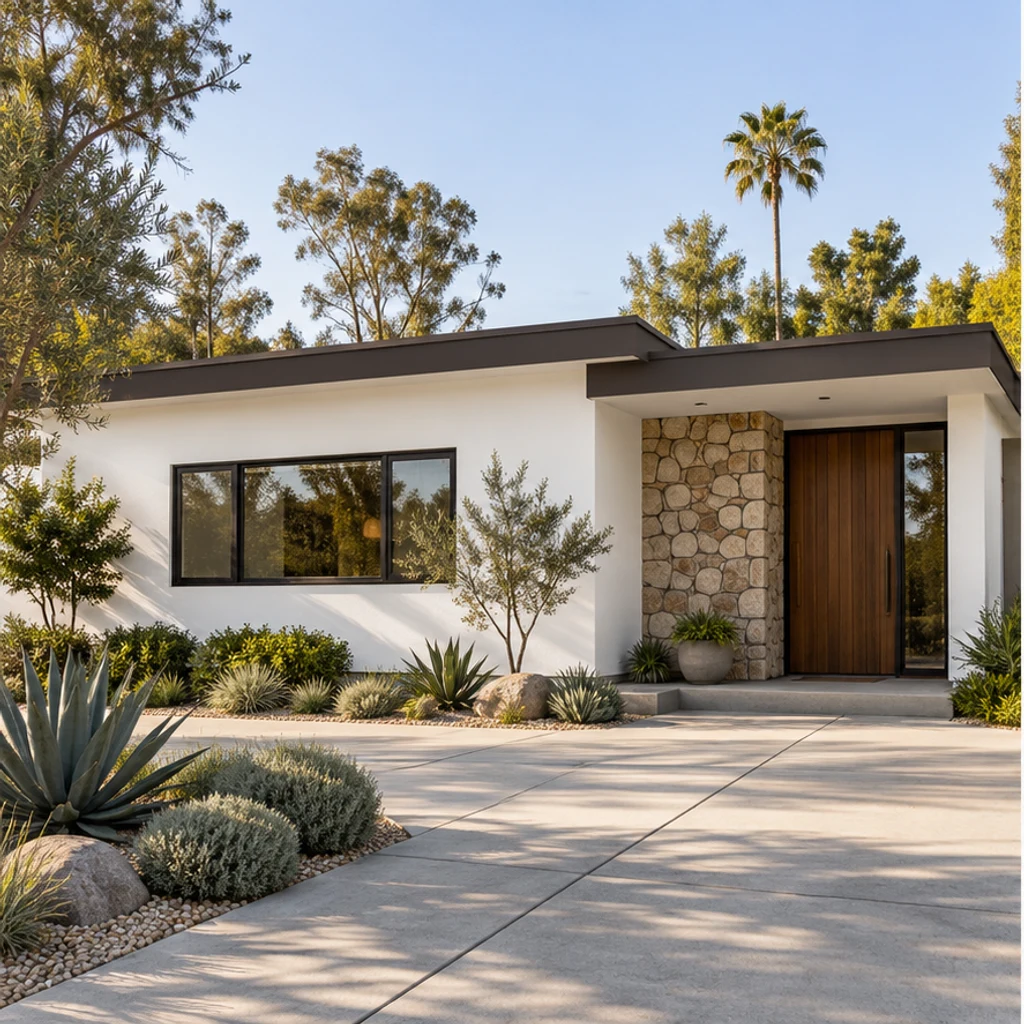
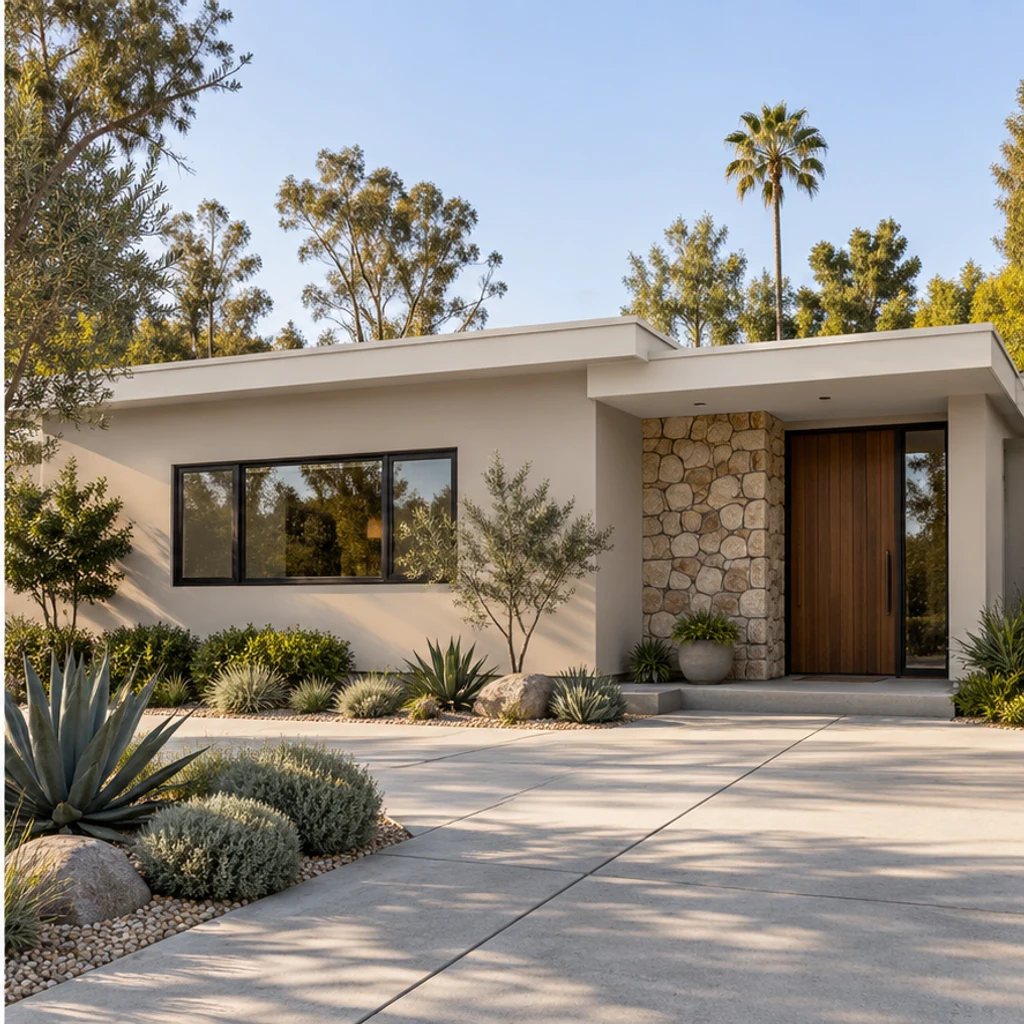
Warm greige stucco and pale trim sit beside the same stone entry and timber door.
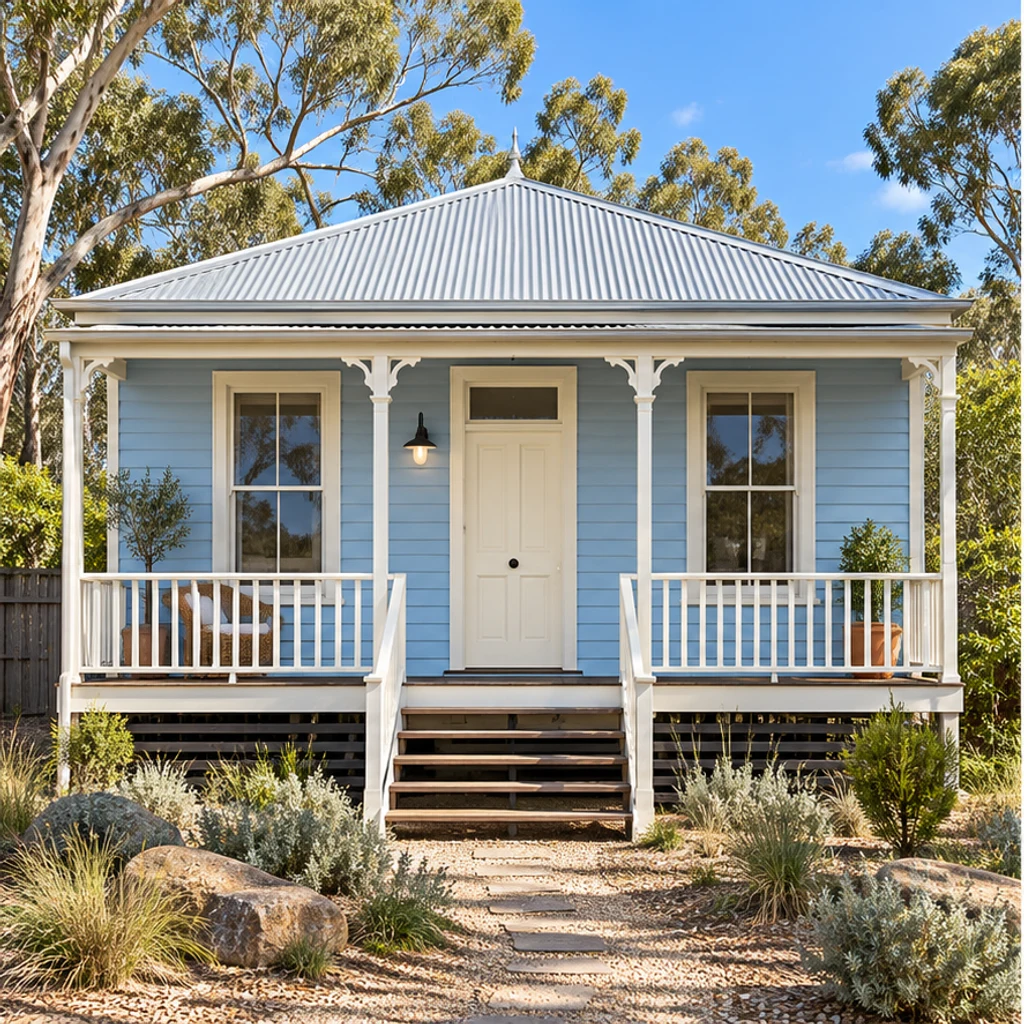
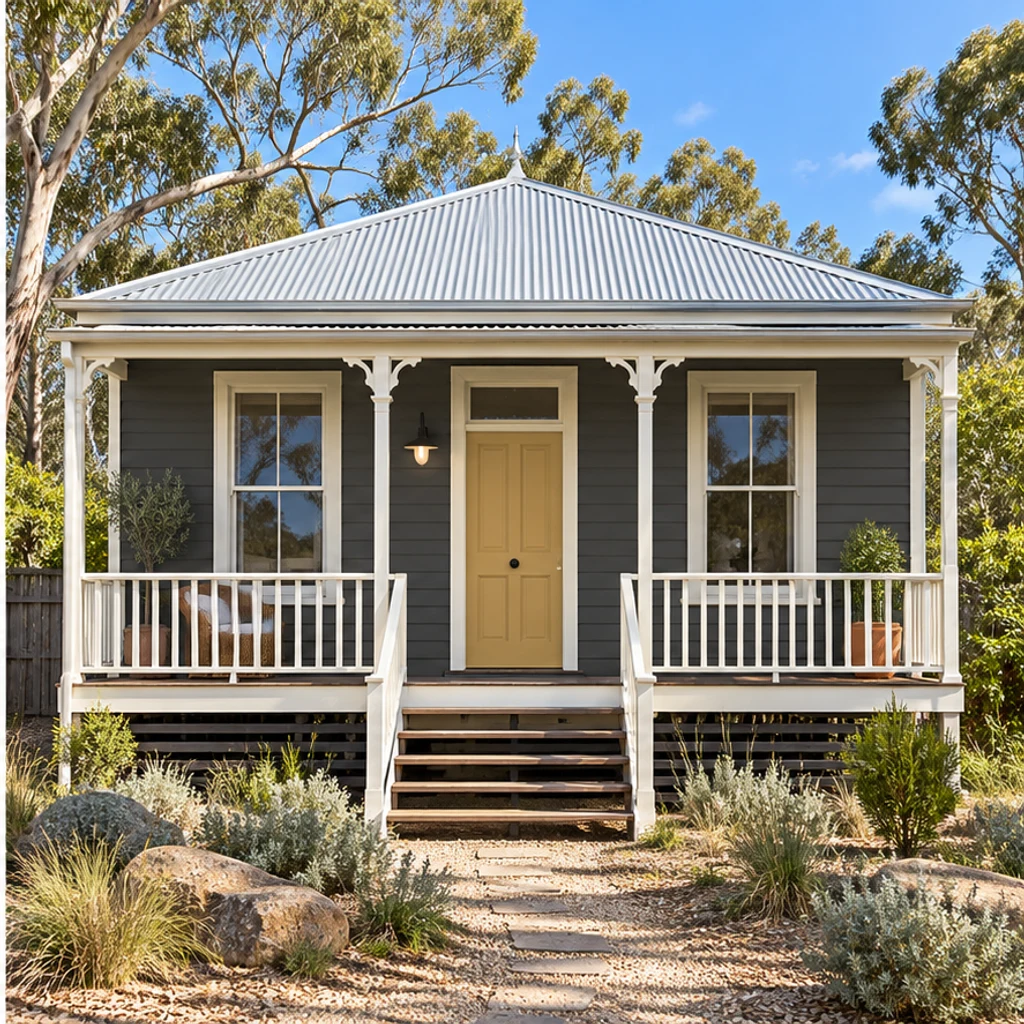
Charcoal boards and an ochre door create contrast under the original metal roof.
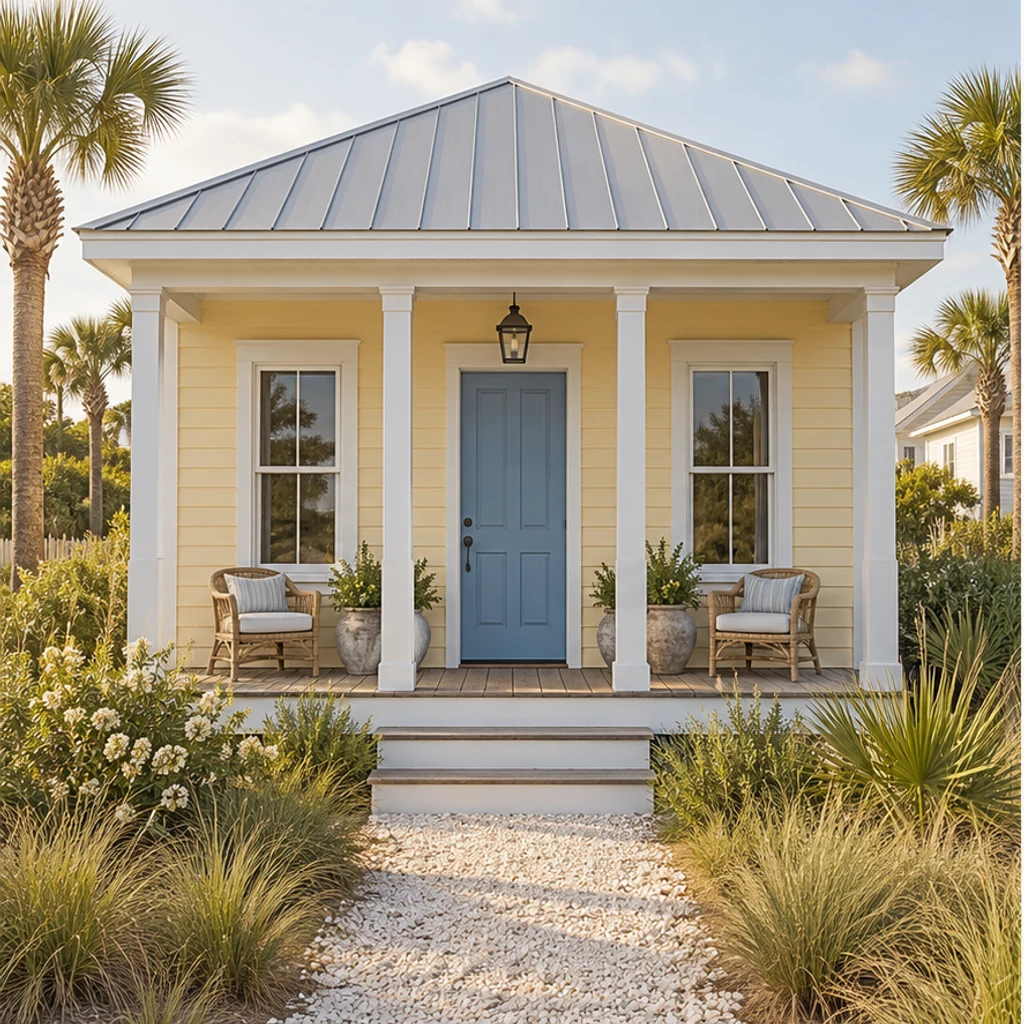
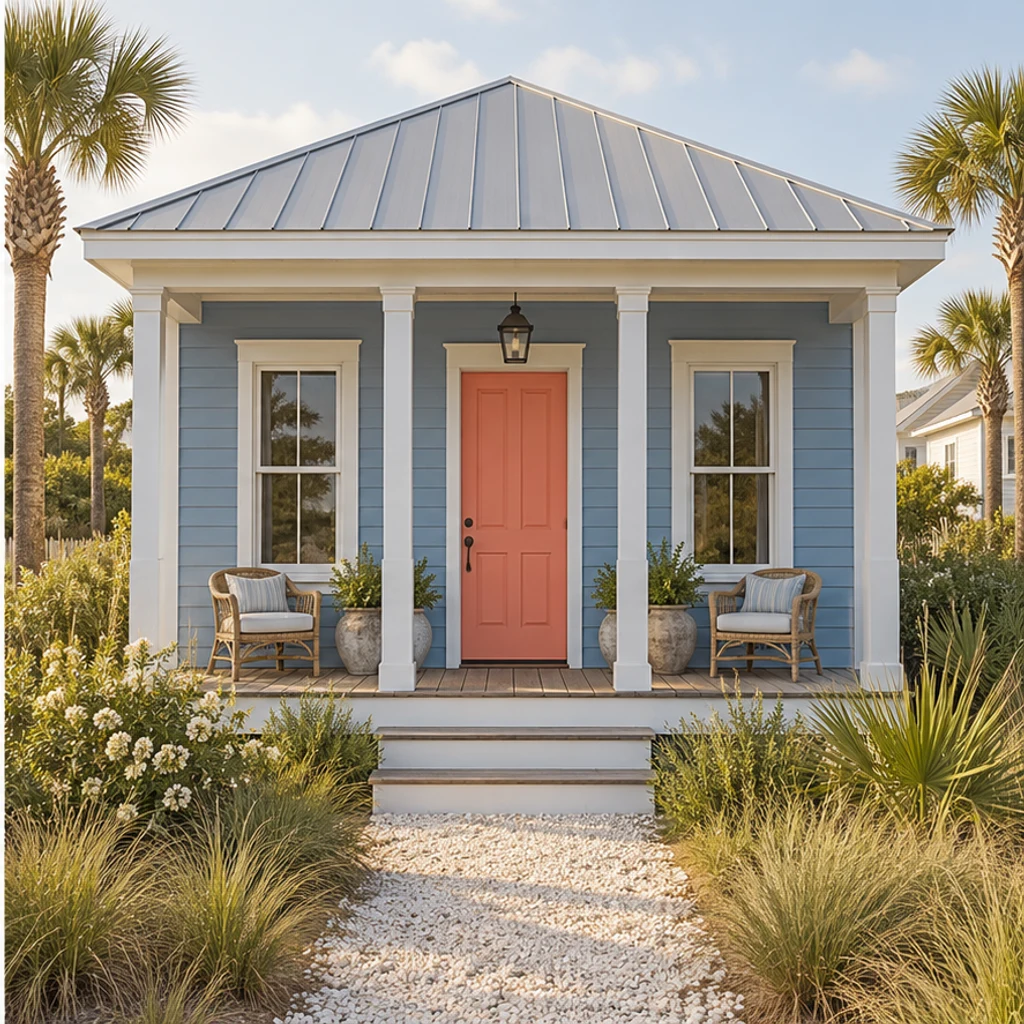
Dusty blue siding and a coral entrance keep the same light roof and wooden porch.
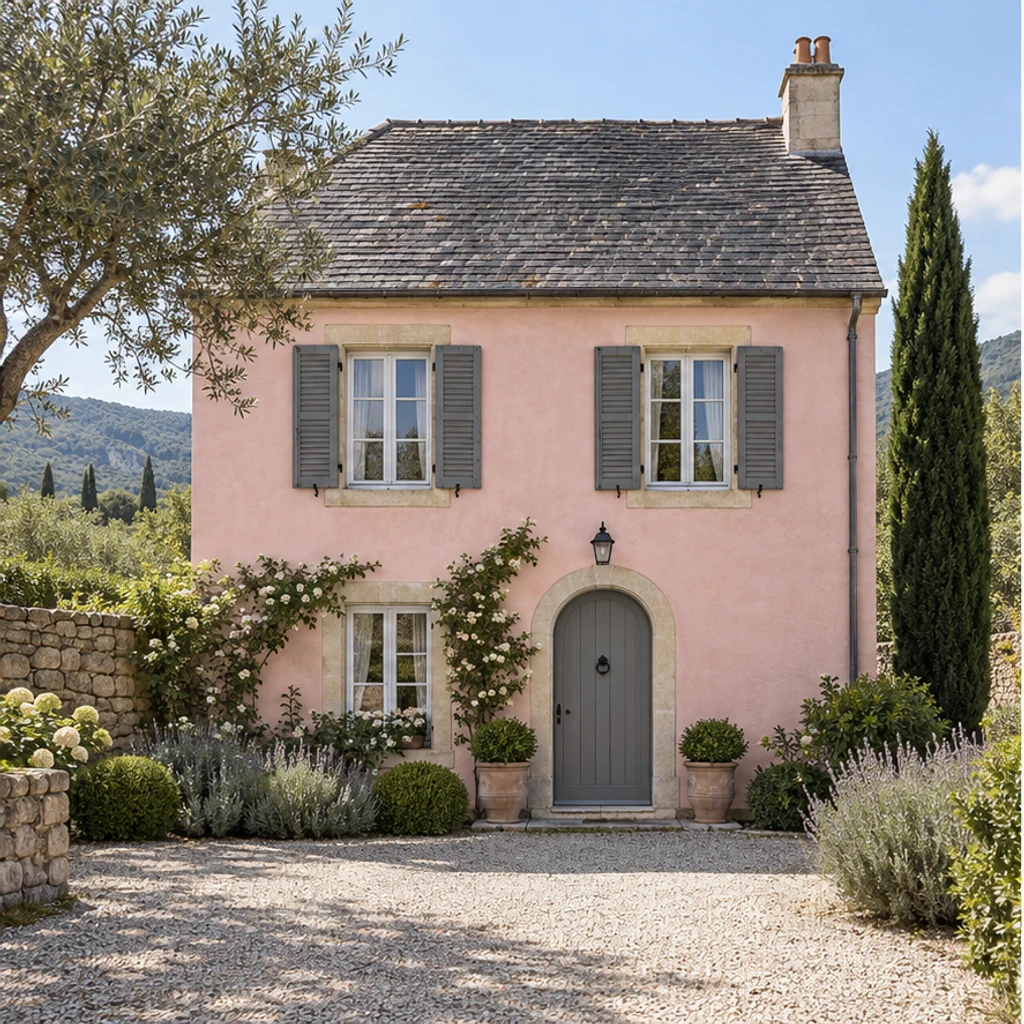
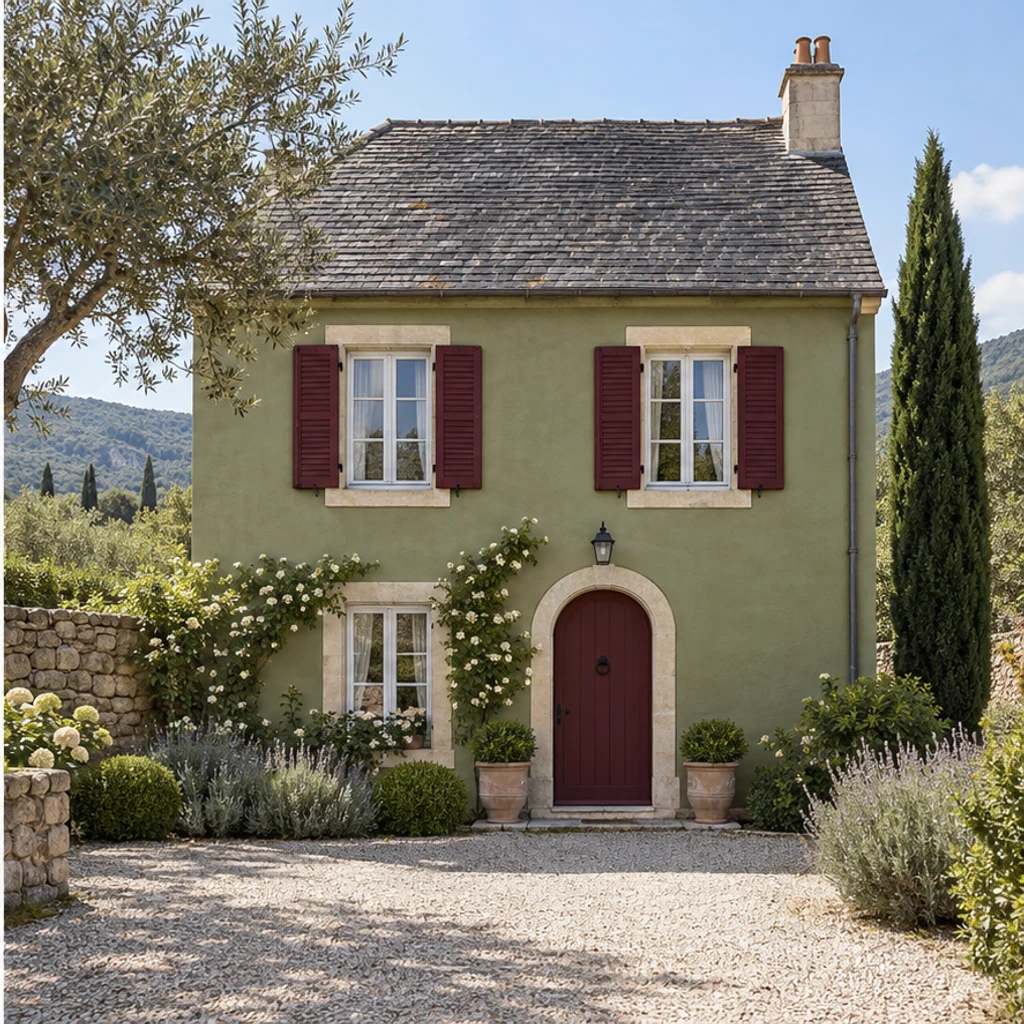
Olive stucco and burgundy painted shutters coordinate with the same slate roof.
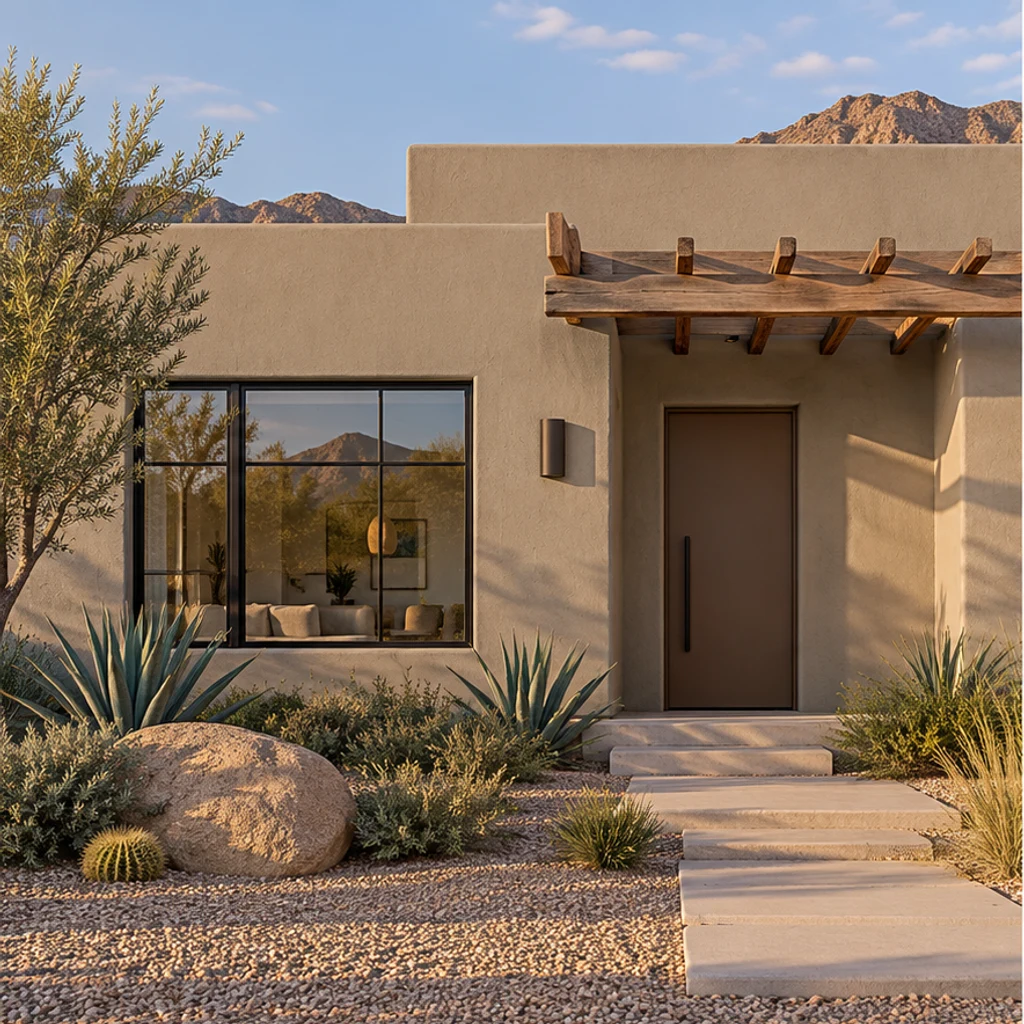
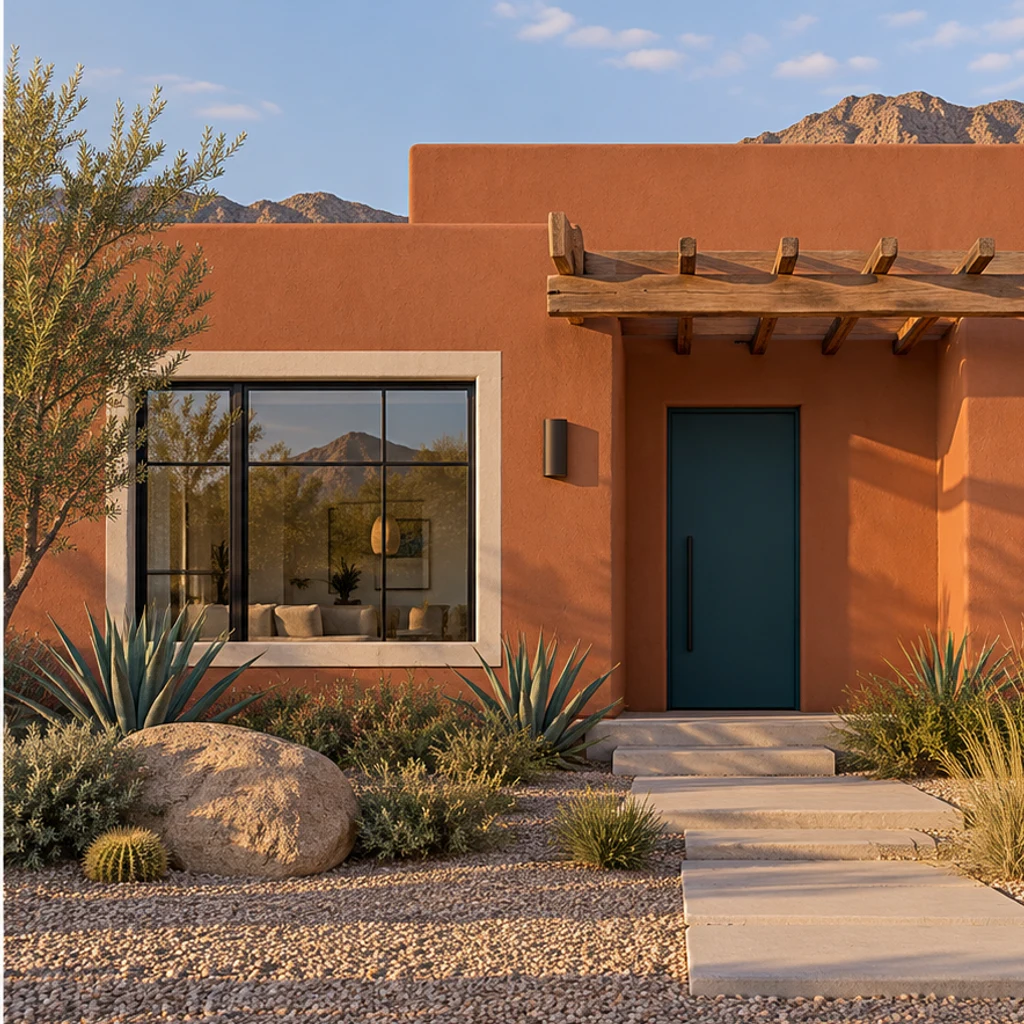
Terracotta painted stucco and a teal door keep the original timber pergola and desert garden.
Choose a clear exterior photo in even daylight. Include the roof, entrance and any stone or brick you plan to keep, so the palette can be judged in context.
Pick a palette, upload one color reference or write your direction. Name the body, trim or door and say what must stay. Without a direction, the preview uses warm ivory on the painted body and charcoal on painted trim, keeping the door and shutters.
Review the displayed credit cost and generate. Compare rooflines, windows, masonry, plants and paint edges with the original. Re-edit the same inputs to explore another direction.
A useful comparison changes the intended painted surface without changing what makes it your house. AI can alter small details, so check each result.
Rooflines, windows, door openings and porch details should match the source.
Compare unpainted brick, stone, natural wood and roof colors.
Look around glazing, hardware, plants and the edges of trim.
Screens, lighting and generated shading affect the apparent color.
Yes. Upload a clear exterior photo as the house source. The optional palette is a separate color reference; it should not replace your building or camera view.
No. You can write paint instructions or use only the house photo. With no direction, the tool proposes warm-ivory painted walls and charcoal painted trim while keeping the door and shutters. Unpainted brick, stone and natural wood stay outside that default.
Yes. Name that painted surface in Edit instructions and list what to preserve. A request such as ‘only the front door, deep teal; keep all walls and trim’ narrows the edit. Check the output for unintended changes.
Yes. A selected card supplies an actual second image for its color direction. An uploaded reference replaces the card. Neither supplies your house geometry, roof or landscaping, and explicit written directions take priority.
No. The result is a visual concept, not a calibrated paint specification. Compare real samples on the house before buying paint; the tool does not calculate coverage, quantities or a contractor quote.
Yes. Re-edit restores your source and settings. Change the palette or instructions, review the current credit cost and generate another concept. Loading an example only fills the inputs; it does not generate automatically.
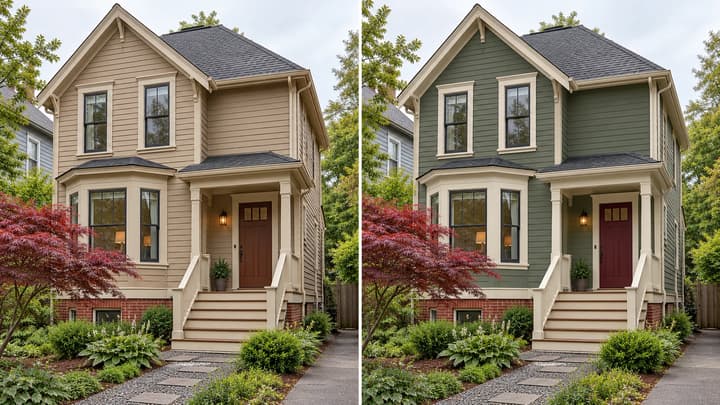
Compare exterior paint colors on one house photo: choose body, trim and door directions, preserve the roof and masonry, and check the result before testing real samples.
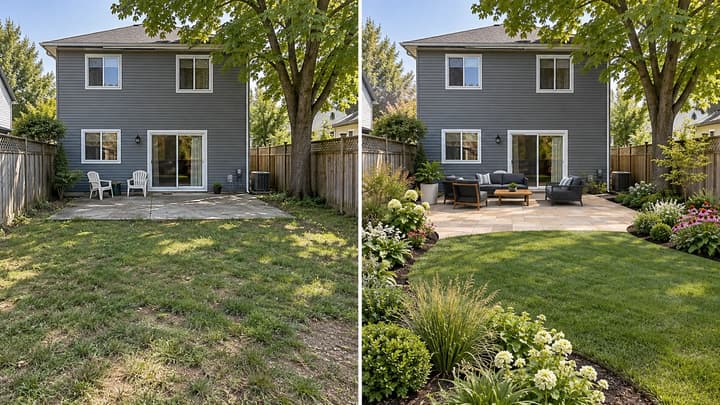
Redesign your backyard from a photo. Compare planting, paving and seating styles while keeping the house, yard boundaries and fixed features in place.
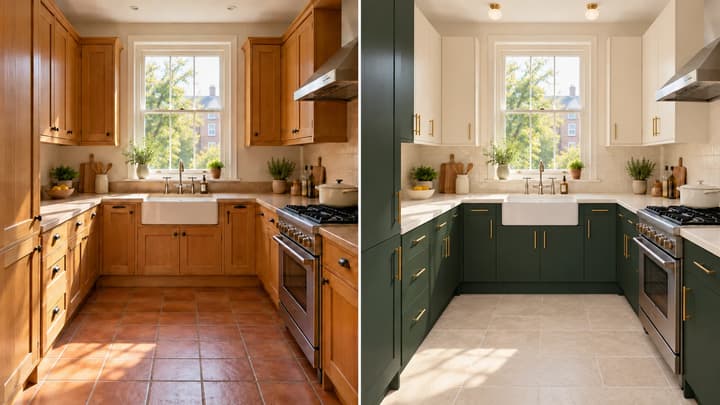
Redesign your kitchen from a photo. Coordinate cabinets, counters, walls, floors and lighting while keeping the room structure and major appliances in place.
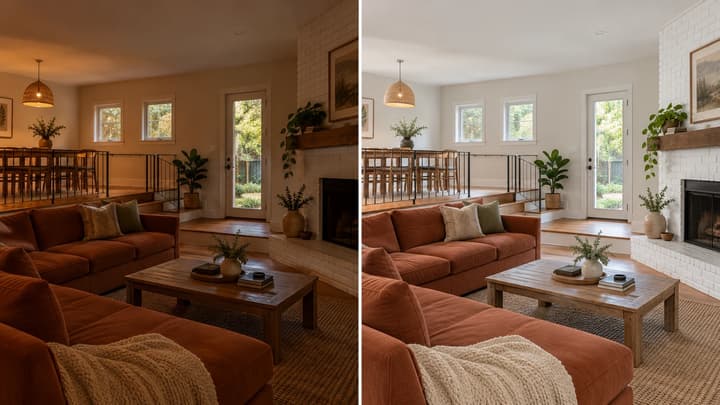
Edit a property photo with AI. Balance exposure and color or request small clutter removal while keeping the original layout, furnishings and finishes.

Review credits and plans before generating.
Preview exterior paint colors on your own house photo. Try a palette or describe siding, trim and door colors, then compare the result before choosing real paint samples.