How to Edit Images With AI Prompts

Start with one source image, describe one change and name what should stay. Learn to choose a ratio, compare results and revise without carrying unwanted changes forward.

LumiYingUpdated

Prompt Strategy

Separate the change from the details to keep

Good image editing prompts separate what must stay fixed from what should change. This makes each generation easier to evaluate and revise.

Identify the source

Begin with one clear original. If you add a second image, explain which image supplies the subject and which supplies a style or setting.

Name visible details

Specify the face, product outline, exact label text, fabric or camera view that matters. These are instructions to check against the result, not a guarantee that every detail stays identical.

Change one thing first

Separate background replacement, recoloring and lighting into different trials. A failed result is easier to diagnose when only one change was requested.

Keep the original available

Save the source separately. Use it again to compare alternative directions; use an edited result as a new reference only when its existing changes are worth keeping.

Workflow

From source image to an edit you can evaluate

Prepare the input, set the output and compare the result before starting another generation.

Step 01

Choose a clear original and a specific goal

Upload a source with readable details and enough space around the subject. Decide on one change, such as a blue background or burgundy fabric. A blurred label or hidden edge cannot be reliably recovered by asking the model to preserve it.

Step 02

Write the change and preservation rules

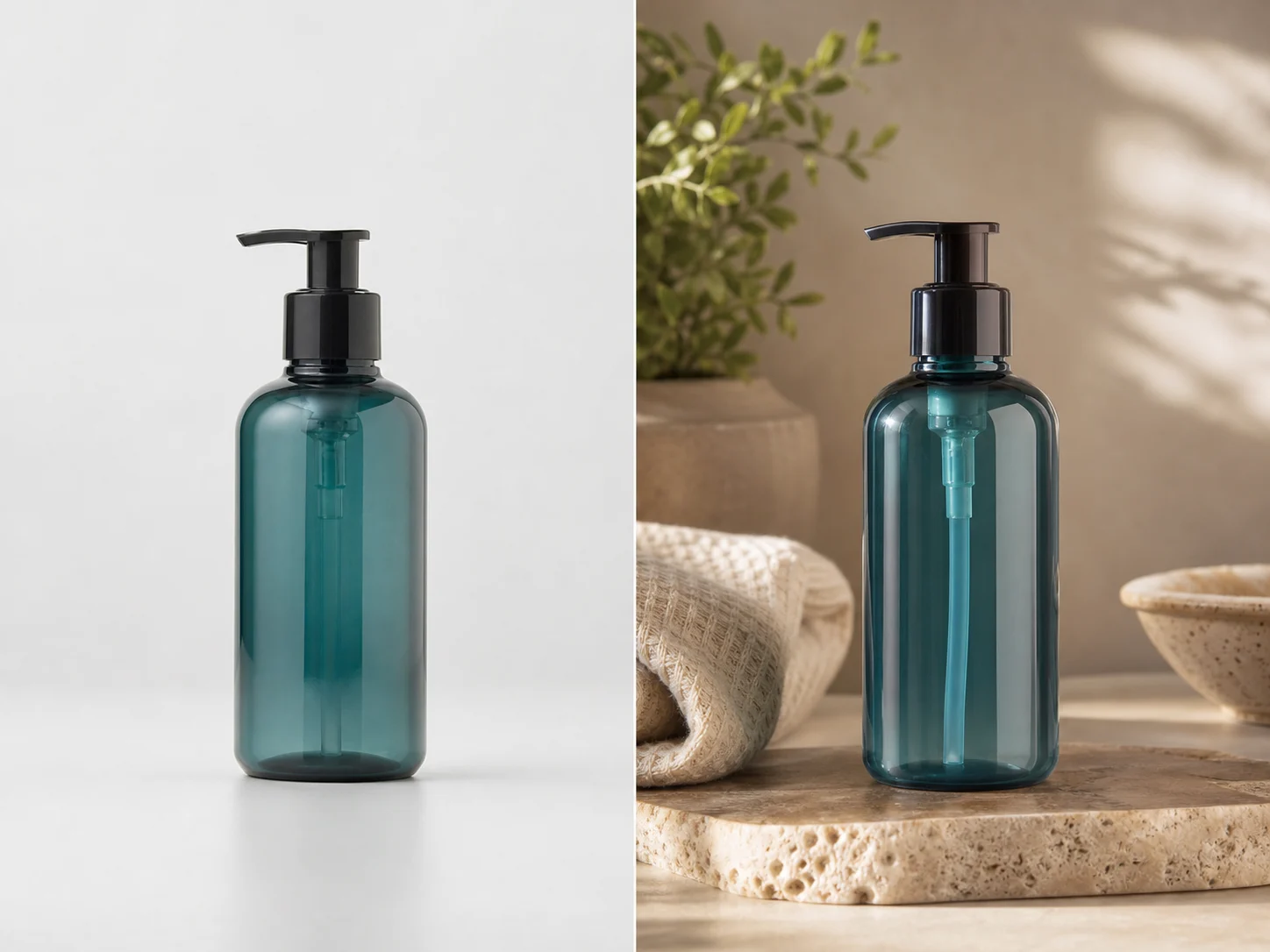
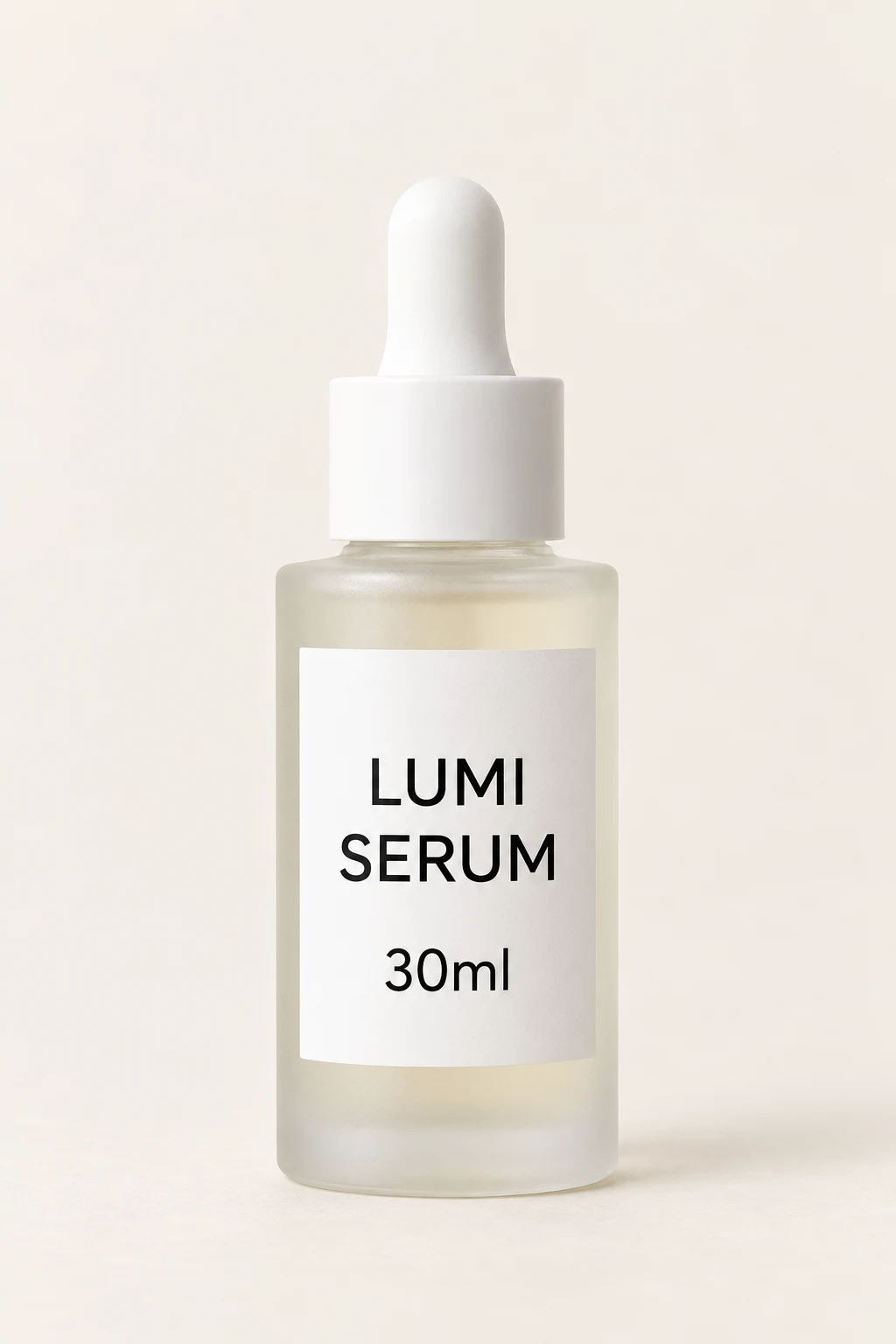
Name the target, the change and the details to keep. For the bottle example below: change only the background and surface to pale blue; keep the cap, bottle outline and exact label text. Avoid adding cleanup, relighting and restyling to the same first trial.

Step 03

Check the model, ratio and quoted credits

Select the output ratio in the controls; writing 16:9 or 9:16 in a prompt does not change that setting. Start with one output at an available draft resolution. Check the displayed credit quote before generating, and keep the same settings when comparing prompt revisions.

Step 04

Generate and compare against the original

First check whether the requested change happened. Then inspect the details you named: label letters, face, hands, silhouette, edges, shadows and crop. Reject an attractive result if a critical detail changed. Preservation rules do not create a pixel-locked selection.

Step 05

Choose the right input for the next pass

For a different background or color, return to the original so earlier changes do not accumulate. For a small correction to an accepted edit, use that output as the next reference and name the correction. Save an approved still before using it as a video start frame.

Three edits with visible inputs and results

These AI-generated examples show the edit and the details to inspect. Load a source image, prompt and suggested ratio, then review the settings before generating your own version. Results vary by image, prompt and model.

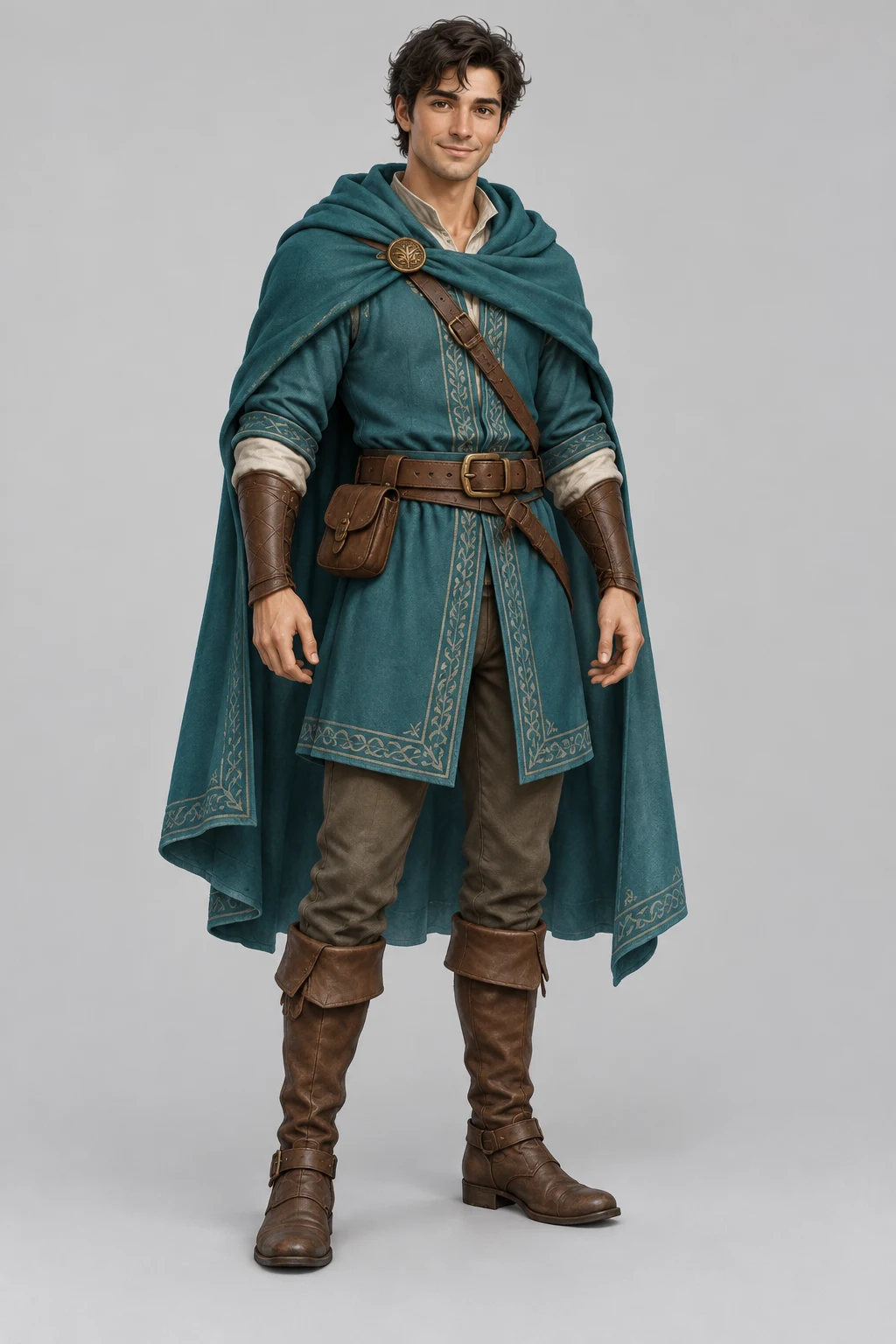
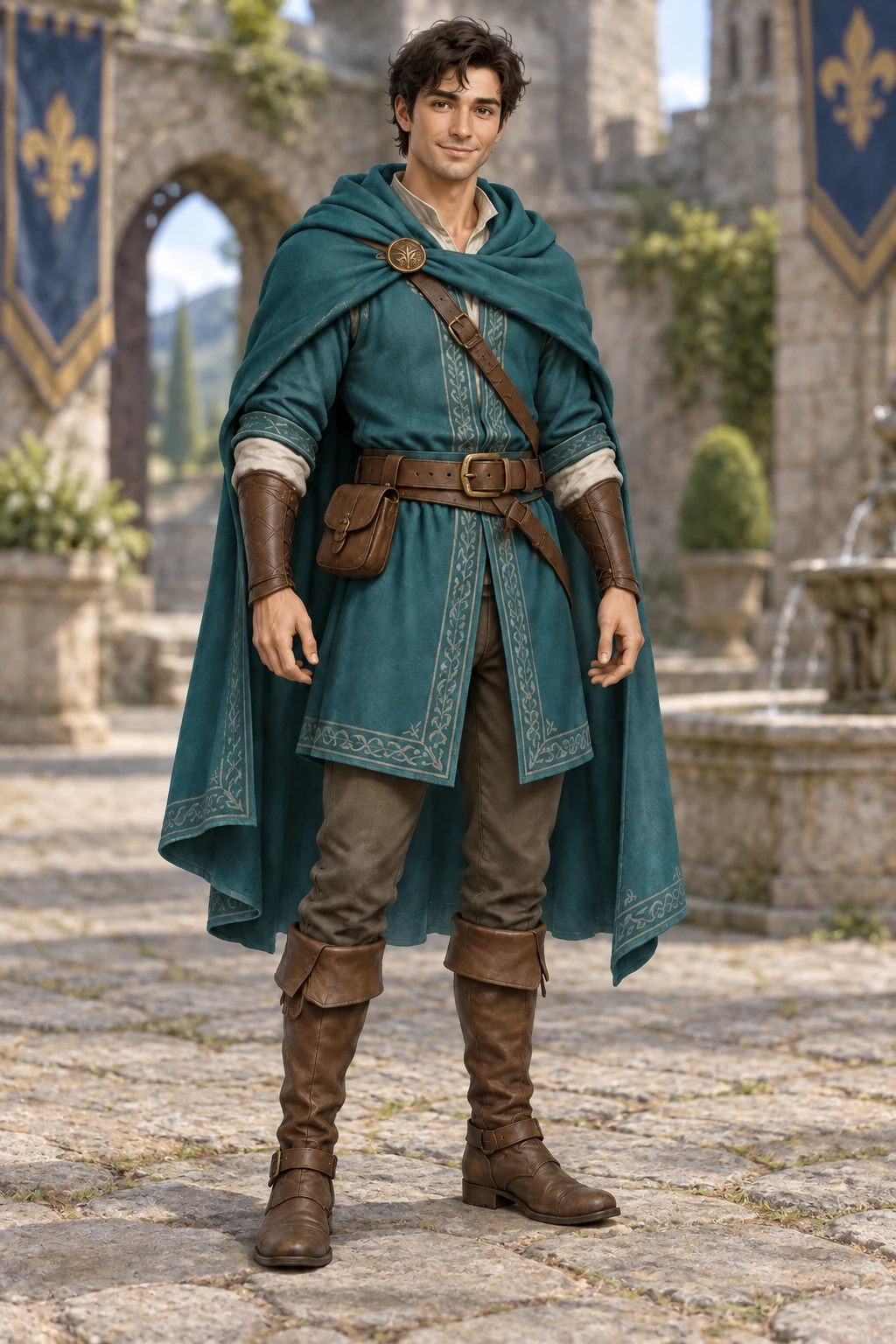
Full-body adventurer in a teal tunic and cloak on a grey background.
Before
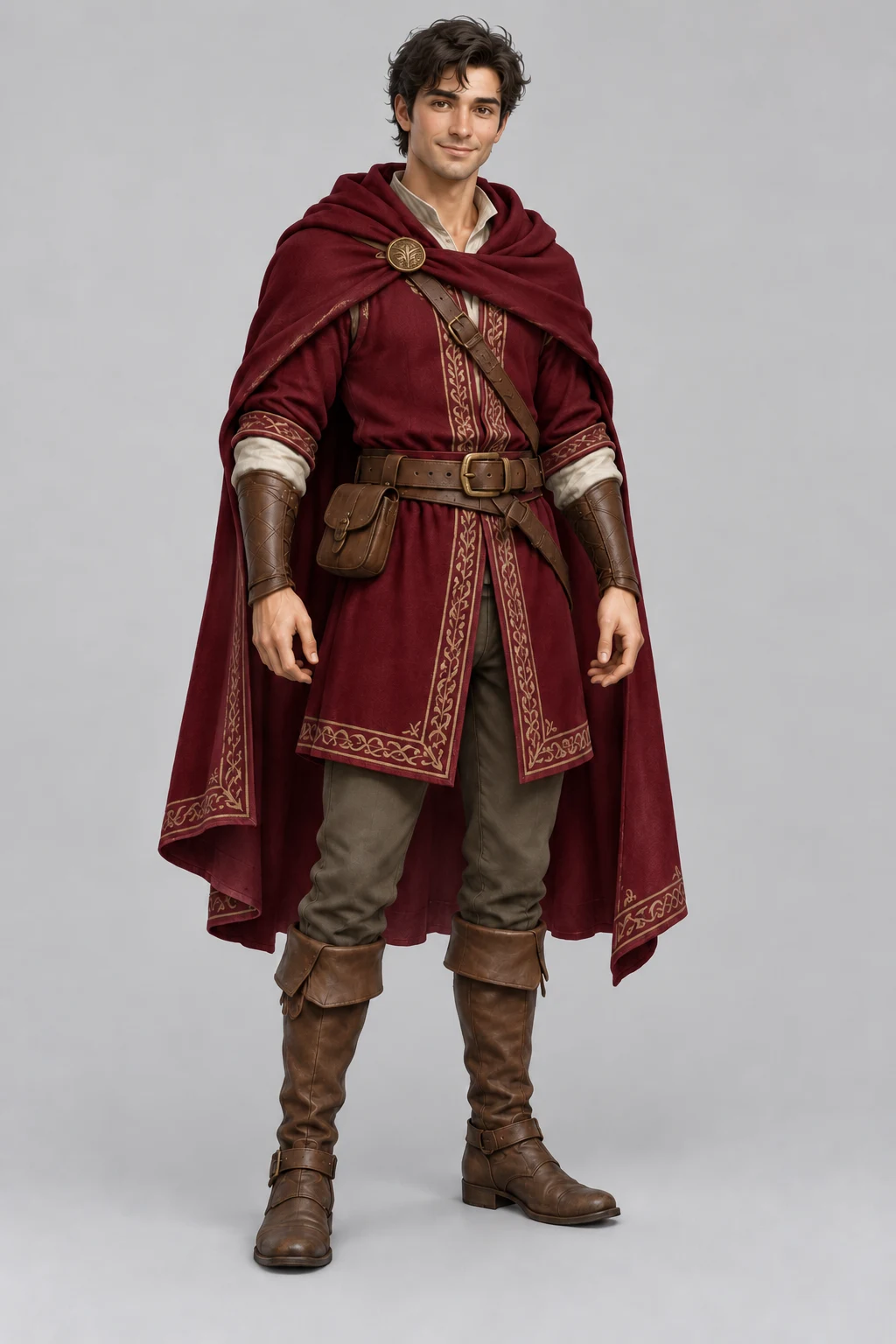
The same adventurer wearing a burgundy tunic and cloak on grey.
After

Burgundy outfit

Load example

Change the teal fabric to burgundy. Compare the face, hands, boots and embroidery as well as the new color: small brightness or material changes still need review.

Keep the face, pose, hands, embroidery, accessories and grey background unchanged. Change only the tunic and cloak fabric from teal to deep burgundy.
Full-body adventurer in a teal tunic and cloak on a grey background.
Before
Teal-clad adventurer standing in a softly blurred stone castle courtyard.
After

Castle courtyard background

Load example

Start again from the original teal-outfit image, not the burgundy result. Compare the character outline and the contact shadow after replacing the grey background with a courtyard.

Keep the character, teal outfit, pose and lighting unchanged. Replace only the plain grey background with a softly blurred stone castle courtyard.

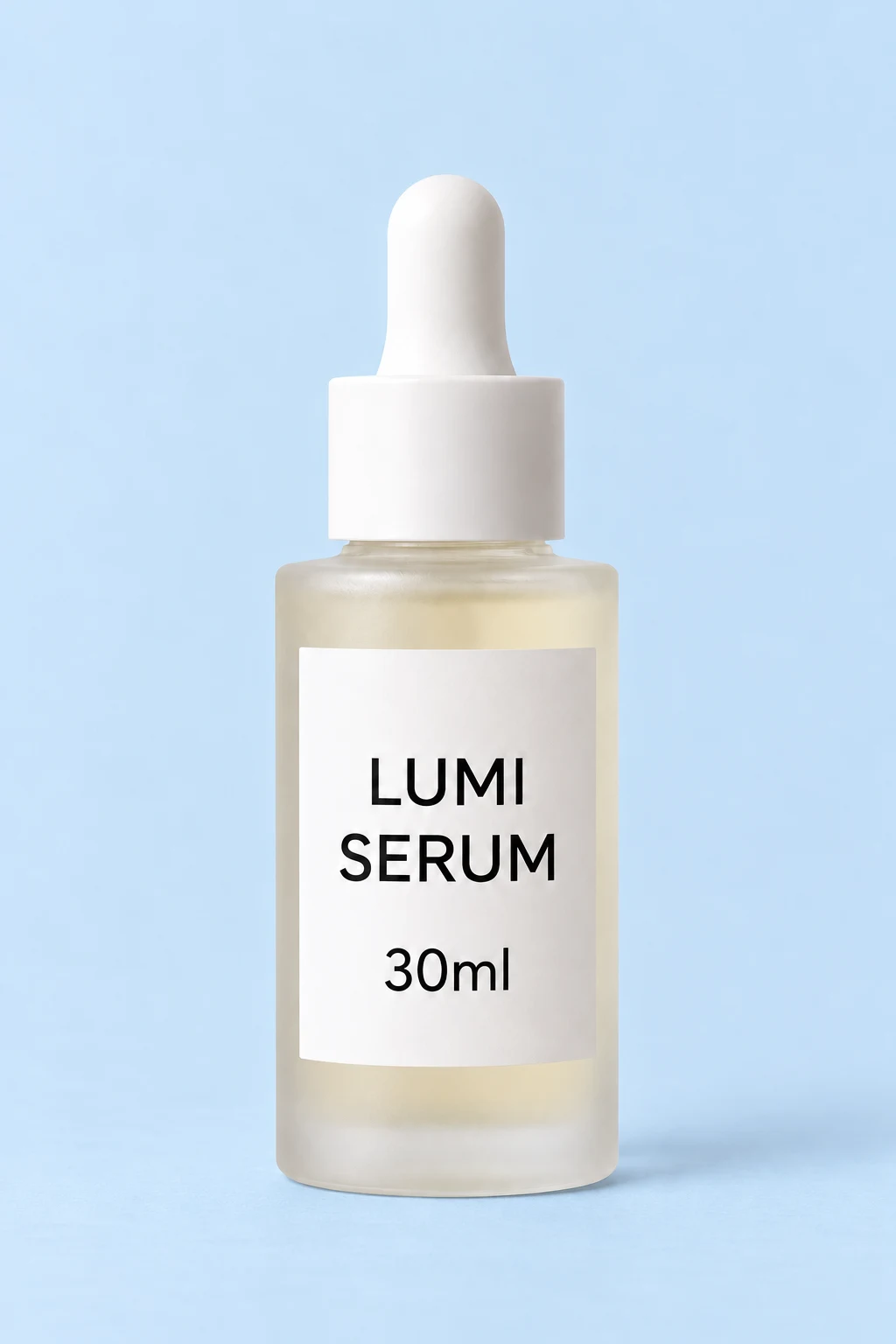
Frosted serum bottle with white dropper and readable LUMI SERUM 30ml label on off-white.
Before
The serum bottle with its original label on a pale blue background and surface.
After

Powder-blue background

Load example

Change only the background and supporting surface. Read LUMI SERUM 30ml letter by letter, then compare the cap, glass edges and shadow; a correct blue backdrop alone is not enough.

Keep the bottle, cap, label text "LUMI SERUM 30ml" and lighting unchanged. Change only the background and surface to pale powder blue.

Prompt Examples

AI image editor prompt patterns

Replace the bracketed details with visible objects in your own image. Choose the matching output ratio in the controls, then check the result against your preservation rules.

Background replacement

Use the uploaded image as the main subject. Keep the subject shape, color, and edges unchanged. Replace only the background with [new scene], using [lighting style] and a clean commercial composition.

Best for product listings, campaign concepts, thumbnails, and cleaner social visuals.

Product photo cleanup

Keep the product shape, label text, color, lighting and framing unchanged. Remove only [specific distraction] and reconstruct its immediate background. Do not move, relight or restyle the product.

Keep cleanup separate from a new background or lighting pass so you can tell which change caused a problem.

Style transfer

Use the uploaded image as the composition reference. Preserve the subject and layout, but apply [visual style], [color palette], and [mood]. Do not add text or extra logos.

Useful for moodboard variants, social campaigns, and art direction tests.

Video keyframe

Turn this image into a clean first frame for a 9:16 AI video. Keep the main subject clear, add [cinematic lighting], leave room for motion, and avoid text overlays.

Select 9:16 in the ratio control as well. Check the generated still first, then use the accepted image as a start frame in image-to-video; this prompt does not generate a video.

What to change when an edit misses the brief

Inspect the failure before changing the prompt or spending credits on another pass.

A face, label or product shape changed
Return to the original, remove unrelated edits and name the exact details to preserve. Simplify the requested change.
Compare those details at full size. If exact fidelity is essential and still fails, use a manual editing workflow rather than treating another generation as guaranteed repair.
Halos or an unnatural background edge
Use a clearer source and a less conflicting setting or lighting direction. Ask to preserve hair, transparent edges and contact shadows where visible.
Inspect the silhouette and shadow, not just the center of the image. A pleasant background can hide a poor cutout.
The crop or output shape is wrong
Set the ratio in the controls and remove contradictory framing instructions. Leave enough room around the subject in the source.
Check the full subject and edge margins. A ratio written only in the prompt does not override the selected output setting.
Each revision drifts further away
Use the original for a new direction. Use the last output only if you want to retain its changes, and ask for one small correction.
Compare with the original as well as the previous output; otherwise gradual changes to color, text or identity are easy to miss.
FAQ

AI image editing prompt FAQ

What should I write in an AI image editing prompt?

State what the uploaded image is, what must stay unchanged, and what should change. A focused prompt is easier to review than a long prompt with unrelated edits.

Can AI image editors automate product photo edits?

They can help with background replacement, lighting changes, cleanup, scene staging, and creative variants. For ecommerce images, explicitly preserve product shape, label, and color.

How do I make AI edits more consistent?

Keep one primary edit per generation, include preservation rules, and revise one variable at a time. If the background failed, change the background instruction without rewriting the whole prompt.

Can I use an edited image for video generation?

Yes. Once the edited still looks clean, use it as a start frame, storyboard panel, product keyframe, or thumbnail before moving into image-to-video generation.

Can a prompt guarantee that everything else stays unchanged?

No. The editor generates a new image from references and instructions; it has no brush, mask or region selection. Faces, text, materials and areas outside the intended edit may change, so compare them with the original.

Does loading an example spend credits?

Loading fills the source image, prompt and suggested ratio. Review the model, settings and displayed quote before generating; loading alone does not submit a generation.

Should the next edit start from the original or the result?

Use the original to try an alternative direction. Use an accepted result when you want to keep its changes and adjust one detail. Repeatedly editing a flawed result can carry its errors into later versions.

Start editing images with prompts

Open the AI Image Editor, upload a reference image, and write the first focused edit prompt.