Original image
Prompt
A serum bottle slowly rotates as water drops slide down the glass.
Video result
Turn a photo, product shot, character image, or concept art into a short AI video. Upload an image, describe the motion, choose an AI video model, then generate cinematic image-to-video clips.
An image to video AI generator animates a still image into a short video by using the image as the visual starting point and a text prompt as motion direction. LumiYing supports photo to video AI clips, picture to video maker workflows, product visuals, travel images, character art, social assets, and campaign concepts.
Upload a product shot, portrait-safe character design, scene concept, or landscape image and use it as the first frame for video generation.
Prompt for push-ins, pans, rotations, lighting shifts, drifting clouds, product reveals, or character movement instead of accepting random animation.
Choose aspect ratio, duration, and AI video model settings from the same LumiYing generator surface.
Move from image creation to image-to-video generation, then manage finished assets inside one workspace.
Compare each source image with its motion prompt to plan a product, travel, character or music clip. Generate your own version and review the movement.
A serum bottle slowly rotates as water drops slide down the glass.
A traveler walks toward the ocean as waves move in the background.
A creator smiles and waves at the camera.
Colored stage lights pulse around a guitar and microphone.
Ice moves inside a matcha drink as sunlight passes over the table.
Start with a clear photo, product image, landscape, scene concept, or original character artwork. Strong lighting and a clean subject usually produce better motion when you convert image to video online.
Describe camera movement, subject action, lighting changes, atmosphere, aspect ratio, duration, and the AI video model you want to use.
Generate the image-to-video clip, review the result, then refine the motion prompt or settings for smoother camera movement and cleaner output.
Upload a still, describe the motion, generate a clip and review it before using it in your project.
Animate product photos, social posts, travel pictures or character scenes. Describe the movement and camera direction you want to test.
You can describe camera push-ins, pans, rotations, lighting shifts, environmental movement, and subject behavior instead of relying only on automatic animation.
Create source images, convert them into short clips, and continue into AI video workflows without switching between disconnected tools.
Image to video AI turns a still image into a short generated video. The image gives the model the visual starting point, while your prompt describes camera movement, subject motion, lighting, and atmosphere.
Upload an image, write a motion prompt, choose video settings, and generate. For best results, describe one clear action or camera move instead of many unrelated movements.
Generate the visual clip in LumiYing first, then combine it with music in your preferred video editor. Use prompts that leave space for captions, pacing, lyric overlays, or beat-matched cuts.
Choose one strong image as the start frame, describe the motion you want, set the aspect ratio and duration, then generate a short image-to-video clip. If you have several images, use them as planning references and keep the first generation focused.
Open the image to video online generator, upload a photo or artwork, write an image to video AI prompt, choose model settings, and generate. After review, export or edit the resulting clip for your final workflow.
Yes. Product photos work well when the prompt asks for controlled movement such as slow rotation, camera push-in, lighting sweep, water droplets, packaging reveal, or lifestyle scene motion.
Use a clear image with a visible subject, good lighting, and enough background for camera movement. Avoid tiny subjects, messy overlays, heavy text, or low-resolution images.
You can explore the tool page and prepare prompts freely, but actual generation may require an account and credits depending on your plan. We avoid promising unlimited free generation.
The generator supports image-based video workflows and model-dependent reference modes. For a simple image-to-video clip, start with one strong image as the first frame, then use other images to plan style, ending frames, or later shots.
Ask for one camera move and one subject or environment motion. For example: slow push-in, subtle fabric movement, drifting clouds, soft light shift. Too many actions can make the clip unstable.
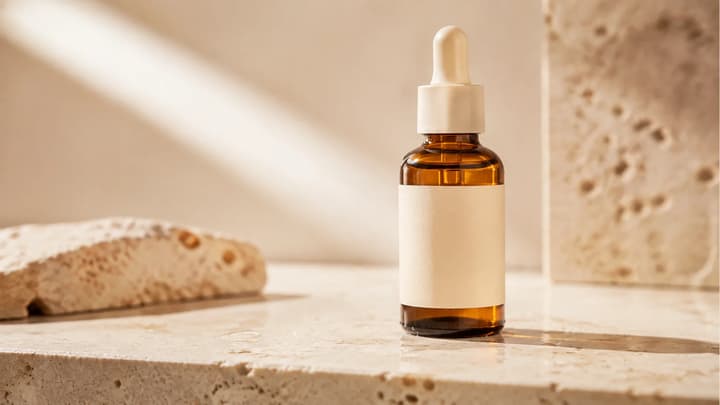
Turn product photos into AI product videos. Direct camera motion and lighting, generate short clips, and review the result before using it in your next campaign.
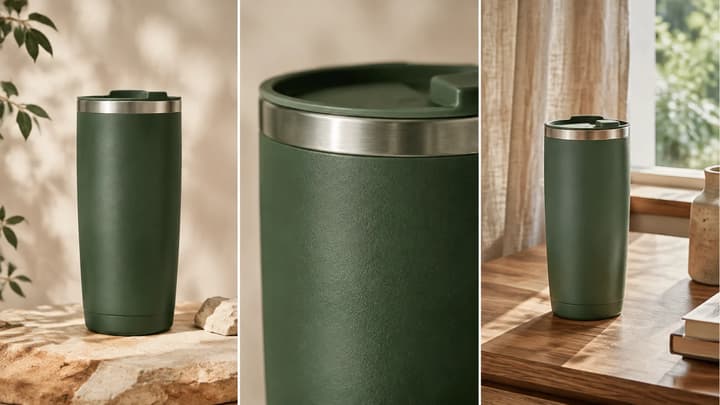
Plan product shots, prepare reference photos, adapt four AI video prompts, and check labels, geometry and motion before publishing.
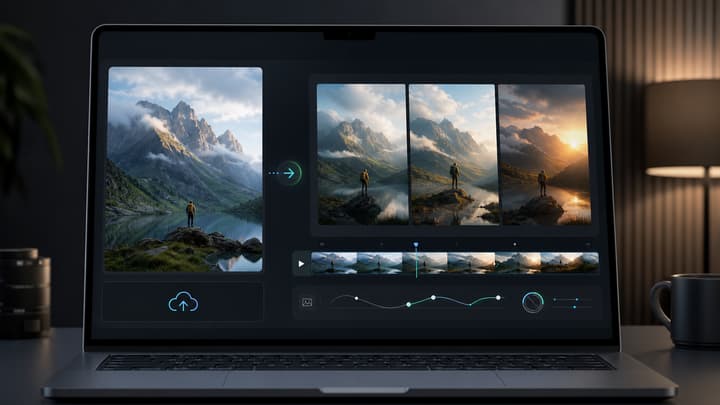
Prepare source images, motion prompts, and revision checks before generating.
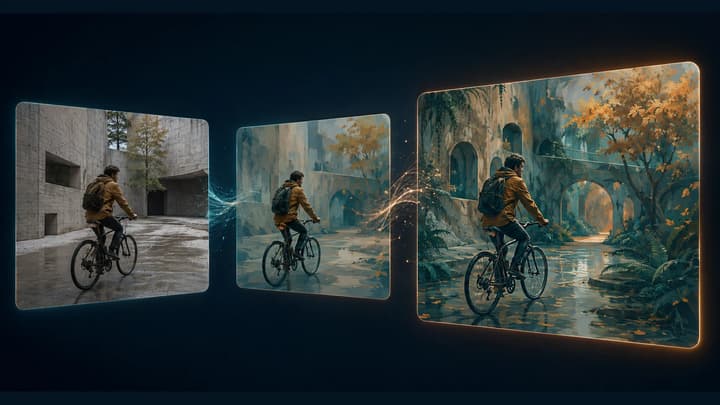
Learn how to restyle a video with AI: prepare source clips, write preserve-and-change prompts, review motion, and troubleshoot flicker or visual drift.
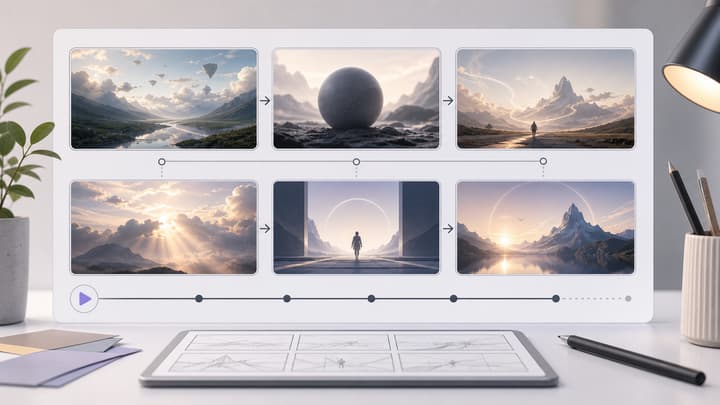
Plan a video sequence before generating individual clips.
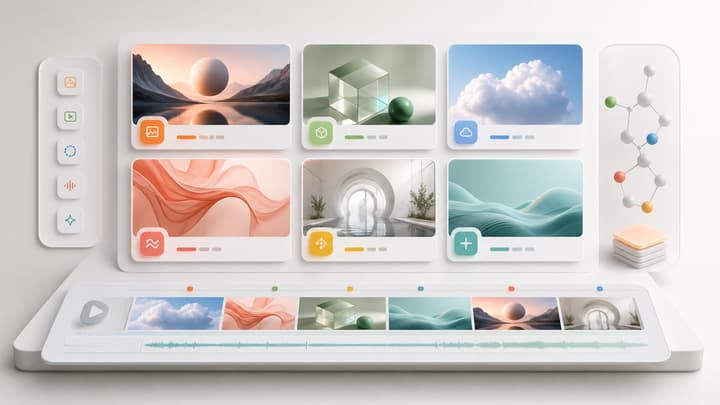
Compare available AI video and image models inside LumiYing.
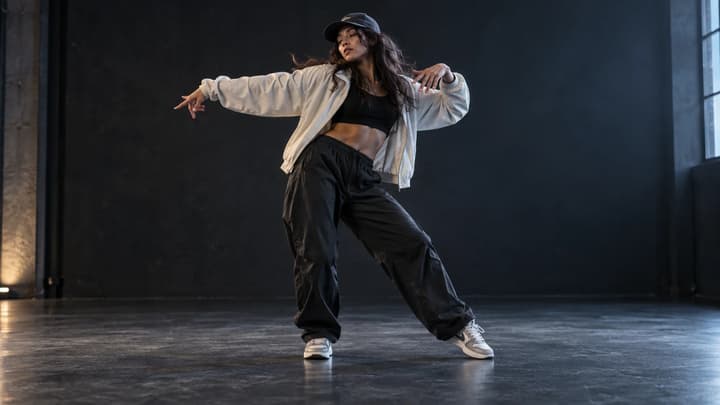
Upload a person or character photo, then choose a dance template or upload your own motion video. Generate a dance clip and review the movement before sharing.
Open the generator with video mode selected, upload a still image, and describe the motion you want.