How to Edit Food Photos with AI

Start with a clear photo of the dish you serve, decide whether it needs a simple correction or a new setting, then compare the edit with the original. This guide explains source preparation, background and effect choices, framing, and repairs.

LumiYingUpdated

Decide what to fix before editing

Separate a distracting setting from a problem in the food photo itself. Each needs a different first step.

Photograph the actual serving near soft, even light. Keep the whole plate or package in view, leave some room around the edges, and check focus on the food. Use the original camera file rather than a compressed screenshot. Retake a badly blurred photo or one with missing food details instead of asking AI to reconstruct them.

For a small exposure or white-balance correction, a regular photo editor gives direct control without regenerating the scene. Use AI when you want to compare a different tabletop, background or a specific appearance effect. Keep the original file: changing settings from the same source makes alternatives easier to judge than repeatedly editing an edited result.

How to Edit Food Photos with AI

Start with a clear photo of the dish you serve, decide whether it needs a simple correction or a new setting, then compare the edit with the original. This guide explains source preparation, background and effect choices, framing, and repairs.

  1. Step 1. Upload a clear food photo

    Upload a sharp photo of the actual serving, with the complete plate or package visible. Use JPEG, PNG or WebP up to 30 MB; convert HEIC first if necessary. A partly hidden dish or an unreadable label needs a better source, not a stronger effect.

  2. Step 2. Change the background, not the dish

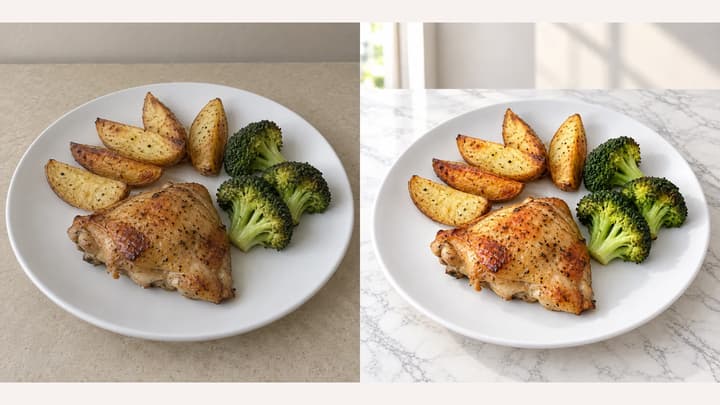
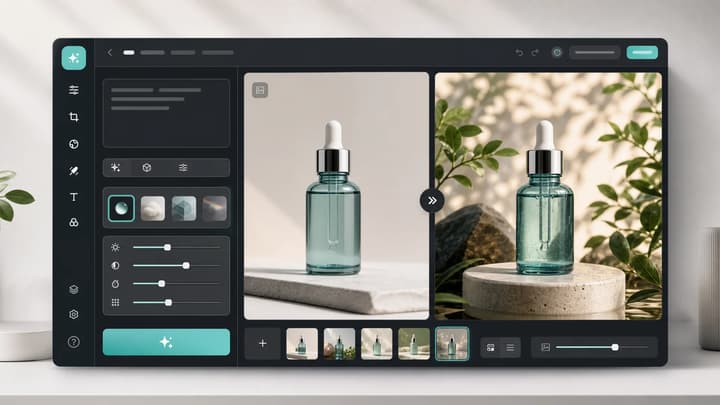
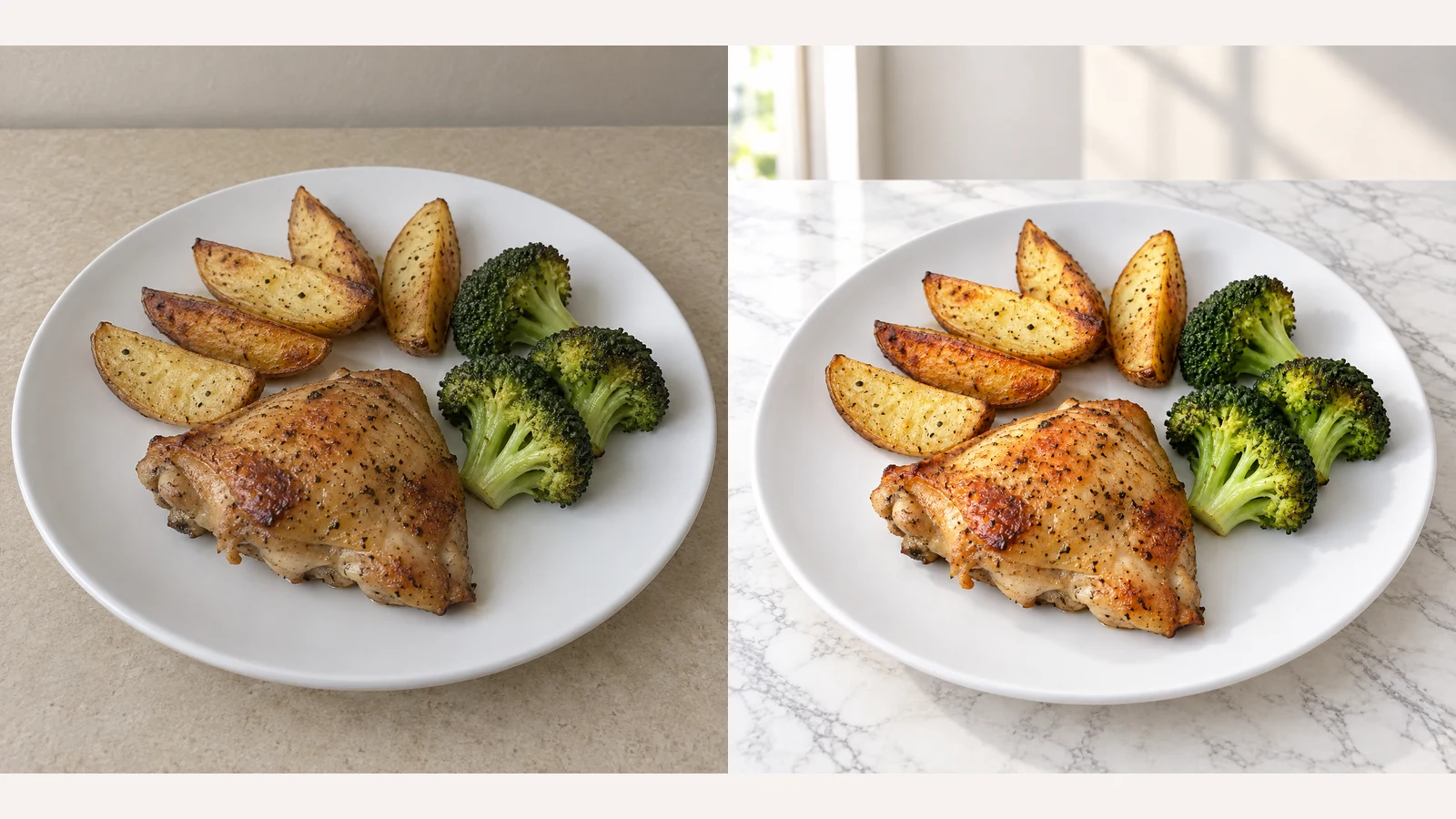
    Leave the background empty to keep the original setting. Otherwise choose one sample or upload an empty tabletop or scene with a compatible camera angle. A new upload replaces the selected background; the food photo remains the source for the dish and tableware.

  3. Step 3. Choose an appetite-enhancement template

    Choose Natural Enhance, Steam, Glistening, Texture Boost, Fresh Color or Steam & Shine. No effect is selected by default; click the selected template again to cancel it. Use steam for hot dishes and shine for naturally moist food, without adding ingredients or sauce.

  4. Step 4. Choose the output ratio and resolution

    Choose a square, portrait or landscape ratio and 1K, 2K or 4K resolution. Keep the entire dish or package in the frame; use extra space for the background rather than cutting off the product.

  5. Step 5. Generate and review

    Check the displayed credits, then generate one photo. Compare it with the original at full size for ingredients, portions, plate edges, shadows and readable labels, then at its intended display size. To compare another style, keep the same original food photo and change one setting. Each new generation uses credits.

Choosing a Background and Enhancement

Choose a background for the setting and an effect for a specific food detail. Compare one change at a time from the same original photo; neither selection needs to be filled.

Background starting points

Keep the existing setting
Leave the background empty
Remove any sample or uploaded reference before the next generation to keep the original setting.
Clean ecommerce listing
Clean White / Neutral Gray / Minimal Beige
Keep packaging complete and labels readable.
Restaurant or cafe setting
European Rustic / Warm Cafe / Elegant Restaurant
Do not import extra dishes or props.
Textured tabletop
Japanese Wood / Modern Marble / Dark Slate / Industrial Concrete / Outdoor Picnic / Mediterranean Stone
Check perspective and contact shadows.

Appetite template starting points

Restrained first edit
Natural Enhance
Compare colors and portions.
Hot noodles or roast dishes
Steam / Steam & Shine
Do not hide food; steam does not prove temperature.
Naturally moist food
Glistening
Do not add glaze or oil to dry products.
Bread and surface detail
Texture Boost
Do not invent crust, crumbs or char marks.
Muted original colors
Fresh Color
Preserve cooking state and real food colors.
Background-only changes
No effect selected
Leave all effects unselected, or click the selected template again to cancel it.

Choose a format for the destination

Menu tile or product grid
1:1 as a starting point
Keep the entire plate visible and check the actual slot or platform requirements.
Taller feed image
4:5 as a starting point
Preview the destination crop; leave room around the food and packaging.
Wide website image
16:9 as a starting point
Use the extra space for the background. Reject a cropped or stretched dish.
Compare a look before a larger export
Start at 1K; choose 2K or 4K if needed
Check the required pixels and the displayed credit quote. More pixels do not repair missing source detail.

Food photography examples

Explore four editing directions with these AI-created illustrations. Load a source photo and its background, effect and 1:1 / 1K settings to try your own version.

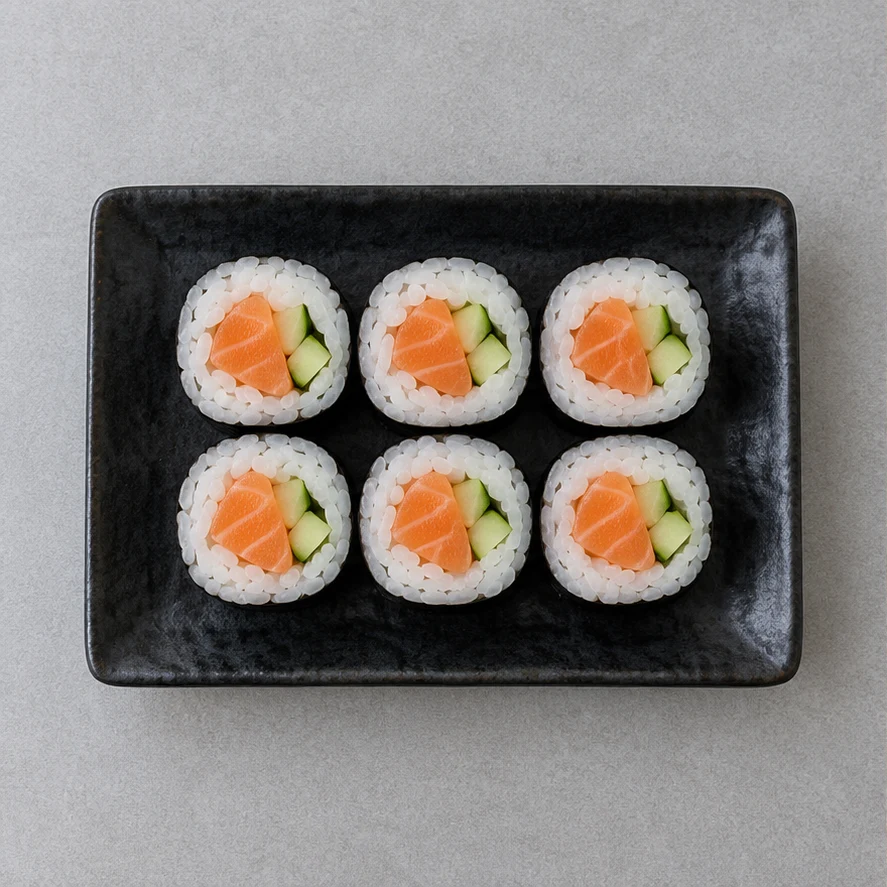
Six salmon sushi rolls on a black rectangular plate over a gray tabletop
Source illustration
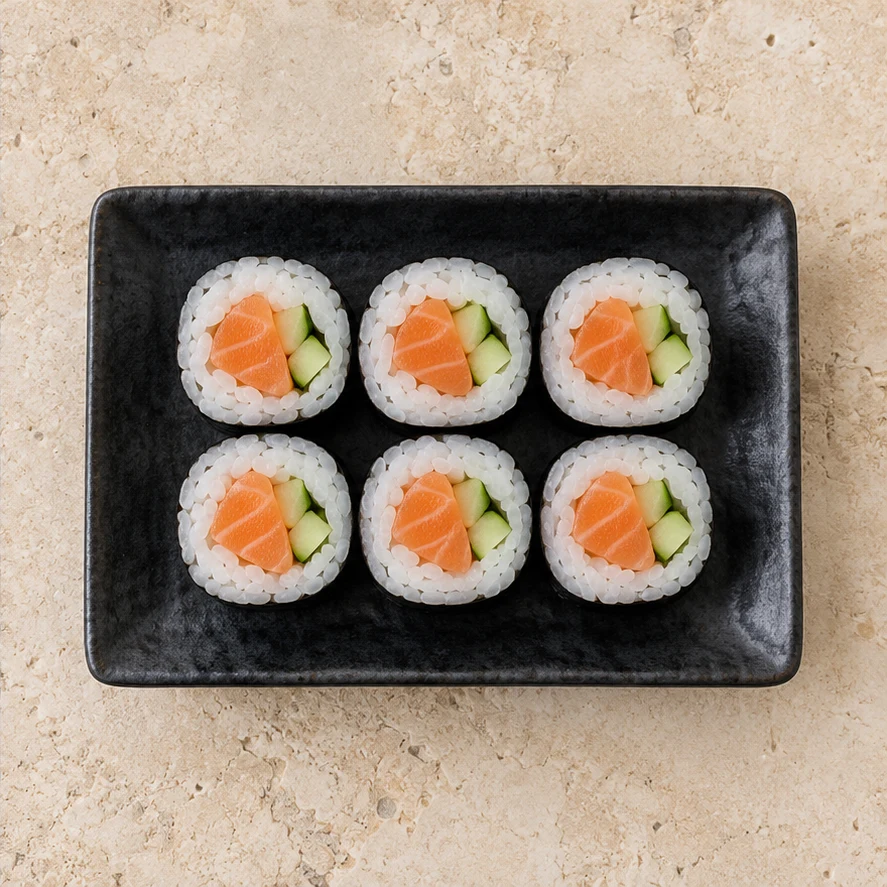
The same six sushi rolls and black plate over pale stone
Edited illustration

Salmon sushi rolls

Try these settings

Mediterranean Stone + Natural Enhance: A pale stone surface and a restrained natural enhancement give the black plate more contrast. Compare all six rolls, their filling and the two-row arrangement with the source.
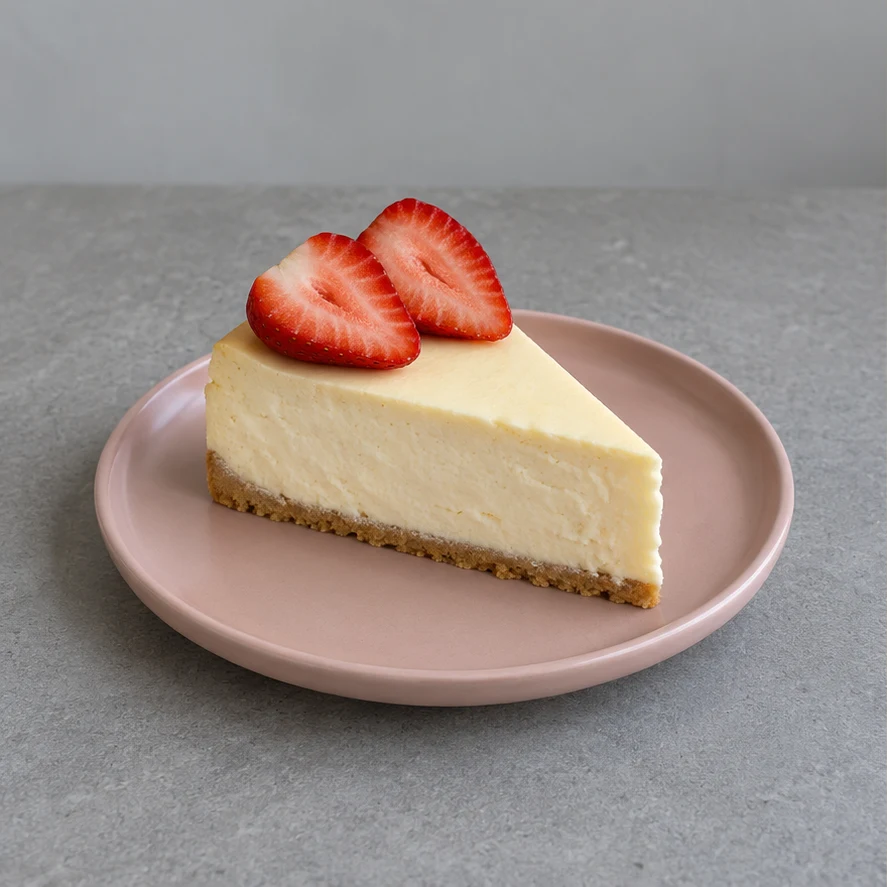
A cheesecake slice with two strawberry halves on a pink plate in a gray setting
Source illustration
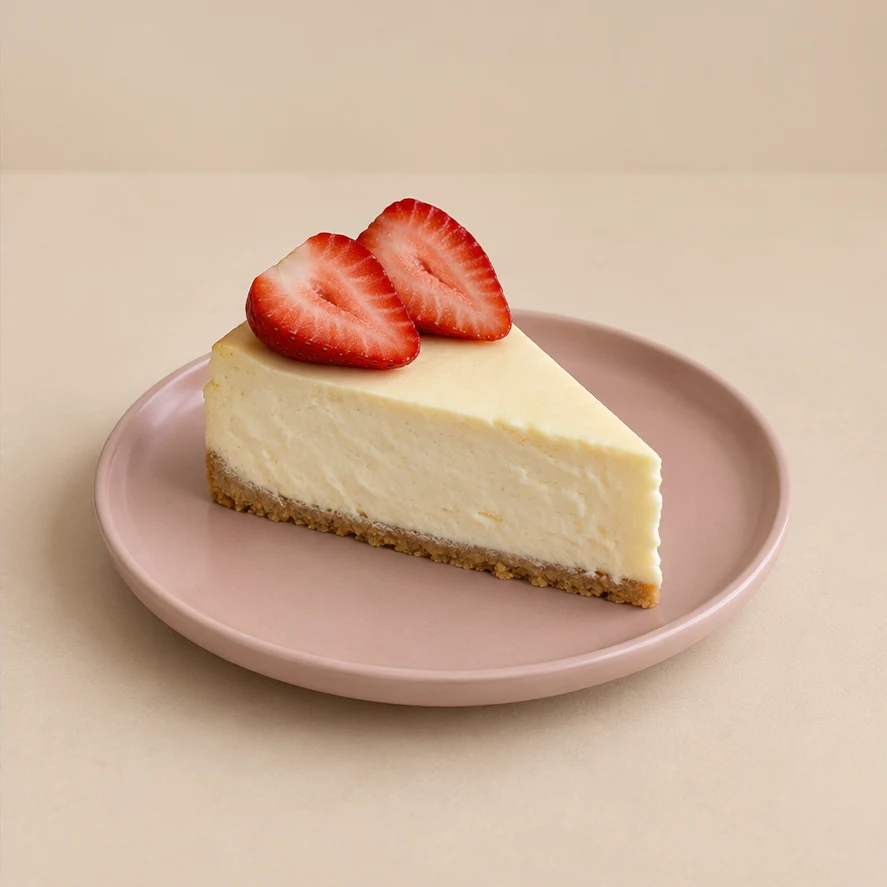
The same cheesecake slice and pink plate in a minimal beige setting
Edited illustration

Strawberry cheesecake

Try these settings

Minimal Beige + Background only: Replace the gray setting with a quiet beige background, leaving enhancement off. Check the cake slice, crumb base, two strawberry halves and pink plate; a background change should not redesign the dessert.

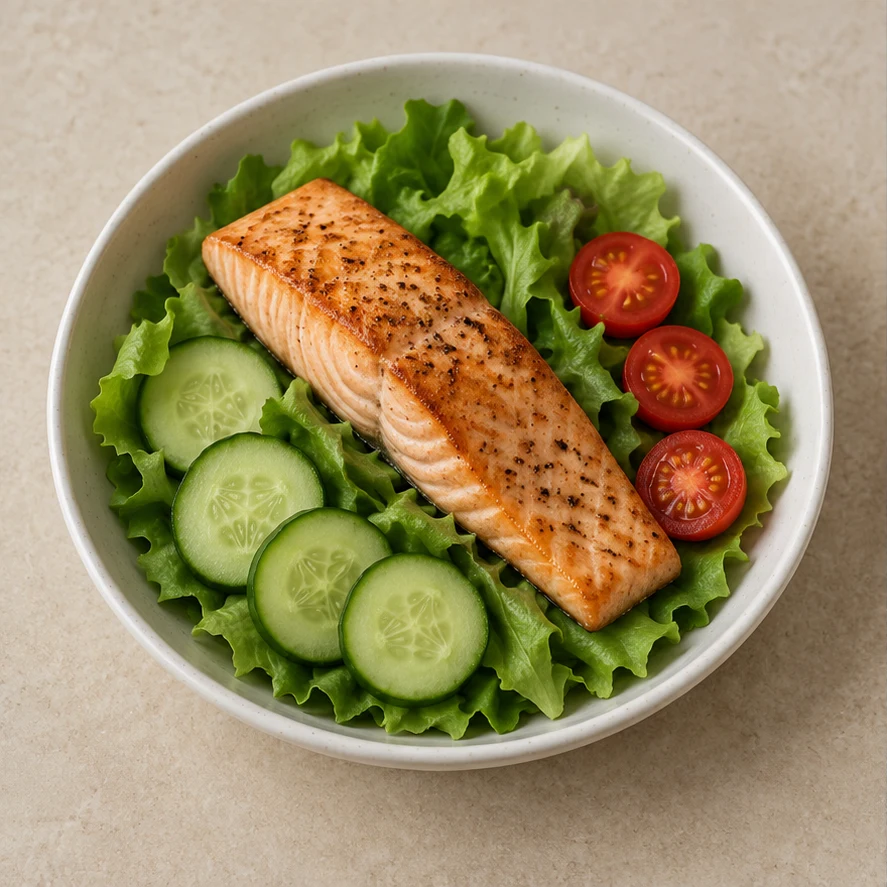
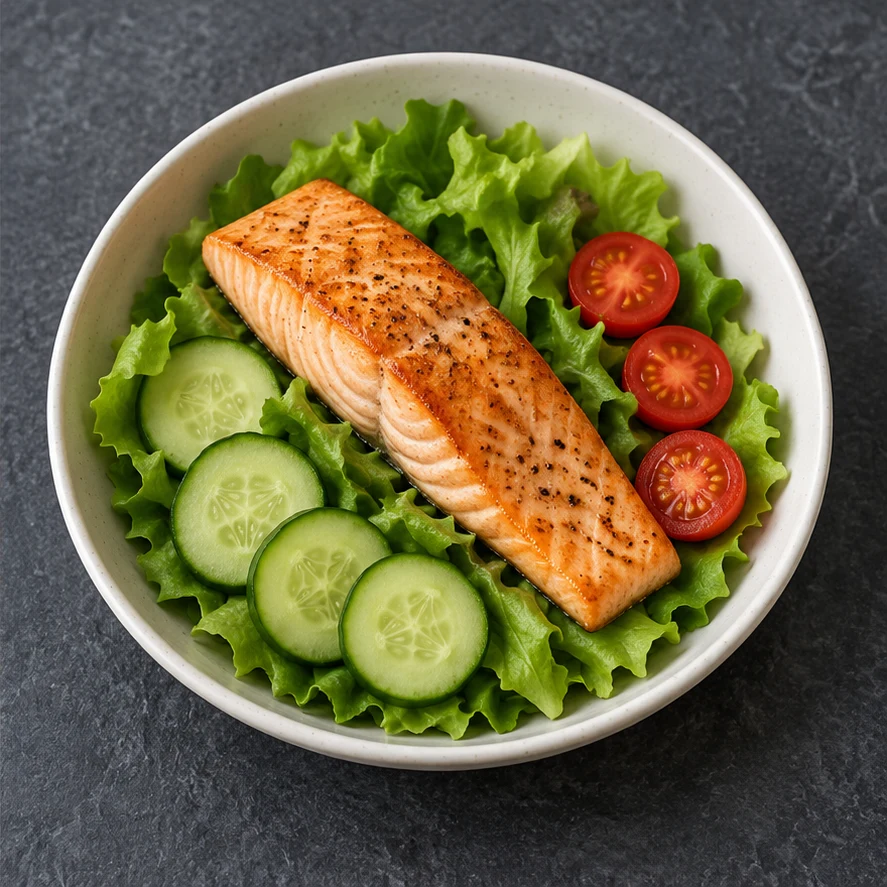
Seared salmon with lettuce, cucumber slices and tomato halves in an off-white bowl on a beige surface
Source illustration
The same salmon salad bowl on dark slate with modestly corrected color
Edited illustration

Salmon salad bowl

Try these settings

Dark Slate + Fresh Color: Try dark slate and a modest color correction. Compare the salmon portion, cucumber slices and tomato halves; clearer color should preserve the actual cooking state and ingredients.

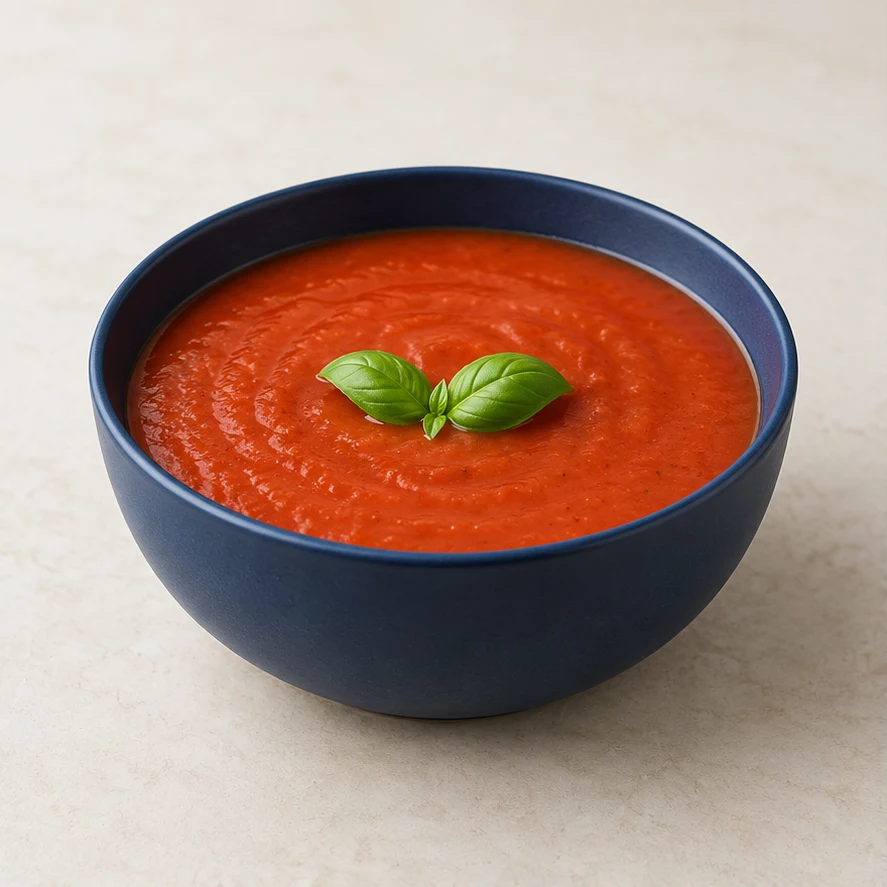
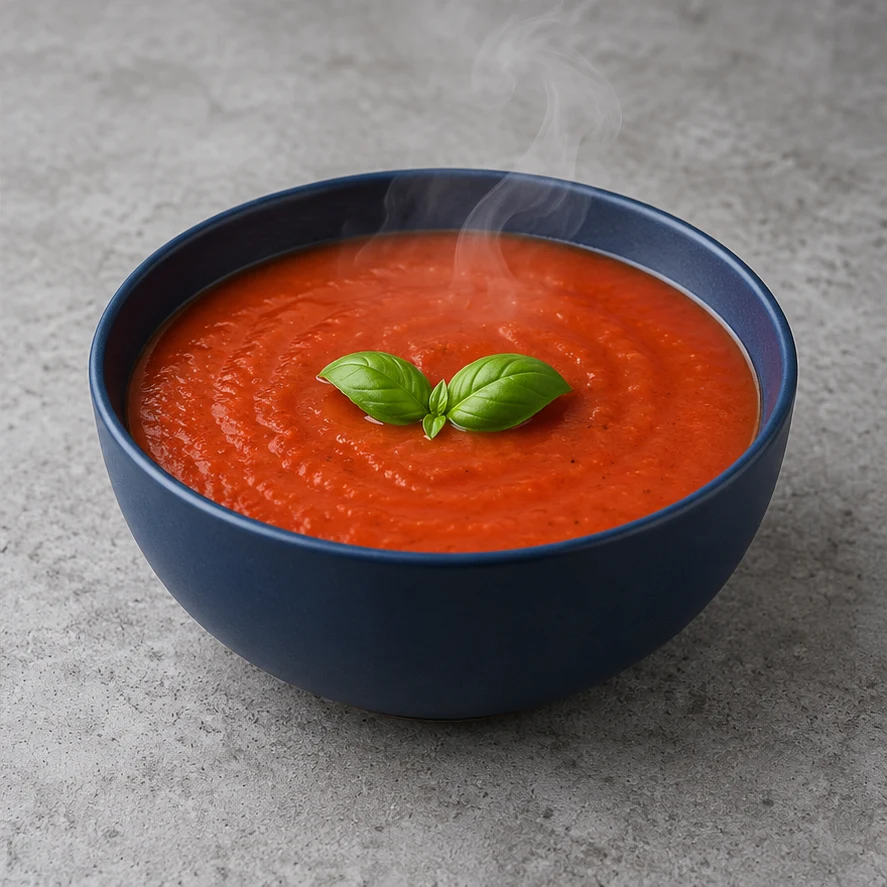
Tomato soup with basil in a navy bowl on a cream surface
Source illustration
The same tomato soup and navy bowl on concrete with subtle steam
Edited illustration

Industrial Concrete + Steam: Try a concrete setting with a light wisp of steam. Keep the navy bowl, soup level and basil arrangement; the steam should remain translucent and leave the food visible.

Compare the edit and choose the next change

Check the food first, then the setting and final crop. Use the original source for another attempt so that changes do not accumulate.

Changed food or serving size
Compare ingredients, counts, placement and the plate outline with the original.
Return to the original food photo and clear the effect. If the source is blurry or partly hidden, photograph it again.
Extra props or a floating plate
Look for copied objects, a tilted tabletop or a gap beneath the plate.
Choose an empty background with a similar camera angle, or remove the background reference.
Clipped food or packaging
Inspect the complete edge of the plate, food and package in the destination crop.
Use a less extreme ratio or a wider source photo; a new setting should not require missing food.
Artificial color, texture or shine
Compare cooking color, crust and moisture with the actual dish.
Clear the effect or try Natural Enhance. Avoid steam on cold food and shine on dry pastry.
Distorted labels or repeated-edit drift
Read every character at full size and compare the dish with the original file.
Reject inaccurate labels. For another style, reload the original photo rather than using the generated result as the new food source.

Food photo editing questions

How to edit food photos?

Start with a sharp photo of the actual dish. Identify one issue—background, color or surface detail—make a focused edit, then compare ingredients, portions and framing with the original.

How to edit food photography?

Use a regular photo editor for small exposure or white-balance corrections. Use AI for a background change or selective appetite effect. Replace a badly blurred source rather than inventing detail.

How to edit food photos for Instagram?

Choose a ratio for the intended placement, such as 4:5 for a taller image or 1:1 for a square. Check the current destination requirements and crop preview, then inspect the dish at phone size. The tool does not publish posts or guarantee platform acceptance.

How to edit food photos on iPhone?

Work from the original camera photo, not a screenshot. Convert HEIC to JPEG, PNG or WebP if needed. Check small details and packaging text at full size after editing.

How to enhance food photos?

Choose the smallest change that addresses the problem: Natural Enhance for a restrained comparison, Texture Boost for visible bread detail, or Fresh Color for muted color. Steam and Glistening are optional appearance effects. Compare every version with the same original dish.

How do I choose a background for menus or product listings?

Use an uncluttered setting that keeps the food easy to read. Neutral surfaces suit packaged products; warm wood can suit bakery photos. Check tabletop perspective, plate contact shadows and readable labels.

What if an edit changes ingredients or portion size?

Do not publish that version. Compare every item with the source, try a sharper food photo and leave enhancement off. A new background should not change what the customer receives.

Why do steam or shine look unnatural?

Steam can look wrong on cold food, while shine can make dry bread look oily. Try Natural Enhance or no effect; keep texture visible and reject invented glaze or moisture.

Edit a food photo

Review the displayed credits, then generate your photo. Compare the food, portions, tableware, labels and framing with the original before downloading.