What Is Virtual Staging? Examples and a Practical Guide

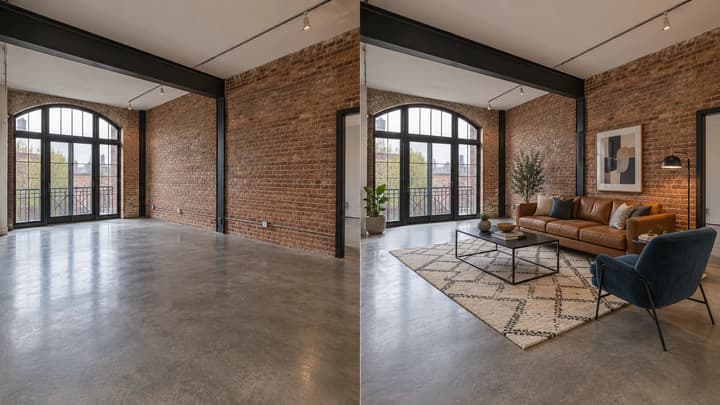
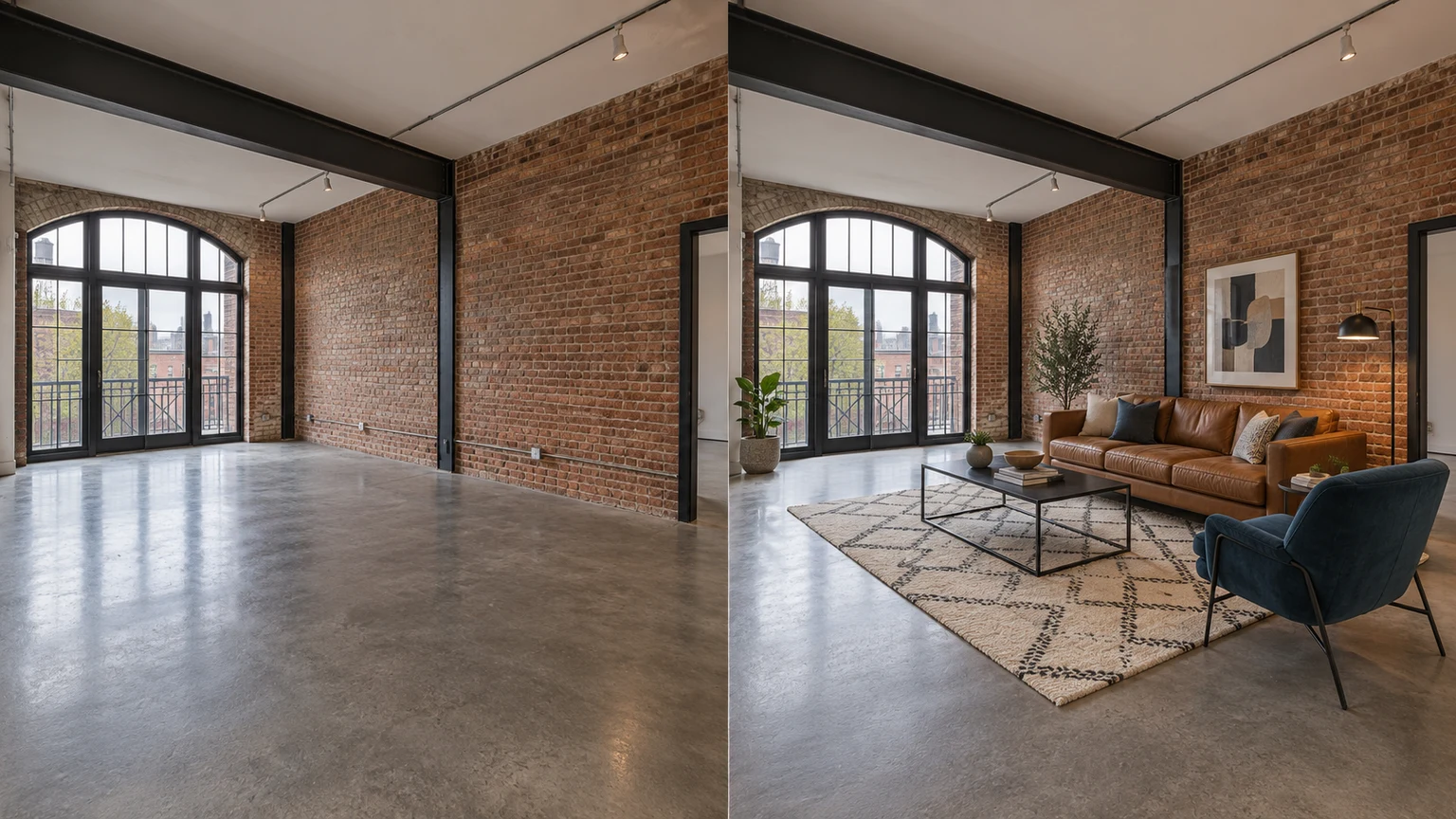
Virtual staging adds digital furniture and decor to a room photograph. The furniture exists in the image; the actual property stays as it is. It helps explain a possible layout without furnishing the room in person.

LumiYingUpdated

What virtual staging changes

Virtual staging adds digital furniture and decor to a photograph of a room. The delivered image shows a possible furnished use of the space; the actual property is unchanged.

A designer can create the edit manually, or an AI model can generate the furnishings. In either case, the existing architecture and visible condition should remain recognizable. A furnished image can help explain a vacant room, but it does not supply furniture, confirm dimensions or prove that a particular sofa will fit.

Choose the task before the tool. Adding a seating or sleeping arrangement is staging. Correcting exposure and color is photo enhancement. Replacing walls, floors or fixed fittings is a renovation concept. For the staging preset below, start with an empty room and keep the original for comparison; it does not remove the existing furniture for you.

How to virtually stage a room photo

Use the original room as the reference, select the furnishing direction and inspect the result before using it.

  1. Step 1. Prepare a clear empty-room photo

    Use one JPEG, PNG or WebP up to 30 MB. Include enough floor, the main windows and doorways to judge scale and access. Avoid a tight crop, heavy blur or extreme wide-angle distortion. Keep an untouched copy; furnishings already in the image are preserved rather than automatically removed.

  2. Step 2. Choose the actual room use

    Select a living room, bedroom, dining room, home office or kids’ room. This chooses the type of furniture to add, not a new room shape. For an open-plan space, use a view that clearly shows the area you want to furnish instead of expecting a measured multi-room layout.

  3. Step 3. Pick a furniture style

    Choose among the eight style cards. They guide furniture forms, materials and colors; they are not extra reference photos or an exact shopping list. The existing wall paint, flooring and fixed fittings should stay. Selecting a card changes the settings, not a newly generated preview.

  4. Step 4. Generate one image and review the room first

    Check the displayed credit quote, then generate. Compare window divisions, doors, flooring and the exterior view before judging the furniture. Next inspect scale, clear walkways, chair access and contact shadows. Reject an attractive result if it changes the property; the image is not a measured floor plan.

  5. Step 5. Compare another style or continue editing

    To compare a new style, use the same original empty-room photo with a different selection. Feeding a furnished result back into this preset can add more furniture. To adjust an accepted result with words, use its image-editing action to continue in the general image generator, then inspect it again. Save the original alongside the furnished version.

Virtual staging vs. physical staging and renovation

Choose the workflow by what you need to change: a photograph, a room in person, or a proposed building design.

Virtual staging vs. physical staging and renovation

Virtual staging
Furniture and decor in the photograph
Explain a possible layout for an empty room; keep the source photo available.
Physical staging
Furniture placed in the actual room
Prepare an in-person showing and let visitors experience the furnished space.
Renovation visualization
A proposed change to walls, floors or fittings
Explore a future design; describe it as a concept rather than the property’s current condition.
Photo enhancement
Exposure and color in the existing photograph
Improve a dim or color-cast photo without adding a furniture layout; use the property photo editor for that task.

What each choice controls

Room photo
One photograph supplies the room, view and existing objects.
Choose an empty, clear source; this preset is not furniture removal or batch staging.
Room type
Five uses choose the furniture family, such as a bed or a dining set.
Choose the area’s intended use. This does not move walls or create an extra room.
Furniture style
Eight text-guided presets direct the added furniture and decor.
Card images illustrate the style. They do not copy that exact furniture or change the property’s finishes.
Output
One image with automatically chosen framing; credits are shown before submission.
Check the crop and scale afterward. There is no custom prompt or draggable furniture plan in this preset.

Virtual staging examples by room

Explore furnishing ideas in these AI-created illustrations. Load an empty-room photo with its room and style choices, then generate when you are ready. Review every result against the original.

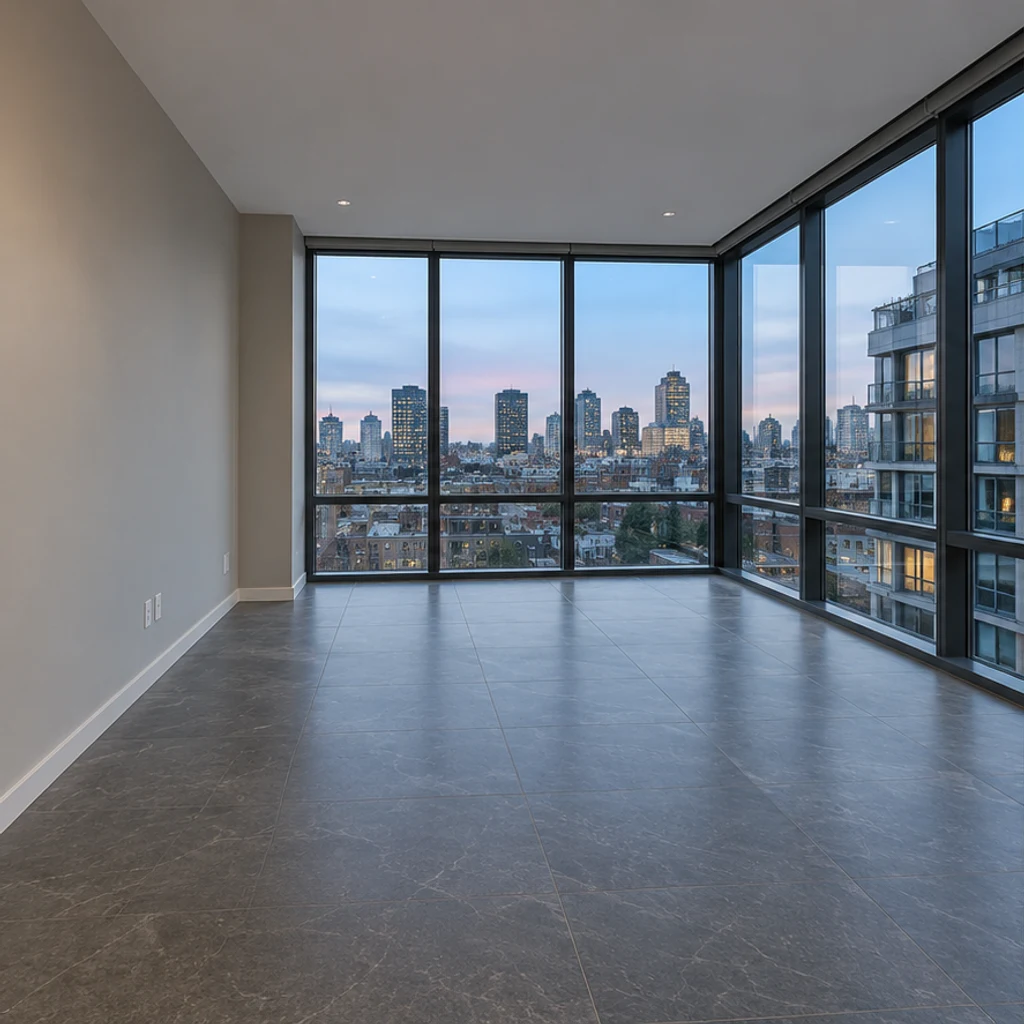
Living room · Empty-room illustration
Empty-room illustration
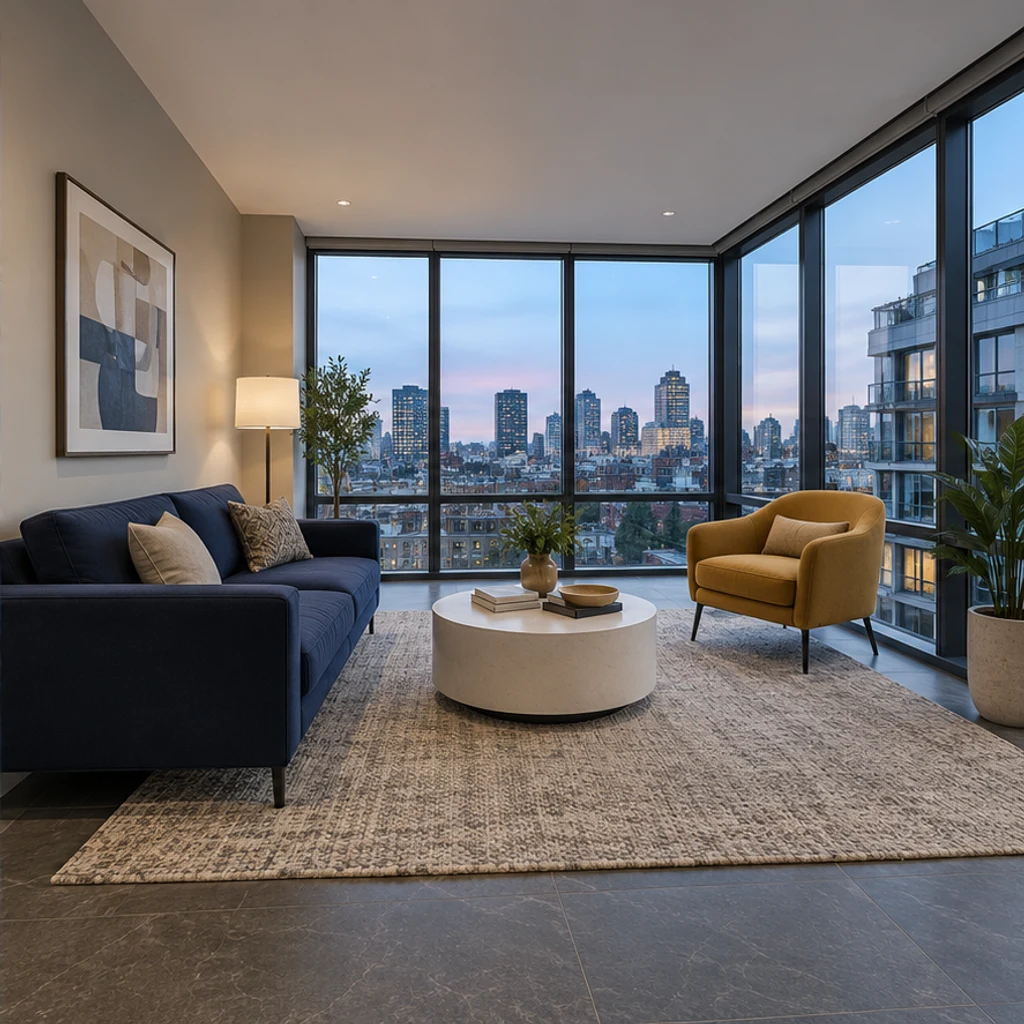
Living room · Furnished-room illustration
Furnished-room illustration

Living room + Modern. Compare the corner glazing, window divisions and city view. Check the sofa and chair proportions and the route around the seating group; the pictured furniture illustrates a direction, not an exact set to copy.
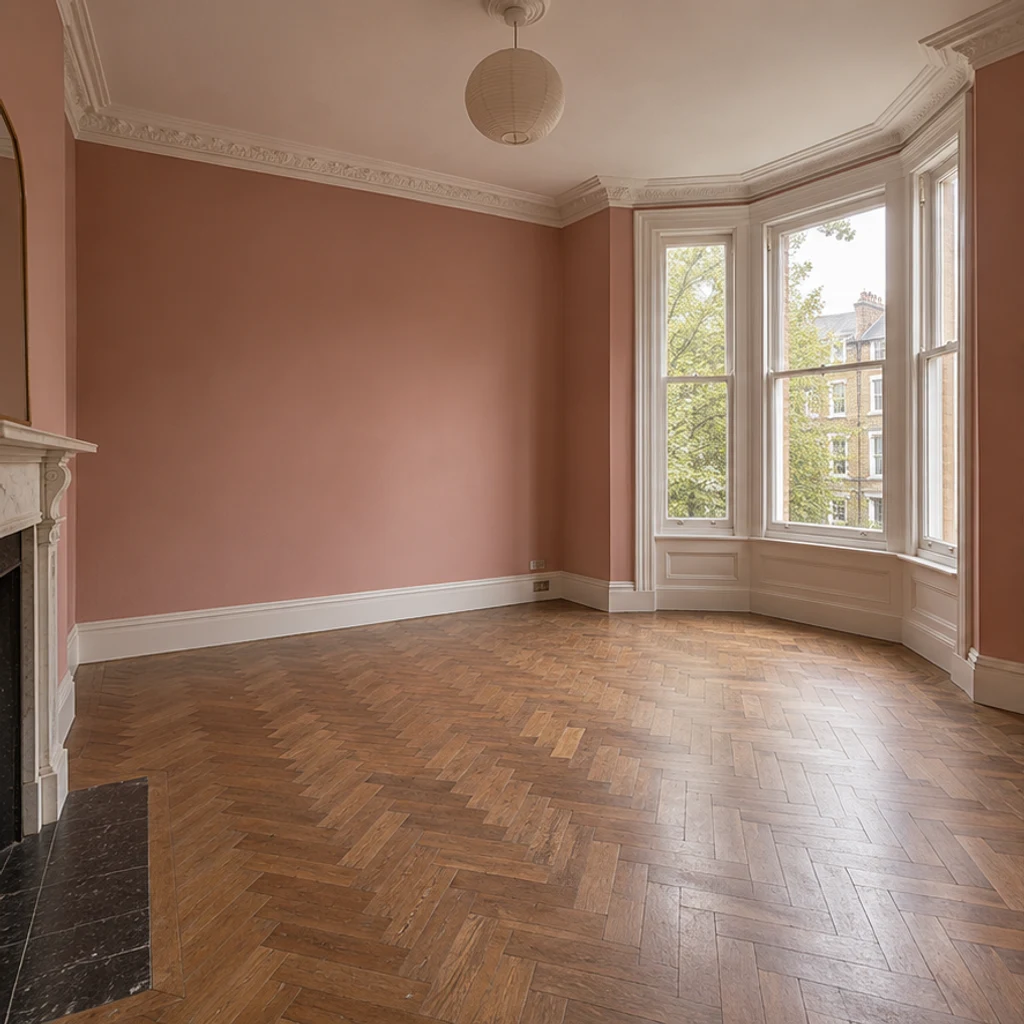
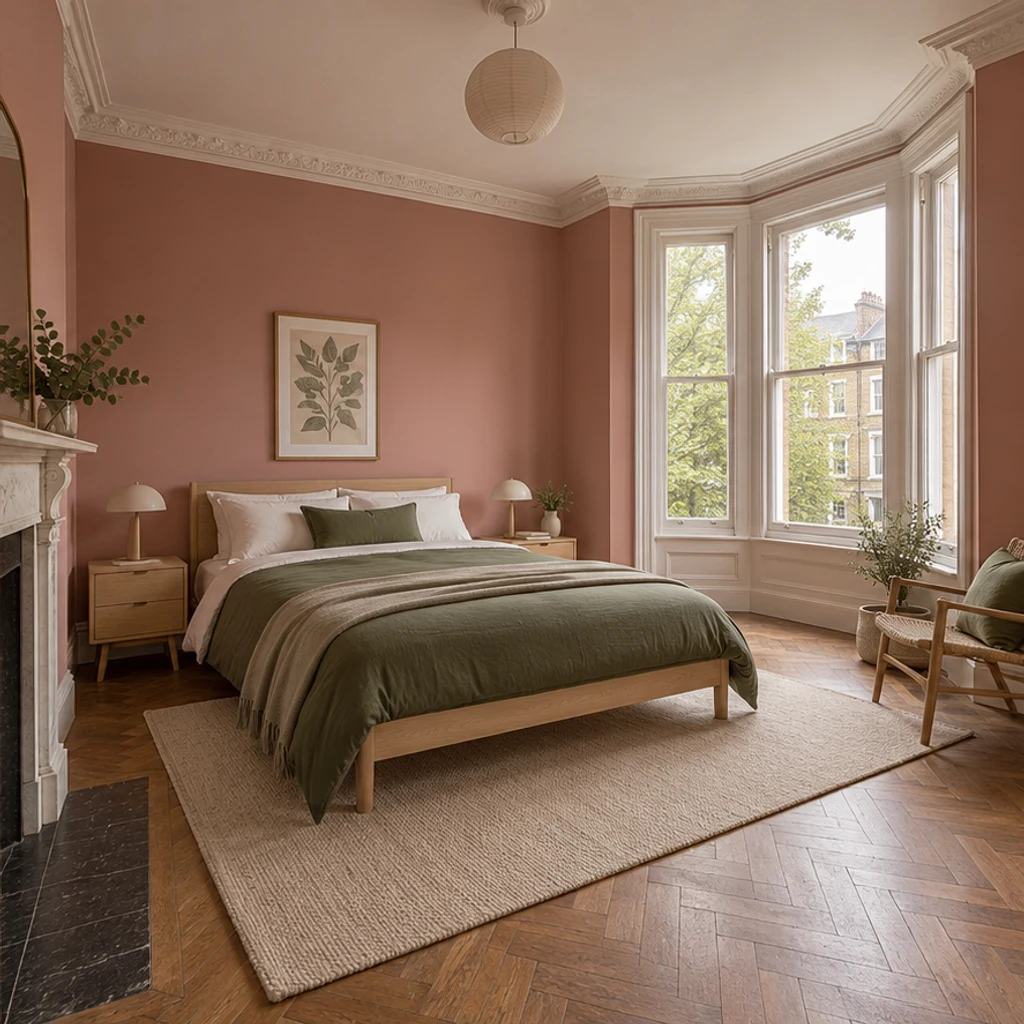
Bedroom · Empty-room illustration
Empty-room illustration
Bedroom · Furnished-room illustration
Furnished-room illustration

Bedroom + Scandinavian. A light-wood bed is added to the pink-walled room. Compare the bay window, fireplace and wood floor, then check access beside the bed. Choosing a furniture style should not repaint the walls.

Dining room · Empty-room illustration
Empty-room illustration
Dining room · Furnished-room illustration
Furnished-room illustration

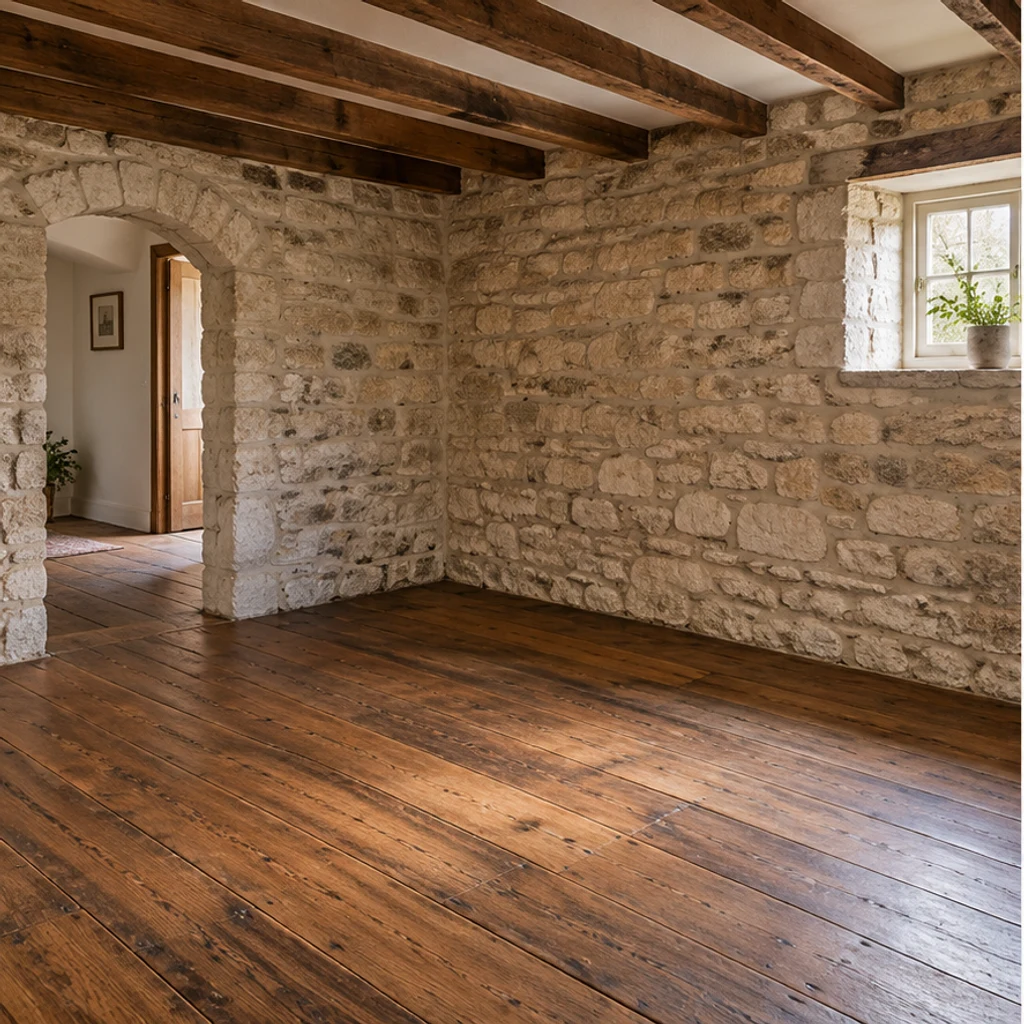
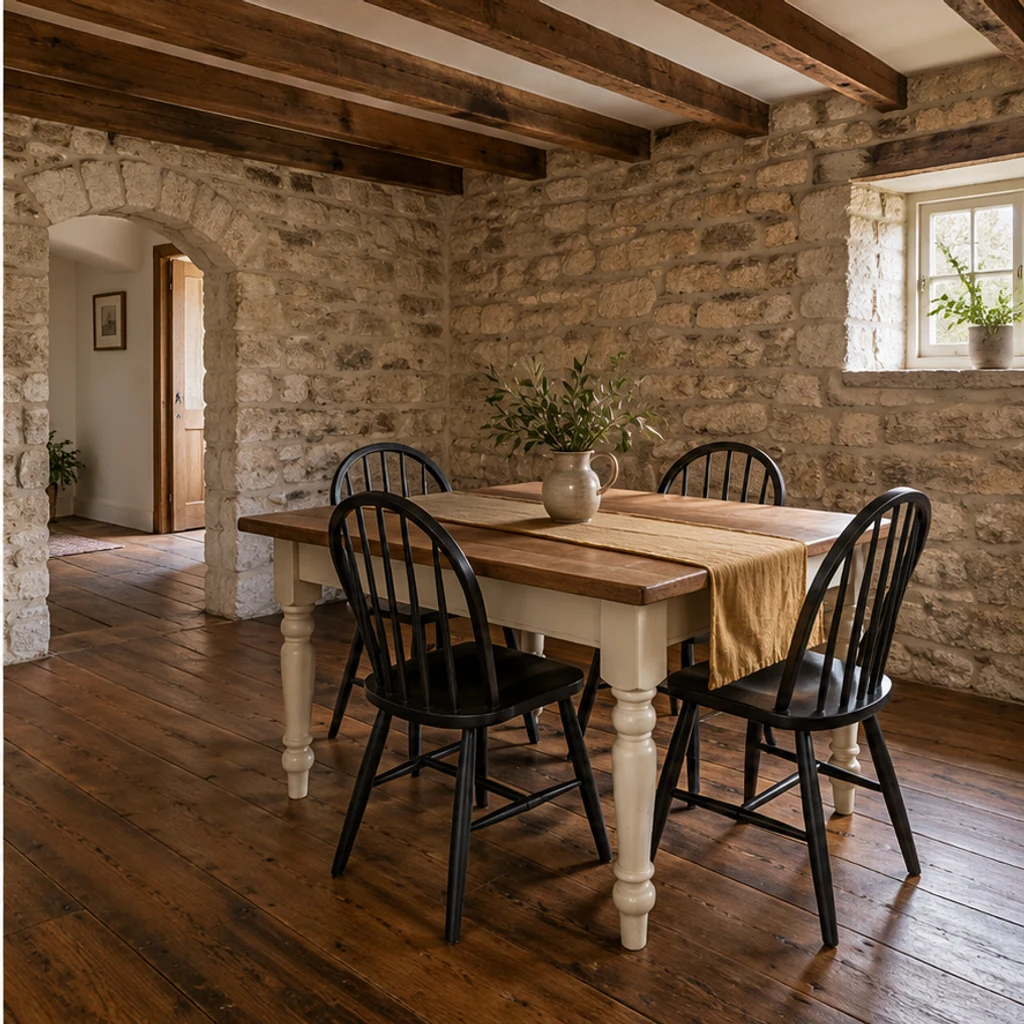
Dining room + Farmhouse. Compare the stone wall, ceiling beams, right-hand window and left archway. Leave space to pull out chairs. The rustic architecture is already in the empty photo; the style selection concerns the added furniture.

How to judge a furnished room image

Check the property first, then the furniture. A request to preserve the room is not a guarantee of exact geometry.

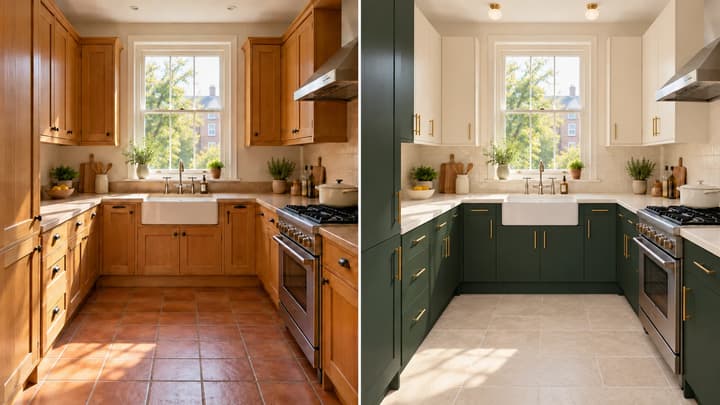
Walls, windows or finishes changed
Compare openings, window divisions, built-ins, floor pattern and visible defects with the original.
Reject the altered image. Use a clearer source with more room edges visible; do not accept a structural change because the furniture looks better.
Furniture is oversized or blocks access
Check door swings, the route around the bed or sofa and room to pull out chairs.
Return to the empty original, confirm the room type and try another style or a better-framed source. This preset has no measured placement control.
Objects float or shadows conflict
Look at furniture legs, rug edges, contact shadows and reflections relative to the existing window light.
Use a source with clearer floor detail and coherent lighting. Inspect the next result at full size rather than judging only the thumbnail.
Another pass adds too much furniture
Check whether you reused a furnished result instead of the original empty room.
Compare styles from the original. For a small change to an accepted result, continue with general image editing; do not expect this add-furniture preset to remove or replace selected pieces.

Virtual staging questions

What is AI virtual staging?

AI virtual staging uses image editing to add digital furniture to a room photo. It produces a furnishing concept, not physical furniture or a measured design.

How is virtual staging different from home staging?

Virtual staging furnishes a photograph. Physical home staging places furniture in the property, so the furnished room is also present during a visit.

Is virtual staging worth it?

It can help explain how an empty room could be used. It does not repair the property, prove furniture will fit, or guarantee more inquiries or a faster sale.

How much does virtual staging cost here?

Review the credits shown in the tool and the current pricing plans. Selecting a room, style or sample does not spend credits; each generation does.

Do the style cards copy the furniture in their pictures?

No. The cards select a furnishing direction through presets. Only your room photo is used as the image reference; a card is not an exact furniture inventory or a new generated preview.

Can I write a custom prompt or move one chair?

This preset accepts a room photo, room type and furniture style. It has no free-text field or draggable furniture layout. Use the image-editing action on an accepted result for a separate prompt-based edit, and review the result again.

How do I compare styles without adding furniture twice?

Use the same original empty-room photo for each style. Reusing a furnished output in this preset can add more items because existing furniture is preserved. Loading or changing settings does not generate; submitting another generation uses the displayed credits.

Stage a room photo

Check the displayed credits before generating. Compare architecture, furniture scale and shadows with the original before downloading.