AI Virtual Staging

Room photo

Room type

Furniture style

AI Virtual Staging

Add furniture to an empty room photo. Choose from 5 room types and 8 furniture styles, then review and download the staged image.

AI Virtual Staging

Furnish the room you photographed

Modern

Living room

Show a seating layout with a sofa, coffee table and rug. Keep doors and walking space clear.

Scandinavian

Bedroom

Explore a bed and bedside-table arrangement. Check the bed’s size against the window, door and floor.

Farmhouse

Dining room

Visualize a dining table and chairs. Leave enough space for chairs and access around the table.

Virtual staging examples by room

Explore furnishing ideas in these AI-created illustrations. Load an empty-room photo with its room and style choices, then generate when you are ready. Review every result against the original.

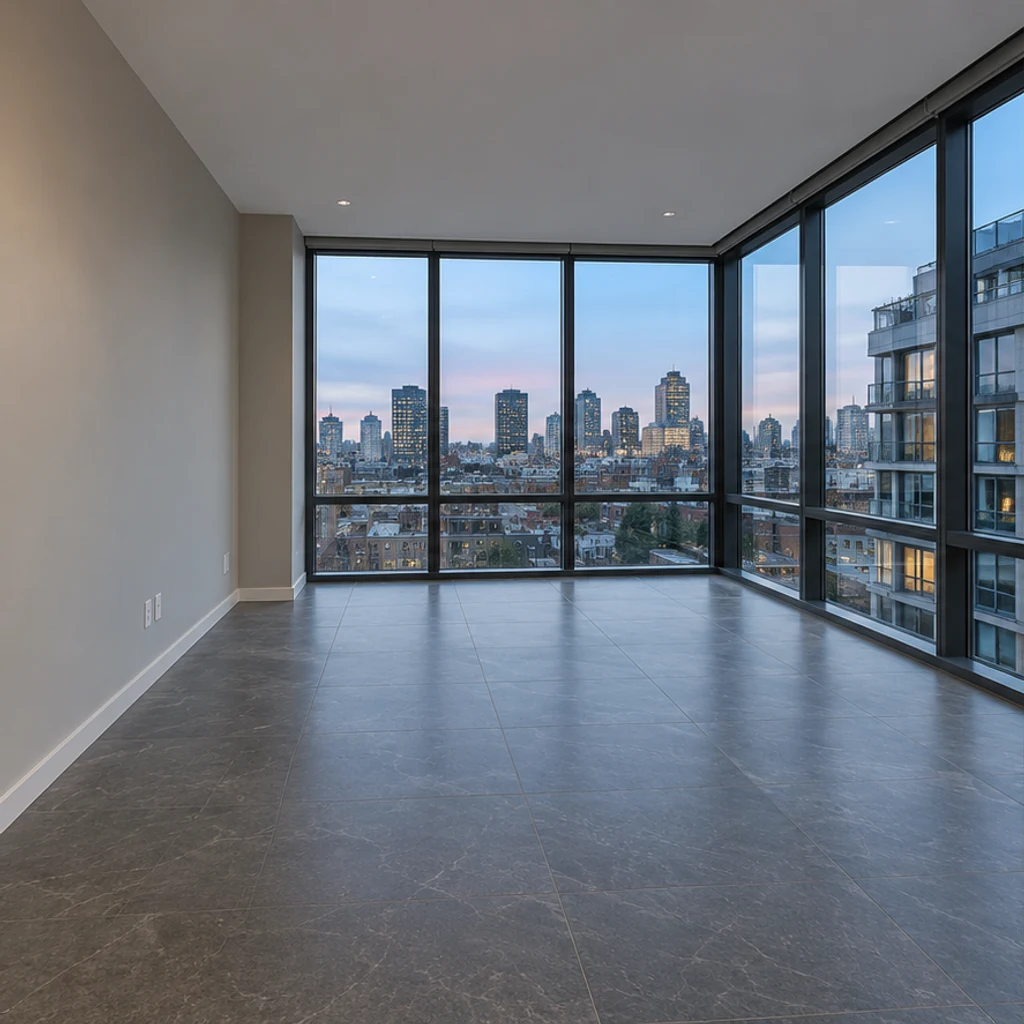
Living room · Empty-room illustration
Empty-room illustration
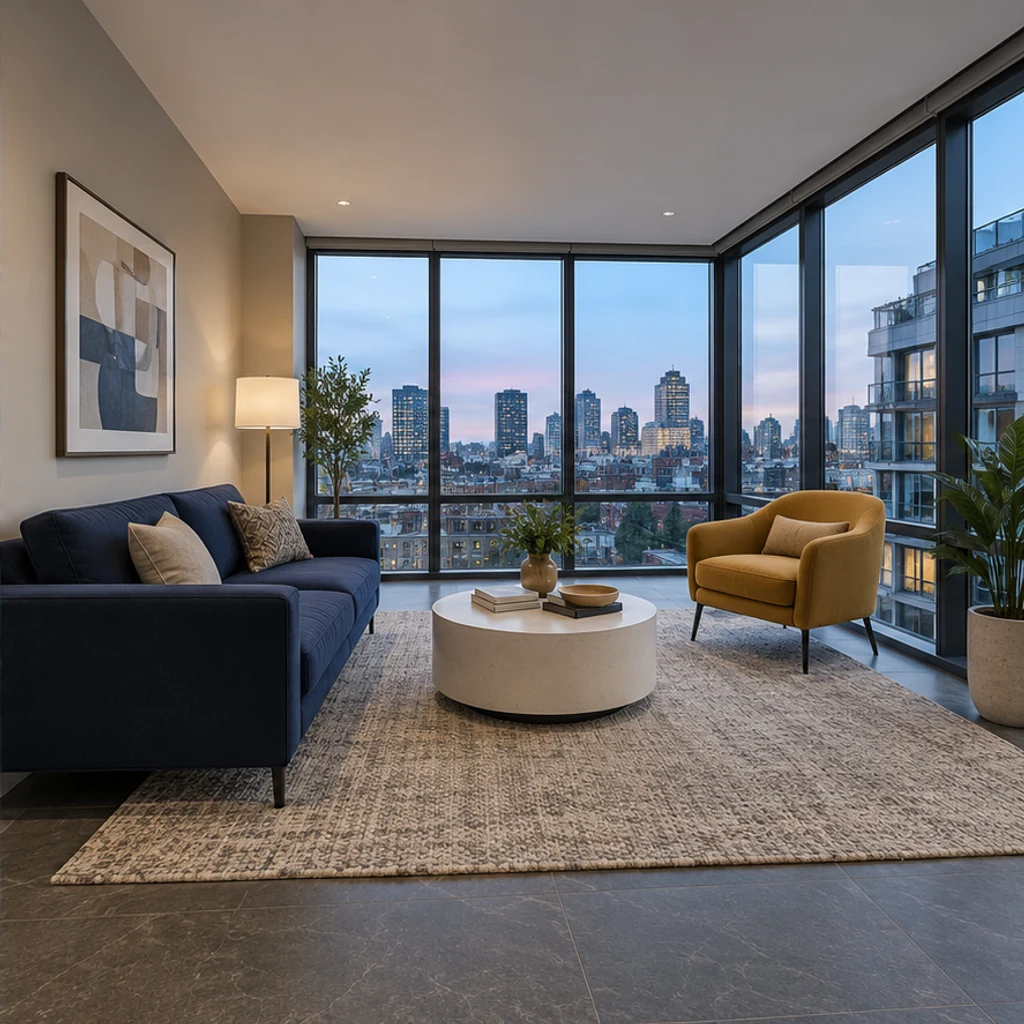
Living room · Furnished-room illustration
Furnished-room illustration

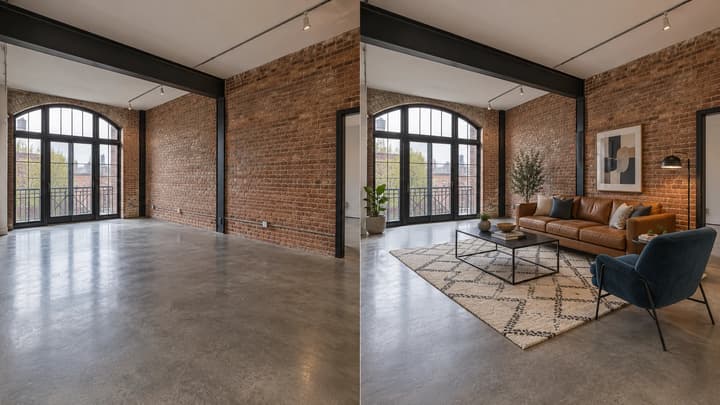
Living room + Modern. Compare the corner glazing, window divisions and city view. Check the sofa and chair proportions and the route around the seating group; the pictured furniture illustrates a direction, not an exact set to copy.
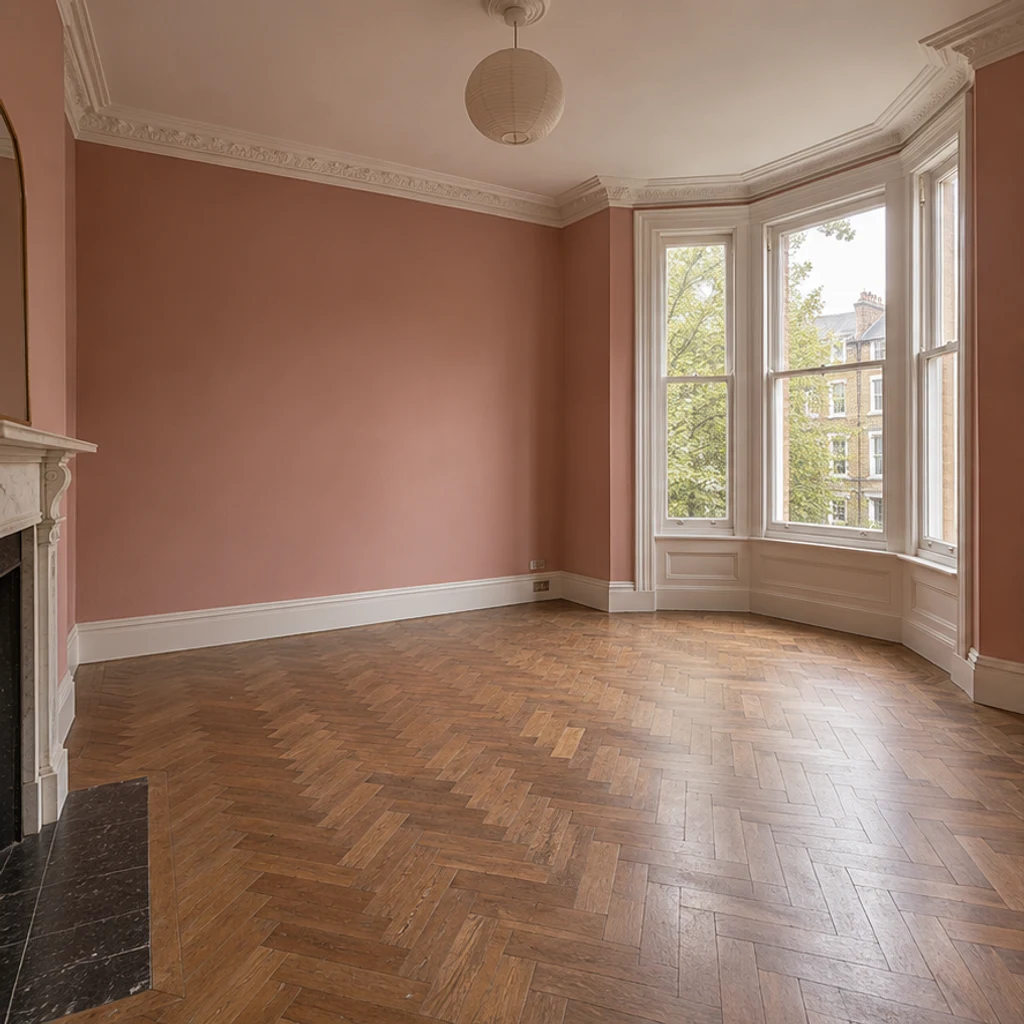
Bedroom · Empty-room illustration
Empty-room illustration
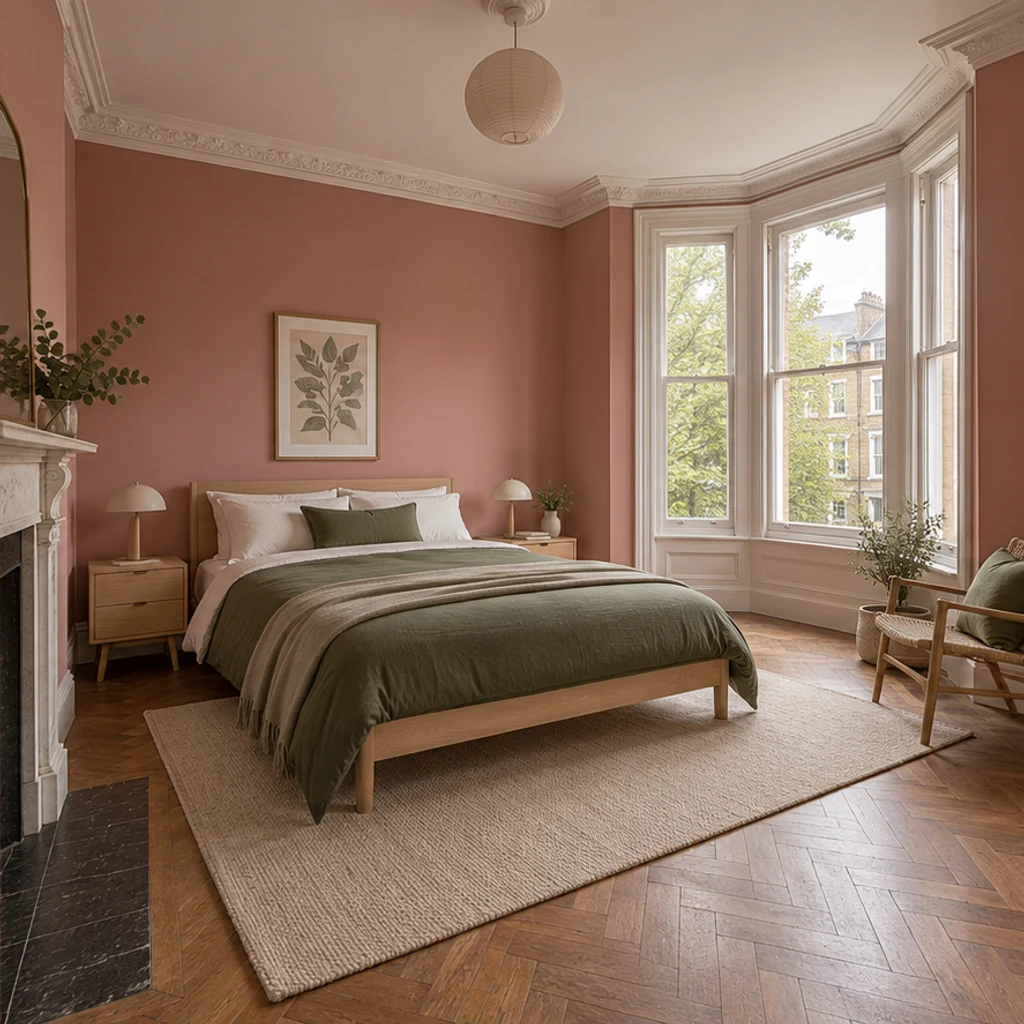
Bedroom · Furnished-room illustration
Furnished-room illustration

Bedroom + Scandinavian. A light-wood bed is added to the pink-walled room. Compare the bay window, fireplace and wood floor, then check access beside the bed. Choosing a furniture style should not repaint the walls.

Dining room · Empty-room illustration
Empty-room illustration
Dining room · Furnished-room illustration
Furnished-room illustration

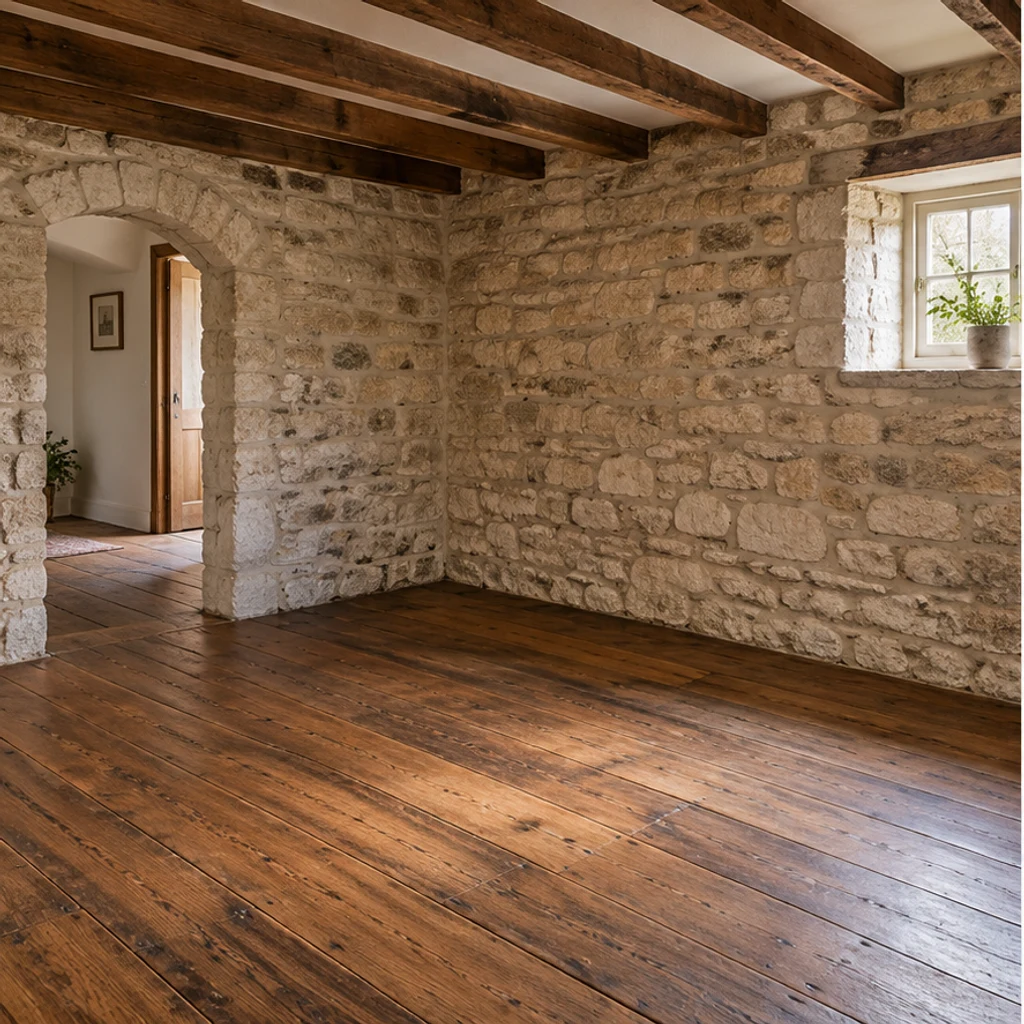
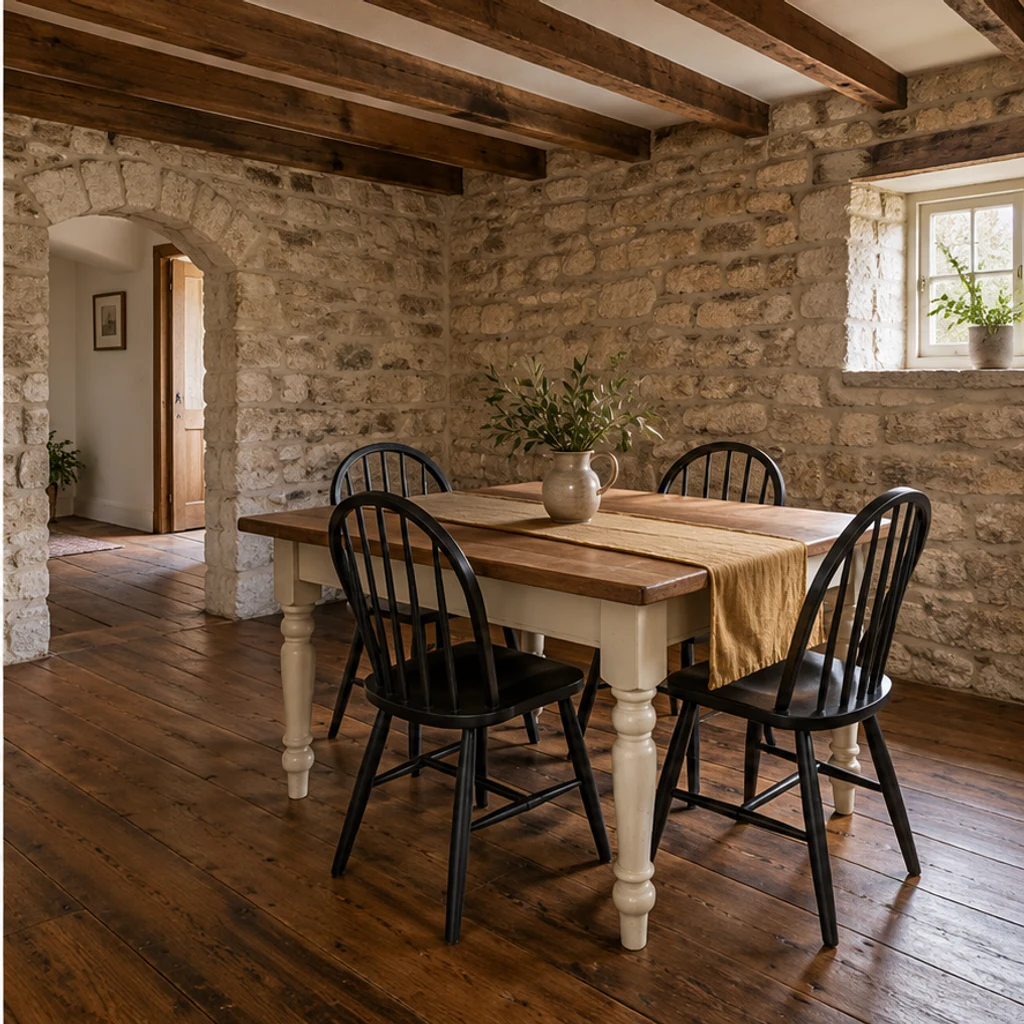
Dining room + Farmhouse. Compare the stone wall, ceiling beams, right-hand window and left archway. Leave space to pull out chairs. The rustic architecture is already in the empty photo; the style selection concerns the added furniture.

How to virtually stage a room photo

01

Upload an empty room

Upload one sharp JPEG, PNG or WebP up to 30 MB. Include the floor, windows and doorways; use a photo of the actual room.

02

Choose a room and style

Choose one of 5 room types and 8 furniture styles. The cards guide the added furnishings; they do not select exact products or change the walls and floors.

03

Generate and compare

Check the displayed credits before generating. Compare architecture, furniture scale and shadows with the original before downloading.

Review the room before publishing

The edit is instructed to preserve the room, but AI can change details. Compare every result with the original photo.

Architecture

Check walls, windows, doors, flooring, fixed fixtures and visible condition. Reject altered structures or hidden defects; use a clearer empty-room source.

Scale and access

Check furniture proportions and clear doorways and walking paths. Try a better-framed photo or another style; do not treat the image as a measured floor plan.

Light and contact

Check that furniture touches the floor and shadows follow the existing light. Reject floating objects, mismatched shadows and implausible reflections.

Using staged photos in a listing

Keep the original image, identify the furnished version as virtually staged, and check the listing platform’s applicable image guidance before publishing. Do not use an image that misrepresents the room.

Virtual staging questions

What is AI virtual staging?

AI virtual staging uses image editing to add digital furniture to a room photo. It produces a furnishing concept, not physical furniture or a measured design.

What photos can I upload?

Use one empty-room JPEG, PNG or WebP up to 30 MB. Avoid screenshots, heavy blur and extreme wide-angle distortion.

Can this tool remove existing furniture?

This preset adds furniture and preserves existing objects. Start with an empty room; use the general image editor for separate edits.

Will walls and windows stay unchanged?

Preserving architecture is part of the editing instructions, not a guarantee. Reject results that change the room or conceal its condition.

How much does virtual staging cost here?

Review the credits shown in the tool and the current pricing plans. Selecting a room, style or sample does not spend credits; each generation does.

Do the style cards copy the furniture in their pictures?

No. The cards select a furnishing direction through presets. Only your room photo is used as the image reference; a card is not an exact furniture inventory or a new generated preview.

Can I write a custom prompt or move one chair?

This preset accepts a room photo, room type and furniture style. It has no free-text field or draggable furniture layout. Use the image-editing action on an accepted result for a separate prompt-based edit, and review the result again.

How do I compare styles without adding furniture twice?

Use the same original empty-room photo for each style. Reusing a furnished output in this preset can add more items because existing furniture is preserved. Loading or changing settings does not generate; submitting another generation uses the displayed credits.

Stage a room photo

Add furniture to an empty room photo. Choose from 5 room types and 8 furniture styles, then review and download the staged image.