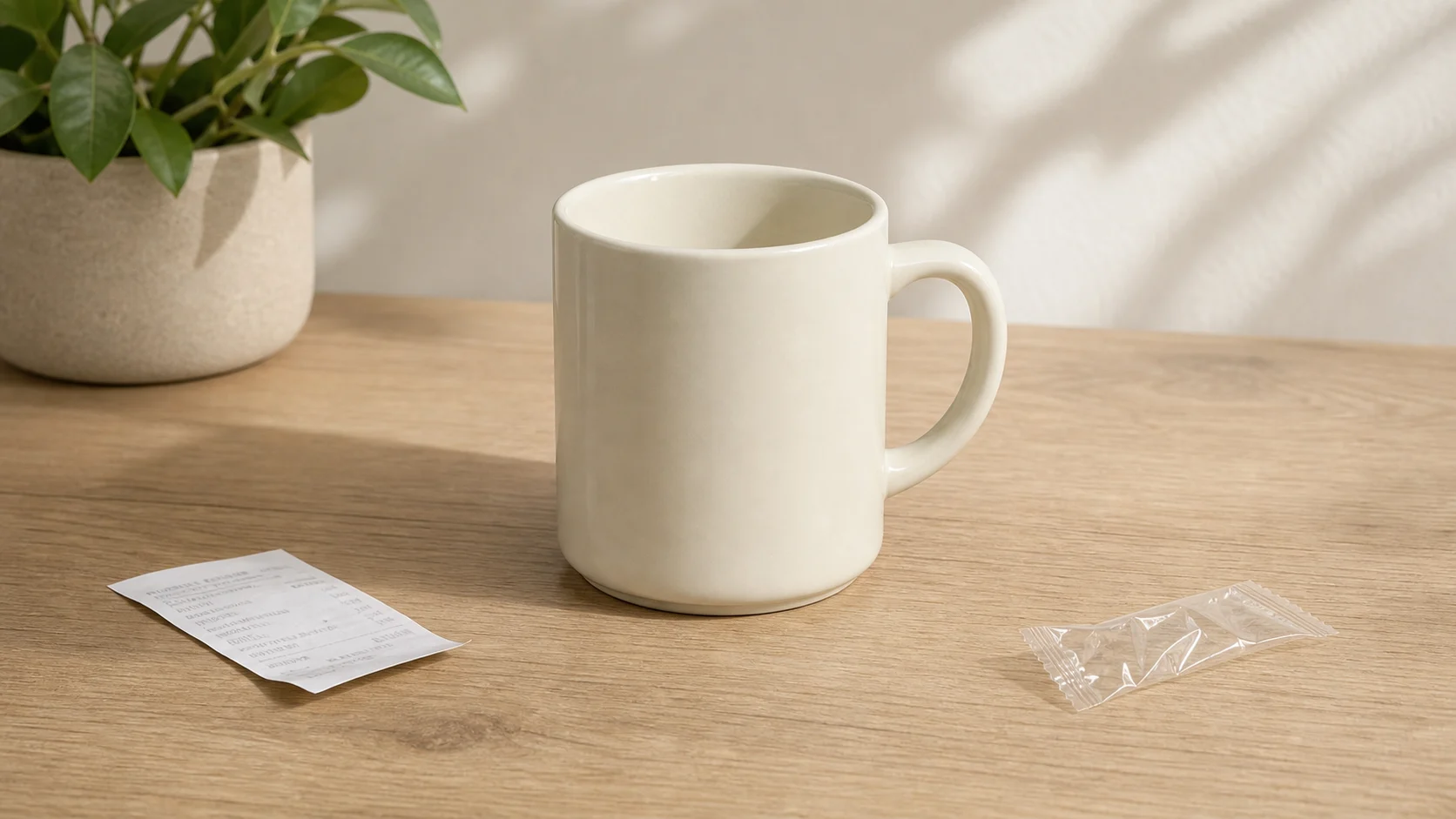
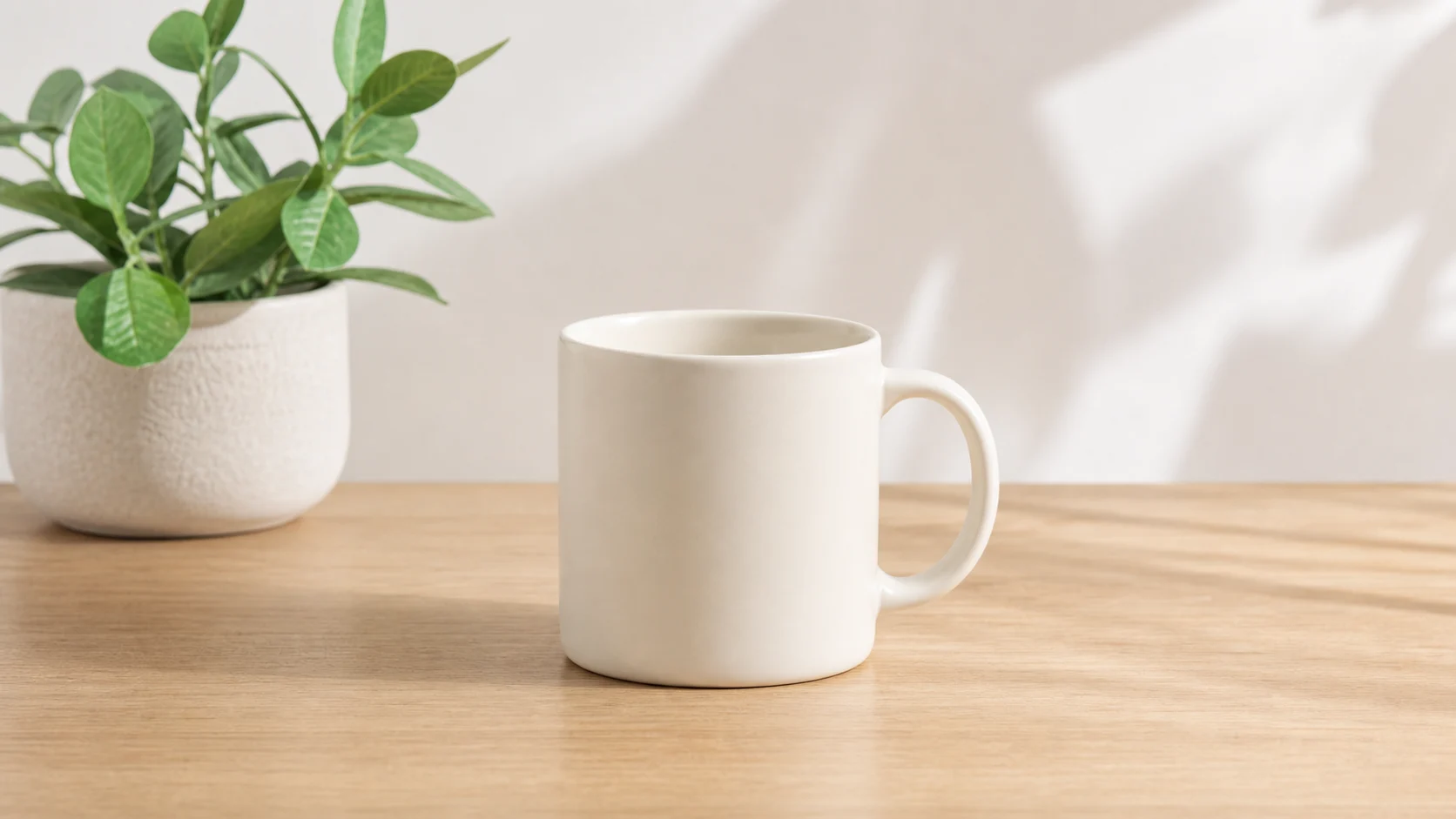
Object Cleanup
Load exampleKeep the ceramic mug, table surface, camera angle, and soft daylight unchanged. Remove the loose receipt and small plastic wrapper, then rebuild the tabletop texture and natural shadows.
Upload an image, describe the edit, and create polished visuals for products, social posts, posters, or keyframes.
Upload an image and ask for a clean studio setup, lifestyle scene, product shelf, or campaign background while keeping the main subject recognizable.
Use prompt-based AI photo editing to improve lighting, stage products, create scene variants, and prepare ecommerce images without starting from a blank canvas.
Turn a draft, product image, poster concept, or social visual into a new art direction while preserving the subject and composition you care about.
Edit a still image into a cleaner first frame, storyboard panel, thumbnail, or campaign keyframe before moving into image-to-video workflows.
Explore AI-generated examples of focused edits. Load the source, prompt and suggested output ratio; check the settings and compare your generated result with the original.
Keep the ceramic mug, table surface, camera angle, and soft daylight unchanged. Remove the loose receipt and small plastic wrapper, then rebuild the tabletop texture and natural shadows.
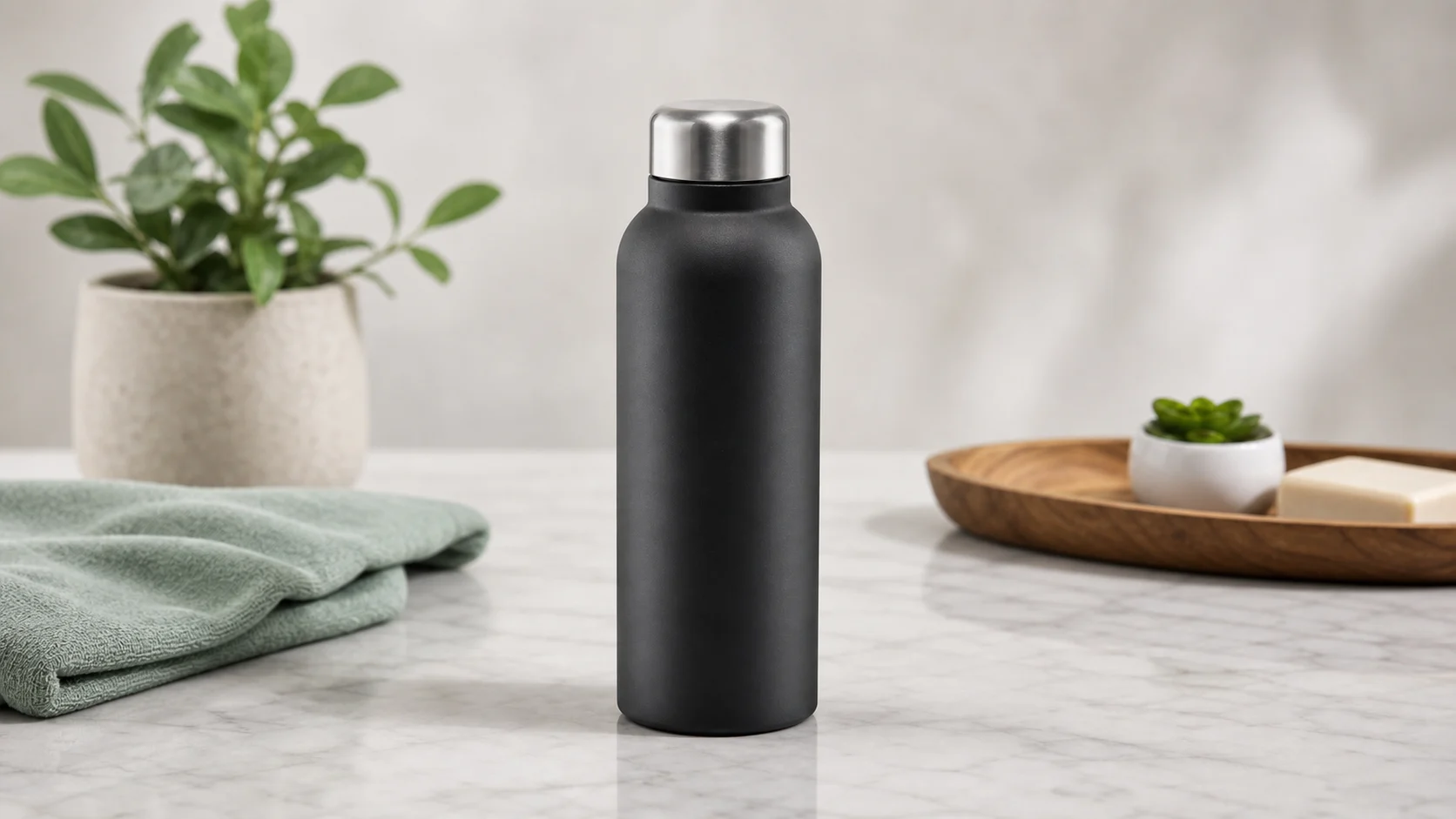
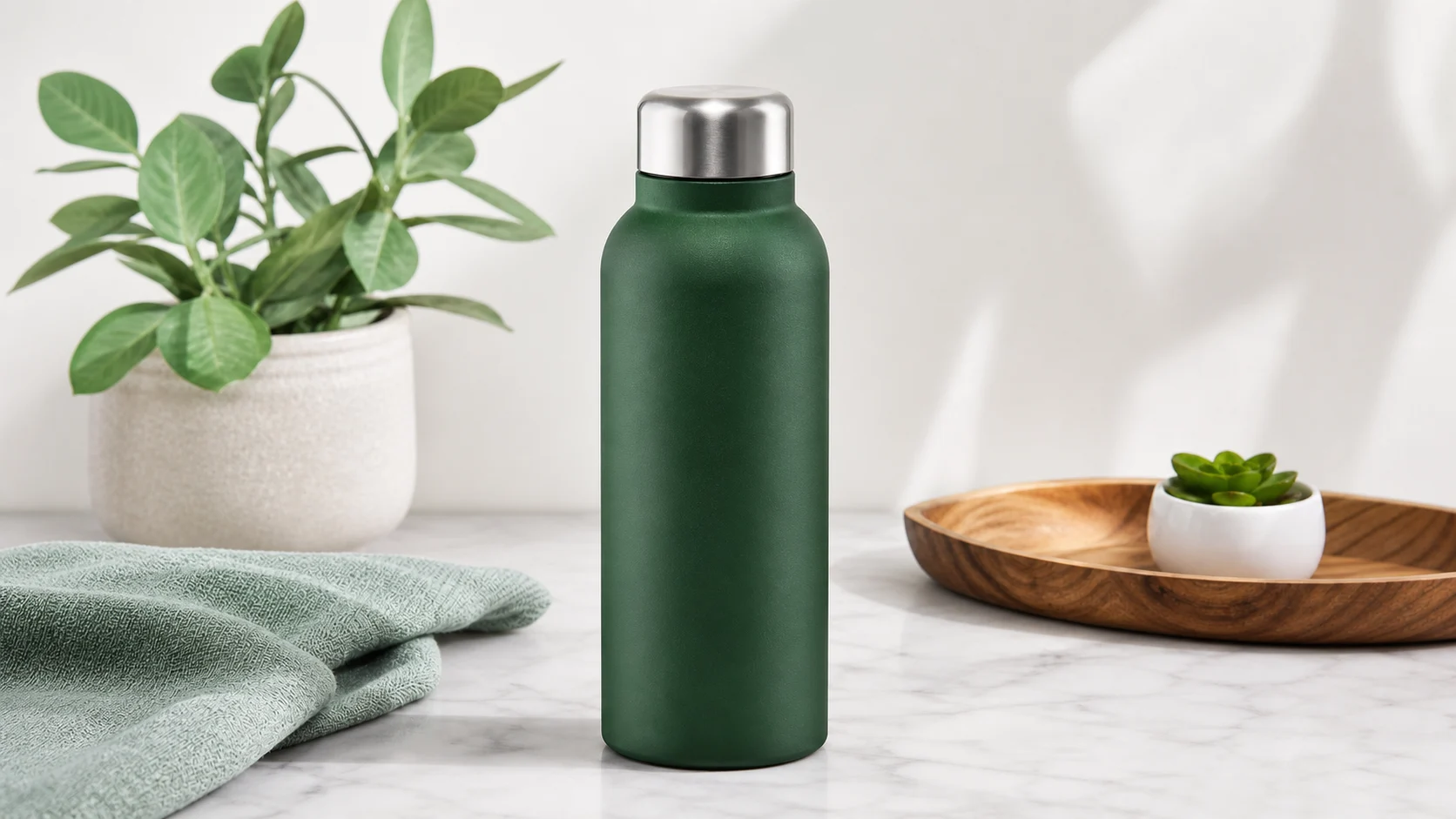
Keep the bottle shape, cap, label-free surface, reflection, and studio lighting unchanged. Change only the matte product body from charcoal black to deep forest green.
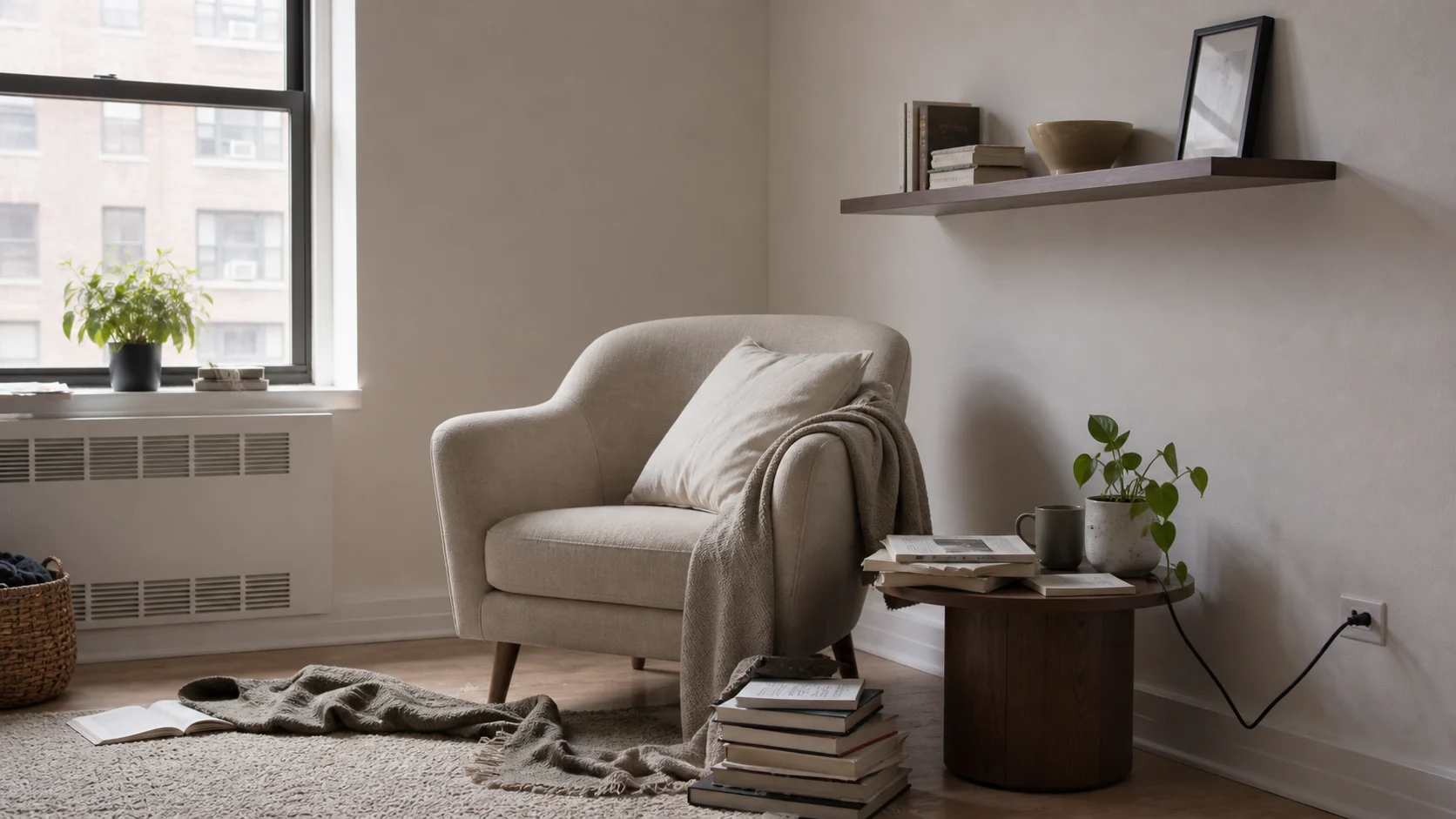
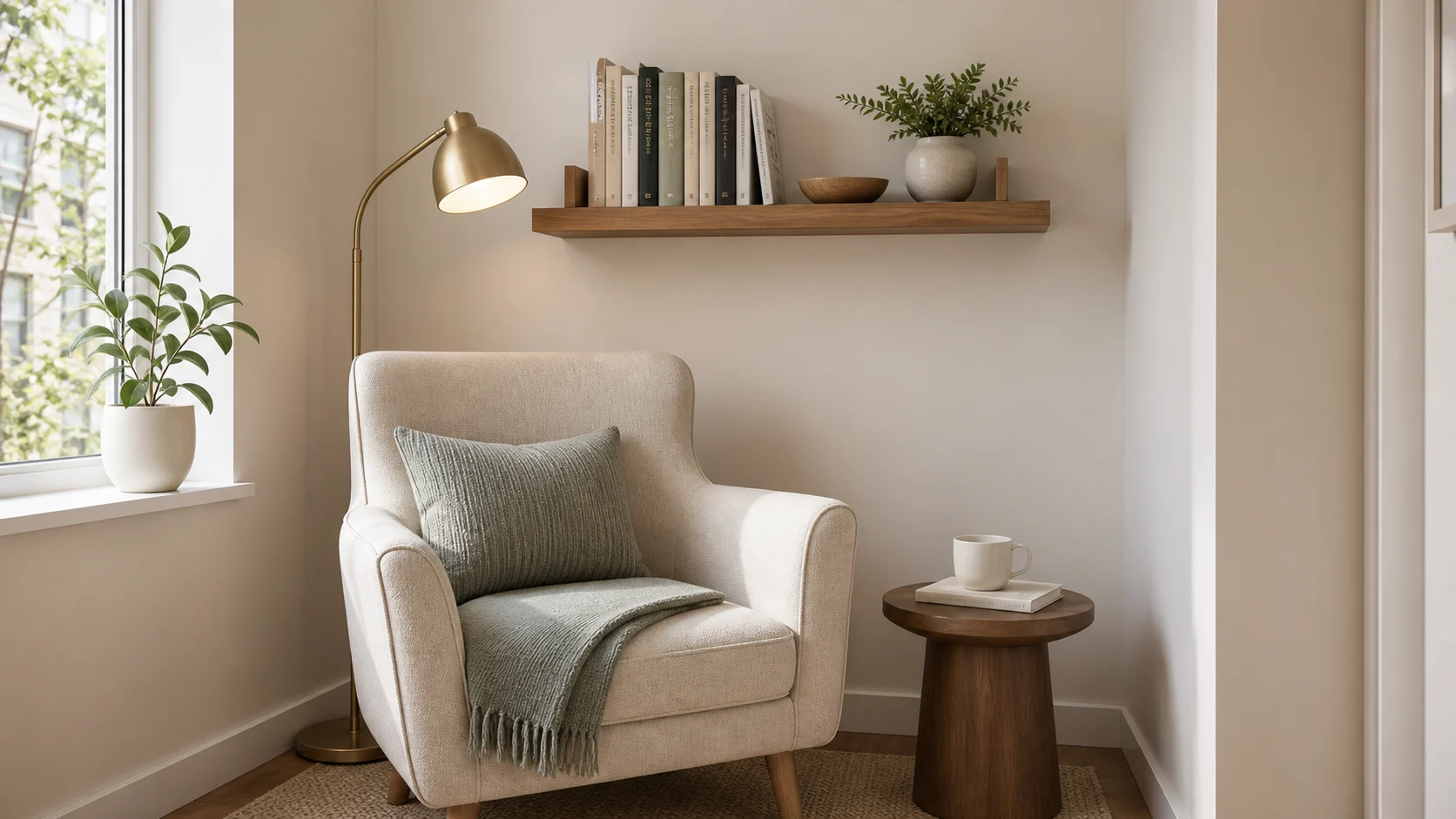
Keep the window, wall color, chair, shelf position, and perspective unchanged. Remove clutter, add a tidy plant and warm reading lamp, and make the space feel ready for a lifestyle shoot.
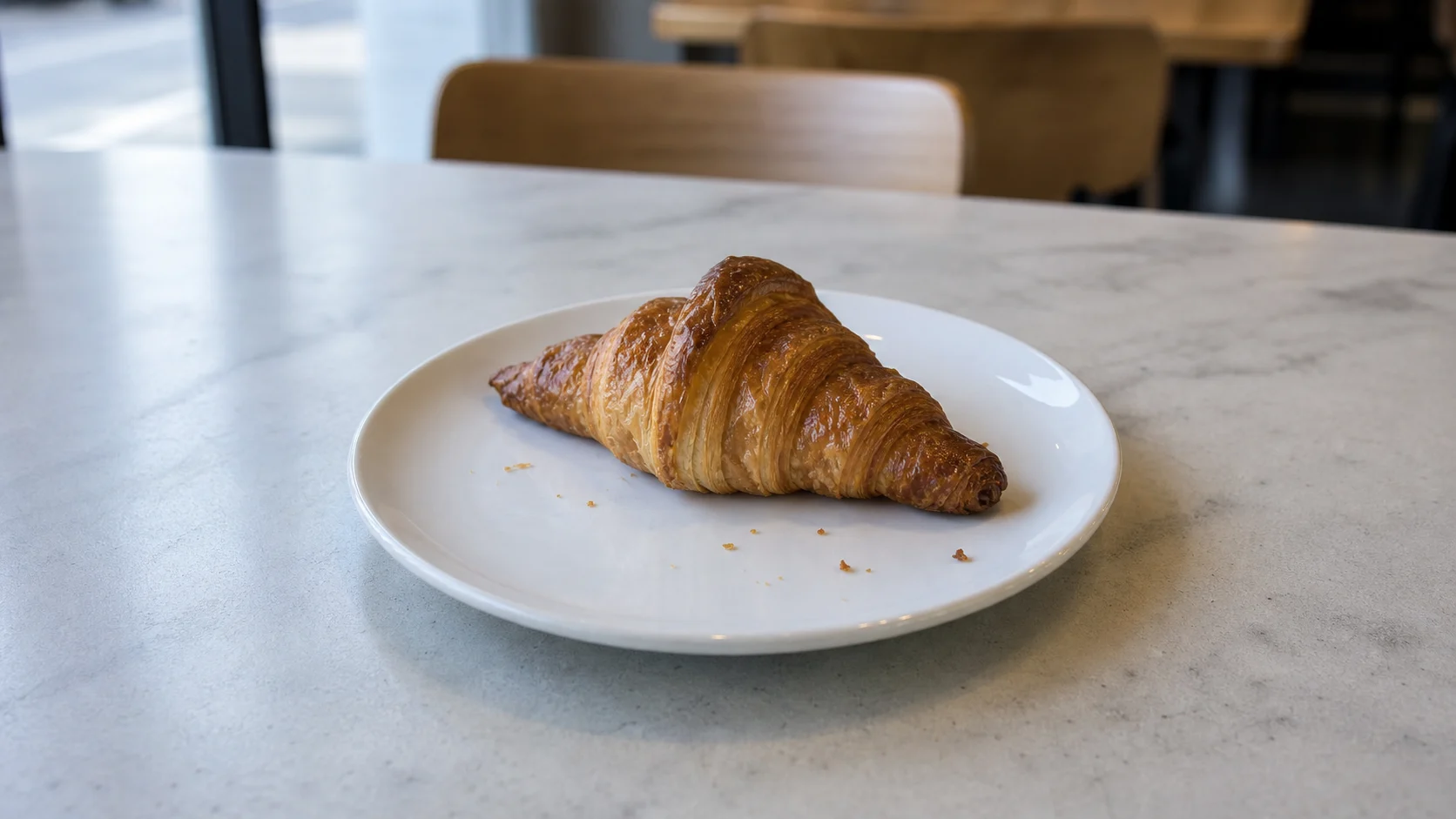
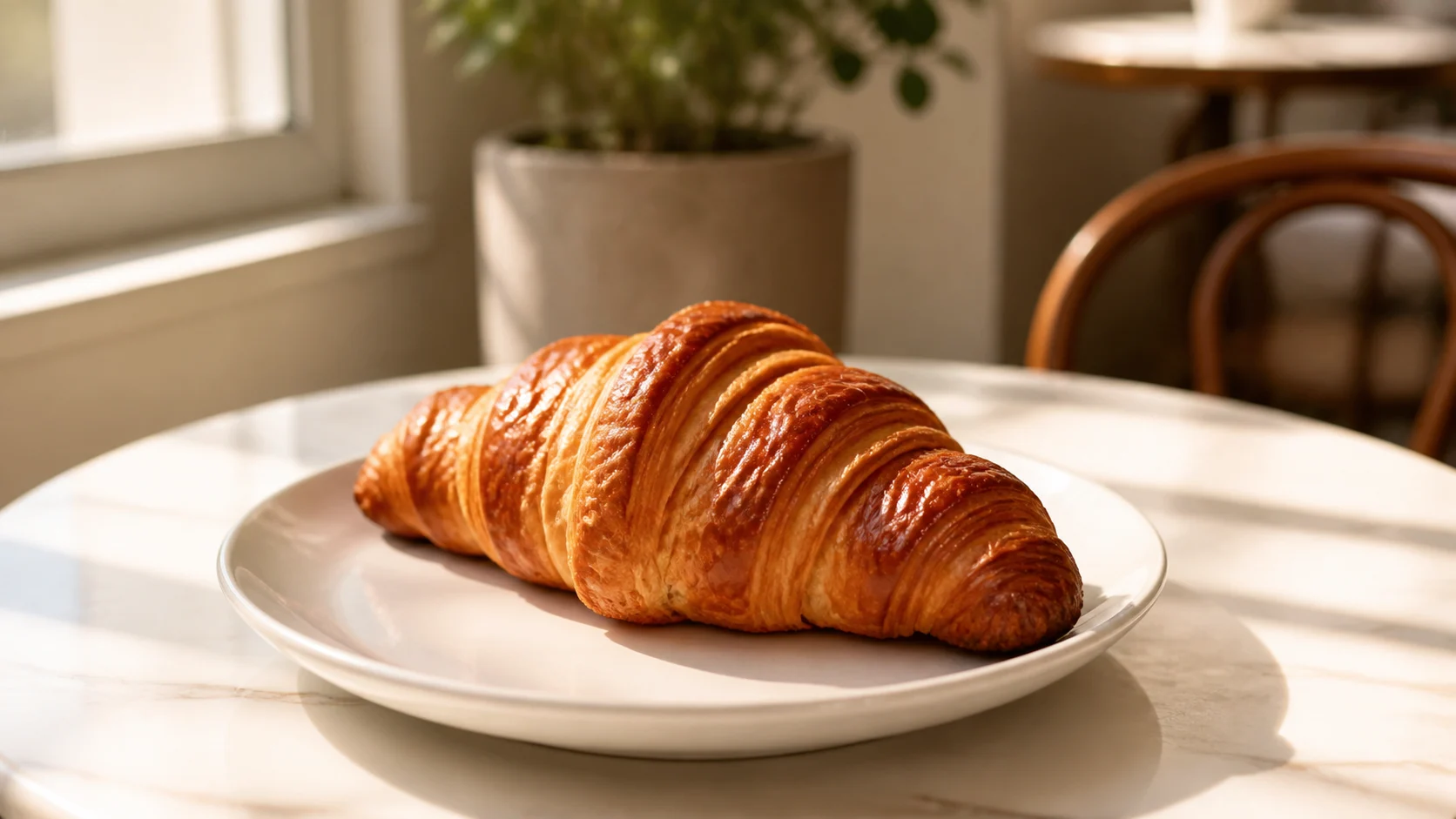
Keep the pastry shape, plate, table, and crop unchanged. Add warm window light, reduce harsh shadows, improve the glaze highlights, and keep the scene natural without adding text.
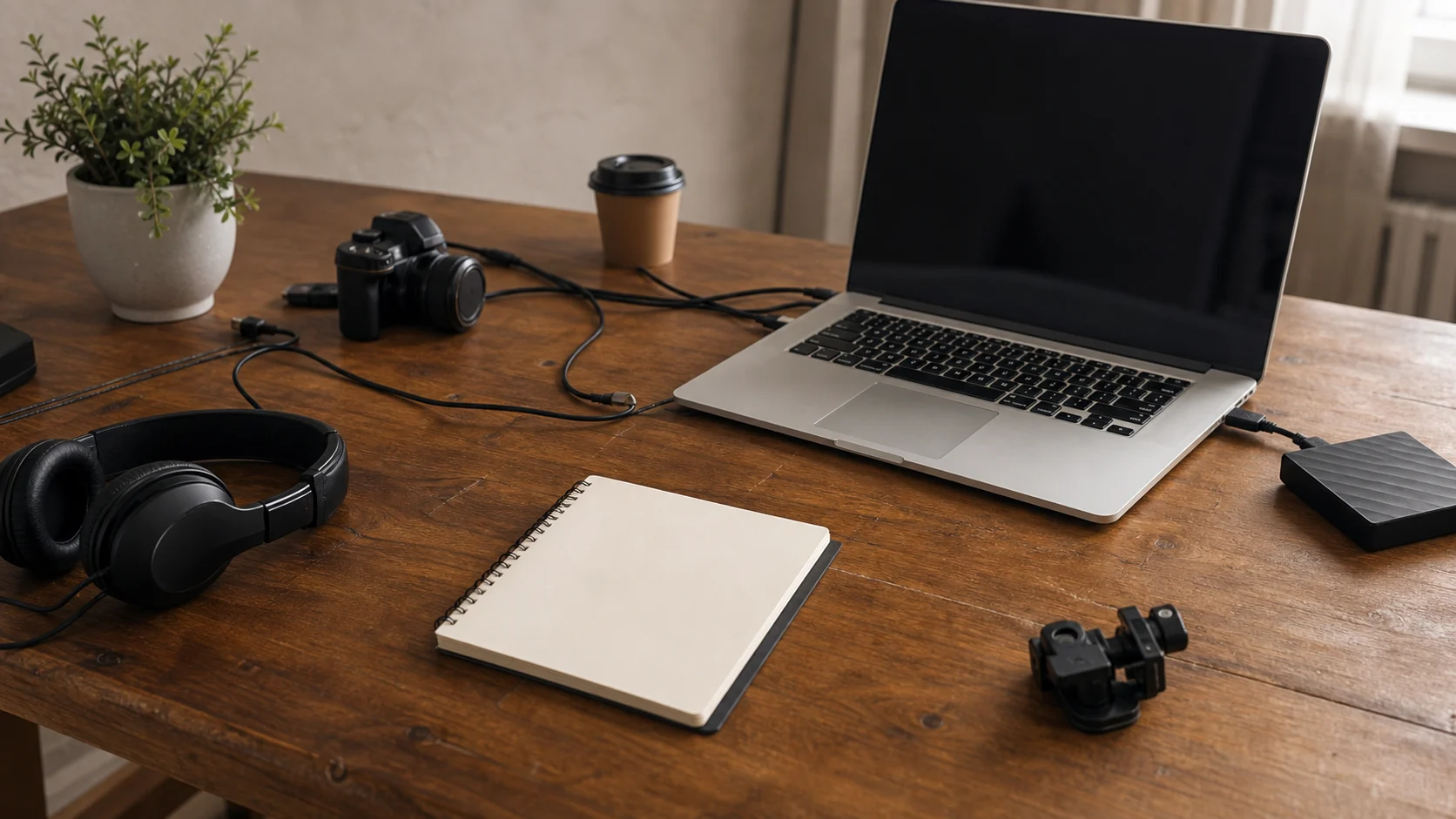
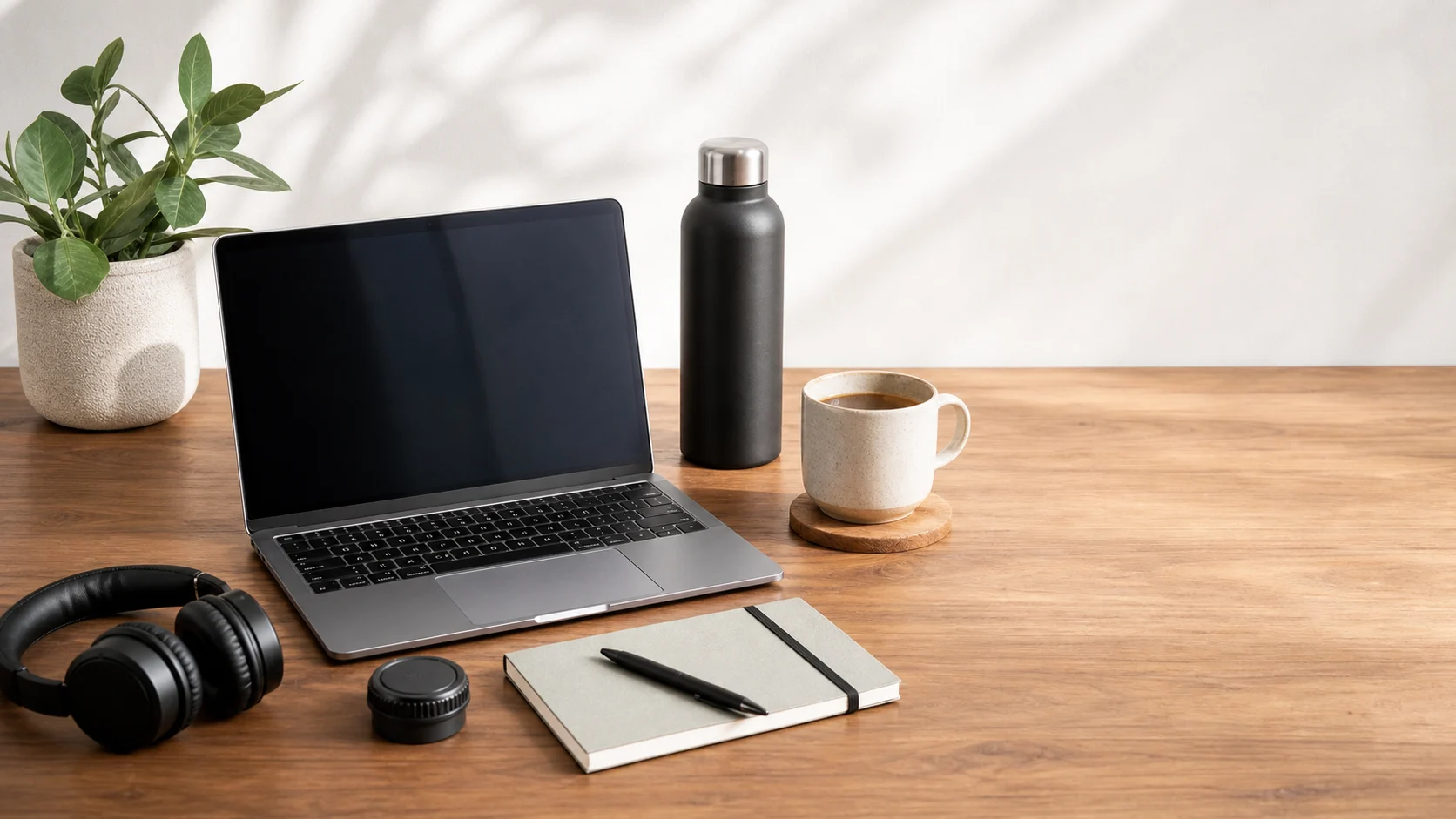
Keep the laptop, headphones, desk objects, and daylight mood. Reframe the image into a cleaner 16:9 social thumbnail with the main workspace centered and clear negative space on the right. Do not add text.
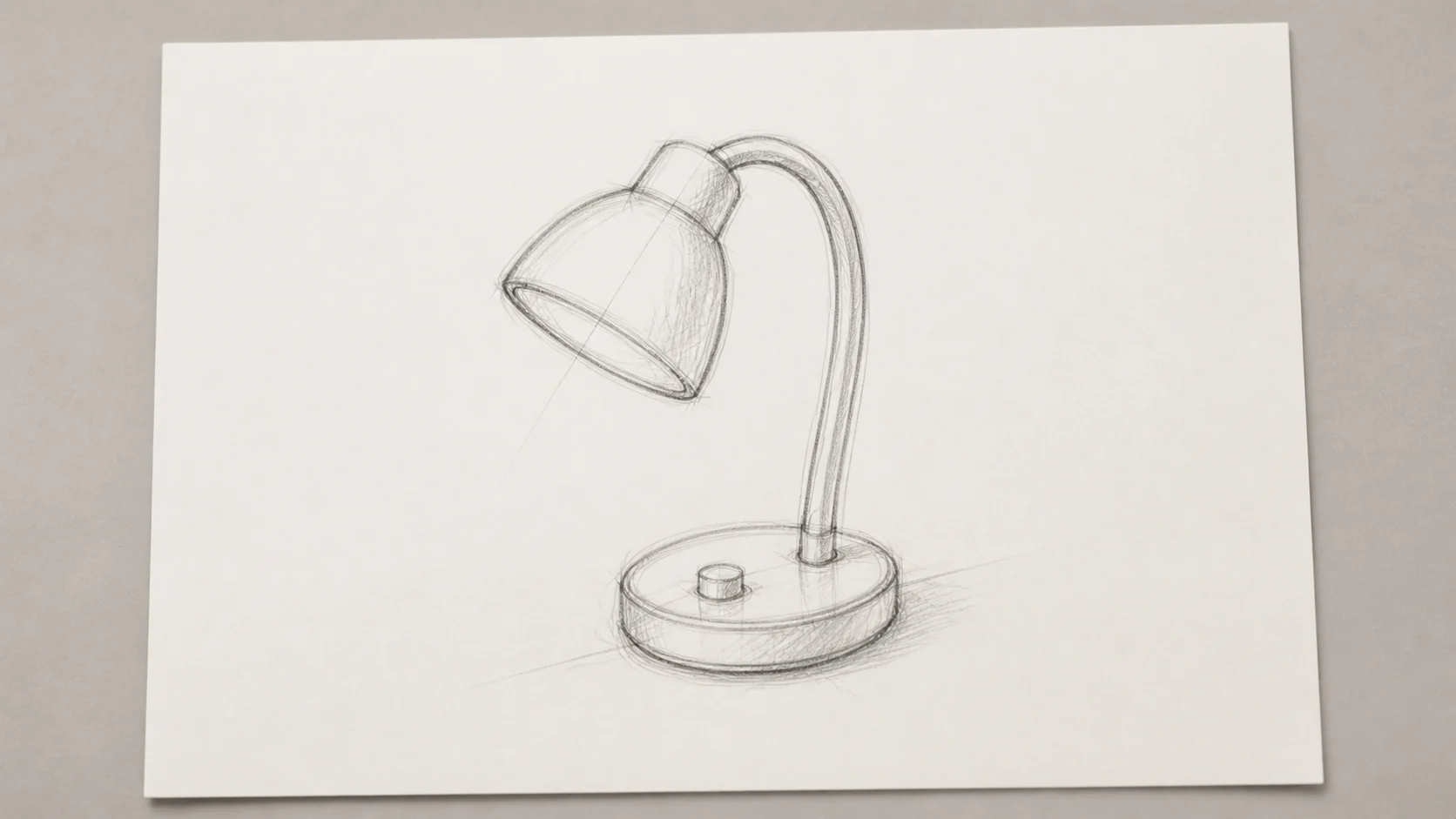
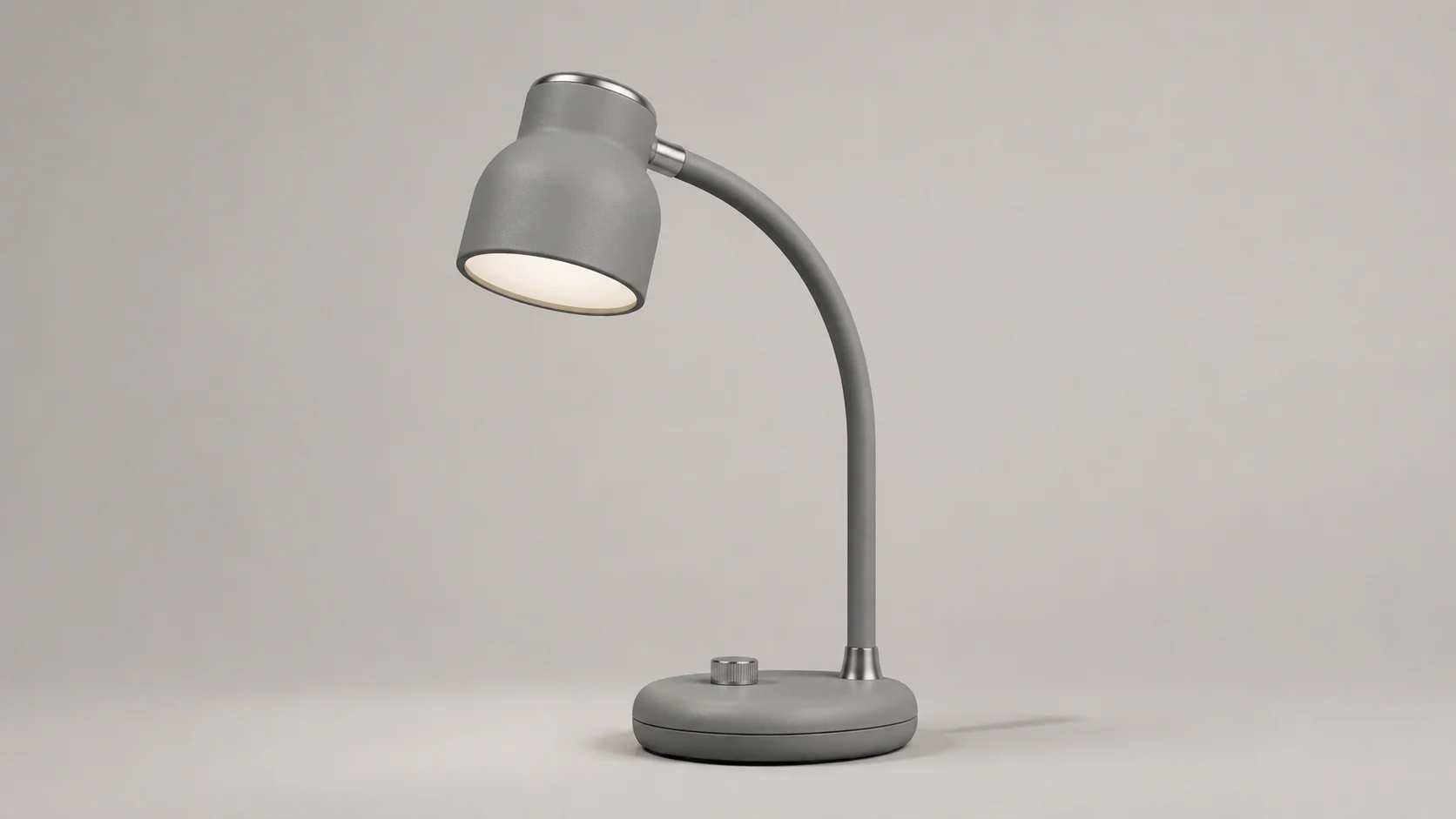
Use the uploaded pencil sketch as the structure. Preserve the silhouette, handle angle, and proportions, then render it as a clean matte desk lamp concept on a neutral studio background.
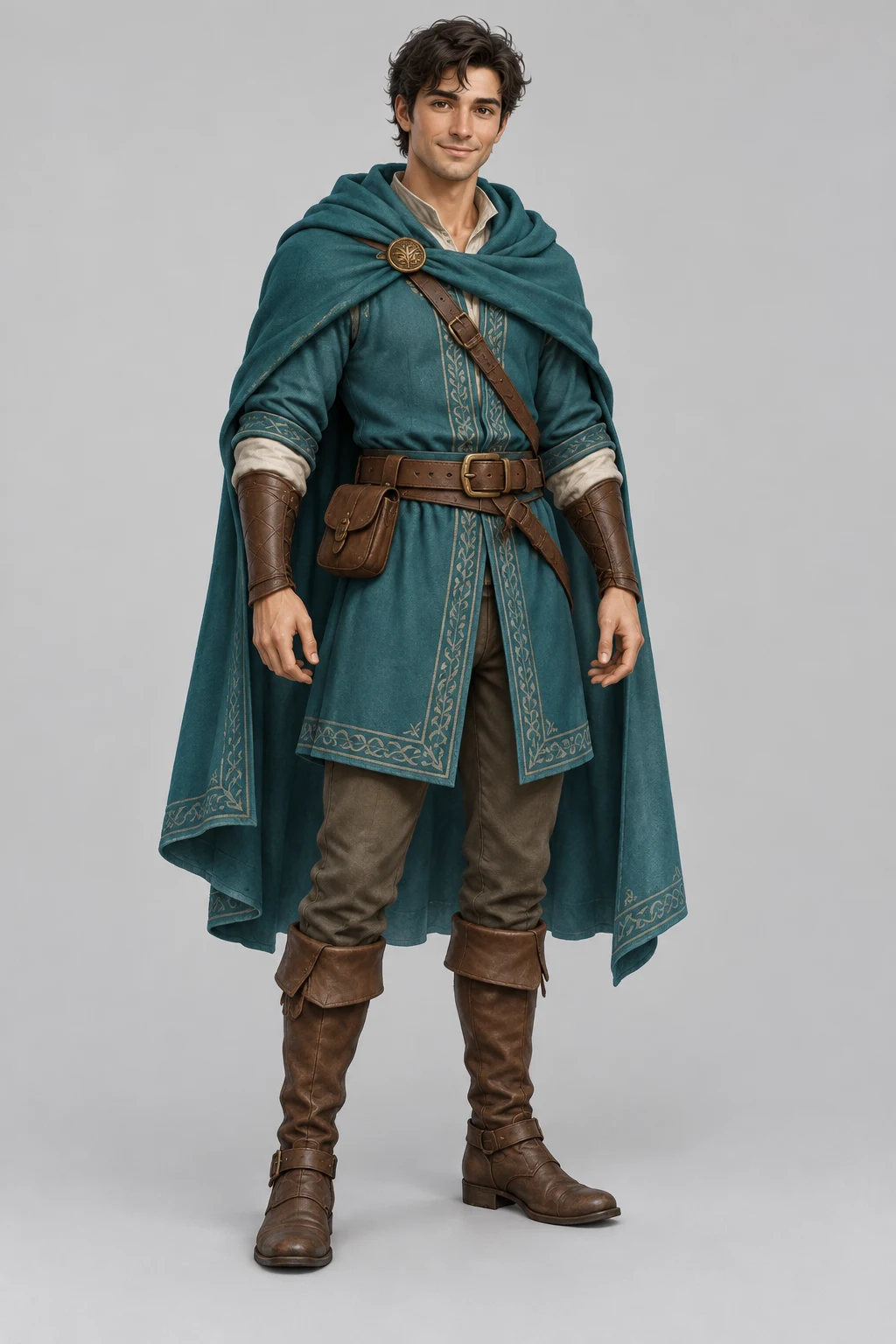
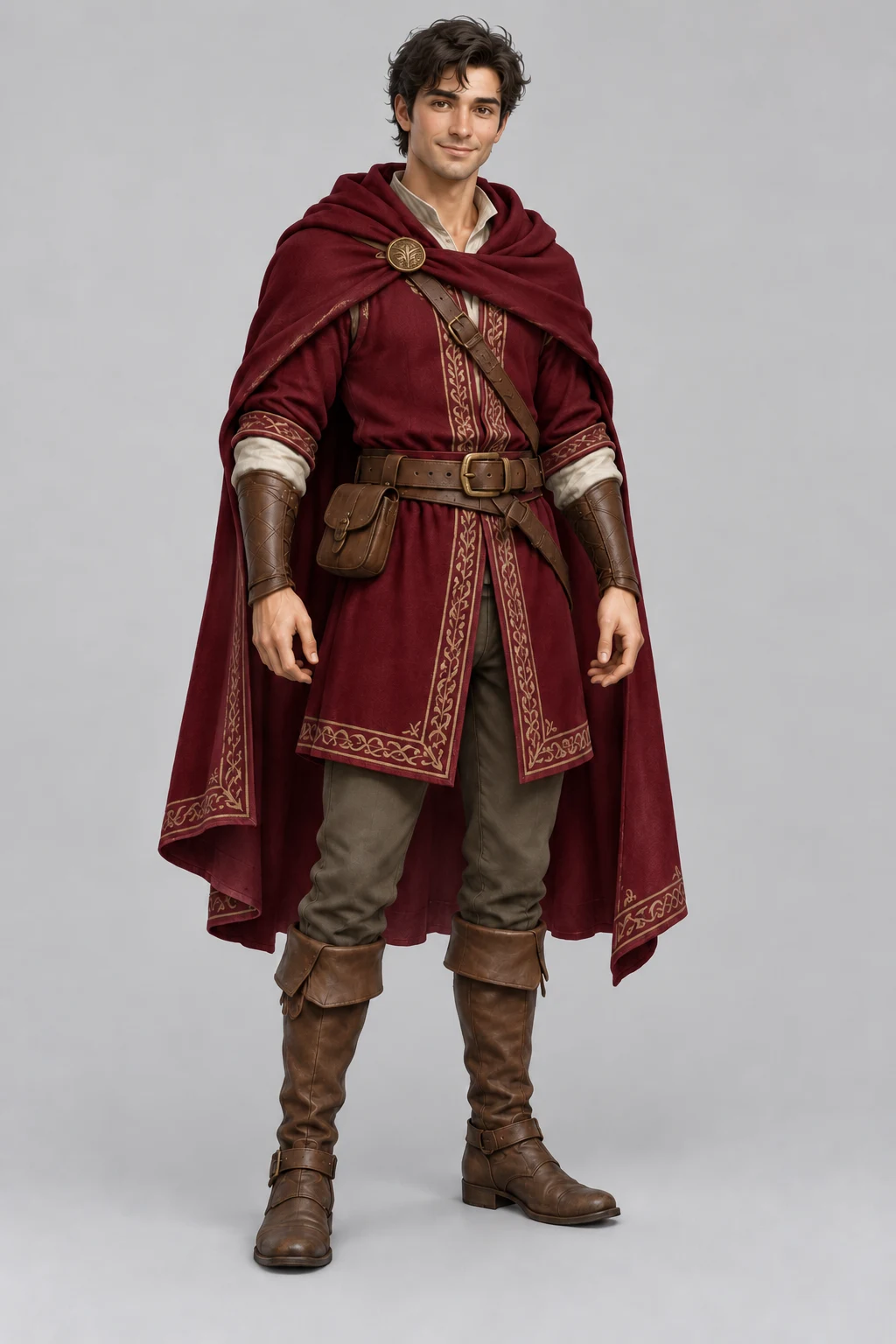
Keep the face, pose, hands, embroidery, accessories and grey background unchanged. Change only the tunic and cloak fabric from teal to deep burgundy.
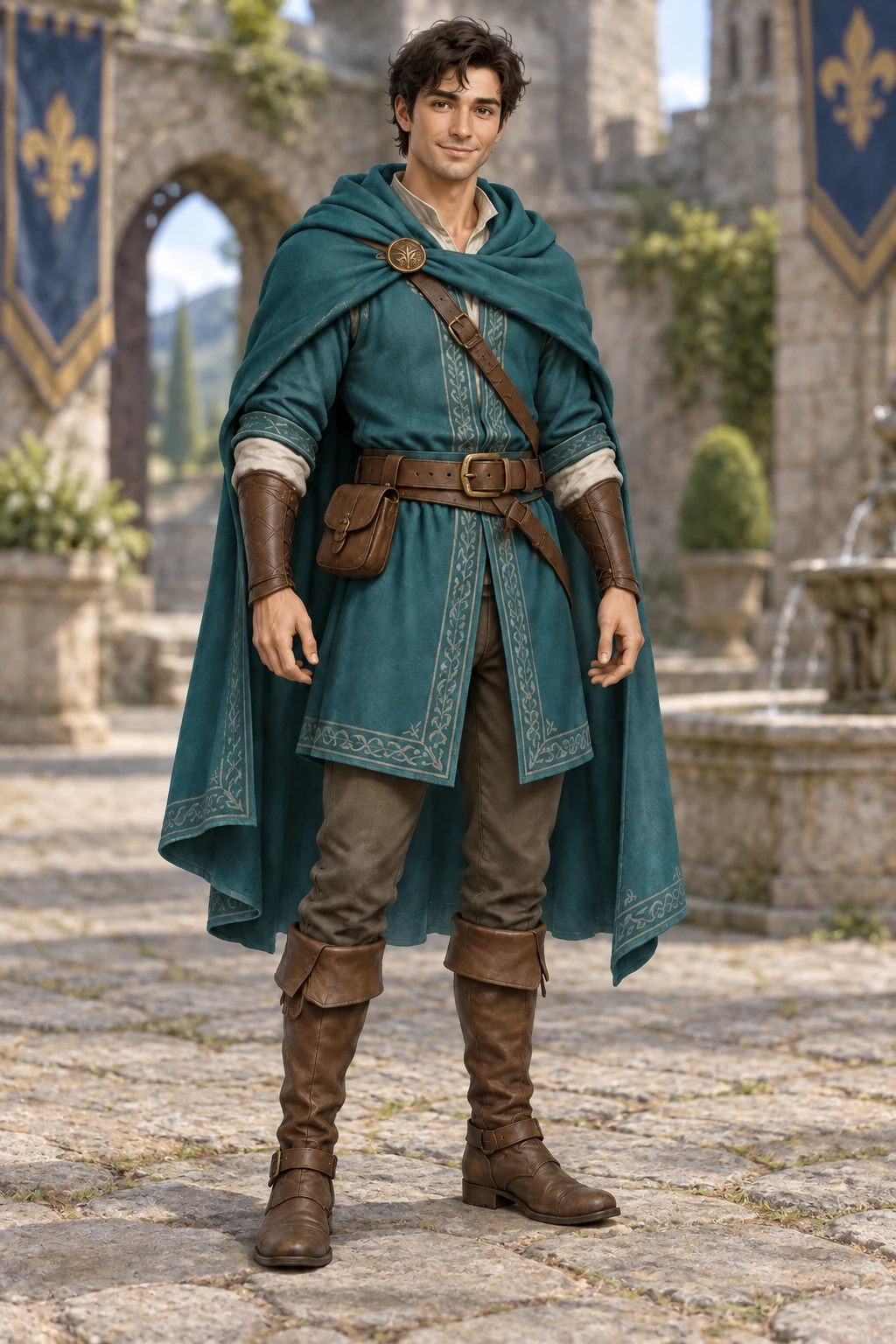
Keep the character, teal outfit, pose and lighting unchanged. Replace only the plain grey background with a softly blurred stone castle courtyard.
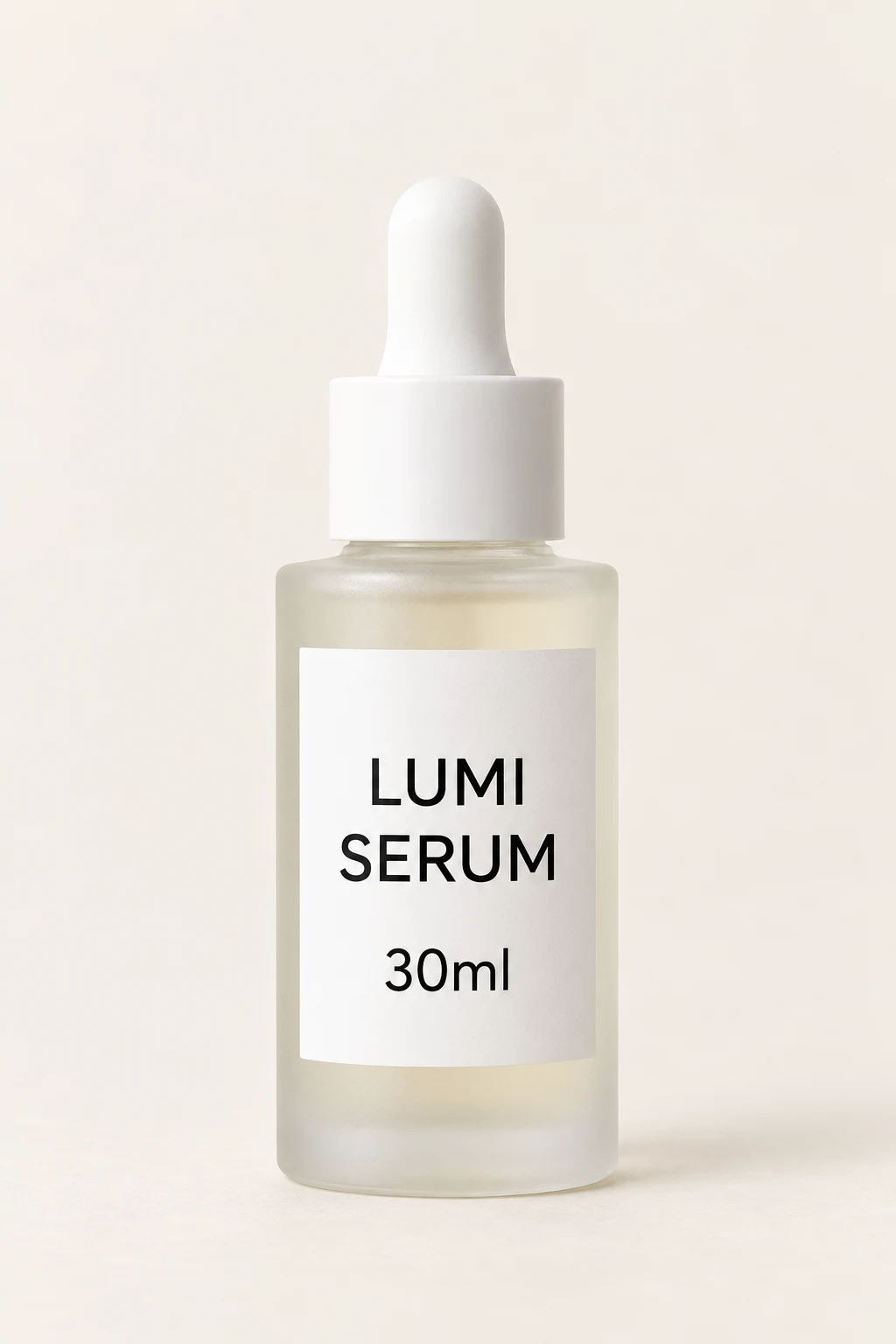
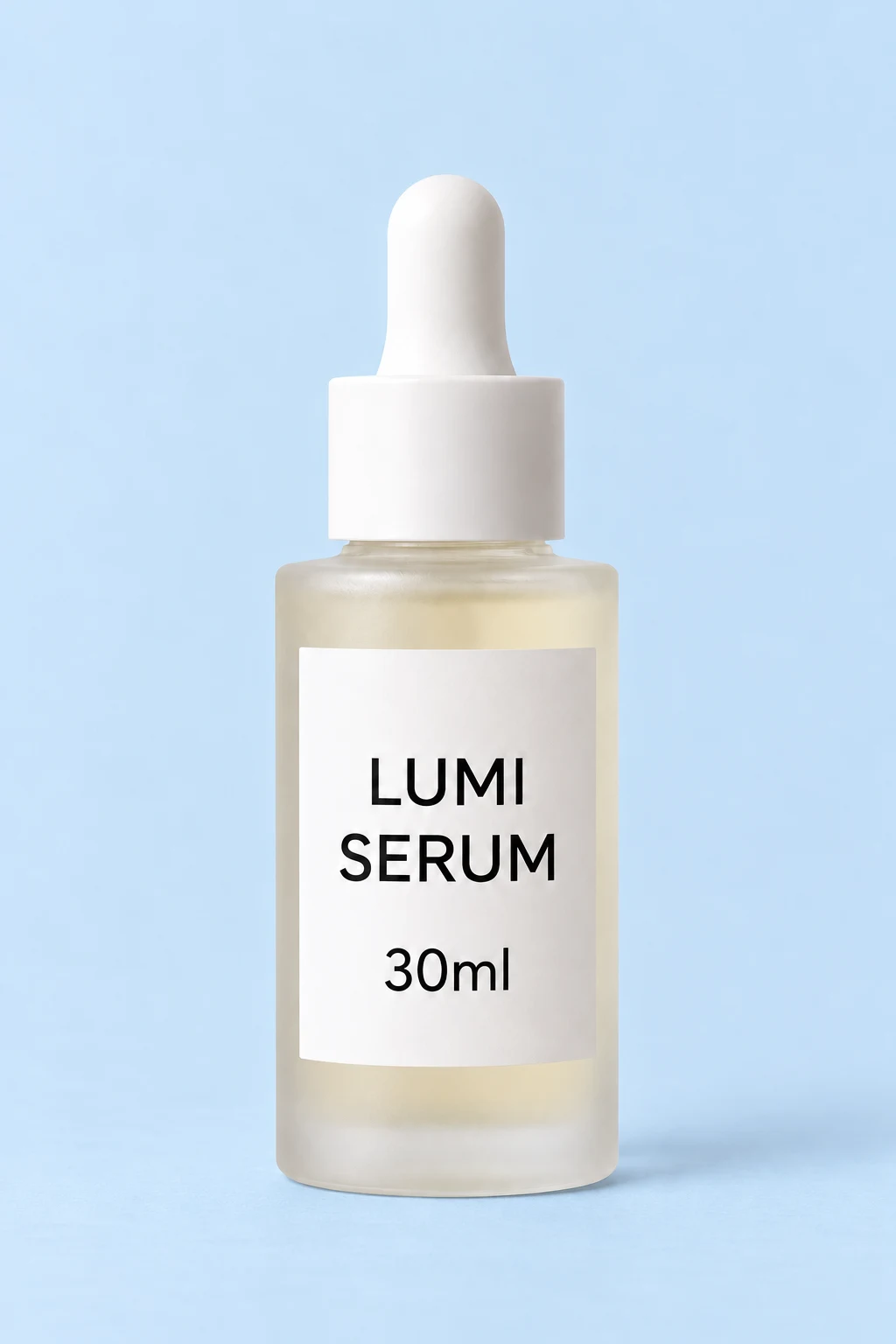
Keep the bottle, cap, label text "LUMI SERUM 30ml" and lighting unchanged. Change only the background and surface to pale powder blue.
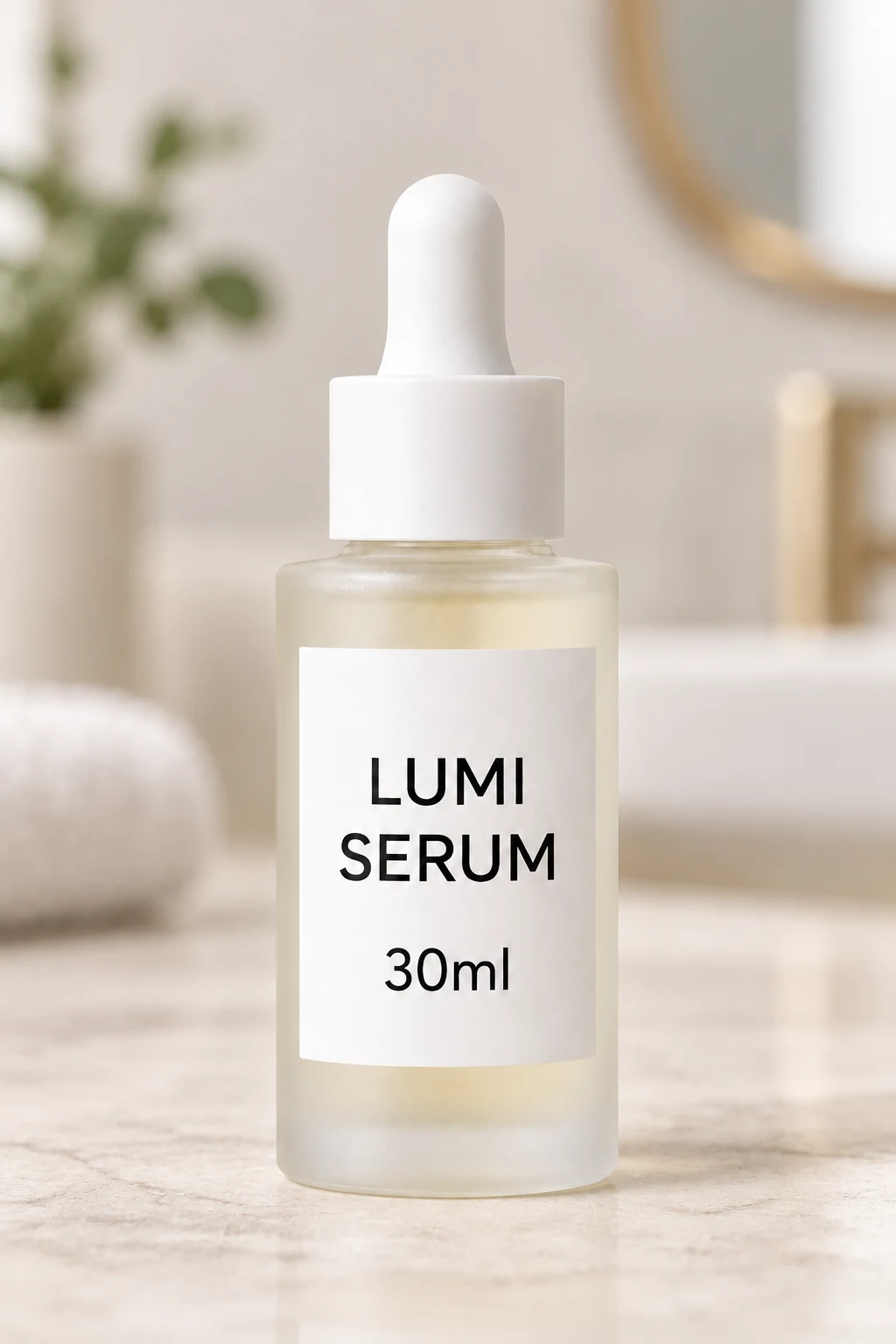
Keep the bottle, cap and label text "LUMI SERUM 30ml" unchanged. Replace only the plain background with a softly blurred bathroom and a light stone countertop.
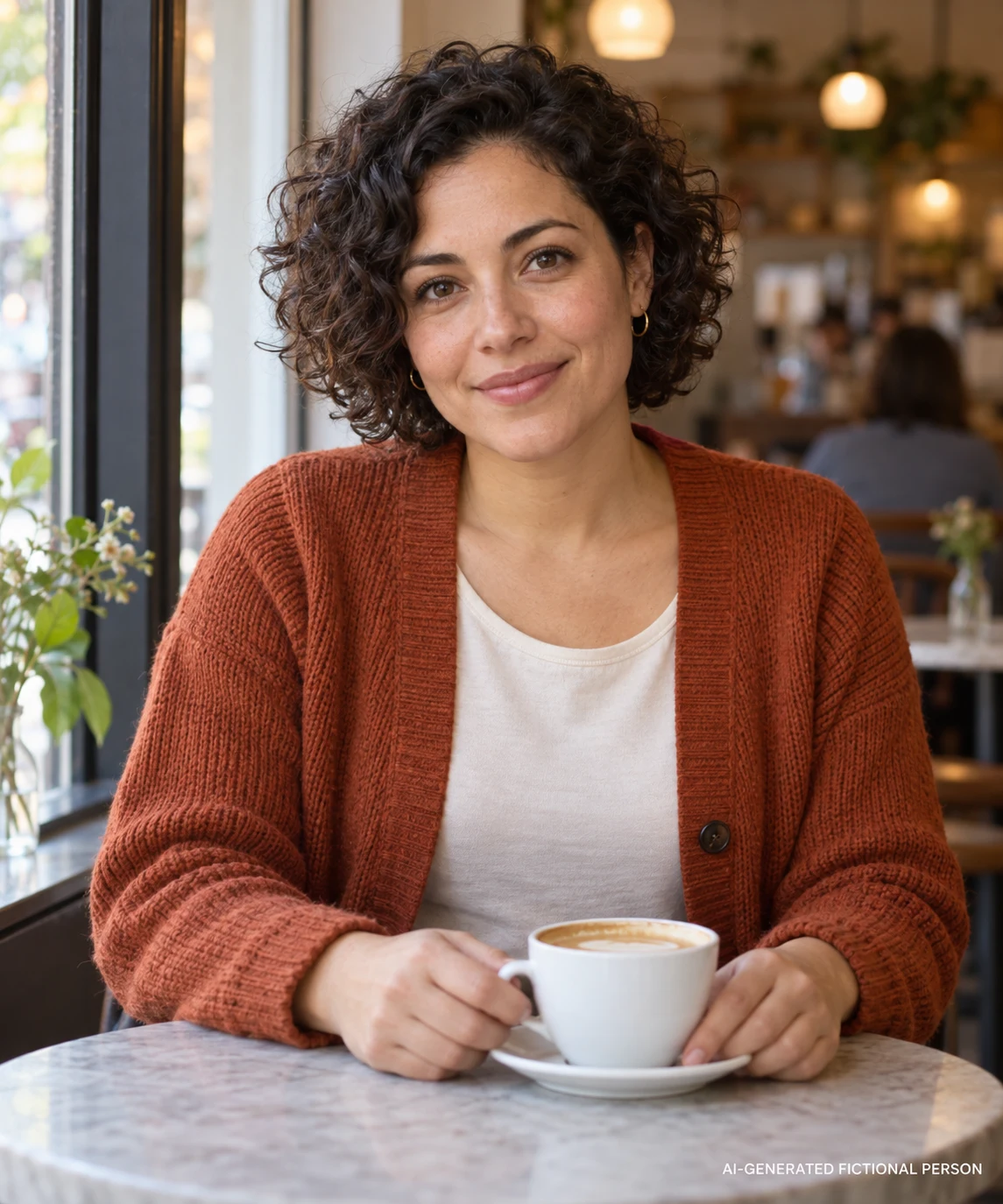
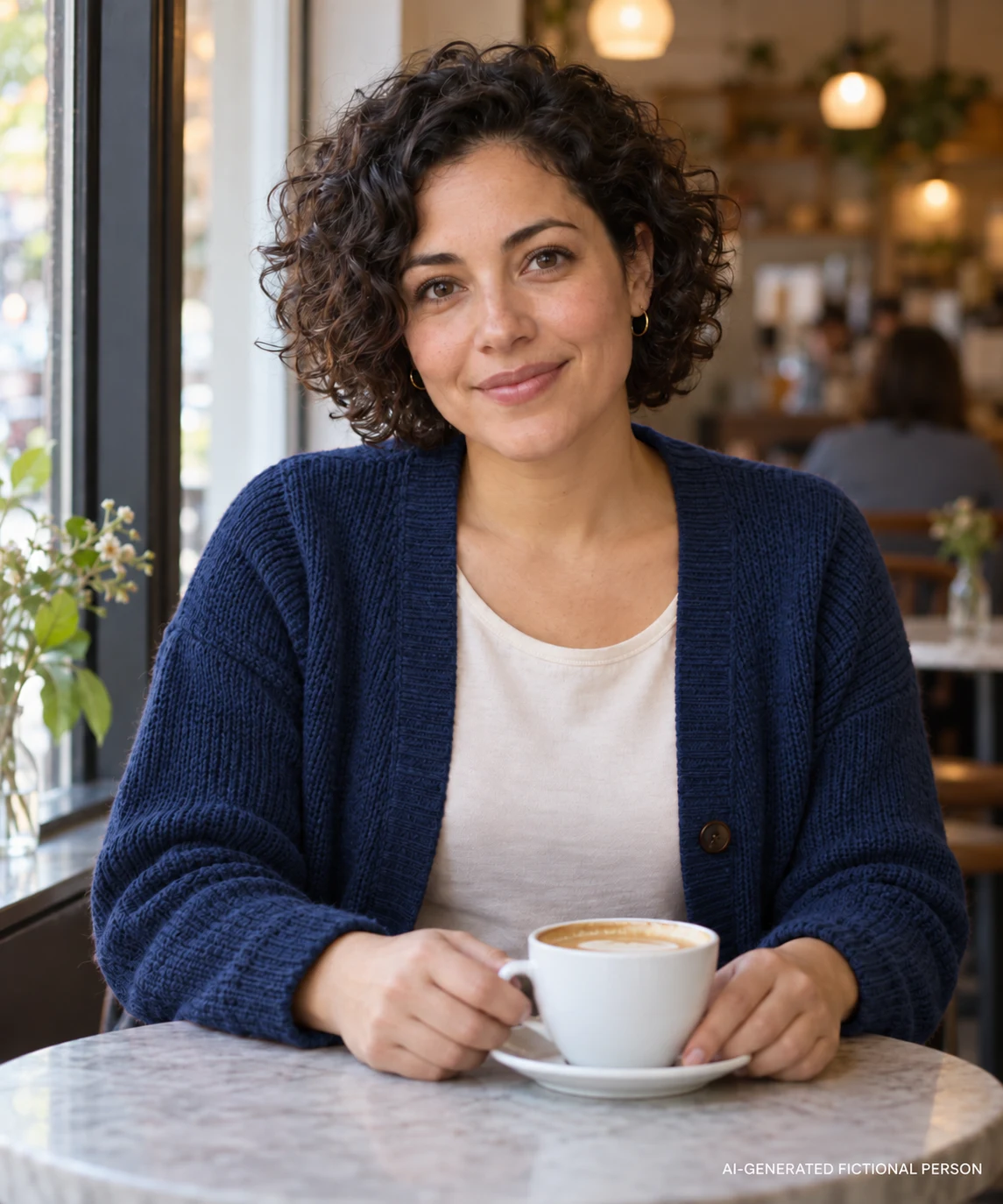
Keep her face, hair, hands, cup and café background unchanged. Change only the rust-orange cardigan to navy blue.
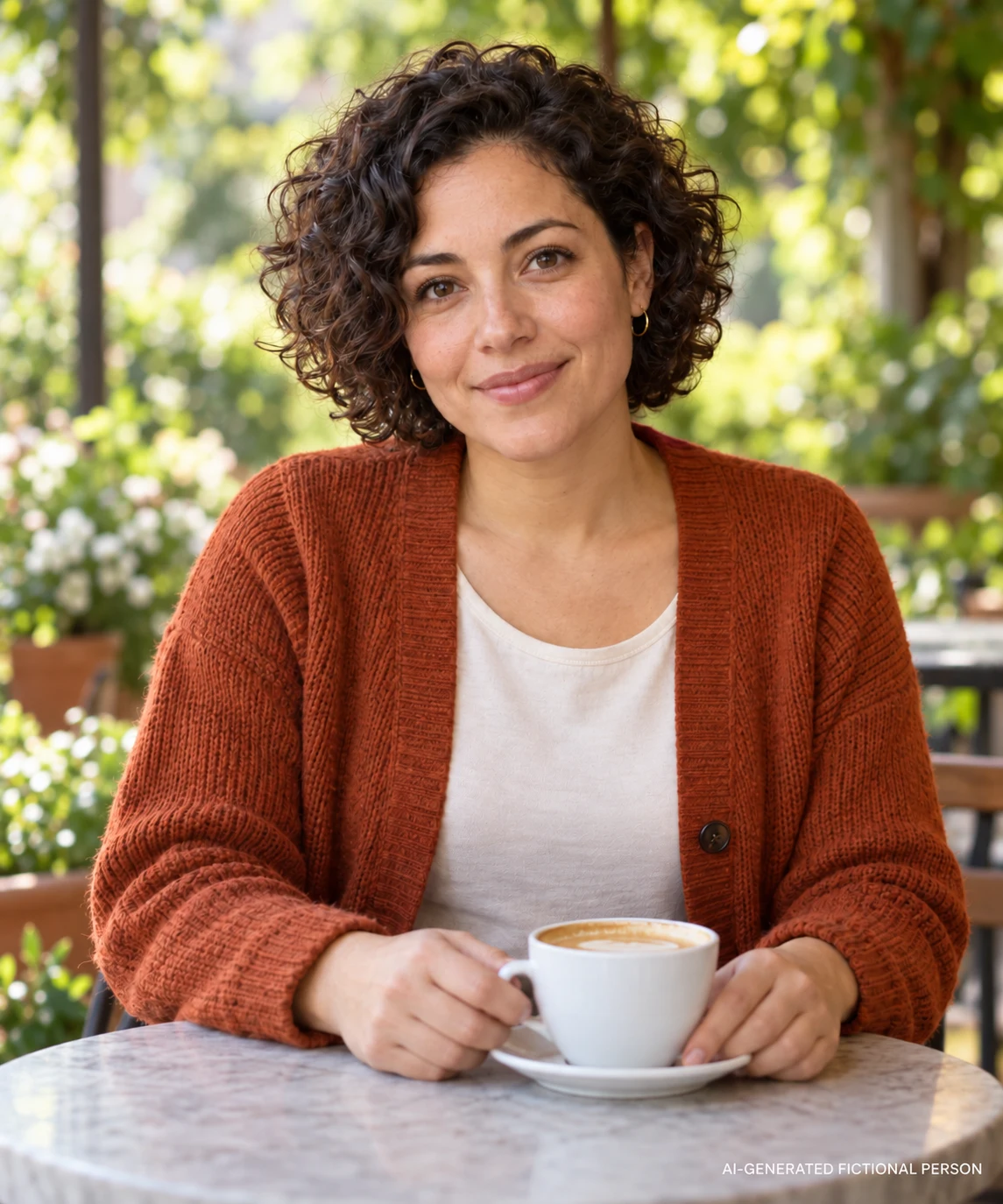
Keep the woman, her rust-orange cardigan, the cup and the table unchanged. Replace only the café background with a softly blurred garden terrace.
Start with a clear source image. Name the subject, product shape, room layout, crop, or sketch lines that the AI image editor should preserve before changing anything else.
Name one change and the details to keep. Select an output ratio that suits the source or intended use, choose the model settings and check the credit quote before generating.
Review the before and after result for subject preservation, lighting, edges, and composition. Refine one prompt detail at a time instead of rewriting the whole request.
Make focused changes to product photos, social images and creative drafts. Describe what should change, compare the result with the original and continue into image or video creation.
Each edit generates a new image using your source image as a reference and your prompt as instructions. There is no brush, manual mask or region selection.
Use AI photo editor workflows for product photos, social creatives, thumbnails, poster drafts, ecommerce scenes, and reference images for later video generation.
After editing a still image, continue into image-to-video, scene generation, storyboards, or model-specific image workflows without switching platforms.
An AI image editor changes an existing image using model-generated edits. You upload a reference image, describe what should change, and generate a new version with the requested background, style, cleanup, or composition.
Upload the image, write one clear prompt, choose an image model, and generate. Good prompts name what must stay unchanged and what should change, such as the background, lighting, object placement, or visual style.
Each edit generates a new image using your source image as a reference and your prompt as instructions. There is no brush, manual mask or region selection. Areas you did not ask to change, including faces, text, logos and product labels, may still change.
You can open the editor and prepare prompts freely. Generating images requires an account and credits based on the selected model and settings.
Common AI image editing tasks include background replacement, object cleanup, product photo staging, style transfer, image expansion, poster concepts, thumbnails, and still frames for later video work.
The best choice depends on the asset. LumiYing is useful when you want prompt-based edits, reference-image workflows, model choice, and a path from edited still images into AI video or scene workflows.
Ask for the product shape, label, color and proportions to stay unchanged, then check them against the original. Prompt-guided regeneration may still change these details.
Yes. A polished edited still can become a start frame, storyboard panel, thumbnail, or product keyframe before you move into image-to-video generation.
Every editor model accepts a text prompt plus reference images. Starting price per image: GPT Image 2.5 and GPT Image 2 from 1.5 credits; Nano Banana 2.1 from 2 credits; Midjourney, Seedream 5.0 Lite, and Seedream 4.5 from 3 credits; Nano Banana 2 from 4 credits; Nano Banana Pro from 6 credits. Higher resolutions and quality settings cost more; the Pricing page lists every rate. Start with the default model and compare the result with your original.
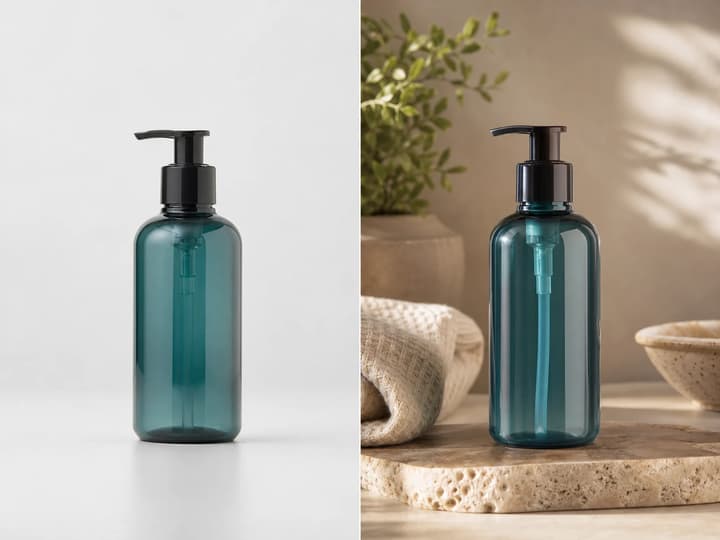
Learn prompt patterns for background changes, product photos, cleanup, and keyframes.
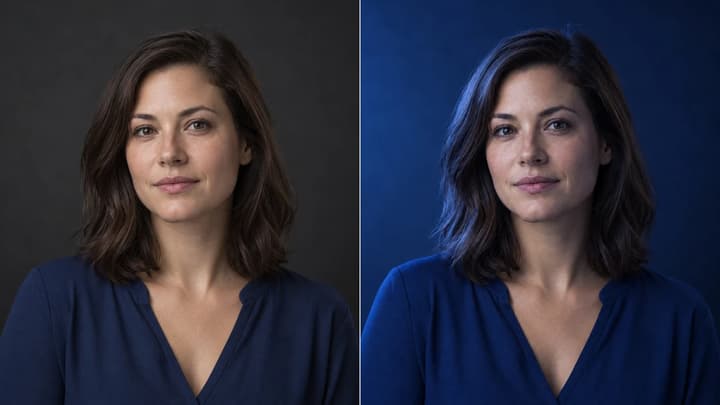
Learn how to relight a photo with AI: choose a light direction and lighting template, compare examples, and check shadows, highlights, and subject details.
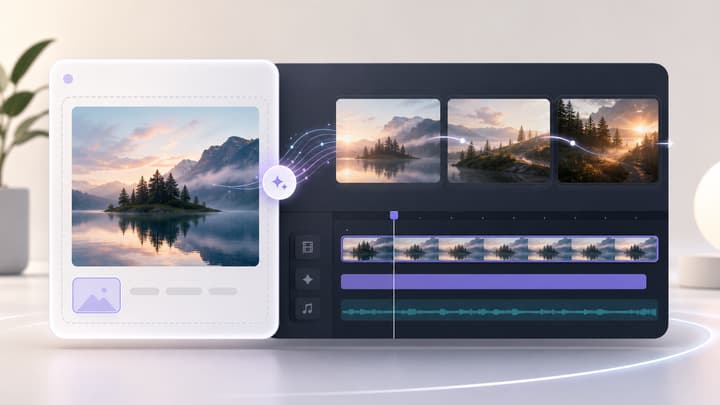
Turn an edited still image into a short AI video clip.
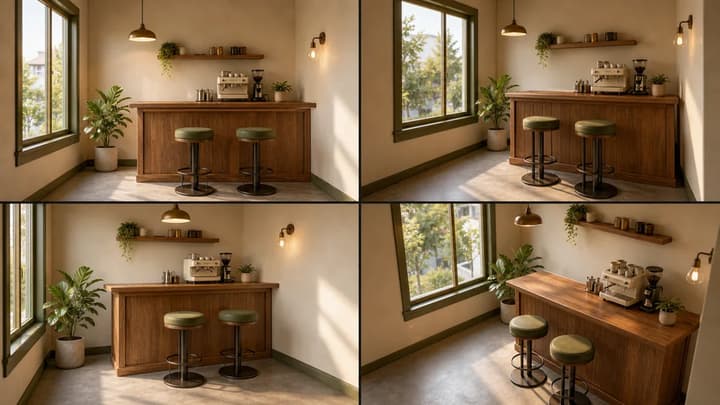
Create scene references after editing a product, environment, or campaign frame.
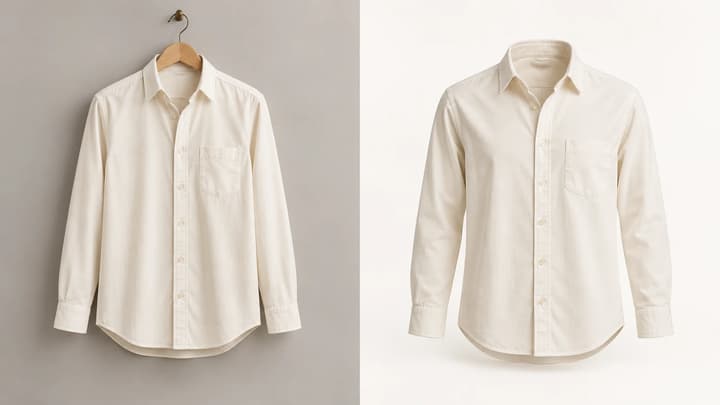
Turn clothing photos into ghost mannequin product images with AI. Upload a garment, adjust the prompt and compare shirt, jacket and dress examples.
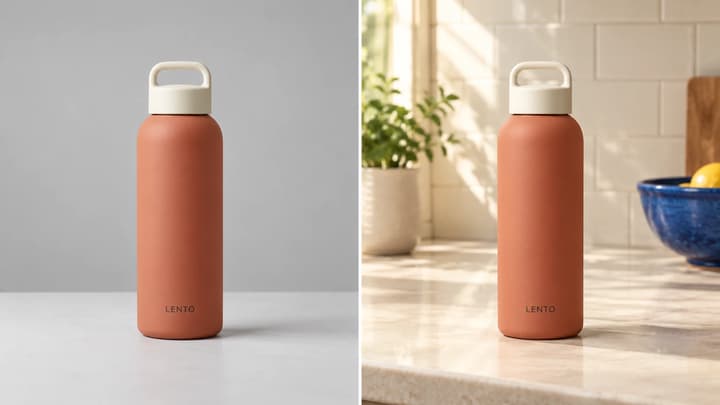
Turn a product photo into a realistic lifestyle scene. Choose a scene reference or describe a setting, then compare the product details before using the result.
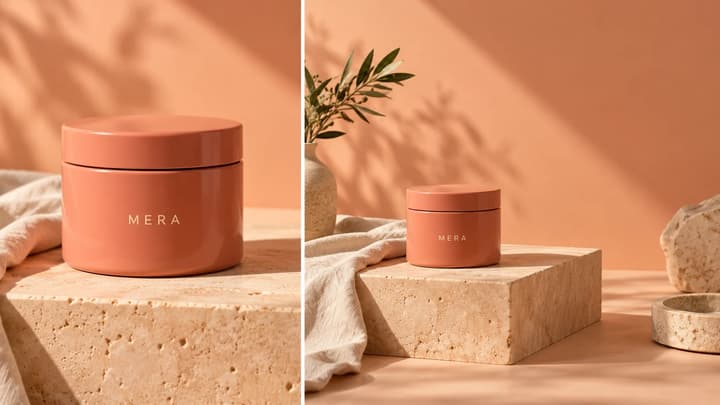
Extend a photo beyond its borders. Choose an output ratio and describe the space you need for ads, social posts or layouts, then review the AI-expanded image.
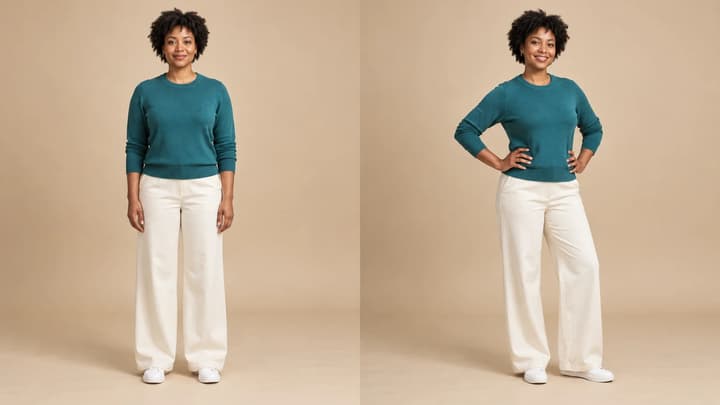
Change a person or character’s pose from a photo. Choose 8 pose templates or upload a pose reference, then generate and review the result.
Open LumiYing in image mode, upload a reference image, and write the edit you want to generate.