Brown · conservatory portrait
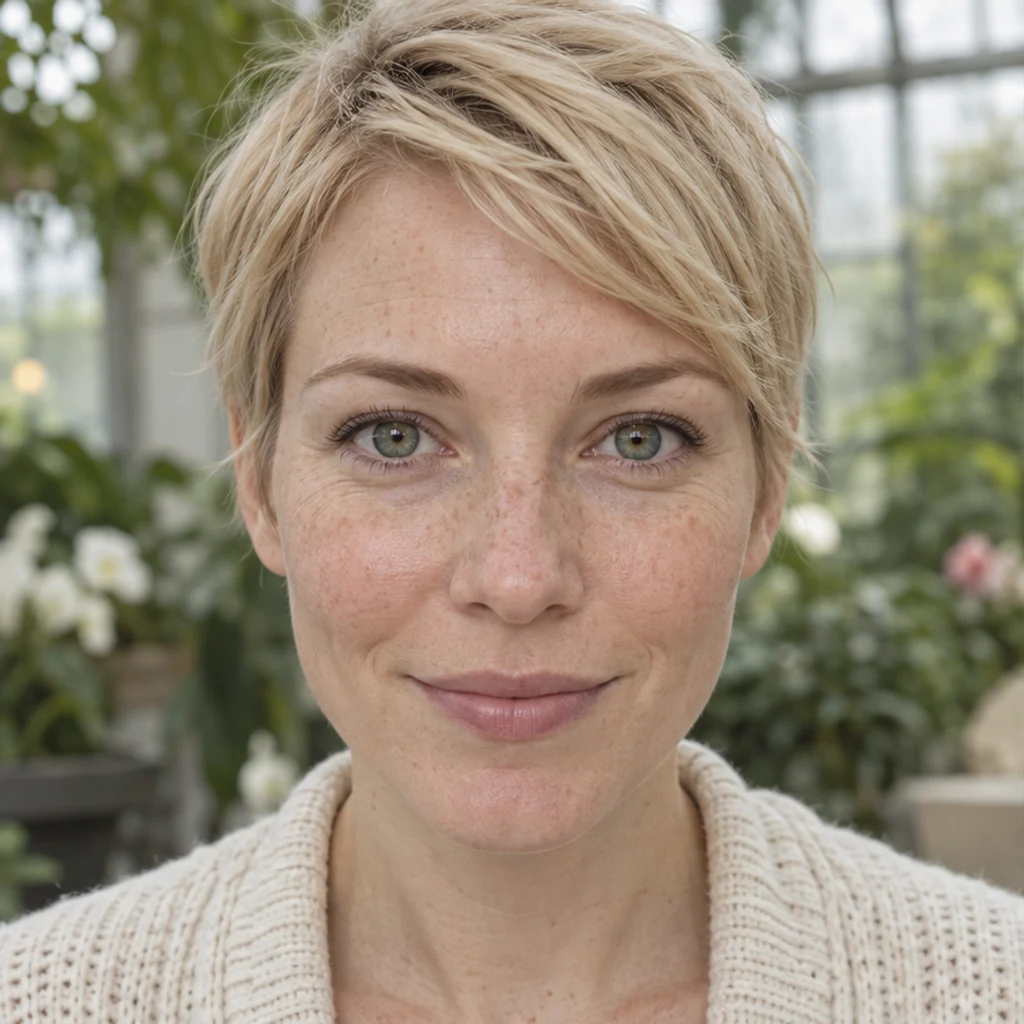
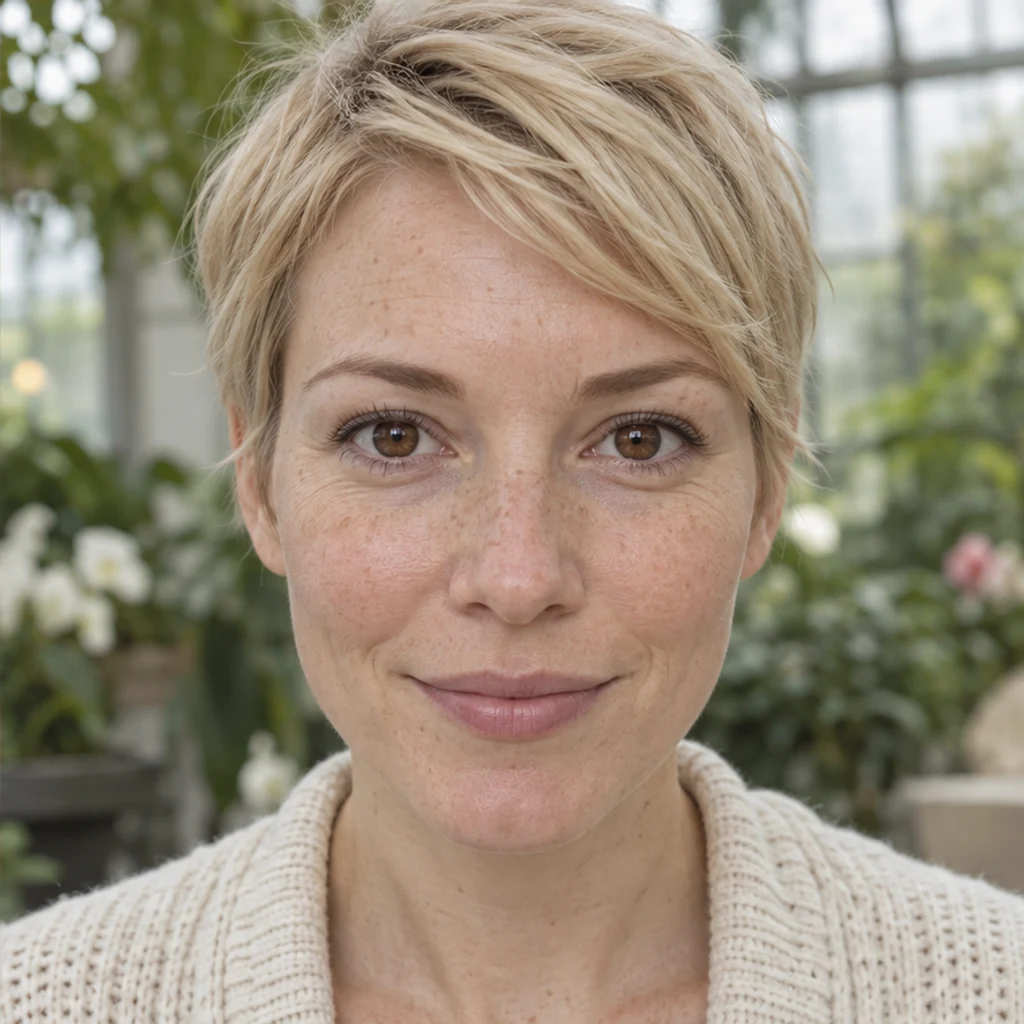
Try this colorWarm brown replaces green while preserving the blonde portrait.
To change eye color in a photo, start with a clear portrait, choose an iris color and compare the result with the original. Check the pupils, gaze, catchlights and eye whites as well as the shade. This guide explains the inputs, useful instructions and details to review.
LumiYingUpdated
To change eye color in a photo, start with a clear portrait, choose an iris color and compare the result with the original. Check the pupils, gaze, catchlights and eye whites as well as the shade. This guide explains the inputs, useful instructions and details to review.
Use one person with open, clearly visible eyes and even light. JPEG, PNG and WebP are supported, up to 30 MB.
Choose one of eight color cards, upload a color reference or write Edit instructions. Templates and uploads are alternatives; selected cards can be removed. A Person photo and at least one active color input are required.
Review the displayed credits and generate one image. Loading an example only fills the form. Compare the eyes and face, then Re-edit the original inputs or download the result.
Inspect both eyes and the rest of the face at full size. Keep a result you like, or refine the color from the original photo.
Keep the same photo and compare iris hue before combining changes.
Explore iris color ideas with these AI-generated illustrations. Choose an example to load its photo and color settings.
Warm brown replaces green while preserving the blonde portrait.


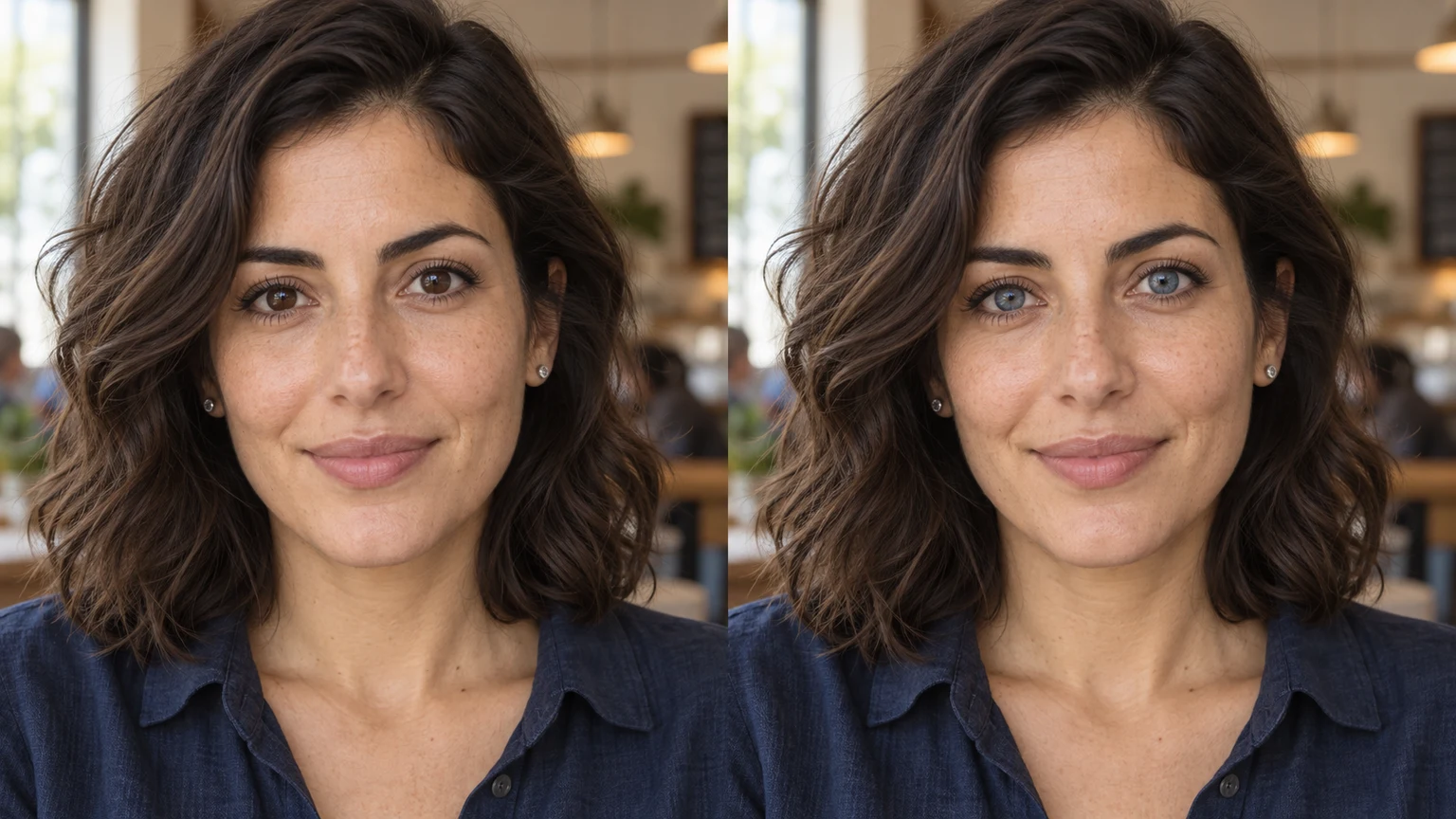
Soft blue replaces brown in a neutral studio portrait.
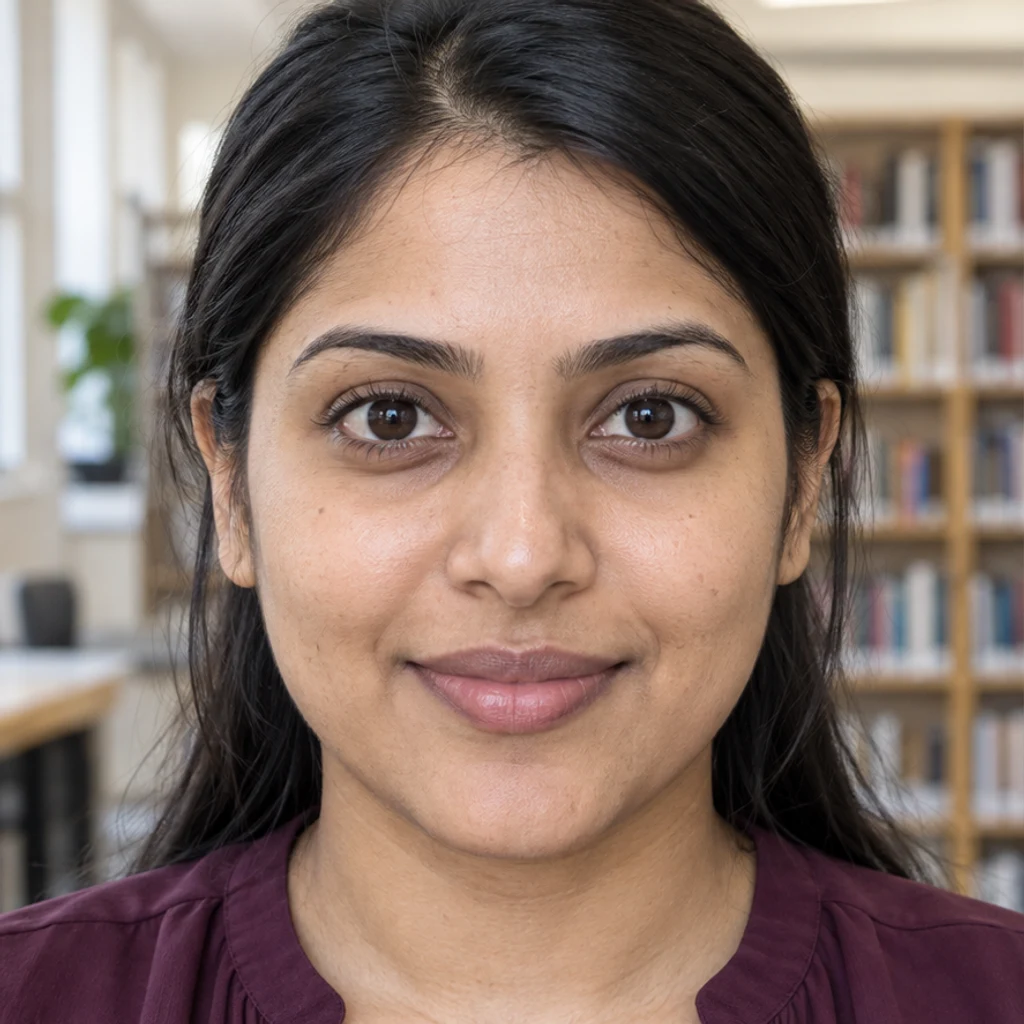
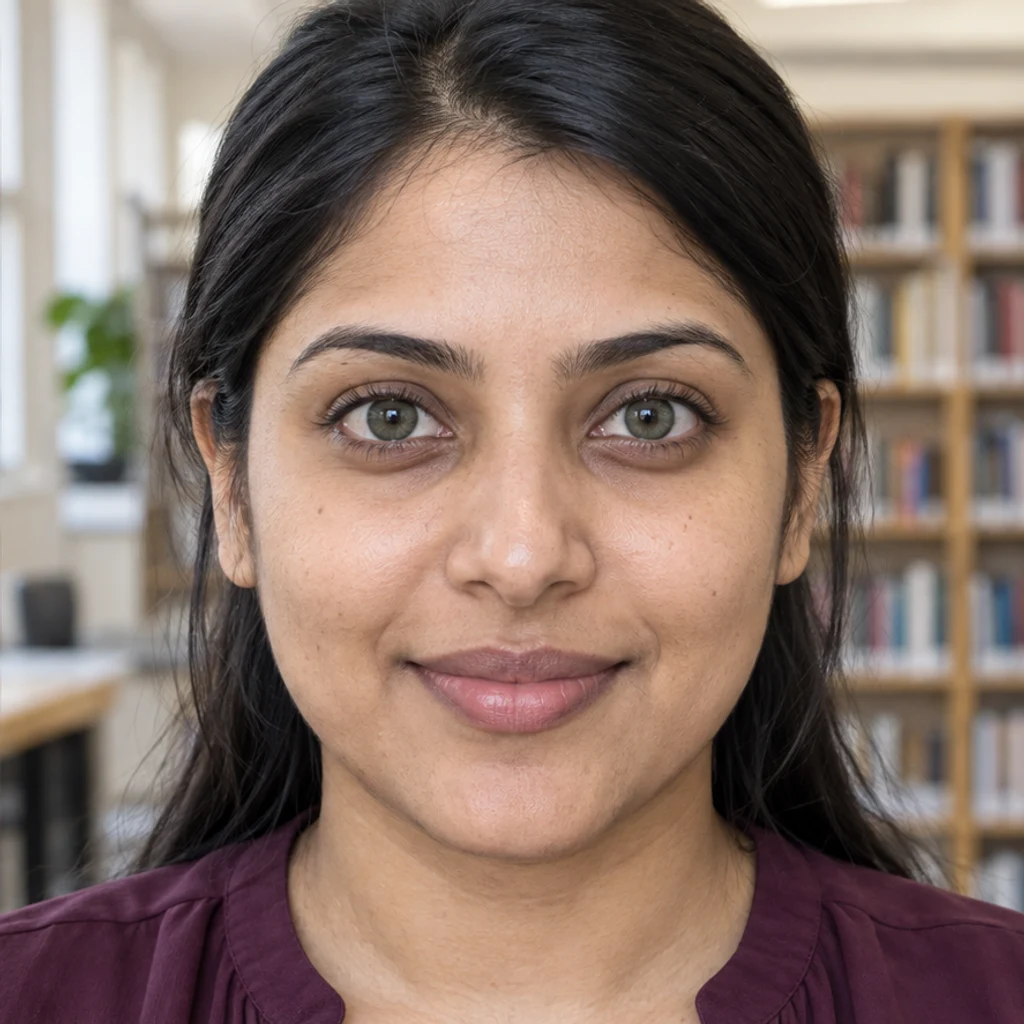
Muted green adds a color direction to dark brown irises.


Cool gray changes the iris hue in an older adult portrait.


Brown and olive-green tones blend around normal black pupils.
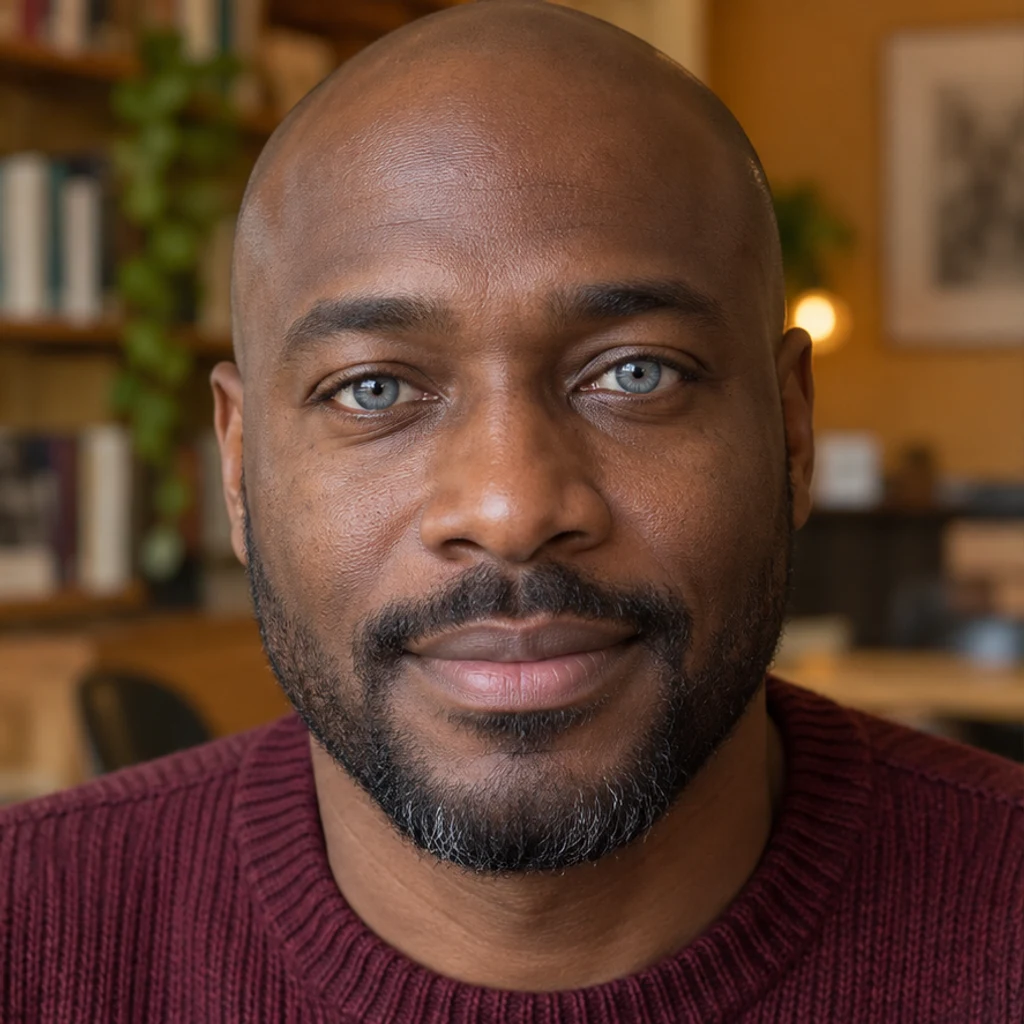
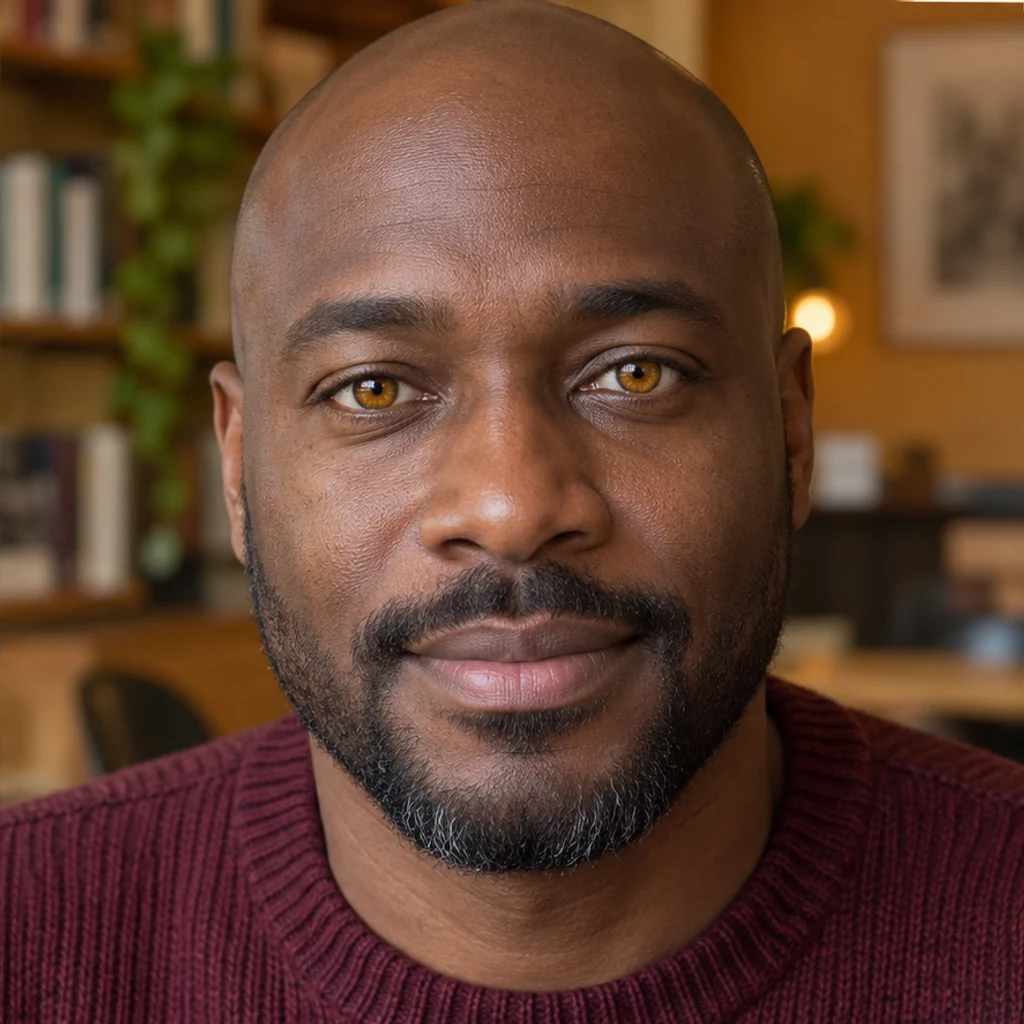
Golden-brown replaces gray-blue without a glowing effect.
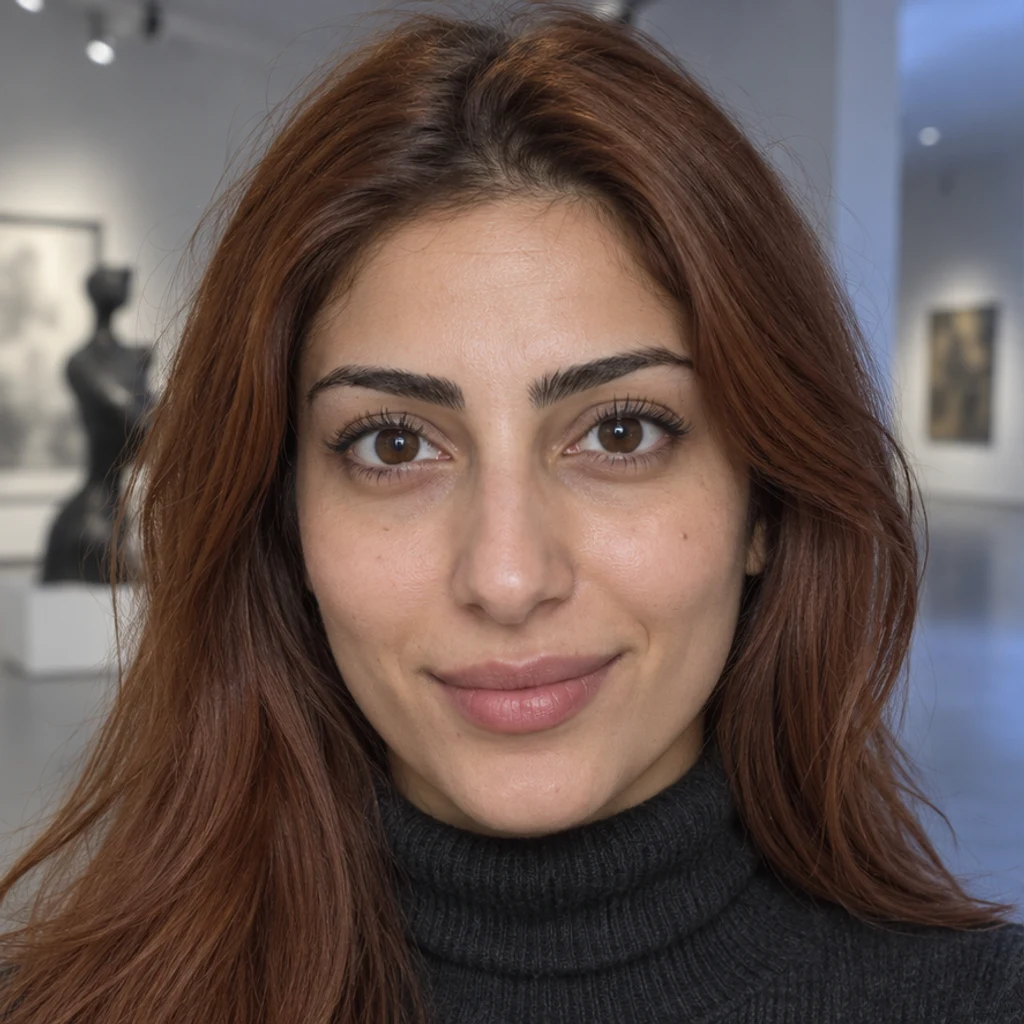
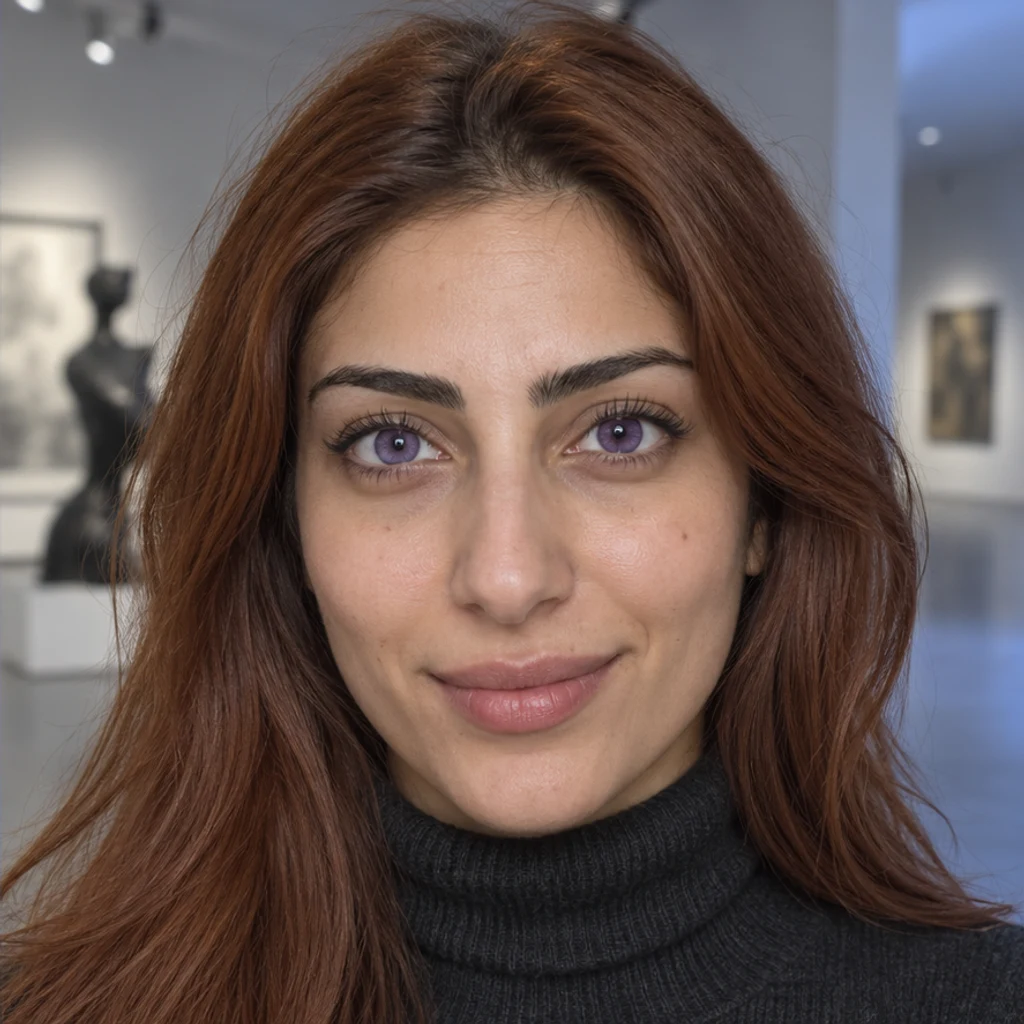
A creative violet shade keeps normal pupils and eye whites.
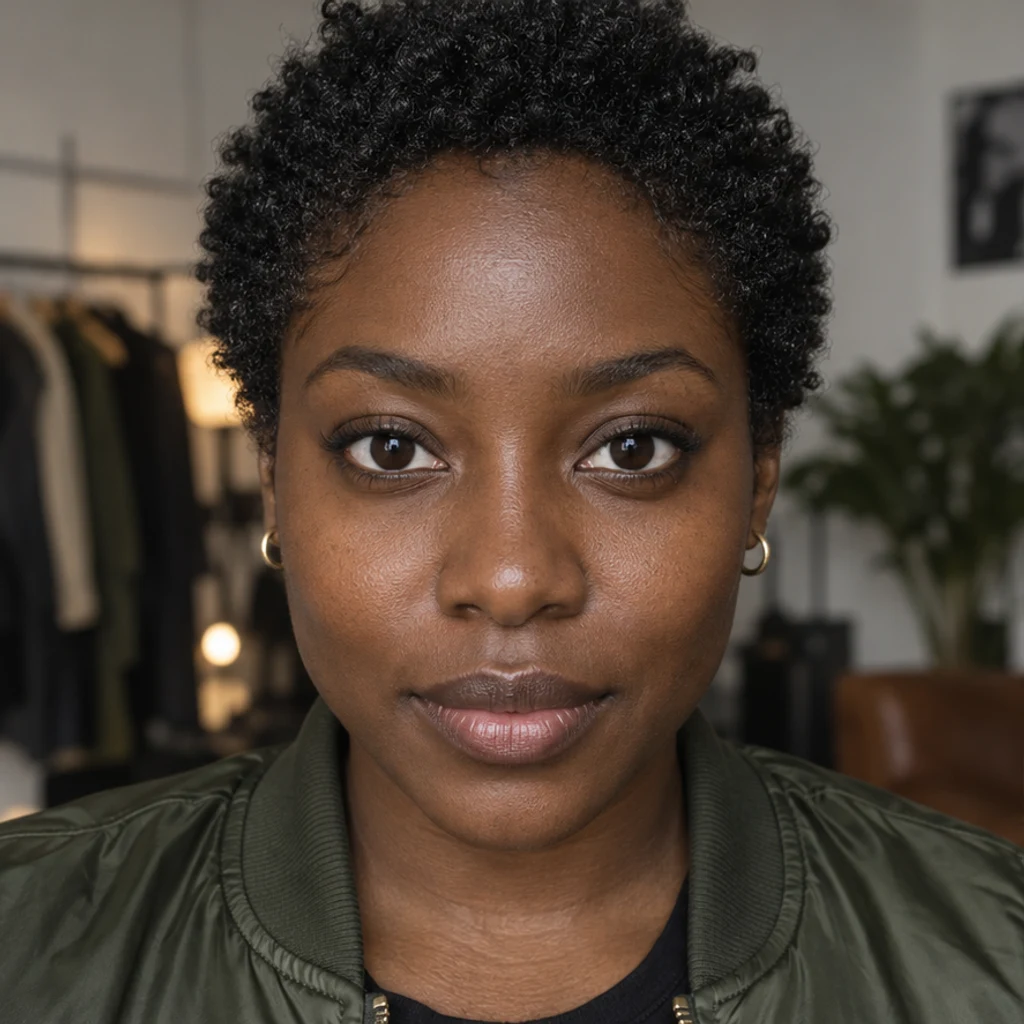
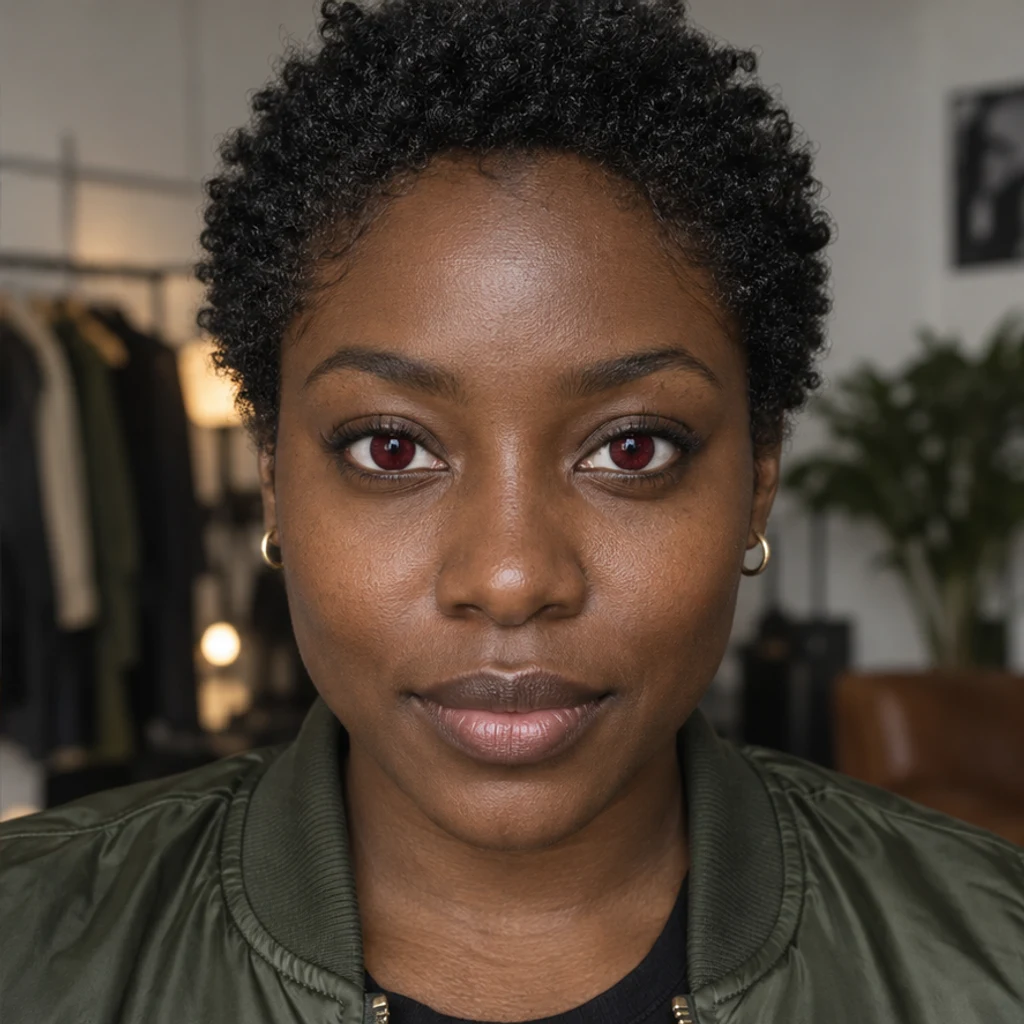
Deep red creates a costume color idea without changing the outfit.
Compare the full-size result with your original. The iris hue should explain the change, while the rest of the portrait remains consistent.
No. Upload a color reference or describe the target in Edit instructions. The Person photo and at least one active template, reference or nonblank instruction are required.
No. Choose one source. Its image guides iris color; your Person photo supplies eye shape, pupils, gaze, iris detail and the rest of the portrait.
You can request blue, green, gray or another color. Use clear eyes and compare the result: the original light, iris texture and shadows should still make sense.
Specify the person’s left or right iris and the target color in Edit instructions. Review both eyes after generation; precise placement can vary.
The edit is instructed to preserve eye anatomy, pupils, gaze and the rest of the photo. Generative editing can still alter details, so inspect the original and result together.
Generation requires an account and the credits shown before Generate. Selecting a template or loading an example spends no credits. See pricing for current plans.
Explore a color change or refine a portrait.
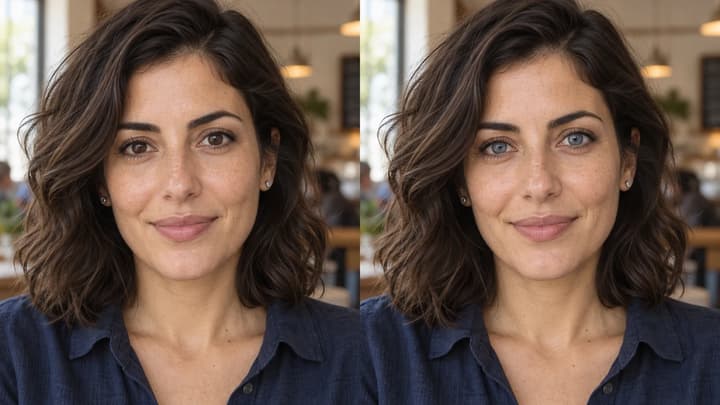
Change eye color in a photo with AI. Choose a color template, upload an iris-color reference or describe your shade, then compare and download the result.
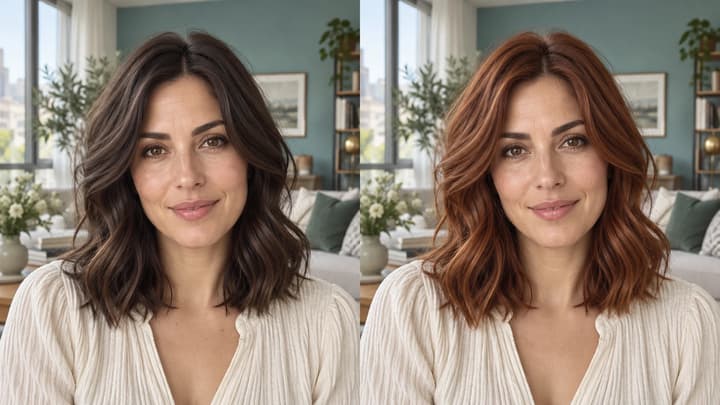
Change hair color in a photo with AI. Use a color template, upload a reference or describe your color in words, then compare and download the result.
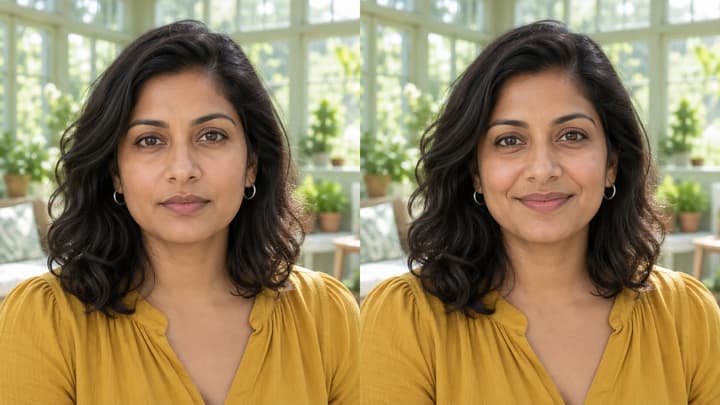
Edit facial expressions with AI. Choose a smile, reaction template or your own expression reference, then generate and review your portrait or character image.
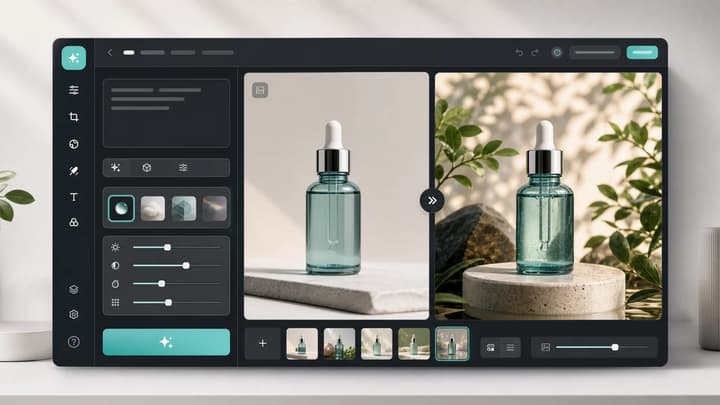
Upload an image, describe the edit, and create polished visuals for products, social posts, posters, or keyframes.
Review credits and plans before generating.
Change eye color in a photo with AI. Choose a color template, upload an iris-color reference or describe your shade, then compare and download the result.