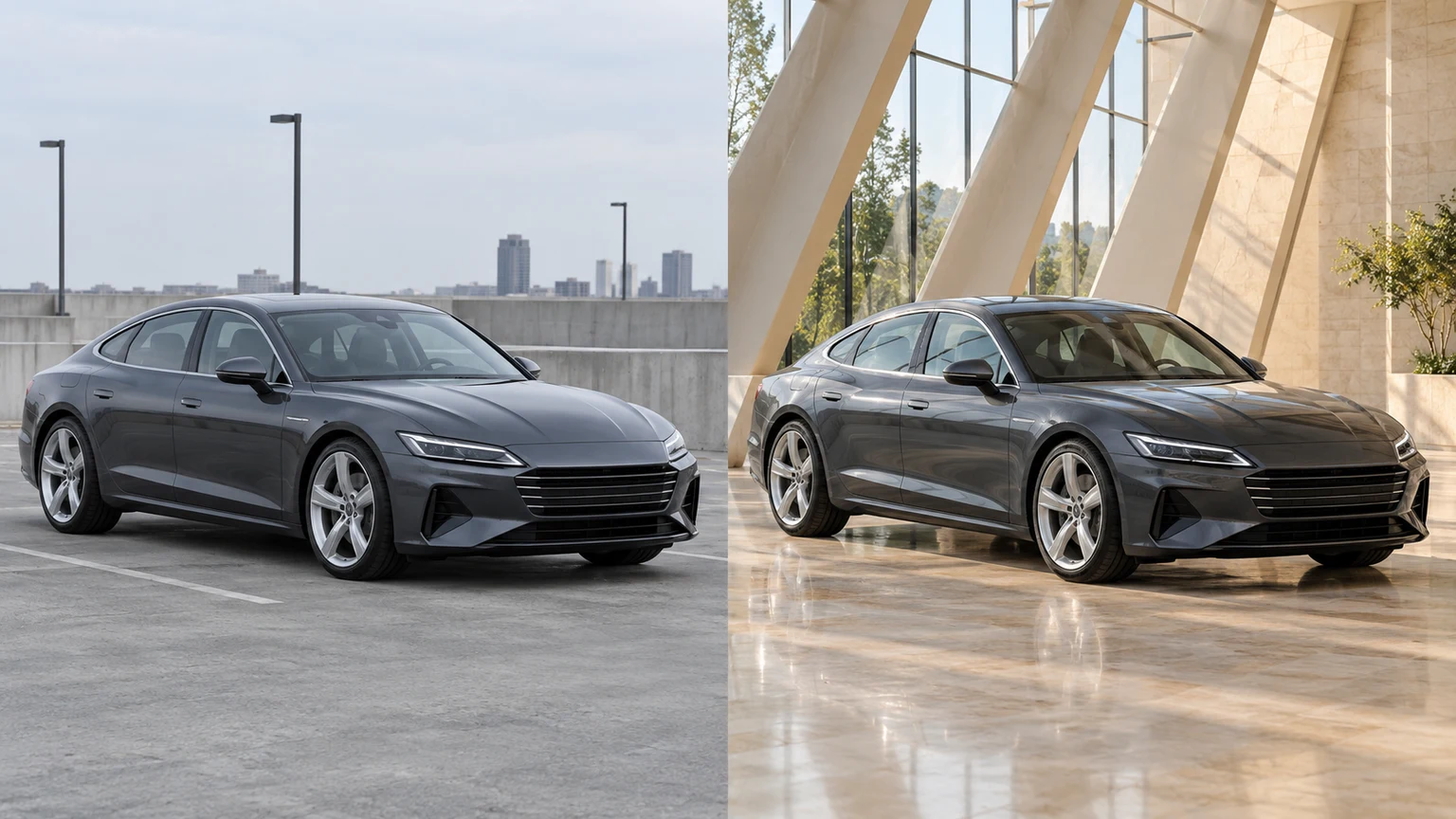
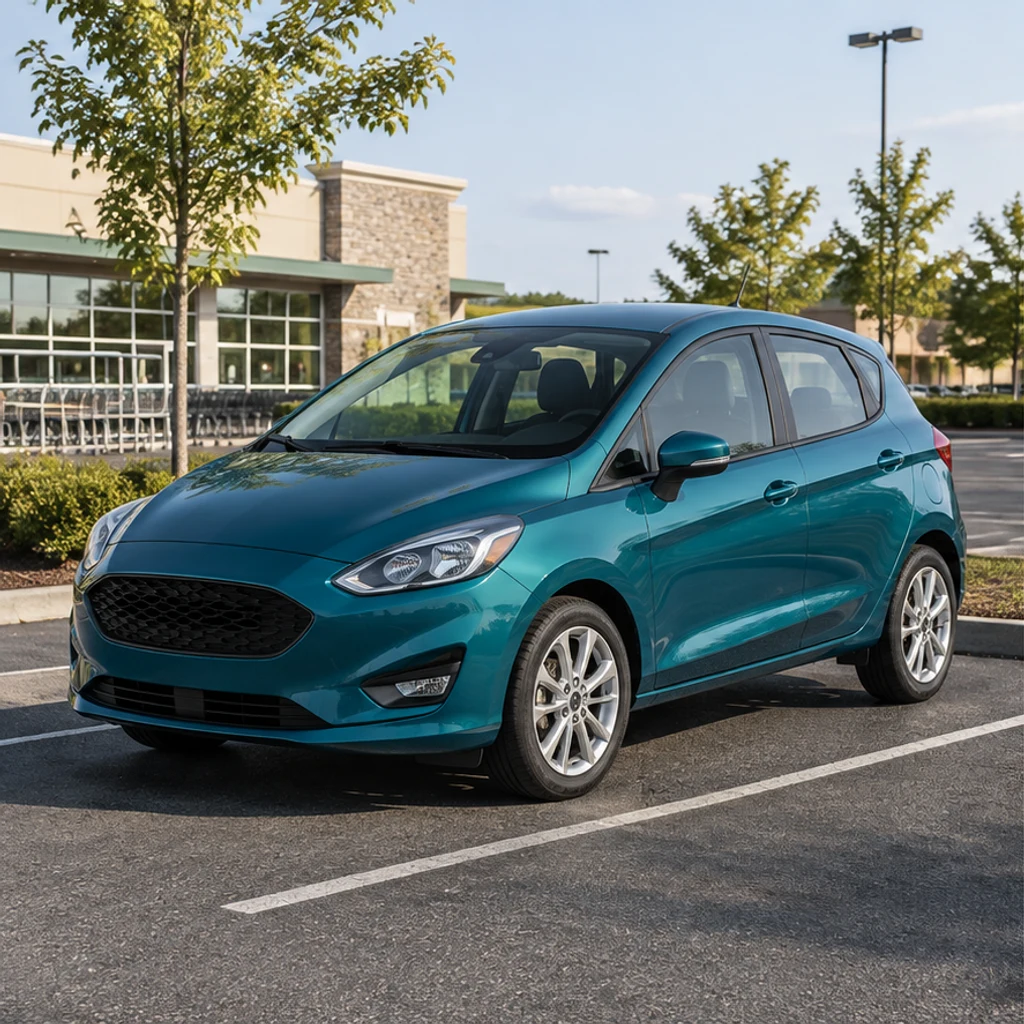
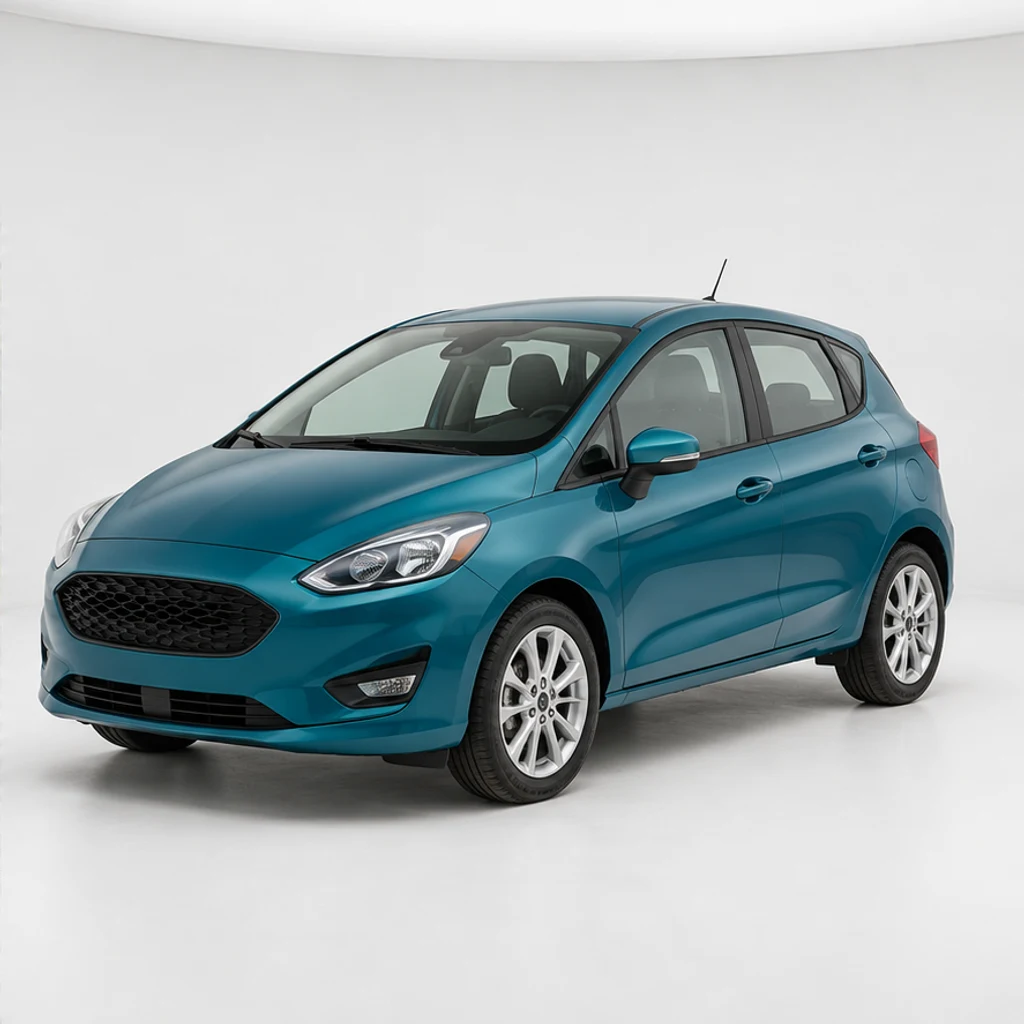
Teal hatchback · clean studio
Try these settingsA compact hatchback moves into a white studio. Check the split-spoke rims and the front bumper against the original.
An AI car photo editor creates a new presentation from your existing vehicle photo. Request a cleaner background or more balanced light while keeping the car recognizable. Use a template or your own background image; leave the background empty to work on the original scene.
LumiYingUpdated
Edit car photos with AI. Choose a background template or reference, refine lighting, then review your car’s details and download.
Use a sharp photograph with one fully visible car. Front three-quarter or side views make wheels, lights and body lines easier to inspect. Upload JPEG, PNG or WebP, up to 30 MB.
Choose one of 8 background cards or upload an environment reference with a compatible ground plane. A selected card can be removed. Leave Background empty to retain the scene and adjust lighting.
Check the displayed credits, then click Generate. Each submission creates one static image. Choosing or removing templates does not start generation.
Check paint color, wheel design, headlights, windows and contact shadows. Keep the source photo. For sales listings, retain evidence of the actual vehicle condition and clearly identify generated presentation images.
A template and an uploaded background share one preview. Uploading replaces the active template; selecting a card switches back to that template. Clear the preview to retain the original background.
These AI-created illustrations demonstrate scene ideas, not verified outputs of this tool. Load an original illustration and its settings to try your own generation.
A compact hatchback moves into a white studio. Check the split-spoke rims and the front bumper against the original.
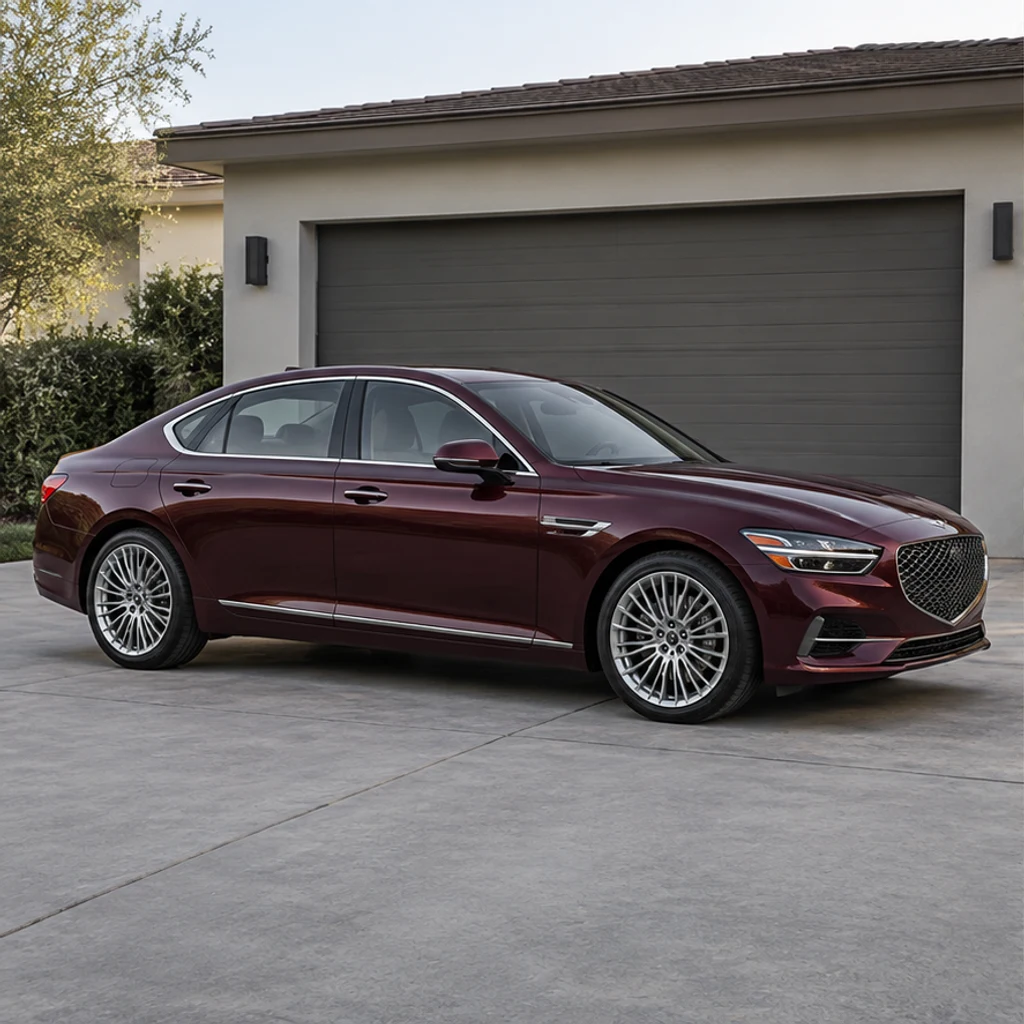
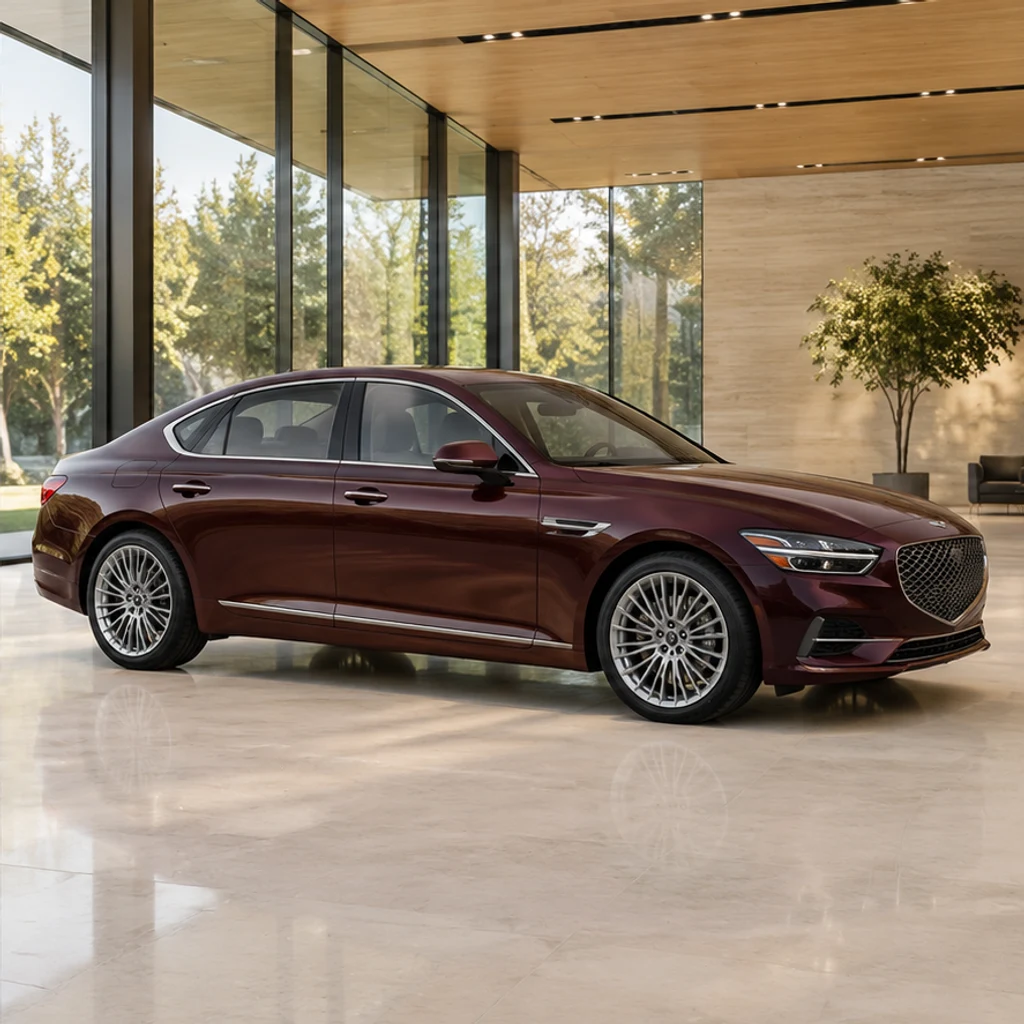
A side view gains a warm glass showroom. Check the window line, wheelbase and burgundy paint.
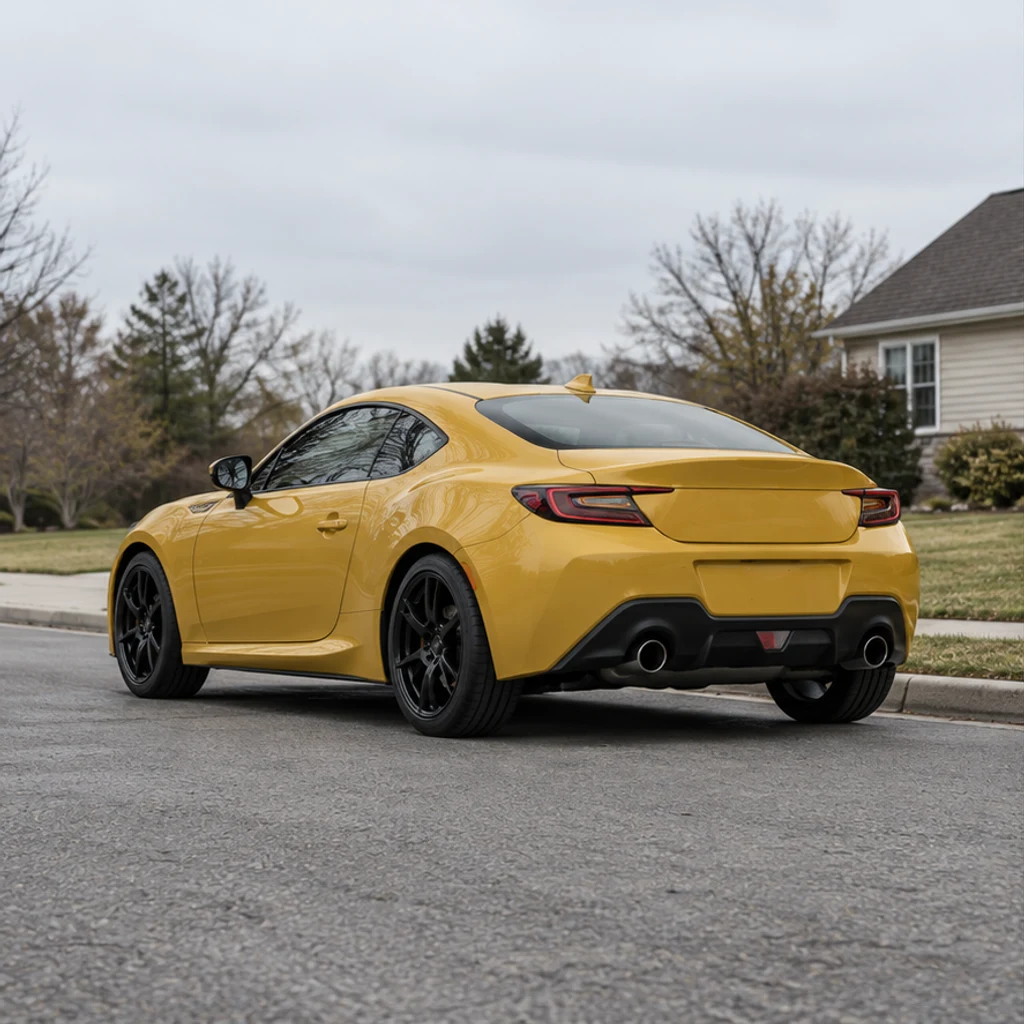
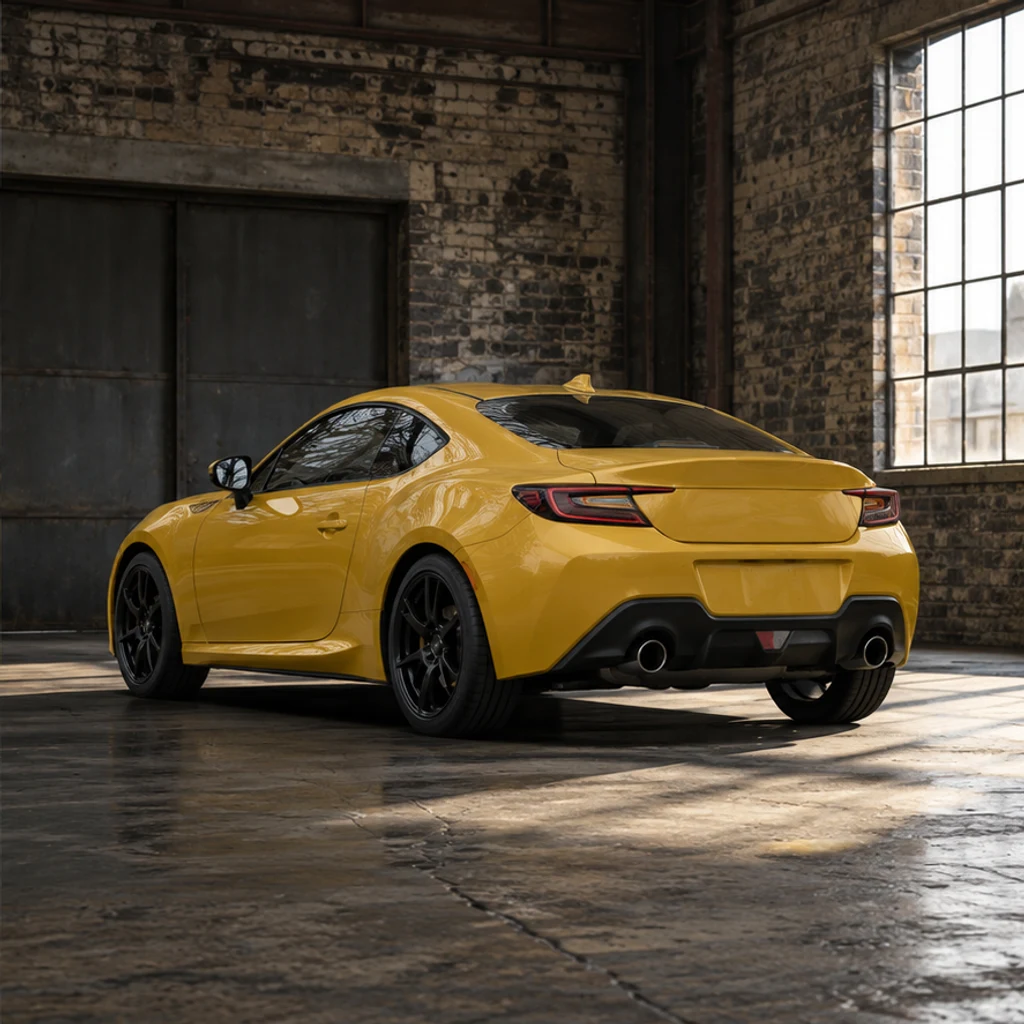
A rear three-quarter coupe gains a brick garage setting. Review rear lights, black rims and concrete contact shadows.
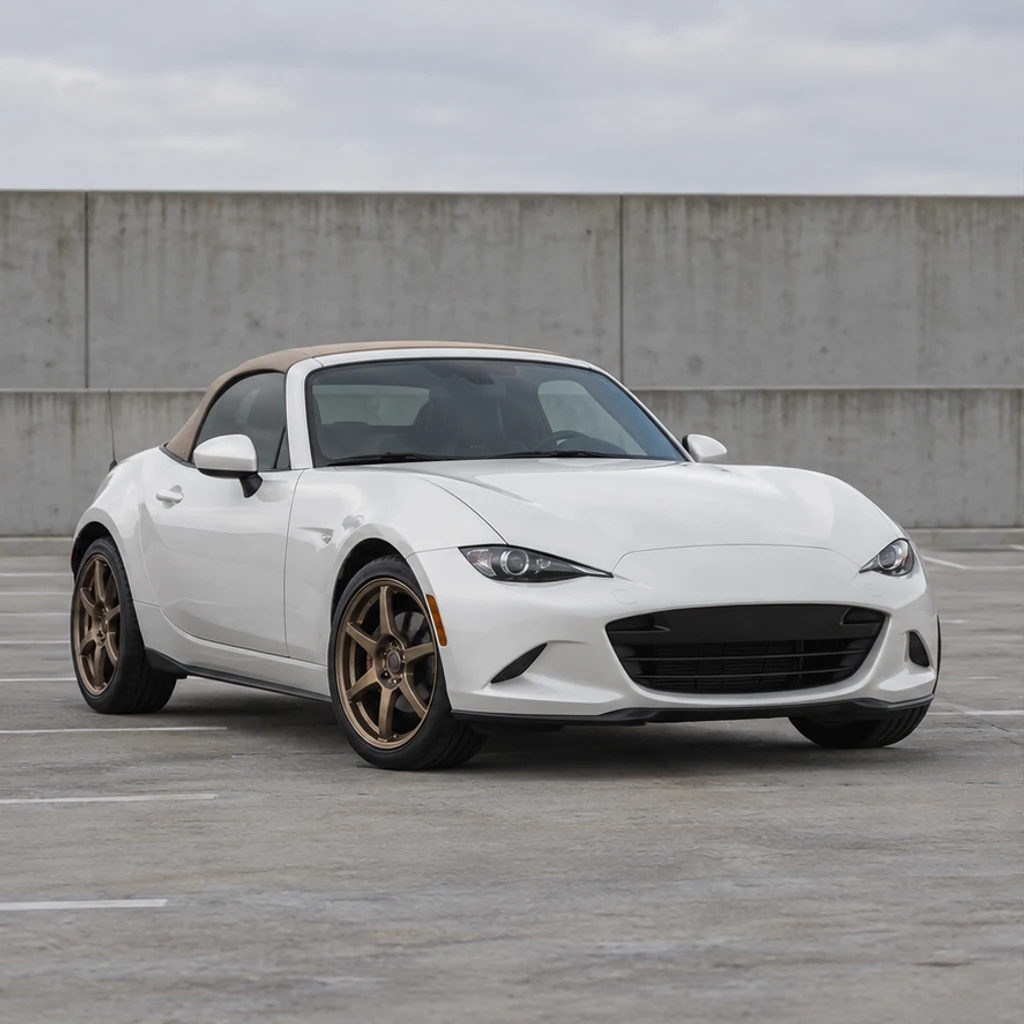

A low front view moves to an ocean viewpoint. Check the roofline, bronze wheels and unchanged body shape.
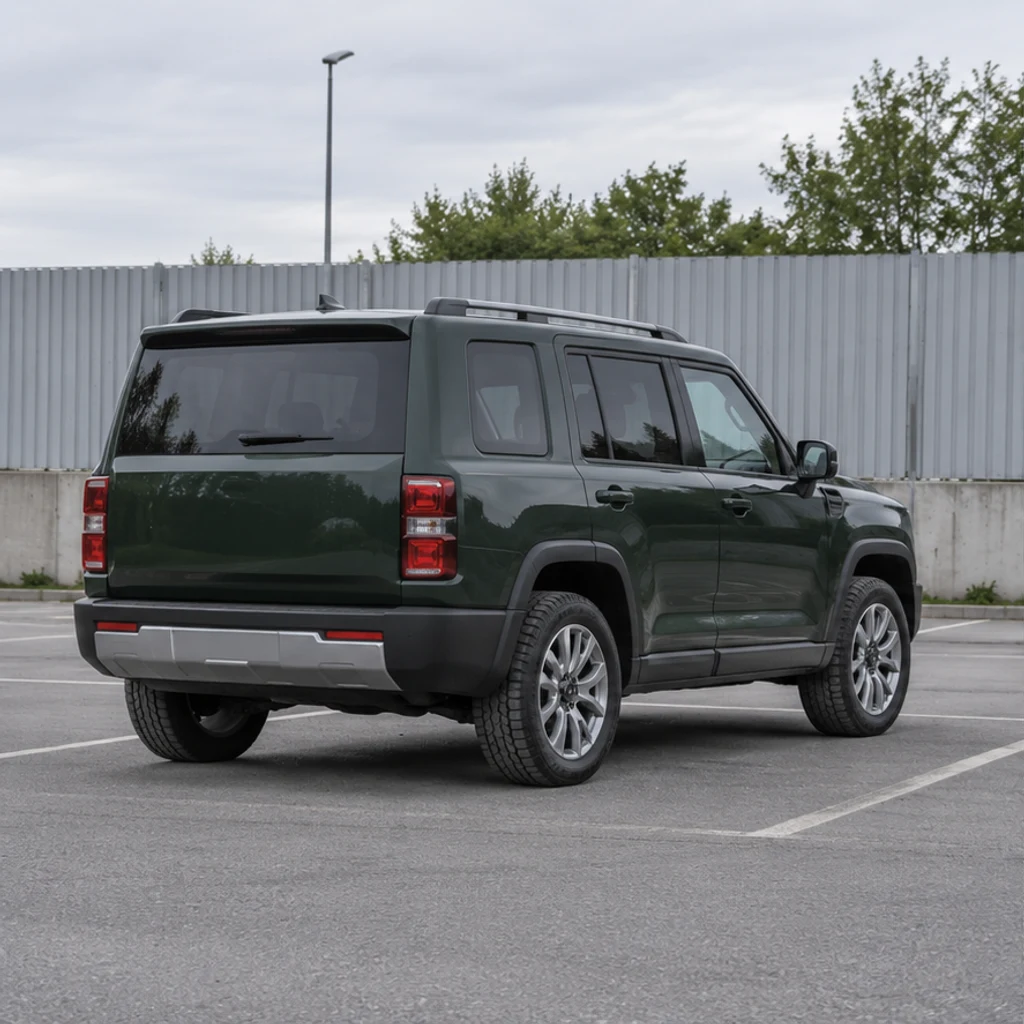
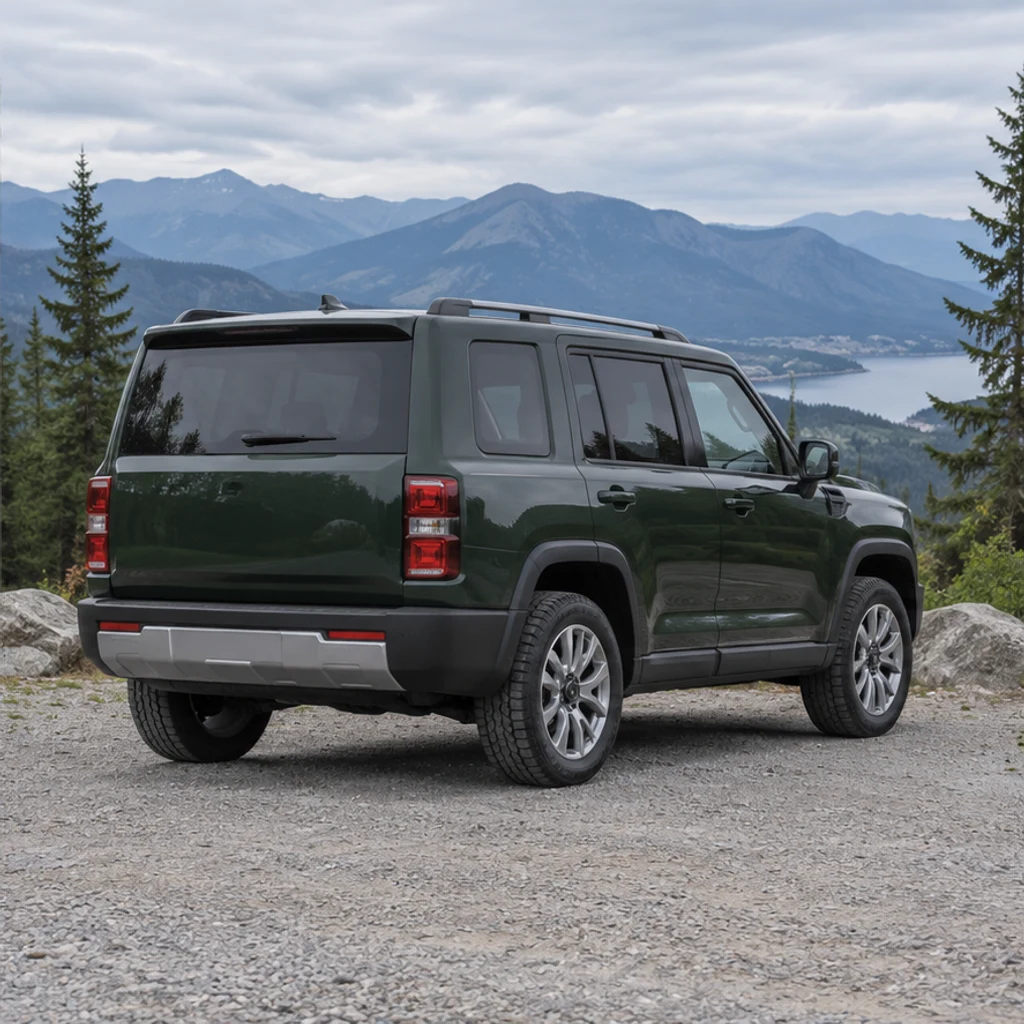
A boxy SUV gains a mountain backdrop. Keep the roofline, rear lights and wheel pattern recognizable.
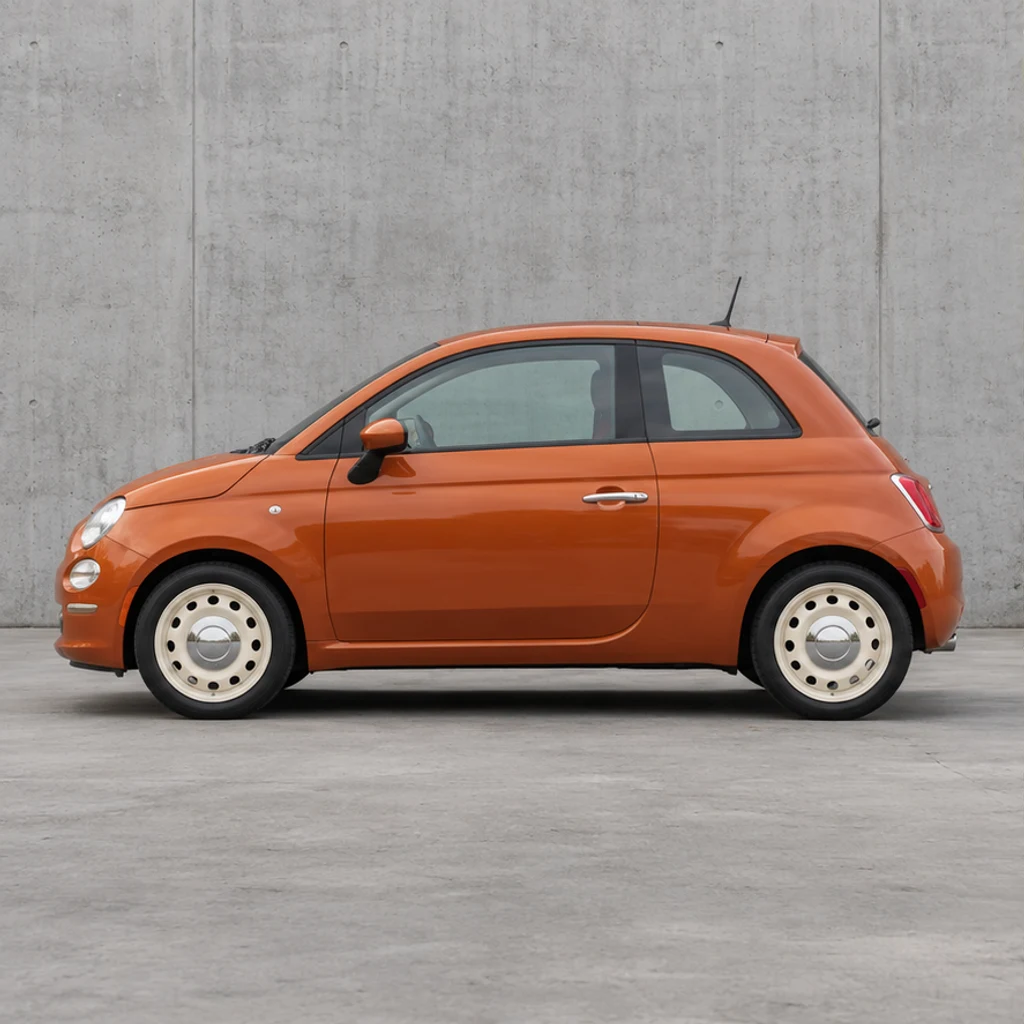
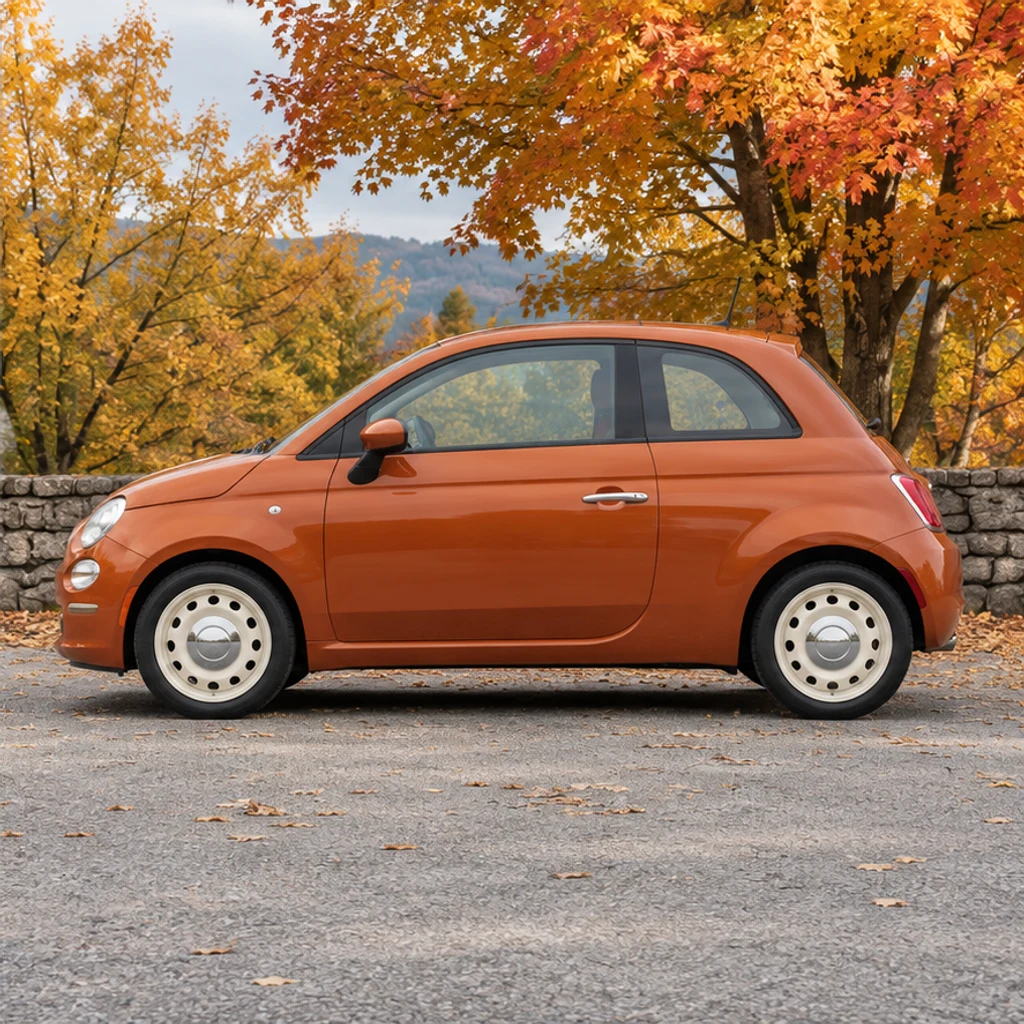
A side profile moves beside amber trees. Check the small-car proportions and cream steel wheels.
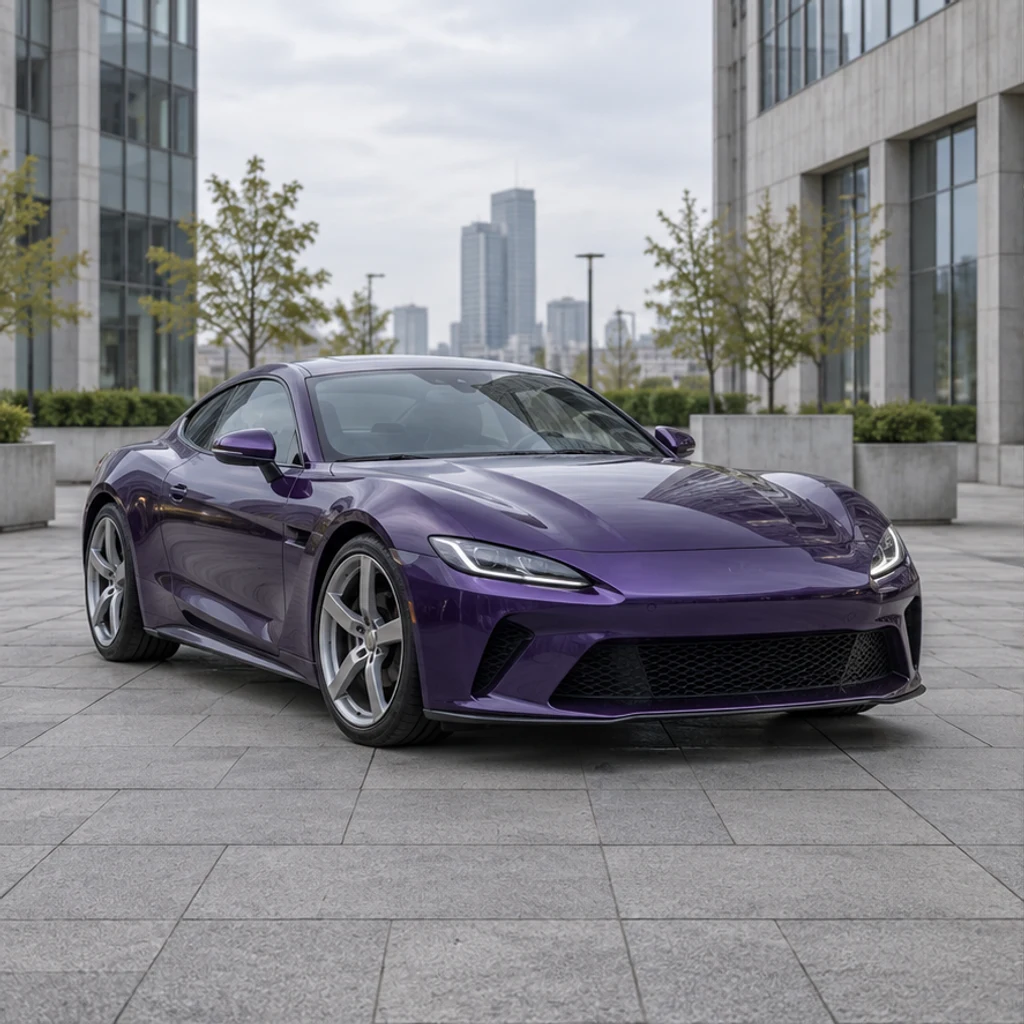
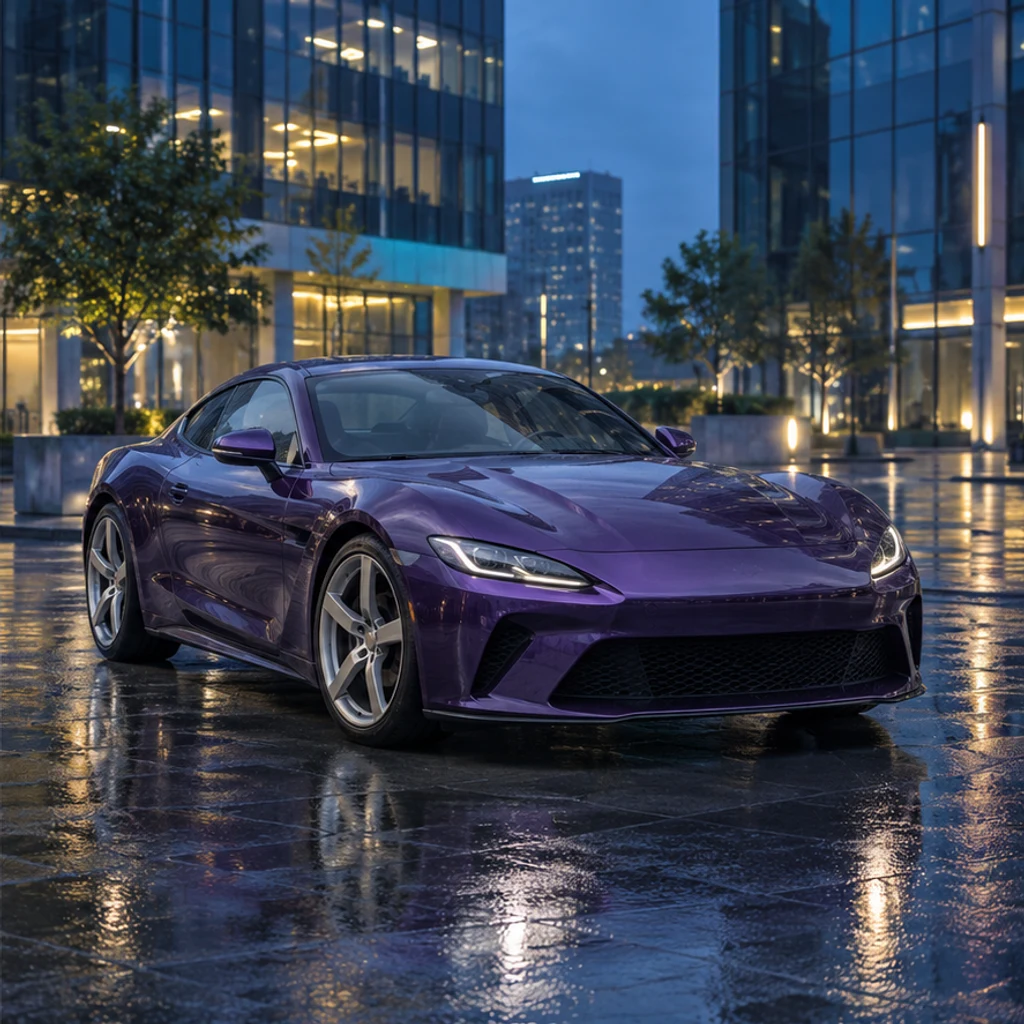
A stationary coupe gains a city scene after rain. Review reflections without accepting a changed paint color.
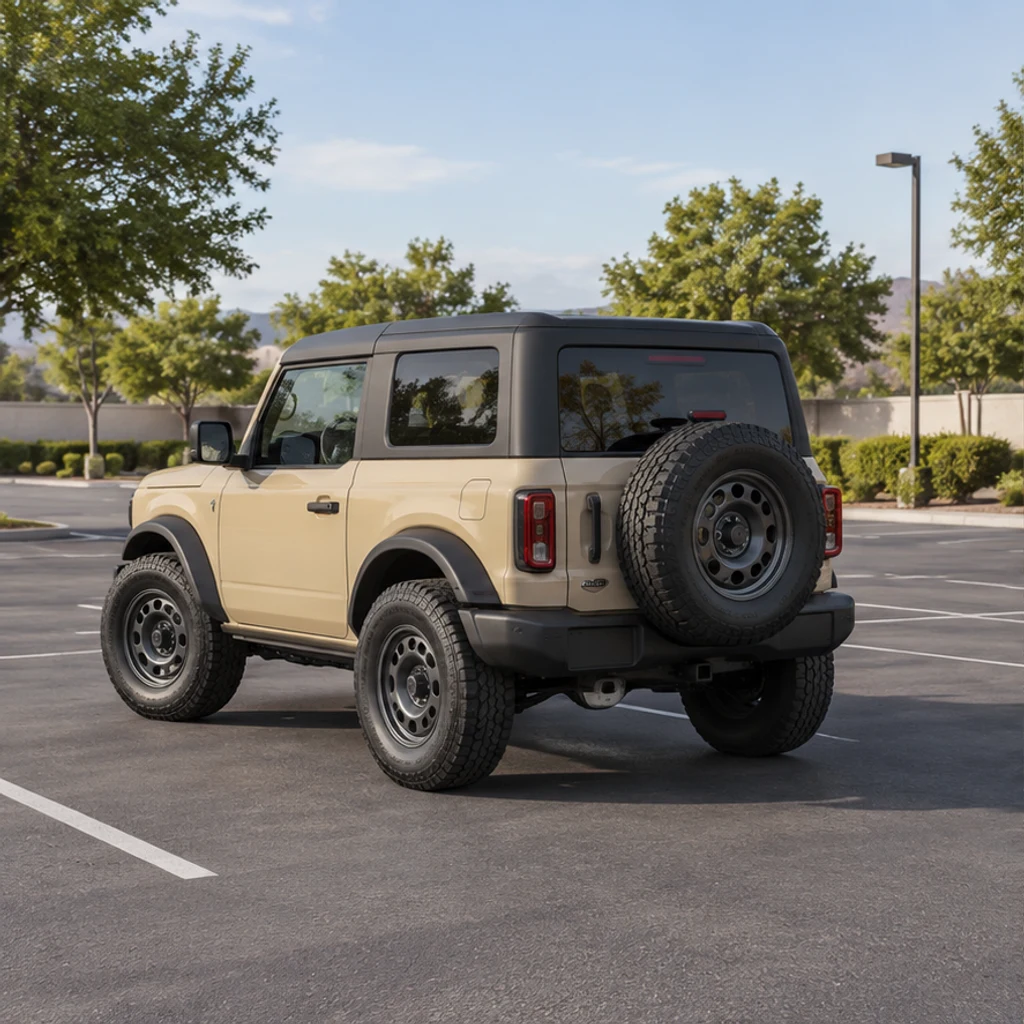
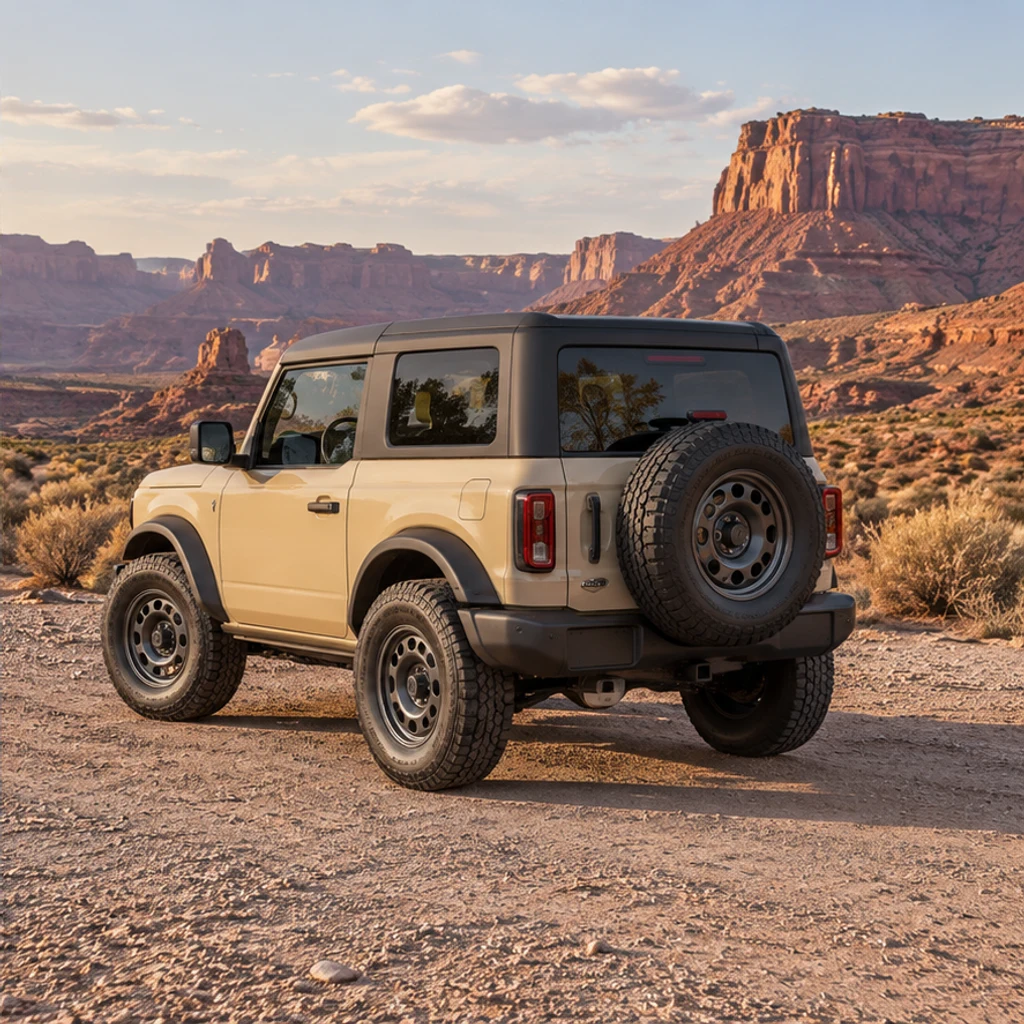
An off-road vehicle moves onto firm desert gravel. Check its black roof, steel wheels and tire contact.
Compare the full-size result with your original. Keep the original photograph and reject edits that change the vehicle or its visible condition.
Use a clear photo of one car with the whole vehicle visible. Similar camera angles between the car and background make perspective easier to match. Cropped or obscured details may be invented.
Yes. Leave Background empty or remove the selected template or upload. The tool then requests lighting and exposure adjustments in the existing scene.
No. The active template or upload is the single background image reference. Uploading switches to your reference; choosing a card switches to that template. Extra notes add text direction.
The editing instruction asks to preserve the vehicle, but generative editing can alter fine details. Inspect the paint, wheels, grille, lights and condition before using the image.
Check the credits shown before Generate and the current pricing plans. Browsing templates and trying example settings cost nothing; a submitted generation uses the displayed credits.
This tool creates a static background or lighting edit. It does not provide an interactive 360 view, engineering modification preview, batch inventory processing or a guaranteed transparent cutout.
Edit car photos with AI. Choose a background template or reference, refine lighting, then review your car’s details and download.
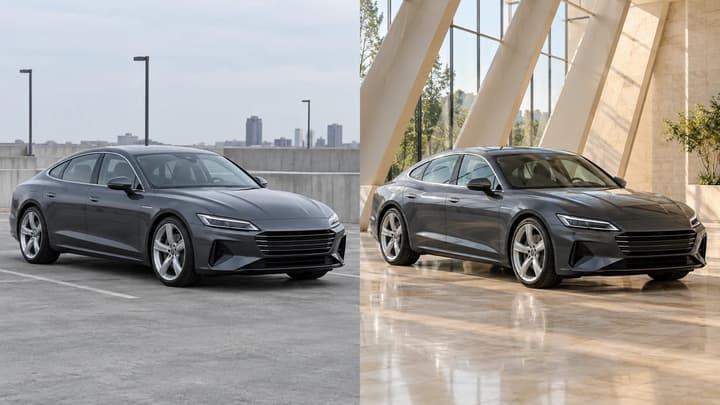
Edit car photos with AI. Choose a background template or reference, refine lighting, then review your car’s details and download.

Change the direction and mood of light in a photo while keeping the subject, composition, text, and product details under review.
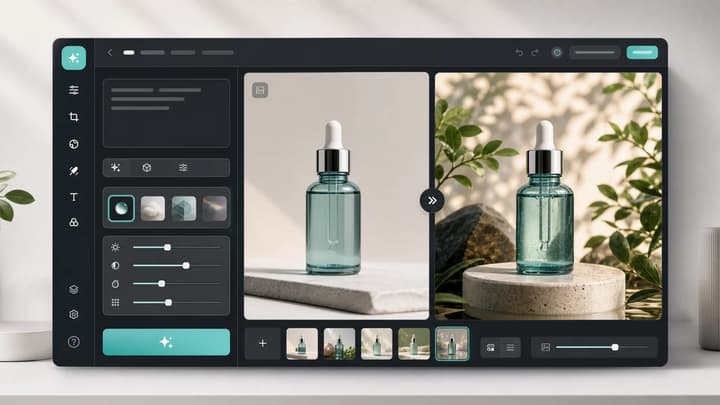
Upload an image, describe the edit, and create polished visuals for products, social posts, posters, or keyframes.
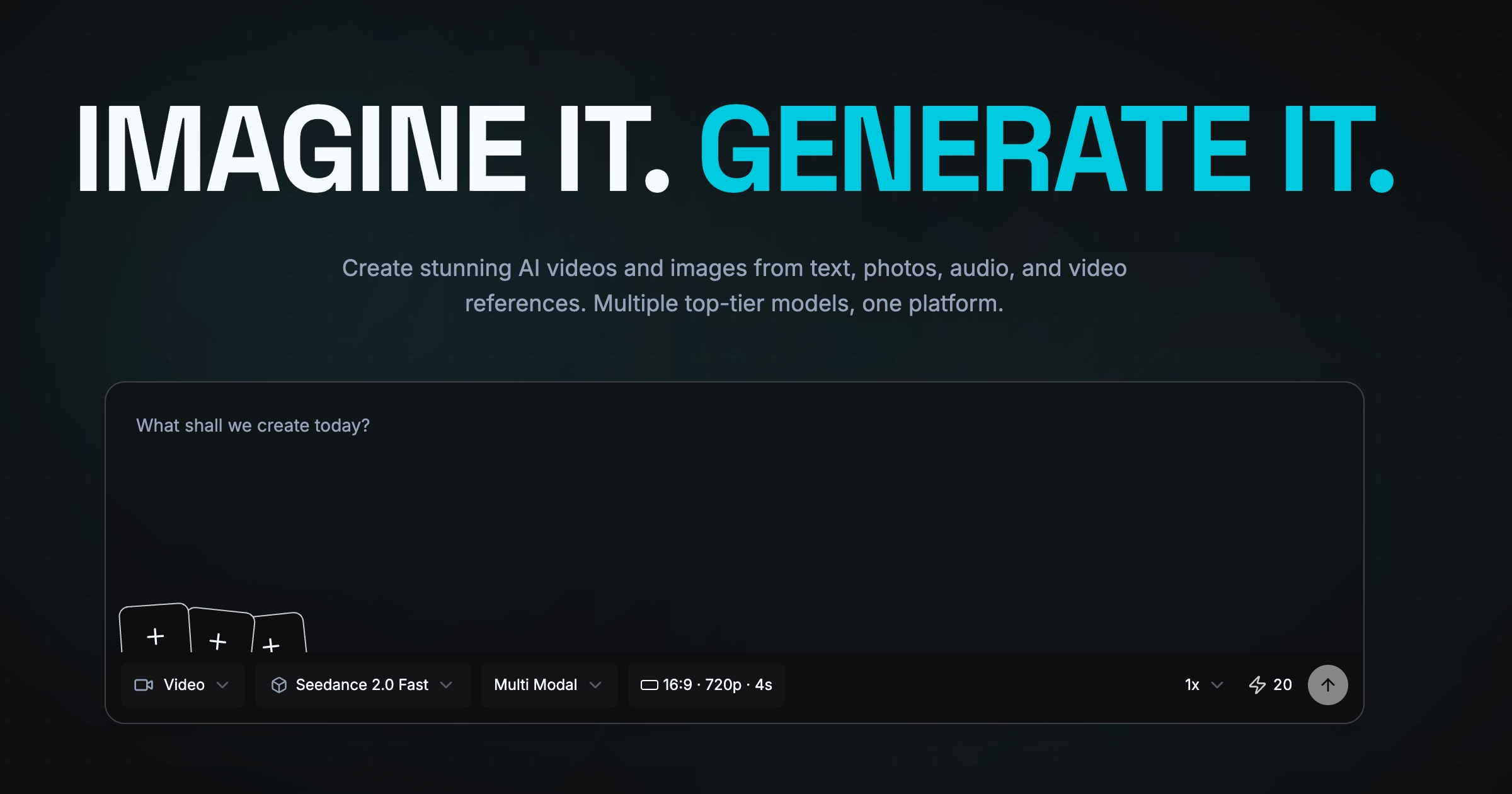
Review credits and plans before generating.
Edit car photos with AI. Choose a background template or reference, refine lighting, then review your car’s details and download.