
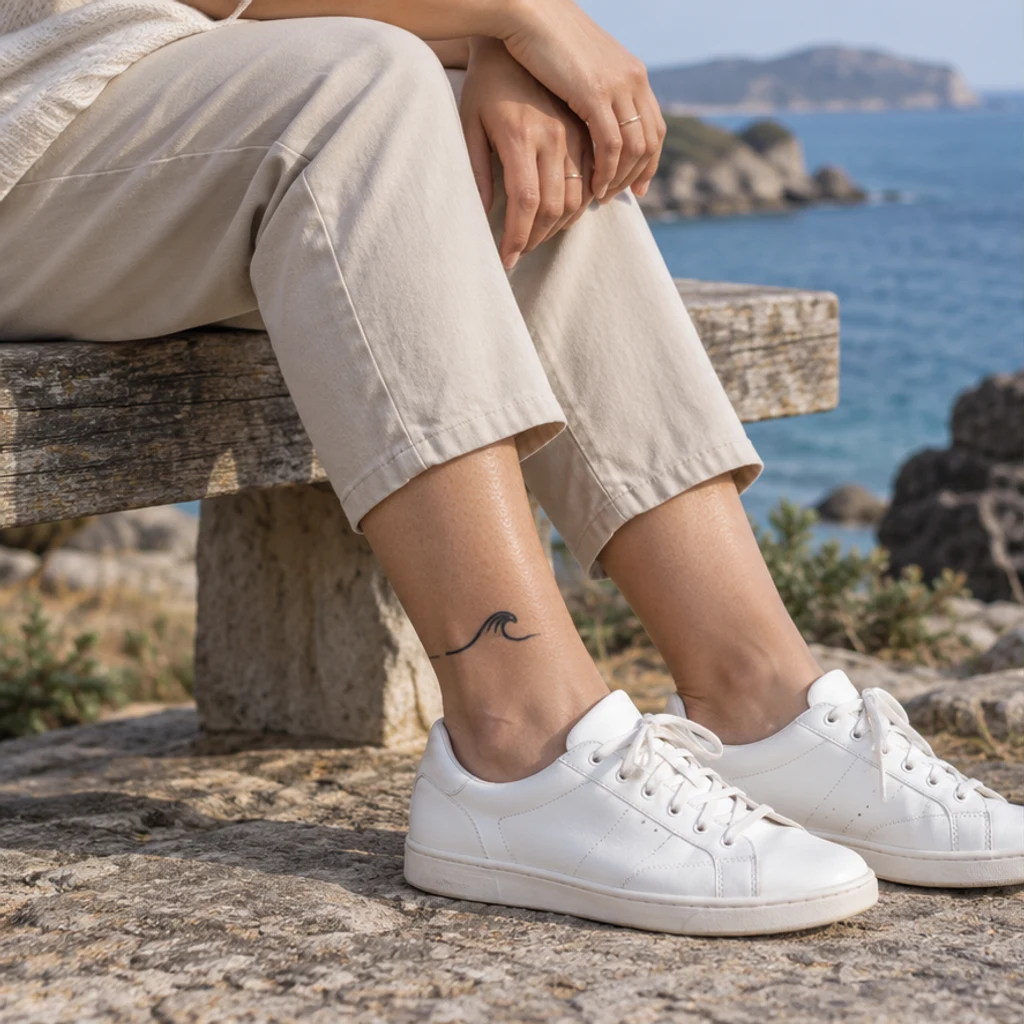
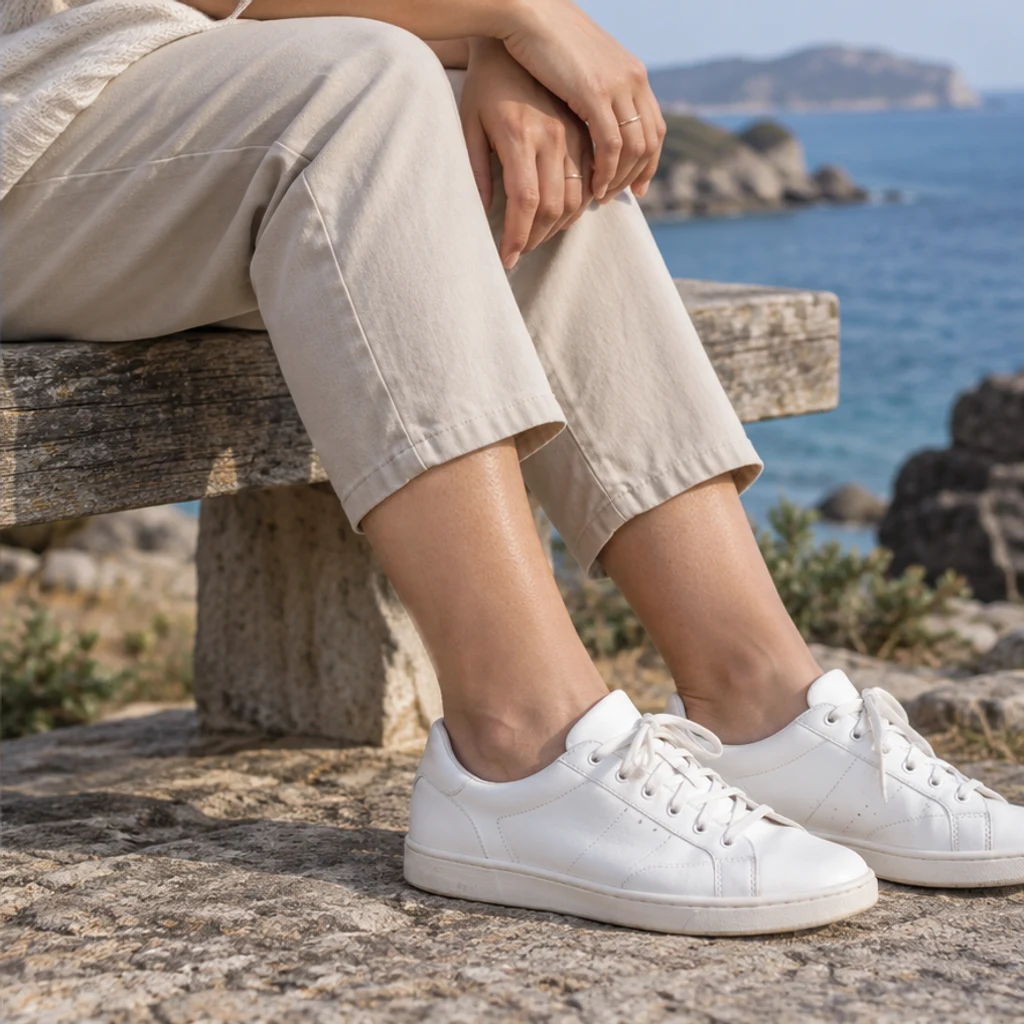
Coastal ankle · small wave
Try this photoRemove the wave tattoo while retaining the ankle, trouser hem and shoes.
Learn how to remove a tattoo from a photo, specify one area and check skin texture, body contours and the tattoos you want to keep. The inked area is reconstructed from context. It cannot reveal the exact skin beneath a tattoo or predict a real removal treatment; generative editing may also shift details.
LumiYingUpdated
Learn how to remove a tattoo from a photo, specify one area and check skin texture, body contours and the tattoos you want to keep.
Use one JPEG, PNG or WebP up to 30 MB. Keep the tattoo and nearby skin visible; avoid a tiny, blurred or heavily filtered source.
Leave Edit instructions blank to remove the main person's visible body tattoos. To narrow the edit, name the person, body part and any tattoos to keep. No second image is needed.
Review the displayed credits and generate one image. Compare the edited skin and the rest of the photo with the original before downloading. Examples only fill the form.
The inked area is reconstructed from context. It cannot reveal the exact skin beneath a tattoo or predict a real removal treatment; generative editing may also shift details. Look for matching pores, body hair and gradual color transitions rather than a flat pale patch. Compare the hand, wrist, arm or shoulder shape and keep the original lighting direction. Check sleeve edges, jewelry, hair and visible natural marks outside the inked area. Check every non-target tattoo and other person for unintended removal or changes.
Keep the task focused on visible tattoos. Name what to remove and what to preserve.
Explore tattoo removal with these AI-generated illustrations. Choose an example to load its original photo and editing instructions.
Remove the wave tattoo while retaining the ankle, trouser hem and shoes.


Blend the compass area with nearby skin and preserve the hand on the book.
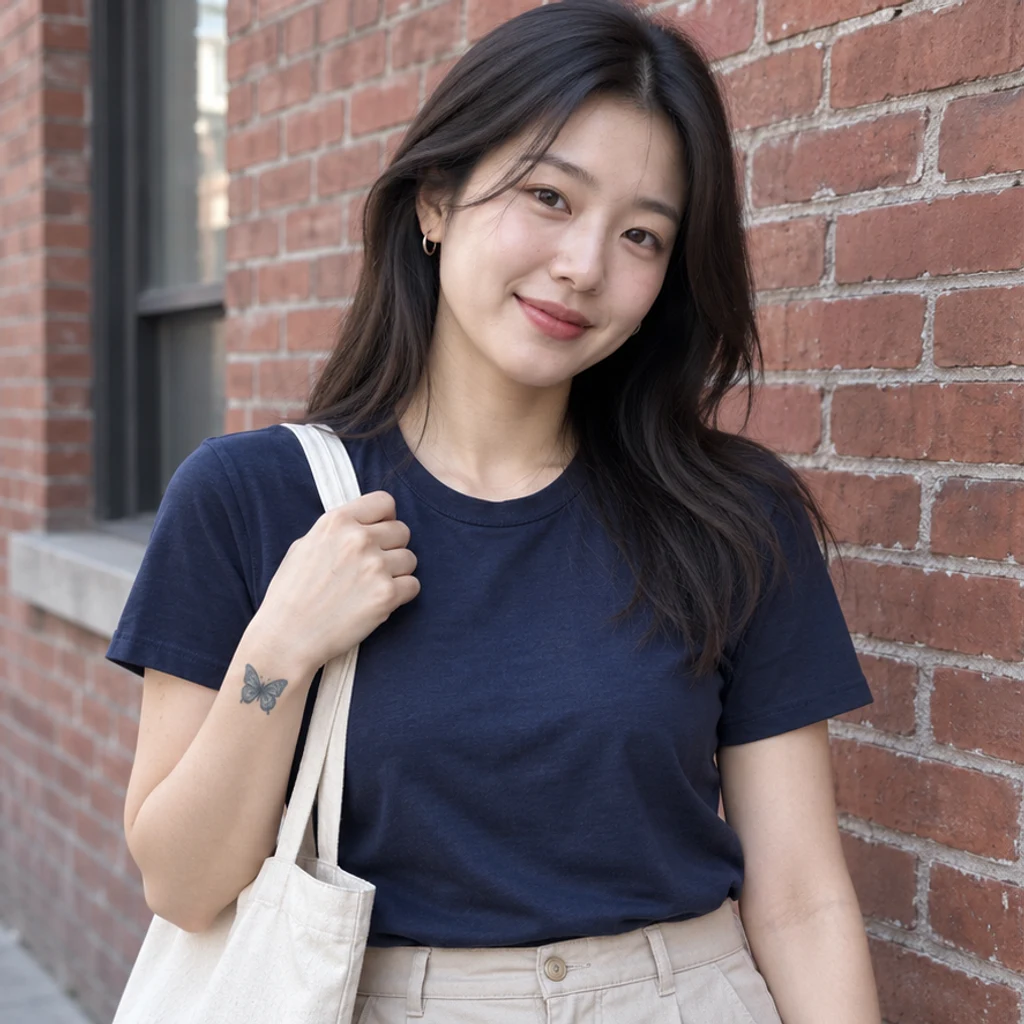
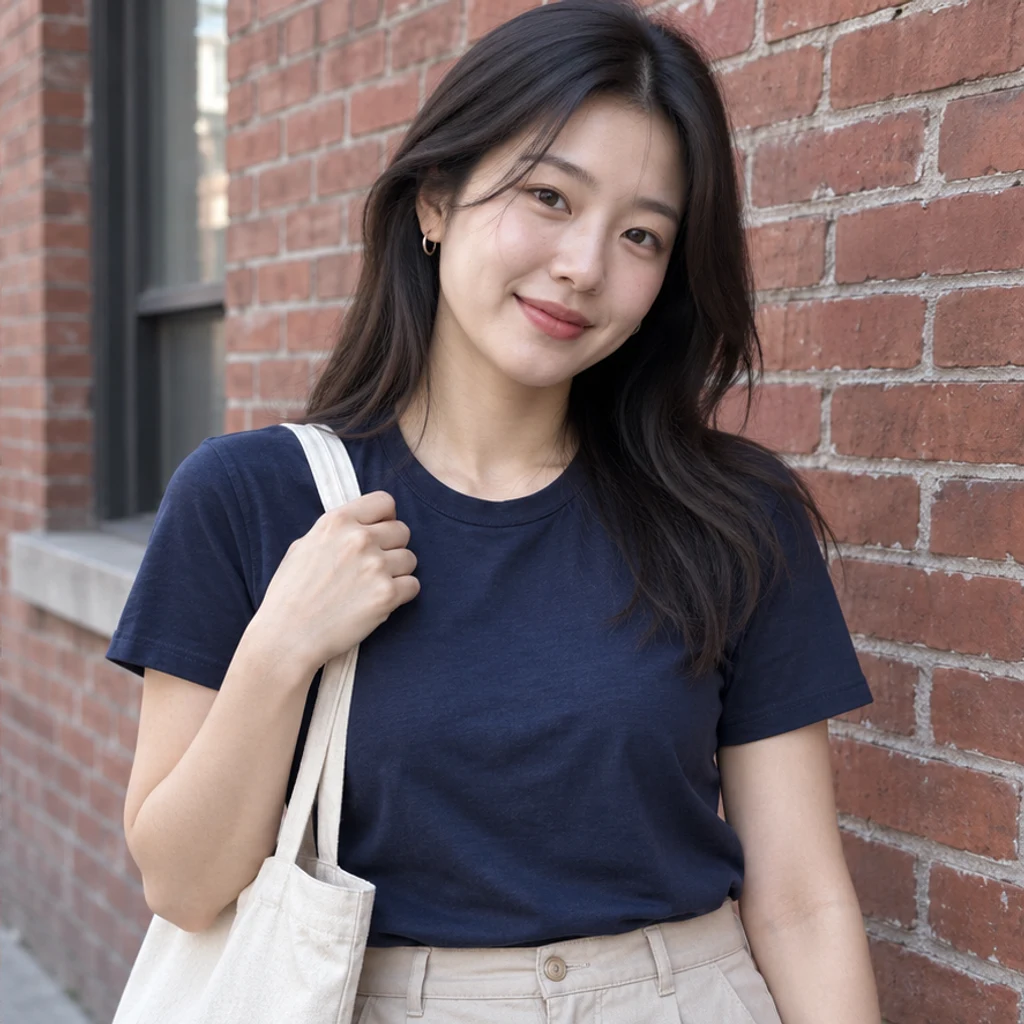
Remove the wrist design while keeping the bag strap, hand and daylight.


Keep knuckles, body hair and wood dust when removing the hand tattoo.


Retain the violet and amber light on the upper arm after removing colored ink.
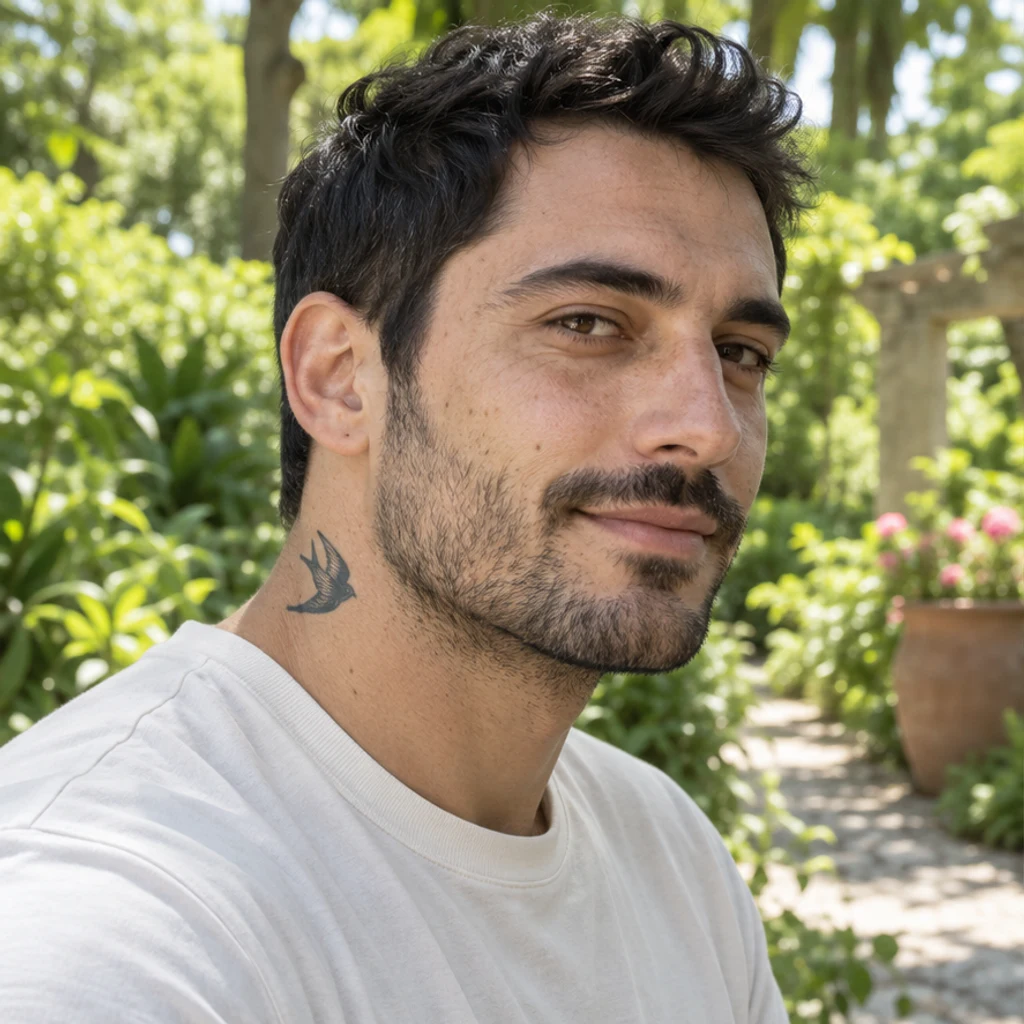
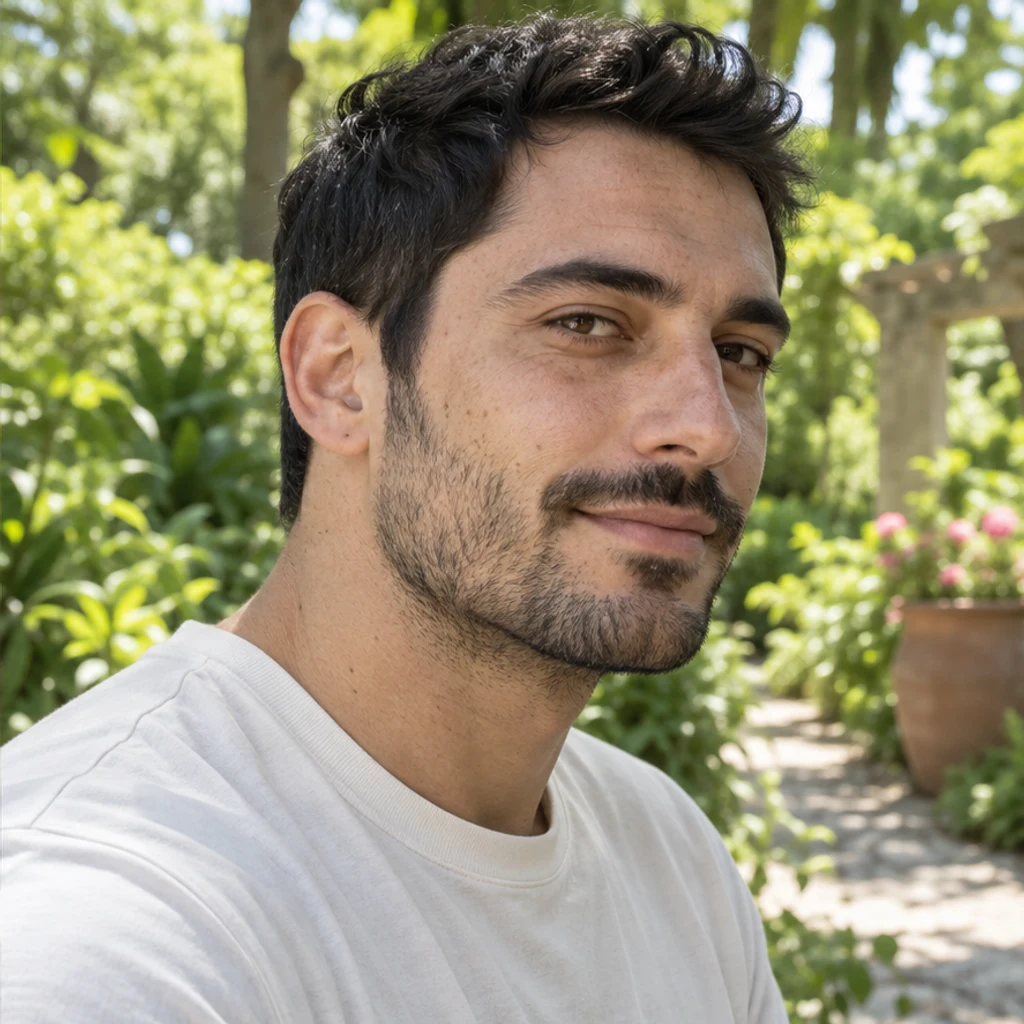
Keep the neck contour, beard stubble and natural freckles.
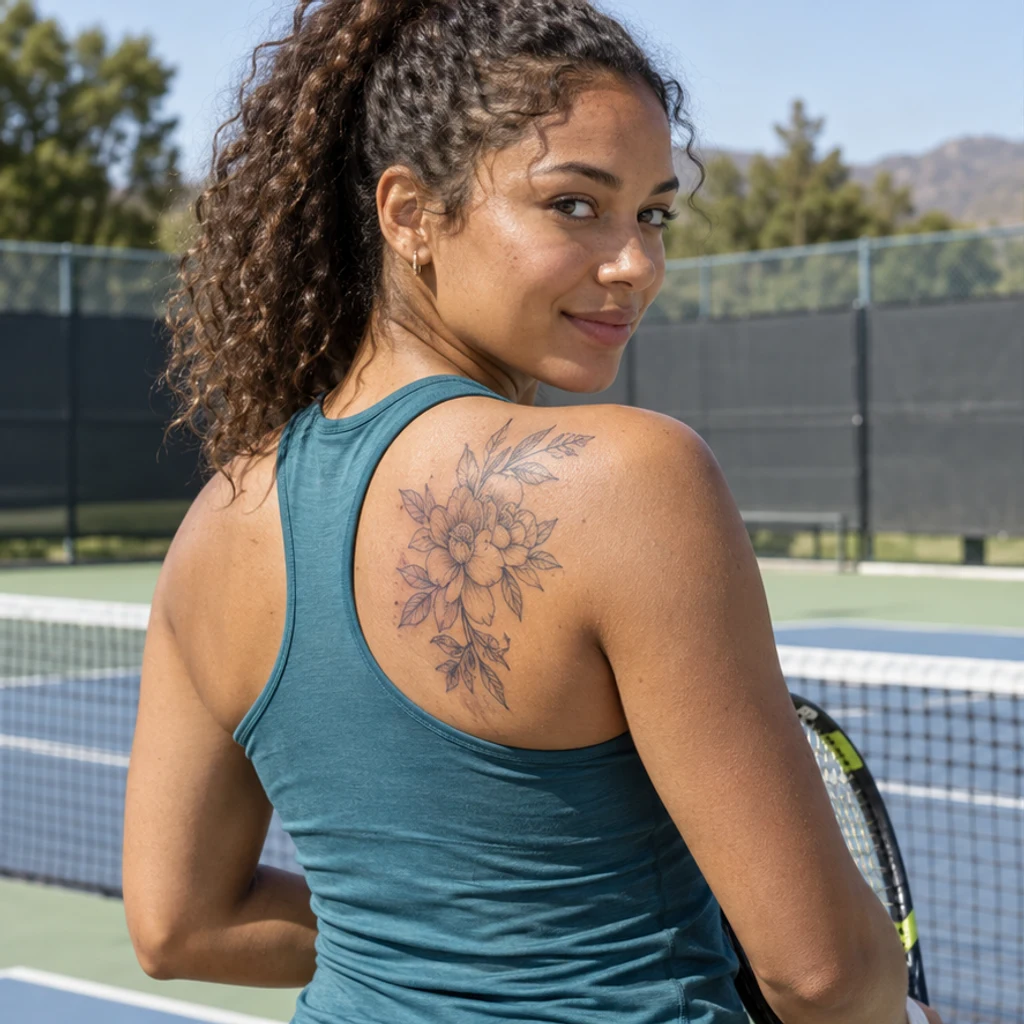
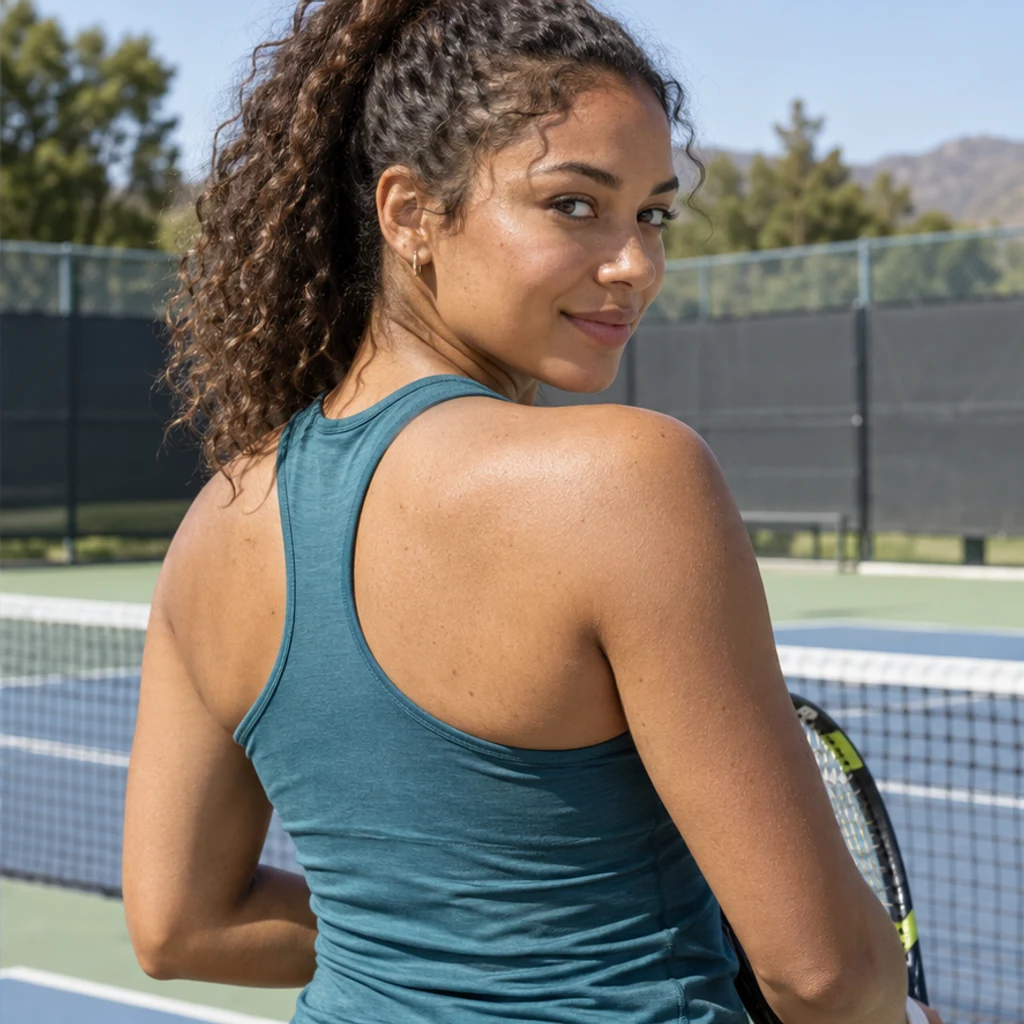
Remove the shoulder design without changing the sports top, posture or shadow.


Remove only the man's forearm mountain; keep his hand star and the woman's wrist flower.
The inked area is reconstructed from context. It cannot reveal the exact skin beneath a tattoo or predict a real removal treatment; generative editing may also shift details.
Upload a clear person photo. Optionally describe a particular tattoo in Edit instructions, generate and compare the skin and surrounding details with the original.
No. One Person image is enough for the default removal. Edit instructions are optional; there are no templates or second-image controls.
Yes. Describe its position and identify the tattoos to keep, for example: remove the forearm mountain and keep the star on the hand. Review every tattoo in the result.
The default targets the most prominent main person. Identify a different person by position or clothing in Edit instructions and check that everyone else stayed unchanged.
The edit is instructed to retain visible skin texture, tone, body hair, anatomy, clothes and lighting. The skin beneath the ink is inferred, and generative results need review for unwanted changes.
No. This is a digital photo edit. It cannot predict treatment outcomes, scarring or the exact appearance of real skin beneath ink.
Choose a clearer original when possible. Hidden or indistinct detail is harder to reconstruct; keep clothing, hair and body boundaries in view and inspect them after editing.
No. An example loads a source photo and instructions without generating. Generation requires a LumiYing account and uses the credits displayed before submission.
Remove tattoos from a photo with AI. Upload a person photo, optionally specify a tattoo or body area, and compare skin texture, lighting and contours.

Remove tattoos from a photo with AI. Upload a person photo, optionally specify a tattoo or body area, and compare skin texture, lighting and contours.
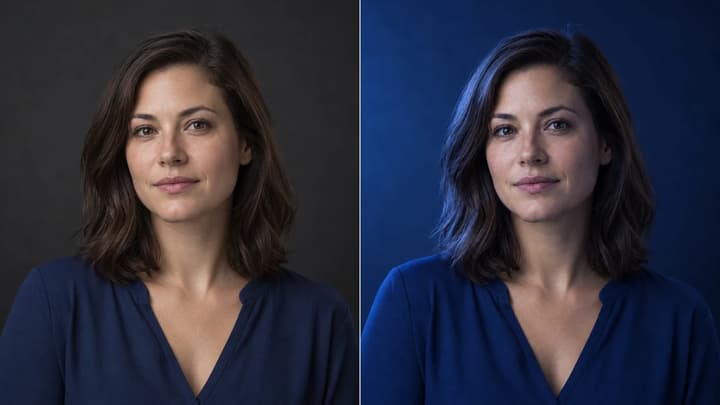
Change the direction and mood of light in a photo while keeping the subject, composition, text, and product details under review.
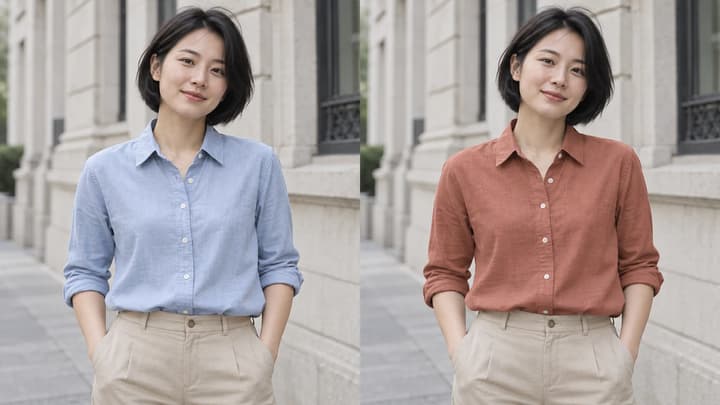
Change clothes color in a photo with AI. Choose a color template, upload a reference or describe a shade for your shirt, dress or other garment.

Upload an image, describe the edit, and create polished visuals for products, social posts, posters, or keyframes.
Review credits and plans before generating.
Remove tattoos from a photo with AI. Upload a person photo, optionally specify a tattoo or body area, and compare skin texture, lighting and contours.